
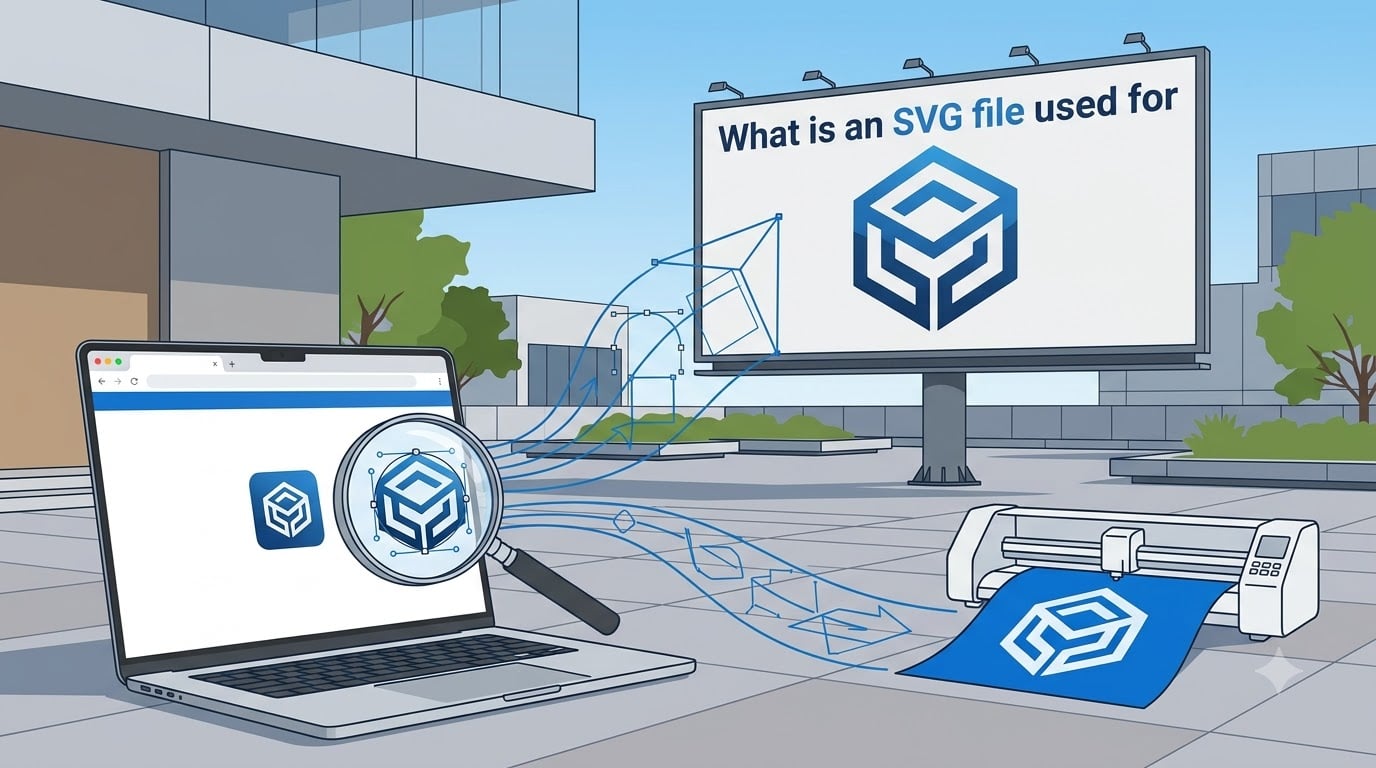
An SVG file is a Scalable Vector Graphic — a text-based image format that uses mathematical formulas to draw shapes, lines, and colors instead of storing pixels. This means an SVG image stays perfectly sharp whether you shrink it to a favicon or blow it up to a billboard.
If you have ever wondered what an SVG file is used for, the short answer is: web logos, icons, user interface elements, data visualizations, animations, and cutting machine projects. Designers, developers, and craft enthusiasts rely on SVG files daily because they are lightweight, infinitely scalable, and editable in any text editor.
In this guide, I will break down exactly what SVG files are, how they work, where they shine, and when you should reach for a different format instead.
Table of Contents
What Is an SVG File?
SVG stands for Scalable Vector Graphics. It is a vector image format based on XML, which means the entire image is written as human-readable code rather than a grid of colored pixels. A browser or design program reads that code and renders the shapes on screen.
Here is what makes SVG different from formats like JPG or PNG: those raster formats store every pixel as a dot of color. Zoom in on a PNG logo and you will see blocky, blurry edges. An SVG file, on the other hand, stores instructions like “draw a circle with radius 50 at position 100, 100.” The rendering engine redraws those shapes at whatever size you need, so the image never loses quality.
The SVG format was developed by the W3C (World Wide Web Consortium) and has been a web standard since 2001. All modern browsers support it natively, and you can open an SVG file in any text editor to see and edit the underlying XML code directly.
Because SVG is code-based, you can style it with CSS, animate it with JavaScript, and compress it to remarkably small file sizes. That combination of scalability, editability, and tiny footprint is why SVG has become the go-to format for modern web graphics.
What Is an SVG File Used For? Common Use Cases
SVG files are used for any graphic that needs to stay crisp at multiple sizes. Here are the most common real-world applications:
Website logos and branding. A company logo appears in a navigation bar, a footer, a social media preview, and a mobile app icon — all at different sizes. SVG handles every one without pixelation.
Icons and user interface elements. Button icons, menu bars, arrows, and navigation symbols are perfect SVG candidates. They render sharply on retina displays and high-DPI screens.
Data visualization and charts. Interactive dashboards, pie charts, line graphs, and maps rely on SVG because the shapes can be generated dynamically and styled with CSS.
Cutting machine projects. Cricut, Silhouette, laser cutters, and vinyl cutters read SVG files to trace cut paths. Crafters use SVG cutting files for decals, stencils, engraving, and sign making.
Animations. SVG supports built-in animation through SMIL and CSS, making it ideal for loading spinners, animated illustrations, and motion graphics on websites.
Print-on-demand and sublimation. Some POD sellers use SVG files for designs that need to scale across product sizes without quality loss.
If a graphic is made of solid shapes, lines, or text rather than photographic detail, SVG is almost always the right choice.
SVG vs PNG vs JPG: What Is the Difference?
The core difference comes down to vector versus raster. SVG is a vector format — it stores math. PNG and JPG are raster formats — they store pixels.
SVG is resolution-independent and stays sharp at any size. File sizes are tiny for simple graphics. You can edit individual shapes, recolor elements with CSS, and animate parts of the image. SVG also supports transparency.
PNG is a raster format that also supports transparency. It looks great at its original size but gets blurry when scaled up. File sizes are larger than SVG for simple graphics. PNG is better for complex images with many colors that also need transparency.
JPG is a raster format designed for photographs. It uses lossy compression, meaning it discards some detail to keep file sizes small. JPG does not support transparency and is a poor choice for logos, icons, or line art. Pixelation becomes obvious when you enlarge a JPG.
Use SVG for logos, icons, UI elements, and anything that needs to scale. Use PNG when you need transparency with photographic detail. Use JPG for photographs and complex images where small file size matters more than perfect sharpness.
Benefits of Using SVG Files
SVG files offer several advantages that make them the preferred format for web graphics and design work:
Infinite scalability. An SVG looks identical whether it is 16 pixels or 16 feet wide. No other common image format can do this.
Small file size. For logos, icons, and simple illustrations, SVG files are often smaller than equivalent PNGs. That means faster page loads and better SEO performance.
Editable and searchable. Because SVG is XML text, you can edit shapes in a code editor, search inside the file, and even compress it further with gzip. Search engines can read text inside SVG files.
CSS and JavaScript control. You can change colors, stroke widths, and positions using CSS. You can trigger hover effects, transitions, and full animations with JavaScript.
Universal browser support. Every modern browser renders SVG natively. No plugins, no special viewers, no compatibility headaches.
How to Open SVG Files
You do not need specialized software to open an SVG file. Here are the easiest ways:
Web browsers. Chrome, Firefox, Safari, and Edge all open SVG files directly. Just drag the file into a browser window or use File then Open.
Design software. Adobe Illustrator, Affinity Designer, Inkscape (free), CorelDRAW, and Figma all open and edit SVG files. Inkscape is the most popular free option and is built specifically for SVG editing.
Text editors. Since SVG is XML, you can open it in Notepad, VS Code, or any text editor to view and edit the raw code.
Cutting machine software. Cricut Design Space, Silhouette Studio (Business Edition), and most laser cutting programs import SVG files natively for cutting and tracing projects.
On Windows, you can also use the built-in Photos app or Microsoft Edge. On Mac, Preview and Safari handle SVG files out of the box.
How to Create SVG Files
There are several ways to create SVG files, depending on your skill level and what you need:
Step 1: Use vector design software. Adobe Illustrator, Affinity Designer, and Inkscape are the top choices. Draw your shapes, save or export as SVG, and you are done. Inkscape is free and a great starting point for beginners.
Step 2: Convert an existing image. If you have a raster image like a PNG or JPG, you can use a vectorizer tool (built into Illustrator and Inkscape) to trace the image and convert it into SVG paths. The results work best with simple, high-contrast images like logos and line art.
Step 3: Write SVG code by hand. Because SVG is XML, you can create one from scratch in a text editor. Define shapes like circles, rectangles, and paths, then save the file with a .svg extension. This is how developers build icons and UI graphics programmatically.
Step 4: Export from web design tools. Figma, Sketch, and Adobe XD all export selections as SVG files, which is how most web designers produce icons and logos for production.
SVG for Cutting Machines: Cricut, Laser, and Vinyl
One of the most popular non-web uses for SVG files is with cutting machines. Cricut, Silhouette, Glowforge, and other laser and vinyl cutters read SVG files to determine where to cut, score, or engrave.
When you upload an SVG file to Cricut Design Space, the software reads the vector paths and translates them into cut lines. This is why crafters rely on SVG cutting files for decals, t-shirt designs, cardstock projects, stencils, and vinyl lettering.
The key advantage is precision. Because SVG paths are mathematical, the cutting machine follows an exact line with no pixel artifacts to confuse the blade or laser. PNG and JPG files would need to be traced first, which introduces errors and rough edges.
For laser engraving and CNC routing, SVG is similarly valued. The clean vector paths translate directly into machine instructions, producing smooth, accurate cuts every time.
When Not to Use SVG Files
SVG is powerful, but it is not the right tool for every job. Here are situations where you should choose a different format:
Photographs. SVG cannot efficiently represent the millions of color variations in a photo. The file would be enormous and perform poorly. Use JPG instead.
Complex digital illustrations. Highly detailed artwork with gradients, textures, and thousands of shapes can produce bloated SVG files. A PNG or WebP version will often be smaller and render faster.
Older email clients. Some email platforms do not support SVG inline. If you are embedding images in HTML emails, PNG or JPG is safer for compatibility.
Print production at scale. While SVG works for some print workflows, professional print shops usually prefer EPS, AI, or PDF formats for color accuracy and prepress features like CMYK support and bleed margins.
Are SVG Files Safe to Open?
For the most part, yes. SVG files from trusted sources are completely safe. Every major browser renders SVG natively and handles it securely.
However, SVG files can contain embedded JavaScript and external references. In theory, a malicious SVG file could execute scripts when opened in a browser. This is why you should only open SVG files from sources you trust, just as you would with any downloaded file.
Browsers sandbox SVG content loaded through standard HTML tags, which limits the risk. The danger increases if you allow users to upload SVG files directly to your website and serve them without sanitization. Developers should strip scripts and external references from uploaded SVG files before displaying them.
If you are opening an SVG from a familiar design marketplace, a colleague, or your own work, there is nothing to worry about.
FAQs
When should you use SVG files?
Use SVG files for any graphic that needs to stay sharp at multiple sizes: logos, icons, buttons, UI elements, data charts, diagrams, and cutting machine projects. SVG is ideal when you need scalability, small file size, CSS styling, or animation support.
What program will open an SVG file?
Any modern web browser (Chrome, Firefox, Safari, Edge) opens SVG files. Design programs like Adobe Illustrator, Inkscape, Affinity Designer, CorelDRAW, and Figma also open and edit SVG files. You can even open an SVG in a plain text editor since it is XML code.
Is it safe to open a .SVG file?
Yes, SVG files from trusted sources are safe to open. Browsers handle SVG securely by default. The main risk is that SVG files can contain embedded scripts, so you should avoid opening SVG files from untrusted sources and sanitize user-uploaded SVGs on websites.
What are the disadvantages of using SVG files?
SVG is not suitable for photographs or highly complex illustrations with many colors and textures, as the file size becomes very large. Some older email clients and legacy software do not support SVG. SVG files can also pose security risks if they contain malicious scripts from untrusted sources.
Why use SVG instead of PNG?
SVG is resolution-independent, so it stays sharp at any size while PNG pixelates when scaled up. SVG files are typically smaller for simple graphics like logos and icons. SVG also supports CSS styling, JavaScript animation, and text editing, which PNG cannot do. Use PNG when you need raster detail with transparency.
Conclusion
Understanding what an SVG file is used for comes down to one principle: if a graphic needs to scale without losing quality, SVG is the answer. From website logos and interface icons to data visualizations, animations, and Cricut cutting projects, the SVG format handles it all with tiny file sizes and full editability.
The next time you need a logo, icon, or vector design that looks perfect on every screen and device, reach for SVG. And if you are working with photographs or highly detailed artwork, stick with JPG or PNG instead. Choose the right format for the job, and your designs will always look their best.