
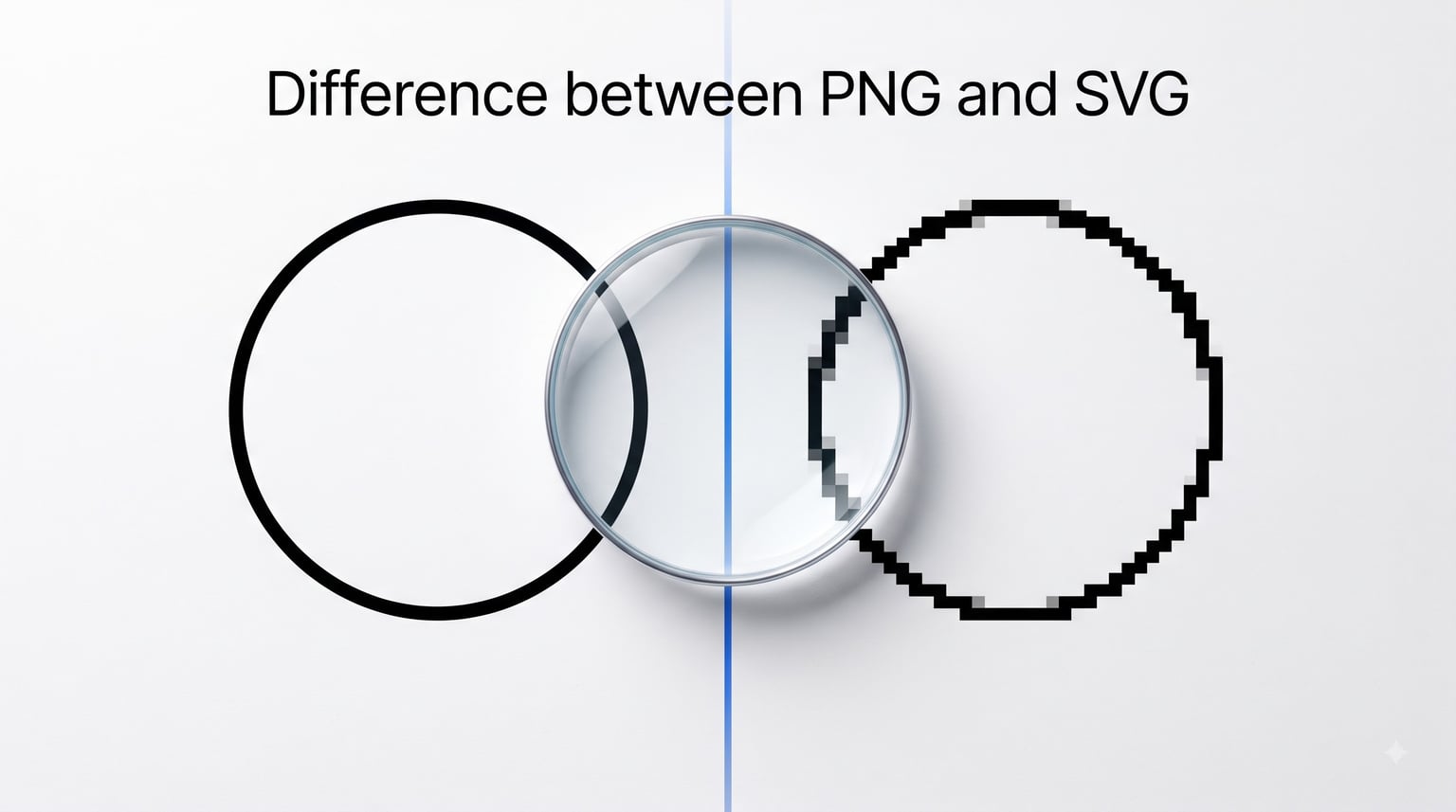
If you have ever downloaded a graphic and wondered whether to grab the PNG or the SVG version, you are not alone. The difference between PNG and SVG comes down to one core distinction: SVG is a vector format built from mathematical paths, while PNG is a raster format made of fixed pixels. That single difference changes everything about how each file scales, how large it is, and where it works best.
I have spent years working with both formats across web design, print projects, and crafting workflows. The confusion is real, and it shows up everywhere from Reddit threads on r/webdev to Cricut crafting forums. People ask the same questions over and over: Which one is better for logos? Can I use PNG for my Cricut? Why does my logo look blurry when I resize it?
This guide breaks down the difference between PNG and SVG in plain language. You will learn what each format actually is, how they compare across key categories, and exactly when to choose one over the other. By the end, you will never second-guess your file format choice again.
Table of Contents
- What Is SVG? (Scalable Vector Graphics Explained)
- What Is PNG? (Portable Network Graphics Explained)
- Raster vs Vector: The Fundamental Difference Between PNG and SVG
- SVG vs PNG: Key Differences Compared
- Scalability and Image Quality at Different Sizes
- File Size and Performance
- Transparency, Animation, and Browser Compatibility
- When to Use SVG Instead of PNG
- When to Use PNG Instead of SVG
- SVG vs PNG for Cricut and Crafting
- How to Convert Between SVG and PNG
- FAQs
- Conclusion
What Is SVG? (Scalable Vector Graphics Explained)
SVG stands for Scalable Vector Graphics. It is a vector-based image format that uses XML code to describe shapes, lines, curves, and colors mathematically. Instead of storing a grid of colored dots, an SVG file stores instructions that tell your browser or software how to draw the image at any size.
Because SVG files are built from mathematical paths and shapes, they scale infinitely without losing quality. A logo saved as SVG looks just as sharp on a business card as it does on a billboard. The format was developed specifically for the web and is an open standard maintained by the W3C.
SVG files are also editable. You can open one in any text editor and see the underlying XML code, change colors, adjust paths, or animate elements using CSS and JavaScript. This makes SVG a favorite among web developers and designers who need flexible, code-level control over their graphics.
What Is PNG? (Portable Network Graphics Explained)
PNG stands for Portable Network Graphics. It is a raster image format, which means every PNG file is made up of a fixed grid of pixels. Each pixel has a specific color value, and together those pixels form the complete image. When you zoom into a PNG, you eventually see individual square pixels.
PNG was created as a better, patent-free replacement for the GIF format. It supports lossless compression, meaning no image data is discarded when the file is saved. Every time you open and re-save a PNG, the quality stays exactly the same. This makes it reliable for images where detail and accuracy matter.
One of PNG’s biggest strengths is its alpha channel transparency support. Unlike JPEG, PNG can include fully or partially transparent areas, which is essential for logos, icons, and graphics that need to sit on top of different backgrounds. PNG also supports a wide range of color depths, from simple 8-bit palette images to full 48-bit true color.
Raster vs Vector: The Fundamental Difference Between PNG and SVG
The difference between PNG and SVG boils down to raster versus vector. This is the single concept that explains every other difference between these two formats, and once you grasp it, everything else falls into place.
A raster image (PNG) is like a mosaic. It is made of thousands of tiny tiles called pixels, each one a single color. If you have a 500 by 500 pixel PNG, it contains exactly 250,000 pixels. Enlarge that image to 1,000 by 1,000 pixels, and your software has to guess what the missing pixels should look like. The result is a blurry, pixelated mess.
A vector image (SVG) is more like a set of drawing instructions. Instead of storing pixels, it stores mathematical formulas describing lines, curves, and fills. A circle in SVG might be defined as a path with a specific radius and center point. When you resize it, the math recalculates instantly and the circle stays perfectly smooth at any dimension.
Think of it this way: PNG remembers what the picture looks like. SVG remembers how to draw the picture. That is why vector graphics are resolution-independent and raster graphics are tied to a fixed resolution.
SVG vs PNG: Key Differences Compared
Here is a side-by-side breakdown of how SVG and PNG compare across the categories that matter most. Use this as a quick reference whenever you need to choose a format.
Image type: SVG is a vector format using mathematical paths. PNG is a raster format using a fixed pixel grid.
Scalability: SVG scales infinitely with zero quality loss. PNG pixelates and blurs when enlarged beyond its native resolution.
File size: SVG is typically smaller for simple graphics like logos and icons because it only stores code, not pixel data. PNG is smaller for complex images because vector code would become enormous for photographic content.
Transparency: Both formats support transparency. PNG uses an alpha channel for pixel-level transparency control. SVG supports transparency through fill opacity and is equally capable for layered graphics.
Editing: SVG files are fully editable in text editors and design software. You can change individual elements without touching the rest. PNG files can only be edited at the pixel level, and changes are permanent.
Animation: SVG supports animation natively through CSS and JavaScript. PNG does not support animation (that is what APNG and GIF are for).
Photographs: PNG handles photos well with lossless quality but produces very large files. SVG is practically unusable for photographs because reproducing pixel-level detail in vector paths would create a massive, impractical file.
Browser support: Both are universally supported in modern browsers. SVG can have rendering issues in some older email clients and legacy applications.
Scalability and Image Quality at Different Sizes
Scalability is where the difference between PNG and SVG becomes most visible. It is also the most common reason people switch from one format to the other.
SVG files are resolution-independent. Whether you display an SVG icon at 16 pixels or 16 inches, every edge stays razor-sharp. This is why SVG has become the standard for responsive web design, where the same graphic needs to look crisp on a smartwatch screen and a 4K monitor.
PNG files are tied to their native resolution. A 200 by 200 pixel PNG logo looks great at its original size. Stretch it to 600 pixels, and your software interpolates the missing pixels, creating soft, fuzzy edges. The larger you go, the worse it gets.
The workaround for PNG is to export at a high resolution from the start. If you know you need a logo at 400 pixels, export it at 800 or 1,200 pixels and let the browser scale it down. This works, but it means larger file sizes and wasted bandwidth compared to a lightweight SVG.
File Size and Performance
File size matters for page load speed, and the difference between PNG and SVG here depends entirely on the complexity of the image.
For simple graphics like logos, icons, and line art, SVG is almost always smaller. A typical company logo as an SVG might be 2 to 5 kilobytes. The same logo as a PNG could be 20 to 50 kilobytes or more. SVG only stores code, so simple shapes produce tiny files.
For complex images like photographs or detailed illustrations, PNG is the clear winner. A photo saved as SVG would require thousands of vector paths to reproduce every color transition, producing a file far larger than a PNG of the same image.
There is one performance caveat worth noting. Reddit developers have reported that SVG files can render slower than PNG in some situations. If you load dozens of complex SVGs on a single page, the browser has to parse and draw each one mathematically. For performance-critical pages with many graphics, converting some SVGs to raster PNGs can actually improve load times.
Transparency, Animation, and Browser Compatibility
Both SVG and PNG handle transparency, but they approach it differently and support different feature sets beyond that.
Transparency: PNG’s alpha channel gives you 256 levels of transparency per pixel. This is perfect for soft shadows, feathered edges, and semi-transparent overlays. SVG handles transparency through fill opacity values and can achieve the same visual results for vector graphics.
Animation: This is a major advantage for SVG. You can animate individual elements within an SVG file using CSS keyframes or JavaScript. A loading spinner, an animated chart, or an interactive illustration can all live inside a single SVG file. PNG has no native animation support. If you need animated raster graphics, you would need APNG or GIF instead.
Browser compatibility: Both formats are supported by all modern browsers, including Chrome, Firefox, Safari, and Edge. The edge cases are where things get tricky. SVG can fail to render in some email clients, particularly older versions of Outlook. Certain content management systems and social media platforms also handle PNG more reliably than SVG. If you are working with email templates or social media uploads, PNG is usually the safer choice.
When to Use SVG Instead of PNG
SVG is the right choice whenever you need scalability, small file sizes for simple graphics, or code-level editability. Here are the specific scenarios where SVG outperforms PNG.
Logos: Company logos need to look sharp at every size, from favicons to signage. SVG handles this effortlessly.
Icons: UI icons, navigation symbols, and button graphics are perfect for SVG because they are simple shapes that scale with the interface.
Responsive web design: SVG graphics adapt to any screen resolution without quality loss or file duplication.
Animated graphics: Loading spinners, animated data visualizations, and interactive illustrations leverage SVG’s native animation support.
SEO-friendly graphics: Search engines can read the text and structure inside SVG files, which can help with accessibility and indexing.
Print-ready line art: SVG’s mathematical precision makes it suitable for logos and illustrations that will be printed at various sizes.
When to Use PNG Instead of SVG
PNG is the right choice when you are working with pixel-based content, need universal compatibility, or require detailed transparency. Here is where PNG wins.
Photographs: Photos are raster by nature. PNG preserves them with lossless quality, though JPEG is usually smaller for web photos.
Social media images: Most social platforms do not support SVG uploads. PNG is universally accepted across Facebook, Instagram, Twitter, and LinkedIn.
Email graphics: Email clients handle PNG reliably, while SVG rendering is inconsistent across older email software.
Complex digital art: Digital paintings, textured illustrations, and graphics with subtle color gradients are better suited to PNG’s pixel format.
Screenshots: Screenshots are captured as pixels, so PNG is the natural format for storing them without quality loss.
Small transparency needs: For a quick transparent background on a raster image, PNG’s alpha channel is simple and dependable.
SVG vs PNG for Cricut and Crafting
One of the most common questions in crafting communities is whether to use SVG or PNG for Cricut projects. The answer depends on what you are making.
For cutting projects, SVG is the format you want. Cricut Design Space reads SVG files and uses the vector paths as cut lines. The machine follows those mathematical paths to cut your material precisely. This is why SVG files are the standard for layered paper crafts, vinyl decals, and custom stickers.
For print-then-cut projects, PNG is actually what you need. Cricut’s print-then-cut feature requires a raster image (PNG or JPEG) that your printer outputs first, and then the Cricut machine cuts around the printed design. SVG does not work for this workflow because there is no printable pixel data.
If you are designing for both cutting and print-then-cut, keep your original design in SVG format and export a PNG copy when you need the print-then-cut version. This gives you maximum flexibility for any crafting scenario.
How to Convert Between SVG and PNG
You do not need expensive software to convert between these formats. Here are the simplest methods that work for most users.
SVG to PNG: This is the easier direction because you are converting vector math into a fixed pixel grid. Open the SVG file in any modern browser, right-click, and save it as a PNG image. You can also use free online tools like Cloudinary’s converter or the export function in free design tools like Figma and Inkscape.
PNG to SVG: This is harder because you are asking software to interpret pixels and recreate them as mathematical paths. This process is called vectorization or tracing. Free tools like SVGgenie and Inkscape’s trace bitmap feature can handle simple logos and line art. Complex photographs do not convert well to SVG, and the results are often messy or produce enormous files.
For the cleanest results, always work from a vector original. Start your design in SVG, then export to PNG when you need a raster version. Going the other direction always involves some quality loss.
FAQs
Do I use SVG or PNG for Cricut?
Use SVG for cutting projects because Cricut Design Space reads the vector paths as cut lines. Use PNG for print-then-cut projects, which require a printable raster image. If you do both, keep your original as SVG and export a PNG copy when needed.
Can a PNG be used as an SVG?
Not directly. PNG is a raster image made of pixels, while SVG is a vector format made of mathematical paths. You can convert a PNG to SVG using a process called vectorization or tracing, but the results work best for simple logos and line art. Complex photographs do not convert cleanly.
When should you use SVG files?
Use SVG files for logos, icons, web graphics, responsive designs, animated illustrations, and any project where the image needs to scale without quality loss. SVG is also ideal when search engine readability and small file sizes for simple graphics matter.
What are the disadvantages of SVG?
SVG does not work well for photographs, can render slower than PNG when many complex SVGs appear on one page, and has inconsistent support in older email clients and some social media platforms. SVG also requires basic familiarity with vector concepts to edit effectively.
Is it better to use SVG or PNG for websites?
It depends on the image. Use SVG for logos, icons, and simple graphics that need to scale across devices. Use PNG for photographs, social media images, and graphics that need universal compatibility. Many websites use both formats for different types of content.
Which is better quality, PNG or SVG?
Neither is inherently better quality. SVG maintains perfect quality at any size because it uses mathematical paths, while PNG maintains perfect quality at its native resolution because it uses lossless compression. SVG wins for scalable graphics, and PNG wins for fixed-size raster content like photos.
Conclusion
The difference between PNG and SVG is straightforward once you understand the core distinction. SVG is a vector format that uses mathematical paths to draw shapes at any size without quality loss. PNG is a raster format that stores a fixed grid of pixels with lossless compression and full transparency support.
Choose SVG for logos, icons, web graphics, and anything that needs to scale. Choose PNG for photographs, social media, email, and situations where universal compatibility matters. When in doubt, keep a vector original in SVG and export PNG copies as needed. That workflow gives you the best of both formats without compromise.