
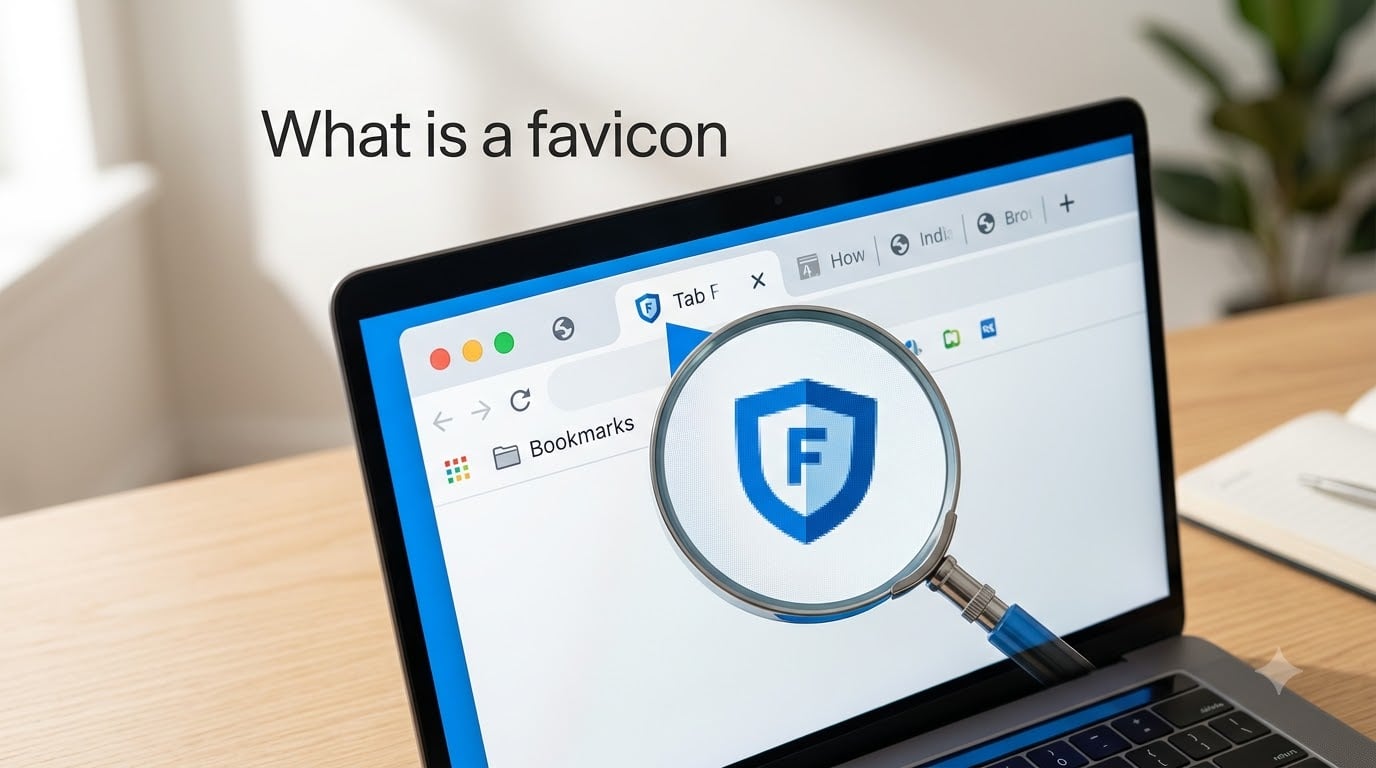
If you have ever opened a dozen browser tabs and spotted your favorite website by the tiny image on each one, you already know what a favicon does. That small square graphic is one of the most overlooked branding elements on the web, yet it shows up every single time someone visits your site, bookmarks a page, or scrolls through search results. In this guide, I will explain exactly what a favicon is, where it appears, why it matters, and how to create and add one to your own website. Whether you are building your first page or cleaning up an established brand, by the end you will have a clear, practical understanding of this small but powerful icon.
The phrase “what is a favicon” gets searched thousands of times each month because people encounter the term everywhere in website builders, SEO checklists, and developer documentation. The answer is simpler than the jargon suggests. A favicon is just a small image that represents your site across the browser interface, and it takes only a few minutes to set up correctly once you know the basics.
Table of Contents
- What Is a Favicon?
- A Brief History of the Favicon
- Where Favicons Appear
- Why Favicons Matter for Your Website
- Favicon Sizes and File Formats
- Favicon vs Logo: What Is the Difference?
- How to Create a Favicon
- How to Add a Favicon to Your Website
- Favicon Design Best Practices
- Common Favicon Challenges and Troubleshooting
- FAQs
- Conclusion
What Is a Favicon?
A favicon (short for “favorite icon”) is a small, square image file associated with a website that browsers display in tabs, bookmarks, history lists, and search results. Most favicons measure 16×16 pixels or 32×32 pixels, and they act as a visual shorthand for your brand the moment a user loads your page. When someone asks what a favicon is, the simplest answer is that it is the tiny logo-like image that sits on the browser tab next to your page title.
The name comes from the early days of Internet Explorer, when users added sites to their “favorites” list and the browser fetched a small icon to display beside each bookmark entry. That icon became known as the “favorite icon,” which was quickly shortened to favicon. The term stuck even as the feature expanded far beyond the favorites menu.
Technically, a favicon is a standalone image file, typically named favicon.ico or favicon.png, that lives in the root directory of a website or is linked inside the HTML head section. Browsers automatically look for this file when they load a page. If the file exists and is referenced correctly, the browser displays it in every place where site identity matters.
So when you see the question “what is a favicon in HTML,” the answer is a small linked image file declared with a tag like <link rel="icon" href="/favicon.png"> placed inside the head of your document. That single line tells the browser which image to use as the visual identity for your site.
A Brief History of the Favicon
Favicons were introduced in 1999 with the release of Internet Explorer 5. Microsoft designed the feature so that users who bookmarked a page would see a small 16×16 pixel icon next to the bookmark entry, making it easier to find saved sites at a glance. The original file format was ICO, a Windows-specific container that could hold multiple image sizes inside a single file.
For the first few years, favicons were limited to the favorites list and the address bar of Internet Explorer. Other browsers gradually adopted the feature, and as tabbed browsing became standard in the early 2000s, favicons migrated into browser tabs themselves. This shift turned favicons from a niche bookmark feature into a constant visual presence during every browsing session.
The World Wide Web Consortium (W3C) began standardizing the favicon mechanism through the HTML specification. By 2011, the rel="icon" attribute was formally recognized, replacing the older, non-standard rel="shortcut icon" syntax that Internet Explorer had originally introduced. Today, both forms appear in the wild for backward compatibility, but rel="icon" is the modern, standards-compliant approach.
Over time, support expanded beyond the ICO format. PNG, GIF, and even SVG favicons became possible as browsers added the ability to read those formats. Apple introduced the apple-touch-icon, a 180×180 pixel image used when a user adds a site to their iOS home screen, and web manifest files brought favicons into progressive web apps. The humble 16×16 icon from 1999 has grown into a small family of images covering every device and display context.
Where Favicons Appear
Favicons show up in more places than most people realize. Understanding each location helps you appreciate why a clear, recognizable icon matters so much for your site.
Browser Tabs
The most common place you will see a favicon is the browser tab. Every open tab displays the site’s favicon to the left of the page title. When users have many tabs open, the favicon often becomes the only visible identifier, since the title text gets truncated or hidden entirely. A distinctive favicon helps visitors find your site among a sea of tabs.
Bookmarks and Favorites
When a user bookmarks your page, the favicon appears next to the bookmark entry in their bookmarks bar or menu. Without a favicon, browsers display a generic placeholder icon, which makes your bookmark blend in with every other unbranded site. A strong favicon turns a bookmark into a mini billboard for your brand.
Browser History
The browser history list also uses favicons to help users visually scan for sites they visited previously. This is especially useful when someone is looking for a page they found a few days ago but cannot remember by name alone.
Search Results
Google displays favicons in mobile search results and in some desktop result formats. Having a favicon in search results can increase visual prominence and help your listing stand out. Google’s own documentation specifies that your favicon must be a square image with at least an 8×8 pixel dimension, though larger sizes are strongly recommended for crisp rendering.
Mobile Home Screens and App Shortcuts
When a user adds your site to their phone or tablet home screen, the apple-touch-icon or manifest icon becomes the app-like icon they tap to return. This is where higher resolution favicons (180×180 pixels or larger) come into play, since mobile displays demand sharper images than a standard browser tab.
Address Bar and Desktop Shortcuts
Some browsers still display favicons in the address bar next to the URL. Desktop shortcuts created from a browser also use the favicon as the shortcut icon on the operating system level, giving your brand another point of visibility outside the browser entirely.
Why Favicons Matter for Your Website
It is tempting to dismiss a 16×16 pixel image as trivial, but favicons carry real weight for branding, user experience, and even indirect SEO benefits. Here is why every website should have one.
Brand Recognition
A favicon reinforces your brand identity every time a user interacts with your site. Think of major brands like Google, YouTube, or Amazon. Their favicons are instantly recognizable, and users can identify those tabs without reading a single word. A consistent favicon builds that same visual familiarity for your own audience over time.
Professionalism and Trust
A missing favicon is a red flag. When users see a generic placeholder icon instead of a branded one, it signals that the site may be unfinished, unprofessional, or untrustworthy. I have spoken with designers who treat a missing favicon as a quality issue on par with broken links or placeholder text. Adding one is a small effort that removes a credibility gap.
User Experience
People browse with multiple tabs open. A clear favicon helps users locate your tab quickly, return to your content, and avoid accidentally closing it. This convenience improves the overall browsing experience and keeps visitors engaged with your site longer.
SEO Impact
Favicons do not directly influence search rankings, but they contribute to SEO in indirect ways. When your favicon appears in search results, it can increase your click-through rate by making your listing more visually distinct. Higher click-through rates send positive engagement signals to search engines. Additionally, users who can identify your tab easily are more likely to return, which can reduce bounce rates and improve dwell time.
Return Visitors
A memorable favicon acts as a visual anchor. When someone bookmarks your site or leaves a tab open for later, the favicon is what draws them back. Without one, your site fades into the background of generic icons, and returning visitors may struggle to find you again.
Favicon Sizes and File Formats
One of the most common sources of confusion around favicons is knowing which sizes and formats to use. The short answer is that you need multiple sizes to cover every device and display, and you should use the format that best fits your needs.
Standard Favicon Sizes
Here are the key sizes you should account for. The classic 16×16 pixel size covers basic browser tabs. The 32×32 pixel size is used for newer browser tabs and bookmarks on high-resolution displays. The 96×96 pixel size handles desktop shortcuts and some older Android contexts. The 180×180 pixel apple-touch-icon covers iOS home screen icons. Finally, a 512×512 pixel image inside a web app manifest handles modern Android and progressive web app scenarios.
ICO Format
ICO is the original favicon format, introduced with Internet Explorer 5. Its main advantage is that a single ICO file can contain multiple image sizes, letting the browser pick the best resolution for each context. ICO files are universally supported across all browsers, including older versions of Internet Explorer. The downside is that ICO is a legacy format with poor support for transparency compared to newer options and no support for vector scaling.
PNG Format
PNG is the most popular modern favicon format. It supports transparent backgrounds, which is essential if your icon has rounded corners or a non-rectangular shape. PNG favicons are supported by all current browsers, and the format handles photographic detail better than ICO at small sizes. Most website builders default to PNG for favicons because of this flexibility.
SVG Format
SVG favicons are the newest option and offer true scalability. Because SVG is a vector format, the icon stays crisp at any size without pixelation. Browser support for SVG favicons has grown steadily, with Firefox, Chrome, and Safari all offering at least partial support as of 2026. The limitation is that SVG favicons do not work in older browsers, so they should be paired with a PNG or ICO fallback rather than used alone.
Which Format Should You Choose?
For maximum compatibility, I recommend providing both an ICO file and a PNG file. Use the ICO for legacy support and the PNG for modern browsers and transparent backgrounds. If you want to future-proof your site, add an SVG version alongside the others. This three-format approach covers virtually every browser and device in use today.
Favicon vs Logo: What Is the Difference?
This is one of the most frequently asked questions about favicons, and the answer is straightforward. A favicon and a logo are related but they are not the same thing. Your logo is your full brand mark, designed for large displays like headers, printed materials, and social media. A favicon is a simplified, miniaturized version of your brand identity designed to be legible at extremely small sizes.
Can you use your logo as a favicon? Yes, but only if your logo works at 16×16 pixels. Most logos contain text, fine details, or complex shapes that become unreadable blobs when scaled down that far. The best favicons typically isolate a single element from the logo, like a distinctive shape, letter, or symbol, and present it in bold, simple form.
Think of the favicon as the logo’s younger, simpler sibling. It carries the same brand DNA but is stripped down to its most essential visual element. If your logo is a wordmark with a small icon, your favicon might be just the icon. If your logo is purely text, your favicon might be the first letter rendered in your brand colors.
How to Create a Favicon
Creating a favicon does not require expensive software or advanced design skills. Here is a practical approach that works for beginners and experienced designers alike.
Step 1: Start with your brand. Identify the single most recognizable element of your logo or brand identity. This could be a letter, a shape, an animal, or an abstract symbol. The goal is to find something that reads clearly at 16 pixels wide.
Step 2: Simplify the design. Remove fine details, thin lines, and small text. Bold shapes and strong contrasts work best at tiny sizes. If your element has gradients, consider flattening them to solid colors for the favicon version.
Step 3: Choose your colors. Limit your palette to one or two colors plus a transparent background. High contrast between the icon and the background is what makes a favicon visible against different browser tab colors, including both light and dark themes.
Step 4: Use a favicon generator. Free tools like favicon.io, realfavicongenerator.net, and similar services let you upload a single image and automatically produce all the sizes and formats you need. These generators output ICO, PNG, apple-touch-icon, and manifest files in one download, which saves you the trouble of resizing manually.
Step 5: Preview at actual size. Before you commit, view your favicon at 16×16 pixels. If it looks blurry or unrecognizable, go back and simplify further. Many Reddit users report frustration with blurry favicons because they skipped this step and only previewed at large sizes.
Step 6: Export multiple formats. Download or export your final favicon as ICO for legacy support, PNG for modern browsers, and optionally SVG for scalable rendering. Keep the original high-resolution source file so you can regenerate sizes later if needed.
How to Add a Favicon to Your Website
Once you have your favicon files ready, the next step is connecting them to your site. The method depends on how your site is built, but the underlying principle is the same everywhere.
How to Add a Favicon in HTML
For a custom-built website, you add the favicon by placing link tags inside the head section of your HTML. Upload your favicon file to your server, ideally in the root directory, then add the following lines to every page’s head section:
<link rel="icon" type="image/png" href="/favicon.png" sizes="32x32">
<link rel="icon" type="image/png" href="/favicon-16x16.png" sizes="16x16">
<link rel="apple-touch-icon" sizes="180x180" href="/apple-touch-icon.png">
These three lines cover modern browsers, legacy tab sizes, and iOS home screen icons respectively. If you are also providing an ICO file for very old browsers, add <link rel="shortcut icon" href="/favicon.ico"> as well.
How to Add a Favicon on Popular Platforms
If you use a website builder or content management system, you typically do not need to edit HTML directly. On WordPress, most themes include a site identity setting in the Customizer where you can upload your favicon. Shopify has a favicon upload field in the theme settings under Customize. Wix and Squarespace both offer favicon upload options in their site design or branding menus. These platforms handle the HTML linking and multiple size generation for you automatically.
How to Test Your Favicon
After uploading, test your favicon across different contexts. Open your site in a fresh browser tab and check that the icon appears next to the title. Bookmark the page and verify the icon shows in the bookmarks bar. Clear your browser cache if you do not see the favicon immediately, since browsers cache favicons aggressively and may hold onto an old version. Test on both desktop and mobile to confirm the icon renders correctly everywhere.
Favicon Design Best Practices
Good favicon design comes down to simplicity, consistency, and testing. Here are the principles I follow when creating favicons for any project.
Keep it simple. The most effective favicons are a single shape, letter, or icon. Complexity works against you at small sizes, so resist the urge to include every detail from your full logo.
Use your brand colors. Your favicon should feel like part of your overall visual identity. Pick one or two brand colors and use them consistently so users associate the icon with your brand at a glance.
Avoid text when possible. Words become illegible at 16 pixels. If you must use text, limit it to a single letter or number rendered in a bold, heavy typeface.
Design for transparency. Use a transparent background rather than a solid filled square. This lets your icon adapt to different browser tab colors and dark mode themes without looking out of place.
Provide a dark mode version. Some browsers support a media query that lets you serve a different favicon for dark mode. If your icon uses dark colors that disappear on dark tabs, consider providing a lighter alternative.
Common Favicon Challenges and Troubleshooting
Even with the right files and code, favicons can be finicky. Here are the most common problems people encounter and how to fix them.
Blurry Favicons
Blurry favicons are the number one complaint in web design forums. The usual cause is scaling a large image down to 16×16 pixels without simplifying the design first. To fix blurriness, redesign your icon specifically for small sizes rather than shrinking a full logo. Use sharp, bold shapes and preview at actual pixel dimensions before publishing.
Favicon Not Showing Up
If your favicon does not appear, the most likely culprit is caching. Browsers cache favicons aggressively, sometimes for weeks. Try forcing a refresh with a hard reload, clearing your cache, or opening the site in a private browsing window. Also verify that the file path in your link tag is correct and that the file actually exists at that location on your server.
Inconsistent Display Across Browsers
Different browsers handle favicons slightly differently, which can lead to inconsistent appearance. Providing multiple formats (ICO, PNG, and SVG) and multiple sizes in your HTML head tags gives each browser the best option for its rendering engine, which reduces inconsistency.
Security and Phishing Risks
Favicons have a security dimension that few people consider. Phishing sites can use favicons that mimic legitimate brands to trick users into trusting a fake website. Some browsers have addressed this by enforcing stricter favicon loading policies, but users should always verify the full URL rather than relying on a familiar icon alone. As a site owner, using HTTPS for your favicon delivery and hosting the file on your own domain helps maintain trust.
Performance and Load Time
Favicons are small files, but they still add an HTTP request to your page load. Keep your favicon file size under 10 kilobytes when possible by avoiding unnecessarily large source images. Modern formats like SVG are especially lightweight since they are text-based vector files rather than pixel-based bitmaps.
Accessibility Considerations
Favicons are decorative and should never be the sole way users identify your site. Screen readers do not announce favicons, so users with visual impairments rely on page titles and content instead. Always pair a strong favicon with a descriptive page title for full accessibility.
FAQs
Is a favicon the same as a logo?
No, a favicon and a logo are not the same. A logo is your full brand mark designed for large displays, while a favicon is a simplified, miniaturized version of your brand identity created to be legible at very small sizes like 16×16 pixels. The best favicons typically use a single element from the logo rather than the entire design.
How do I create a favicon?
To create a favicon, start by identifying the most recognizable element of your brand. Simplify the design by removing fine details and text, choose one or two bold colors, then use a free favicon generator like favicon.io or realfavicongenerator.net to automatically produce all required sizes and formats including ICO, PNG, and apple-touch-icon files.
Can I use my logo as a favicon?
You can use your logo as a favicon only if it remains recognizable at 16×16 pixels. Most logos contain text or fine details that become unreadable when scaled down that far. A better approach is to isolate a single element from your logo, such as a letter or symbol, and use that as your favicon.
What is an example of a favicon?
Common favicon examples include the Google G, the YouTube play button, the Amazon smile arrow, and the Wikipedia W globe. Each of these takes a simple, distinctive element from the brand and renders it as a tiny square icon that appears in browser tabs, bookmarks, and search results.
Conclusion
Understanding what a favicon is gives you control over one of the most visible yet underrated elements of your website. This tiny icon appears in every browser tab, bookmark, history entry, and search result, quietly reinforcing your brand identity with every visit. By choosing the right sizes and formats, simplifying your design, and linking it correctly in your HTML, you turn a few pixels of space into a lasting branding asset. Take ten minutes this week to review your favicon, and make sure it represents your site the way you want it to be remembered.