
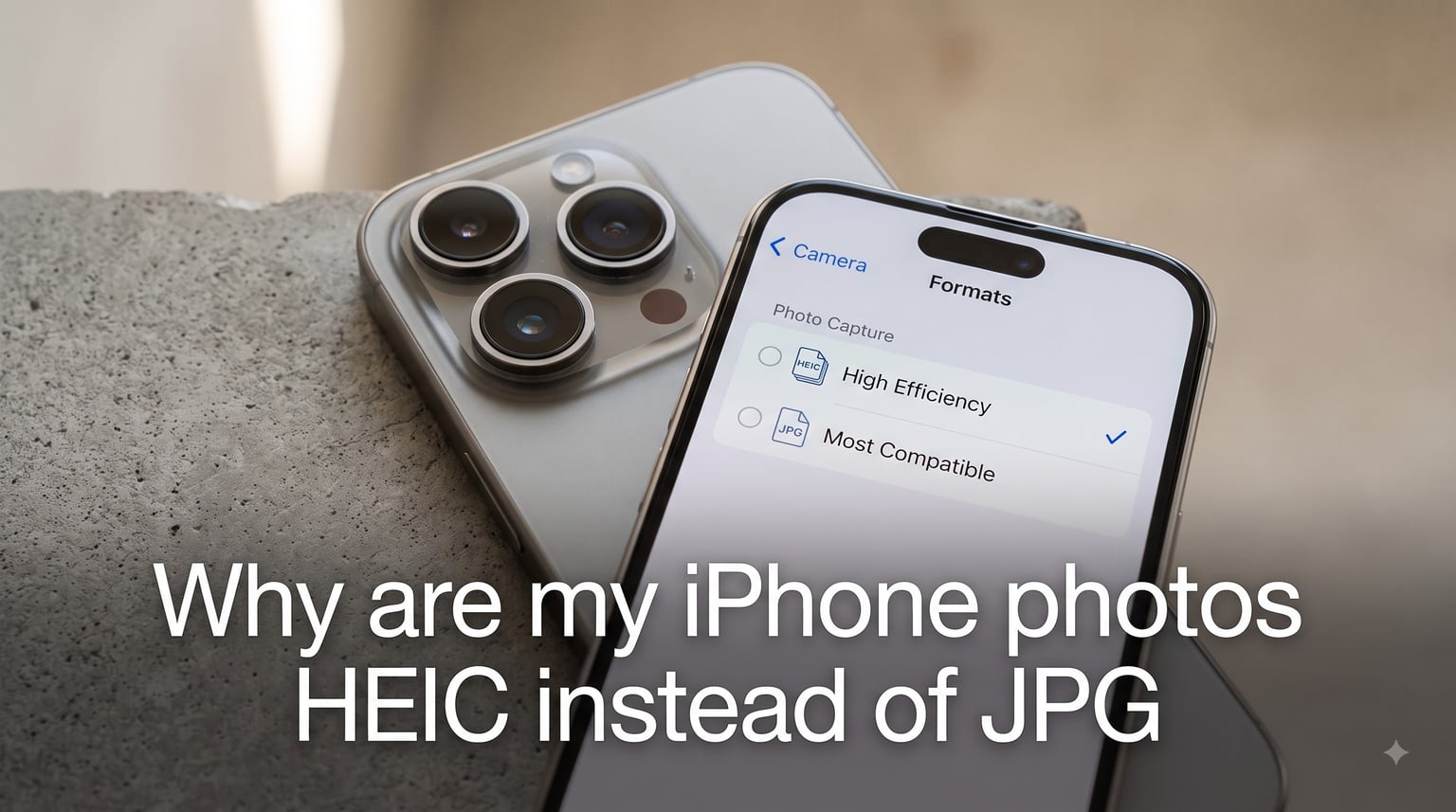
Your iPhone photos are saving as HEIC instead of JPG because Apple set “High Efficiency” as the default camera format starting with iOS 11. This setting captures photos in HEIC (High Efficiency Image Container) format, which produces the same image quality as JPEG at roughly half the file size. You can switch back to JPEG anytime by changing one setting in your Camera options.
If you suddenly noticed your photos have a .heic extension instead of .jpg, you are not alone. I have seen this question pop up in forums constantly, and the good news is that nothing is broken with your phone. Apple made this change deliberately to save storage space on your device.
In this guide, I will walk you through exactly why this happened, what HEIC means, and how to switch your iPhone photos HEIC instead of JPG back to the familiar JPEG format.
Table of Contents
What Is HEIC and How Does It Differ From JPEG
HEIC stands for High Efficiency Image Container. It is the file container Apple uses for the HEIF (High Efficiency Image Format) standard, which is based on the same H.265 video compression technology used for 4K video recording. JPEG, on the other hand, has been around since 1992 and uses older compression that creates larger files for the same image quality.
The key difference comes down to efficiency. A HEIC file typically takes up about half the storage space of an equivalent JPEG while maintaining the same visual quality. That means if a JPEG photo is 4 MB, the same photo in HEIC might only be 2 MB.
Here is something many people get wrong: HEIC does not sacrifice quality to achieve those smaller files. In fact, HEIC can actually store more color information and supports 16-bit color depth compared to JPEG’s 8-bit limit. So your photos are not degraded in any way by using HEIC.
HEIC also supports advanced features that JPEG cannot handle. These include transparency (like PNG), multiple images in a single file, and depth map data for Portrait Mode photos. This is why Apple adopted it as the default format.
Why Your iPhone Uses HEIC Instead of JPG
Apple switched the default iPhone camera format to HEIC with the release of iOS 11 in 2017. The reason was simple: storage efficiency. Modern iPhone cameras capture high-resolution images that would consume massive amounts of storage in JPEG format, and HEIC cuts that footprint nearly in half.
If your photos suddenly changed to HEIC format, it likely happened after a software update or when you set up a new iPhone. Apple enables “High Efficiency” mode by default on all devices running iOS 11 or later. You did not accidentally trigger anything.
The “High Efficiency” setting uses HEIC for both photos and HEVC for video. Apple offers two format choices in your camera settings: “High Efficiency” and “Most Compatible.” High Efficiency gives you HEIC files, while Most Compatible gives you the traditional JPEG and H.264 video files.
HEIC is also becoming an industry standard beyond Apple. Android phones from Samsung, Google, and others now support HEIC capture as well. So while the format may have caught you off guard, it is not exclusive to Apple and is part of a broader shift in how smartphones store images.
One thing worth noting from forum discussions: some users report finding HEIC files confusing when they transfer photos to a computer or share them with friends who use Windows. The format looks brilliant on your iPhone but can create friction when it leaves the Apple ecosystem.
HEIC vs JPEG: Which Is Better for You
For most iPhone users, HEIC is the better choice. It saves about 50% on storage, maintains equal or better image quality, and works seamlessly within the Apple ecosystem. If you rarely transfer photos to non-Apple devices, there is no real reason to switch.
However, JPEG makes more sense if you frequently share photos with Windows users, upload images to websites that do not accept HEIC, or use older software that cannot open HEIC files. JPEG is universally compatible across virtually every device, app, and platform ever made.
There is one trade-off to keep in mind. When you switch your camera to “Most Compatible” for JPEG output, you lose Live Photo functionality in some scenarios. Live Photos rely on the HEIC container to store the short video clip alongside the still image, so switching formats can affect this feature.
My recommendation: keep High Efficiency enabled if storage matters to you and you primarily share photos with other Apple users. Switch to Most Compatible only if compatibility headaches are driving you crazy.
How to Change Your iPhone Photo Format Back to JPEG
Switching your iPhone from HEIC to JPEG takes about 15 seconds. Here are the exact steps:
Step 1: Open the Settings app on your iPhone.
Step 2: Scroll down and tap on Camera.
Step 3: Tap on Formats near the top of the screen.
Step 4: Select Most Compatible instead of High Efficiency.
That is it. New photos you take from this point forward will save as JPEG files instead of HEIC. Any photos you already captured in HEIC will remain in that format.
There is also a second setting worth knowing about. Under Settings > Photos, scroll to the “Transfer to Mac or PC” section. You will find two options: “Automatic” and “Keep Originals.” If you select “Automatic,” your iPhone will convert HEIC photos to JPEG automatically when you transfer them to a computer via USB. This is a great compromise if you want the storage savings of HEIC but need JPEGs when offloading photos.
I recommend trying the “Automatic” transfer option first before fully switching to Most Compatible. That way you get the best of both worlds without changing your default format.
How to Convert Existing HEIC Photos to JPEG
Changing the camera setting only affects new photos going forward. If you have a library full of HEIC images that you need in JPEG format, you have several options for conversion.
Method 1: Email or AirDrop. When you email a HEIC photo from your iPhone, it automatically converts to JPEG. The same happens when you share via certain apps. This works well for individual photos but is not practical for large batches.
Method 2: Mac Photos app export. On a Mac, open the Photos app, select the HEIC images you want to convert, then go to File > Export > Export Unmodified Original or Export and choose JPEG as the format. This handles batch conversions smoothly.
Method 3: Third-party converter apps. Apps like HEIC to JPEG converters available on the App Store can process multiple photos at once directly on your iPhone. Many are free for small batches.
Method 4: Windows HEIF Image Extensions. If you use a Windows PC, you can install the HEIF Image Extensions from the Microsoft Store to open and view HEIC files natively. For full editing and conversion, the HEVC Video Extensions pack may also be needed. Once installed, you can open HEIC files in Windows Photos and save them as JPEG.
One important warning from the Apple Support Community: do not attempt to manually rename HEIC file extensions to .jpg. This does not convert the file and can corrupt your photos. Always use a proper conversion method.
Frequently Asked Questions
How can I change HEIC to JPEG on iPhone?
Go to Settings u0026gt; Camera u0026gt; Formats and select Most Compatible. New photos will save as JPEG instead of HEIC. This change does not affect photos you have already taken.
Why is my iPhone suddenly taking HEIC photos?
Apple has used HEIC as the default photo format since iOS 11 (2017). If your photos suddenly appear as HEIC, it likely happened after a software update, a new iPhone setup, or a settings reset that restored the default High Efficiency mode.
Is HEIC better quality than JPEG?
Yes, HEIC generally matches or exceeds JPEG quality while using about half the storage space. HEIC supports 16-bit color depth compared to JPEG’s 8-bit, meaning it can actually preserve more color information in your photos.
Can I convert existing HEIC photos to JPEG?
Yes. You can email individual photos (which auto-converts to JPEG), use the Mac Photos app to export as JPEG, or use a third-party converter app for batch conversion. On Windows, install HEIF Image Extensions from the Microsoft Store to open and convert HEIC files.
Why can’t Windows open my iPhone HEIC photos?
Older versions of Windows do not support HEIC natively. Install the free HEIF Image Extensions from the Microsoft Store to view HEIC files in Windows Photos. Alternatively, enable Automatic transfer mode on your iPhone under Settings u0026gt; Photos so HEIC files convert to JPEG during USB transfer.
Conclusion
Finding iPhone photos HEIC instead of JPG is not a bug. It is a deliberate choice by Apple to save you storage space while maintaining image quality. Since iOS 11, the High Efficiency format has been the default because HEIC files are roughly half the size of JPEGs with equal or better visual quality.
If HEIC is causing compatibility headaches, switch to Most Compatible in Settings > Camera > Formats, or enable Automatic transfer mode so photos convert to JPEG when you move them off your iPhone. Either way, you now have full control over how your photos are saved.