
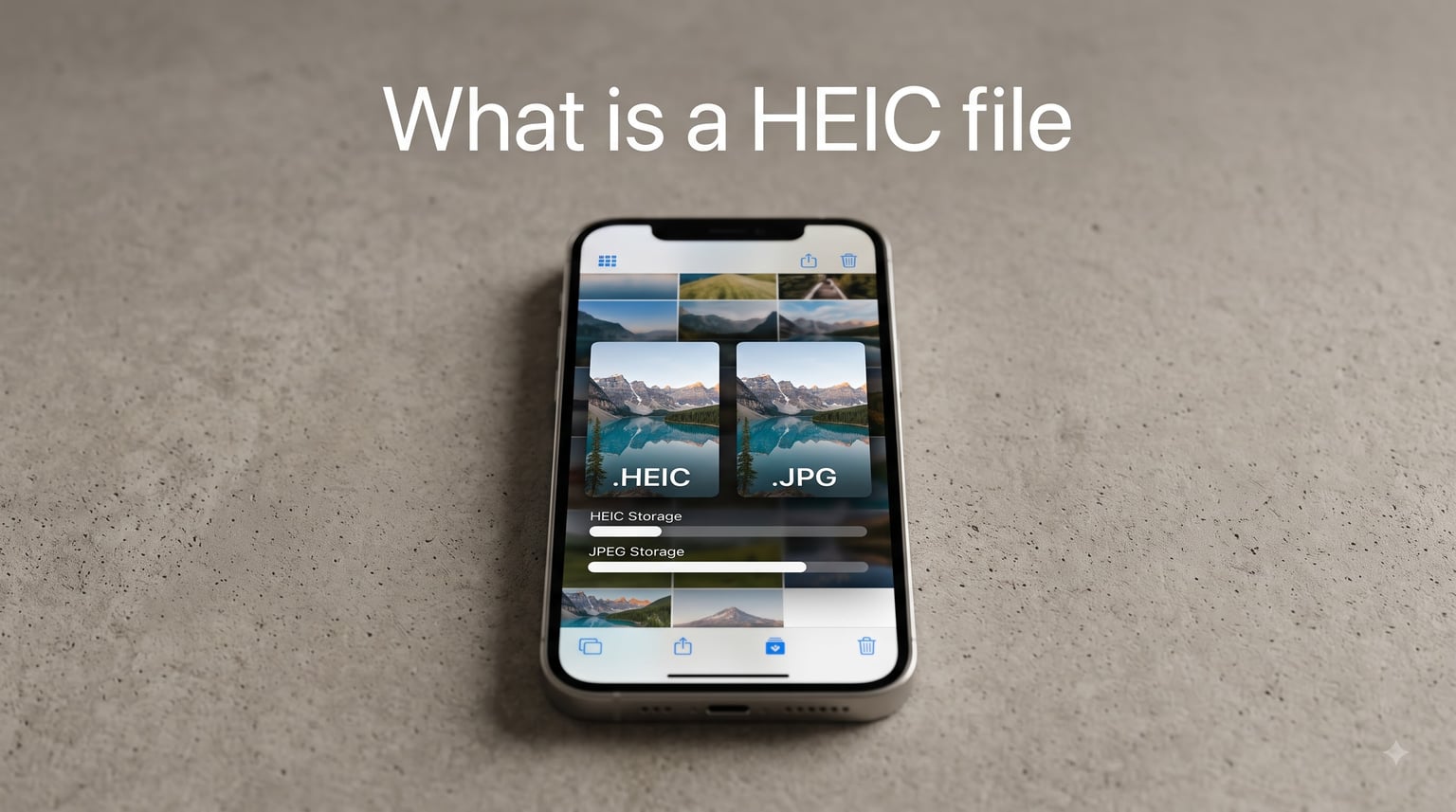
If you’ve ever transferred photos from an iPhone and noticed files ending in .heic instead of .jpg, you’re not alone. Millions of people encounter this format every day without knowing what it does or why it exists. The good news is that understanding what a HEIC file is takes only a few minutes, and once you get it, everything about modern photo storage makes a lot more sense.
A HEIC file is a modern image format that stores photos at roughly half the size of JPEG while keeping the same visual quality. Apple adopted it as the default photo format starting with iOS 11 in 2017, and Samsung followed suit on many of its Galaxy devices. Whether you shoot photos on an iPhone, manage images at work, or just want your old JPEG workflow back, this guide covers everything you need to know about HEIC files in 2026.
I’ve spent years helping people sort out image format confusion, and the HEIC questions come up more than any other. Let’s break it down clearly.
Table of Contents
What Is a HEIC File?
A HEIC file (High Efficiency Image Container) is an image file format that compresses photographs using HEVC technology to produce significantly smaller files than JPEG without sacrificing quality. Apple introduced it as the default camera format with iOS 11, and it has been the standard photo format on iPhones and iPads ever since.
Here are the key things to know about HEIC files at a glance:
HEIC stands for High Efficiency Image Container — the file wrapper that holds your photo data
Compression method: Uses HEVC (H.265), the same codec behind modern video compression
File size: Roughly half the size of an equivalent JPEG at the same quality
Color depth: Supports 16-bit color compared to JPEG’s 8-bit
Extra features: Stores transparency (alpha channel), depth maps, burst photos, and Live Photos in a single file
Default on: iPhones (since iOS 11), iPads, and many Samsung Galaxy phones
The format was developed by the Moving Picture Experts Group (MPEG), the same organization behind many video and audio standards. Apple chose HEIC because it lets users store more photos on their devices and in iCloud without buying more storage.
HEIC, HEIF, and HEVC: Three Terms You Need to Know
People use these terms interchangeably, but they refer to different things. Here’s the simple breakdown:
HEVC (High Efficiency Video Coding): Also known as H.265, this is the actual compression engine. It squeezes image data into a smaller space.
HEIF (High Efficiency Image Format): This is the broader standard for storing images using HEVC compression. It’s the specification.
HEIC (High Efficiency Image Container): This is the specific file format Apple uses to store HEIF images. Think of it as Apple’s version of the HEIF standard.
A helpful analogy: HEVC is the engine, HEIF is the car design, and HEIC is the specific model rolling off Apple’s assembly line. When you see a .heic file extension, you’re looking at Apple’s implementation of the HEIF standard using HEVC compression.
How HEIC Compression Works
HEIC files use HEVC compression, which is the same technology that powers modern 4K and 8K video streaming. The key difference between HEVC and older compression methods like JPEG comes down to how the image is divided and processed.
JPEG uses a fixed 8×8 pixel grid when analyzing and compressing an image. Every block gets the same treatment regardless of what’s in it. This works fine but leaves efficiency on the table.
HEVC takes a smarter approach by using variable block sizes. Instead of a fixed grid, it analyzes the image and divides it into blocks ranging from 4×4 pixels up to 32×32 pixels. Large, smooth areas like blue skies get big blocks. Fine details like hair or foliage get smaller blocks. This adaptive approach is why HEIC files can be roughly 50% smaller than JPEGs at equivalent quality.
The compression also supports both lossy and lossless modes, though Apple uses lossy HEIC for standard photos. The result is a photo that looks identical to what your eyes expect from a JPEG but takes up half the storage space.
HEIC vs JPEG: What’s the Difference?
HEIC and JPEG are both image formats, but they represent two different generations of compression technology. JPEG has been the standard since 1992. HEIC arrived 25 years later with significant improvements.
Here’s how they compare:
File size: HEIC files are about 50% smaller than JPEG files at the same quality level
Image quality: HEIC produces sharper images with less artifacting, especially in areas with fine detail or smooth gradients
Color depth: HEIC supports 16-bit color per channel, while JPEG is limited to 8-bit — meaning HEIC can represent far more colors
Transparency: HEIC supports alpha channels (like PNG), JPEG does not
Multiple images: A single HEIC file can contain multiple photos (burst shots, Live Photos), while JPEG holds one image per file
Metadata: HEIC stores richer metadata including depth information from dual cameras
Compatibility: JPEG works everywhere with zero setup. HEIC needs extensions or conversion on some platforms
For everyday photography on a phone, HEIC is the clear winner on quality and storage. The tradeoff is compatibility, which we’ll cover in detail shortly.
Is HEIC Better Than JPEG?
From a technical standpoint, yes. HEIC delivers better quality at smaller sizes, supports more colors, and can store additional data like depth maps and transparency. JPEG wins only on universal compatibility. Every device, browser, and app made in the last 30 years can open a JPEG without question.
If you primarily stay within the Apple ecosystem, HEIC is a net positive. If you frequently share photos with Windows users, upload to certain web platforms, or work in industries like insurance or real estate, the compatibility gap may outweigh the storage savings.
HEIC vs HEIF: Understanding the Difference
This is one of the most common sources of confusion, and most articles don’t explain it clearly enough. Let me fix that.
HEIF is the international standard (ISO/IEC 23008-12) for storing images and image sequences using HEVC compression. It defines the rules for how images should be organized, what metadata they can contain, and how multiple images can be bundled together.
HEIC is the specific file format that implements the HEIF standard. When Apple decided to adopt HEIF, they created HEIC as their container format. So technically, every HEIC file is a HEIF file, but not every HEIF file is a HEIC file.
You might also encounter these file extensions:
.heic — Standard single-image HEIC file (most common)
.heics — HEIC file containing an image sequence (used for burst photos and Live Photos)
.heif — Generic HEIF file, used by non-Apple implementations
In practice, if you see .heic or .heics, it came from an Apple device. If you see .heif, it likely came from another source using the HEIF standard.
Why Apple and Samsung Use HEIC
Apple switched to HEIC as the default photo format with iOS 11 in September 2017. The motivation was practical: iPhones were capturing higher-resolution photos with dual-camera systems, and those files were eating up storage fast.
By switching to HEIC, Apple effectively doubled the photo storage capacity of every iPhone without changing the hardware. A 64GB iPhone that could hold roughly 20,000 JPEG photos could suddenly hold 35,000 to 40,000 HEIC photos at the same quality.
Samsung followed Apple’s lead, adding HEIC support to Galaxy phones starting with the Galaxy S20 series in 2020. Samsung’s decision came from the same storage-saving logic. Modern phones capture 108-megapixel photos and 8K video, and efficient compression formats are essential for managing that data.
Both companies now ship phones with HEIC enabled by default, which is why so many users suddenly find themselves with .heic files without understanding why.
HEIC Compatibility Across Platforms
Compatibility is where HEIC gets complicated. The format works flawlessly within Apple’s ecosystem but runs into friction almost everywhere else. Here’s a platform-by-platform breakdown.
Apple Devices (Mac, iPhone, iPad)
Full native support. macOS, iOS, and iPadOS open, edit, and display HEIC files without any additional software. Photos app, Preview, Files, and all native apps handle HEIC seamlessly. AirDrop transfers HEIC files between Apple devices without conversion.
Windows
Windows 10 and 11 support HEIC but require additional extensions. You’ll need the HEIF Image Extensions and HEVC Video Extensions from the Microsoft Store. The HEVC extension costs $0.99, which frustrates many users. Once installed, File Explorer shows thumbnails and the Photos app opens HEIC files normally.
Without these extensions, Windows shows an error when you try to open a .heic file. This is the single most common HEIC complaint in forums like r/iphone and r/sysadmin.
Android
Android 9 (Pie) and later support HEIC natively. Google Photos opens HEIC files without issues. Samsung Galaxy phones from the S20 series onward can both shoot and open HEIC files. However, some older Android devices and budget phones may not handle the format.
Web Browsers
Browser support for HEIC is improving but remains inconsistent. Safari supports HEIC on all Apple devices. Chrome and Edge added HEIC support in recent versions on supported operating systems. Firefox does not natively support HEIC. If a website serves a HEIC image and the browser can’t handle it, users see a broken image icon.
Social Media and Cloud Storage
Most major platforms handle HEIC behind the scenes. Instagram, Facebook, and WhatsApp automatically convert HEIC to JPEG when you upload. Google Photos supports HEIC natively for both storage and viewing. Dropbox and OneDrive can display HEIC thumbnails and store the files without issues.
However, some workplace tools like Asana, certain CRM platforms, and older web applications don’t accept HEIC uploads at all. This is a real pain point for professionals in insurance, real estate, and field inspection who receive photos from clients’ phones.
How to Open HEIC Files
Opening HEIC files depends on your device. Here’s what works on each platform.
On Mac: Double-click any .heic file. Preview and Photos open them natively. No setup needed.
On Windows: Install the HEIF Image Extensions (free) and HEVC Video Extensions ($0.99) from the Microsoft Store. After that, the Photos app and File Explorer handle HEIC files. If you don’t want to pay for the HEVC extension, free alternatives include the ap.internet open-source codec, IrfanView with the HEIC plugin, or the Windows Photo app’s built-in support on newer builds.
On Android: Google Photos opens HEIC files directly on Android 9 and later. For older versions, try a third-party viewer like HEIC Viewer from the Play Store.
On any device via browser: Upload the file to an online converter like HEICtoJPG.com or use Google Drive, which can display HEIC files in the browser.
How to Convert HEIC to JPEG
If you need JPEG files for compatibility reasons, conversion is straightforward. Here are the most reliable methods.
Method 1: Automatic conversion on iPhone. Go to Settings > Photos > Transfer to Mac or PC, and select “Automatic.” Your iPhone will convert HEIC files to JPEG when transferring via USB. This is the most common workaround recommended in Apple support forums.
Method 2: Switch your iPhone to JPEG permanently. Go to Settings > Camera > Formats and select “Most Compatible.” Your iPhone will now shoot JPEG instead of HEIC. Note that this means you lose the storage savings of HEIC.
Method 3: Convert on Mac using Preview. Open the HEIC file in Preview, go to File > Export, and choose JPEG as the format. For bulk conversion, select multiple files in Finder, right-click, and use Automator’s “Change Format” action to batch convert hundreds of files at once.
Method 4: Convert on Windows. Open the HEIC file in the Photos app (with extensions installed), then use Save As to export as JPEG. For bulk conversion, tools like CopyTrans HEIC or the free ImageMagick command-line tool can process entire folders.
Method 5: Online converters. Websites like HEICtoJPG.com and CloudConvert let you upload HEIC files and download JPEGs. These work well for occasional use, but be cautious with sensitive photos — you’re uploading files to a third-party server.
Pros and Cons of HEIC Files
HEIC brings real benefits, but it’s not perfect. Here’s an honest assessment based on what users report in forums and what our team has experienced.
Advantages
Roughly 50% smaller file size compared to JPEG at the same quality
Supports 16-bit color for richer, more accurate photos
Holds multiple images per file (burst mode, Live Photos)
Stores transparency and depth map data
Better compression means more photos per gigabyte of storage
Full native support across all Apple devices
Disadvantages
Limited compatibility on Windows without paid extensions
Some web browsers cannot display HEIC images natively
Many workplace and business applications don’t accept HEIC uploads
Bulk conversion can be tedious without the right tools
Older devices and software may not recognize the format at all
Sharing photos with non-Apple users often requires conversion
The tradeoff comes down to storage efficiency versus universal compatibility. For most iPhone users who stay within Apple’s ecosystem, HEIC is worth keeping. For anyone who frequently shares photos with Windows users or uploads to business software, converting to JPEG (or switching iPhone settings) may save headaches.
FAQs
How do I convert HEIC files to JPEG?
You can convert HEIC to JPEG several ways: on iPhone, go to Settings u0026gt; Photos u0026gt; Transfer to Mac or PC and select Automatic; on Mac, open the file in Preview and export as JPEG; on Windows, open in the Photos app and use Save As; or use an online converter like HEICtoJPG.com for quick one-off conversions.
How do I open a HEIC file on my computer?
On Mac, HEIC files open natively in Preview and Photos. On Windows 10 or 11, install the free HEIF Image Extensions and the HEVC Video Extensions ($0.99) from the Microsoft Store, then open with the Photos app. On Android 9 and later, Google Photos opens HEIC files directly.
Why do my photos become HEIC instead of JPG?
Since iOS 11 (2017), Apple sets HEIC as the default photo format on iPhones and iPads to save storage space. Samsung Galaxy phones from the S20 series onward also default to HEIC. Your phone is capturing HEIC files because it is set to High Efficiency mode in Settings u0026gt; Camera u0026gt; Formats.
Should you convert HEIC to JPG?
Convert HEIC to JPG if you need to share photos with Windows users, upload to business software that does not support HEIC, or use older applications. Keep HEIC if you primarily use Apple devices and want to save storage space. HEIC files are about half the size of equivalent JPEGs.
Can I convert an HEIC to JPEG?
Yes, HEIC files can be converted to JPEG on any platform. On iPhone, use the Automatic transfer setting. On Mac, use Preview’s export function. On Windows, use the Photos app or free tools like ImageMagick. Online converters like HEICtoJPG.com also work for quick conversions.
Why am I getting HEIC files?
You are getting HEIC files because your phone’s camera is set to capture in HEIC format by default. iPhones since iOS 11 and Samsung Galaxy phones since the S20 series use HEIC to save storage. To switch to JPEG, go to Settings u0026gt; Camera u0026gt; Formats and choose Most Compatible.
Should I turn off HEIC on my iPhone?
Turning off HEIC makes sense if you frequently share photos with Windows users or upload to platforms that do not support HEIC. However, keeping HEIC on saves about 50% storage space per photo. A good compromise is to keep HEIC on but enable automatic JPEG conversion when transferring photos (Settings u0026gt; Photos u0026gt; Transfer to Mac or PC u0026gt; Automatic).
Is a HEIC the same as a JPEG?
No, HEIC and JPEG are different image formats. HEIC uses HEVC compression to create files about half the size of JPEG at the same quality. HEIC also supports 16-bit color, transparency, and multiple images per file. JPEG is more widely compatible across all devices and platforms. Both produce photos that look the same to the human eye.
Conclusion
Understanding what a HEIC file is comes down to a few key points. HEIC (High Efficiency Image Container) is a modern image format that uses HEVC compression to store photos at roughly half the size of JPEG with the same or better quality. Apple and Samsung adopted it because it saves massive amounts of storage space without degrading image quality.
The format supports 16-bit color, transparency, depth maps, and multiple images per file, making it technically superior to JPEG. The main drawback is compatibility, particularly on Windows and older web platforms where HEIC files require additional extensions or conversion.
If you live in the Apple ecosystem, HEIC works quietly in the background and saves you storage every day. If you share photos across platforms, the best approach is to enable automatic JPEG conversion on your iPhone or use one of the conversion methods we covered. Either way, HEIC is here to stay as the default photo format for the most popular smartphones in the world.