
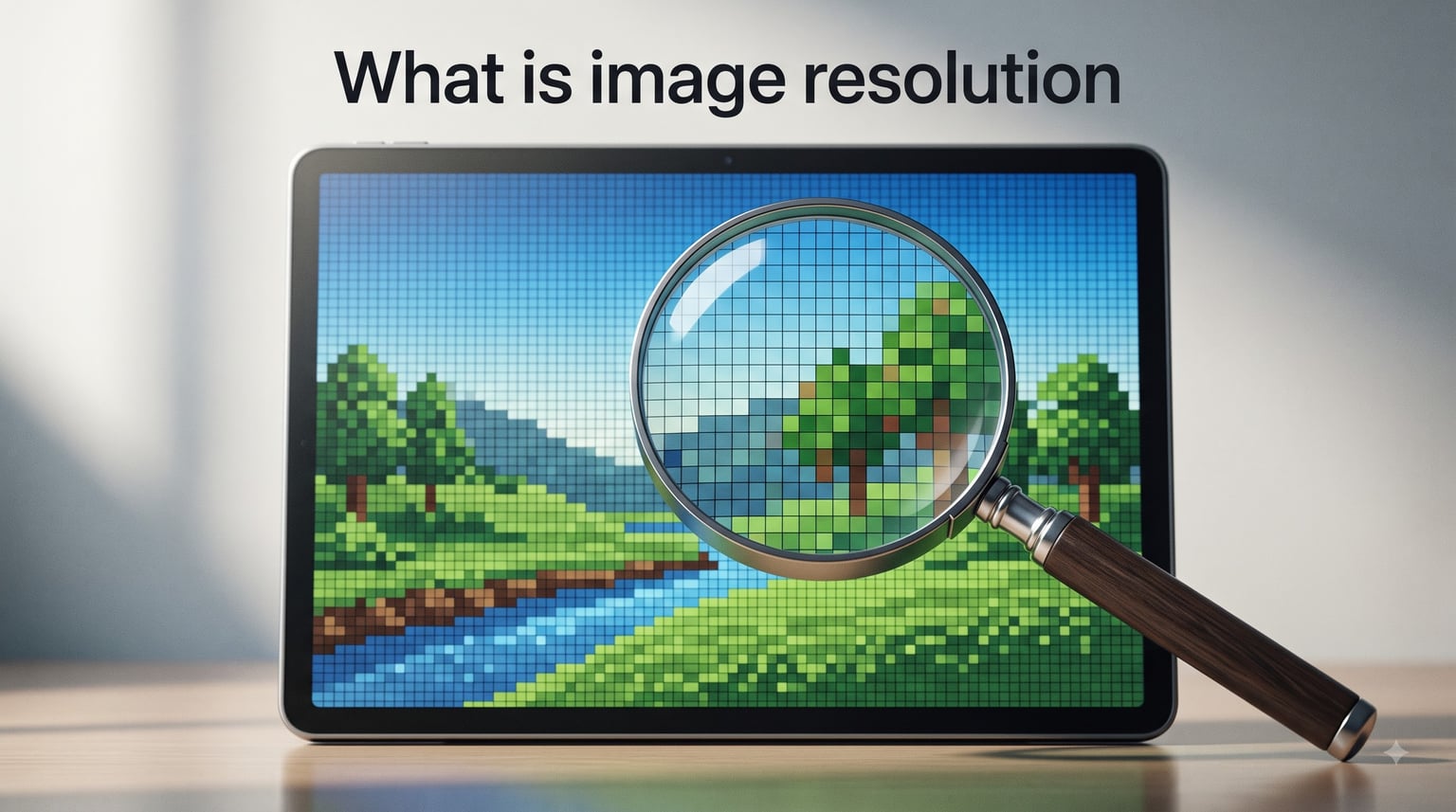
Image resolution is the level of detail a digital image holds, determined by the number of pixels it contains. When you hear someone talk about resolution, they are really talking about how much visual information is packed into a photo or graphic. More pixels mean more detail, sharper edges, and cleaner prints.
If you have ever taken a photo that looked great on your phone but turned blurry when you printed it, you have already experienced what happens when image resolution is too low. Understanding resolution helps you choose the right settings for websites, social media, photography, and print work.
In this guide, I will walk you through what image resolution means, how it is measured, the difference between PPI and DPI, and how to pick the right resolution for any project. Whether you are a photographer, designer, or just someone who wants better-looking images, this breakdown will clear up the confusion.
Table of Contents
- What Is Image Resolution? Understanding the Basics
- How Image Resolution Is Measured
- Common Image Resolution Standards Explained
- Screen Resolution vs Print Resolution
- Image Resolution for Different Use Cases
- How to Check Image Resolution
- Common Image Resolution Mistakes to Avoid
- How to Choose the Right Image Resolution
- FAQs
- Conclusion
What Is Image Resolution? Understanding the Basics
Image resolution describes how much detail a digital image can display. It is defined by the total number of pixels that make up the image, typically expressed as width multiplied by height. For example, an image that is 1920 pixels wide and 1080 pixels tall has a resolution of 1920×1080.
A pixel is the smallest individual unit of a digital image. Think of pixels like tiny colored tiles in a mosaic. When you zoom in close enough on any digital photo, you eventually see these individual squares. The more pixels an image has, the smaller each pixel can be, and the smoother and more detailed the final image appears.
High resolution means an image contains a large number of pixels packed closely together. This produces sharp, clear images that look great even when enlarged. Low resolution means fewer pixels spread across the same area, which results in blocky, blurry, or pixelated images.
Here is a simple way to think about it:
High resolution: Lots of pixels, sharp detail, looks great large or small
Low resolution: Few pixels, visible pixelation, looks fine small but blurry when enlarged
The threshold: What counts as “high” or “low” depends on how you plan to use the image
As photographers on Reddit often put it: low resolution looks blurry, medium looks fine, and high resolution looks great. That gut-level perception is what resolution controls.
How Image Resolution Is Measured
Image resolution gets measured in three main ways, and each one matters depending on your context. Understanding all three prevents the most common mistakes people make with digital images.
Pixel Dimensions (Width x Height)
Pixel dimensions are the most straightforward way to express image resolution. You write them as width times height, such as 1920×1080 or 6000×4000. These numbers tell you exactly how many pixels make up your image.
Pixel dimensions are what you see when you right-click an image file and check its properties. They are also what image editing software like Photoshop uses as the default measurement. A 1920×1080 image contains 2,073,600 total pixels, regardless of how large or small you display it on screen.
Megapixels
Megapixels are simply a way to express total pixel count in millions. One megapixel equals one million pixels. To find the megapixel rating of an image, multiply the width by the height and divide by one million.
For example, a 6000×4000 image equals 24,000,000 pixels, or 24 megapixels. Camera manufacturers use megapixels as a headline spec because it gives buyers a quick sense of how much detail a camera sensor can capture. Most modern smartphone cameras shoot between 12 and 200 megapixels.
More megapixels do help with large prints and heavy cropping, but they are not the only factor in image quality. Sensor size, lens quality, and lighting matter just as much.
PPI vs DPI: The Two Measurements That Confuse Everyone
PPI (pixels per inch) and DPI (dots per inch) are the two measurements that cause the most confusion in all of digital imaging. They sound similar, they get used interchangeably by mistake, but they measure different things.
PPI (Pixels Per Inch) measures pixel density on a screen or within a digital image file. It tells you how many pixels are packed into each inch of display space. A higher PPI means a sharper image on screen. Most computer monitors display at 72 to 96 PPI, while modern smartphones can reach 400 PPI or higher.
DPI (Dots Per Inch) measures how many ink dots a printer places per inch of paper. It is a print-specific measurement. The standard for high-quality photo printing is 300 DPI, which produces sharp, professional results. Lower DPI settings produce softer or fuzzier prints.
PPI = screen display pixel density
DPI = print output ink density
Both affect perceived sharpness, but in different contexts
Rule of thumb: Use PPI when talking about screens, DPI when talking about printing
One important detail: changing the PPI value in your image editing software does not add or remove pixels. It only changes how the image will be sized when printed. The actual pixel dimensions stay the same.
Common Image Resolution Standards Explained
Different devices and formats use standard resolution numbers. Knowing these standards helps you understand what you are working with and what quality to expect.
Display Resolution Standards
Screen resolutions follow naming conventions that describe their pixel dimensions. Here are the ones you will encounter most often:
720p (HD): 1280×720 pixels, the minimum for “high definition” video
1080p (Full HD): 1920×1080 pixels, the most common display standard for monitors and TVs
1440p (QHD): 2560×1440 pixels, popular for gaming monitors and high-end phones
4K (Ultra HD): 3840×2160 pixels, standard for modern TVs and professional displays
8K: 7680×4320 pixels, the highest consumer display standard available in 2026
So when someone asks what resolution 1920×1080 is, the answer is Full HD or 1080p. It is both a resolution (the pixel dimensions) and a display standard. The terms overlap because display standards are named after their vertical pixel count.
Camera Resolution Standards
Camera sensors produce images at specific pixel dimensions based on their megapixel rating. Here is how common megapixel counts translate to pixel dimensions:
12 megapixels: approximately 4000×3000 pixels (standard smartphone camera)
20 megapixels: approximately 5472×3648 pixels (entry-level DSLR)
24 megapixels: approximately 6000×4000 pixels (common in modern mirrorless cameras)
45 megapixels: approximately 8192×5464 pixels (professional full-frame cameras)
100+ megapixels: available in high-end medium format cameras in 2026
If you are wondering what resolution 6000×4000 is, that equals 24 megapixels. This is one of the most common resolutions for modern interchangeable lens cameras and produces files large enough for professional prints up to 20×30 inches at 300 DPI.
Screen Resolution vs Print Resolution
One of the biggest sources of confusion is how resolution works differently for screens versus printed materials. The same image can look perfect on a monitor but terrible on paper, or vice versa. Here is why.
How Screen Resolution Works
Screens display images using light-emitting pixels. The standard web resolution is 72 PPI, though most modern displays actually have higher pixel densities. For web images, what matters most is the total pixel dimensions, not the PPI setting embedded in the file.
A 1920×1080 image will display at 1920×1080 pixels on a standard monitor regardless of its PPI setting. The PPI value only affects how the image scales when viewed at 100 percent in editing software. For web use, focus on pixel dimensions rather than PPI.
How Print Resolution Works
Printers place physical dots of ink on paper. The industry standard for professional photo printing is 300 DPI. At 300 DPI, each inch of printed paper receives 300 individual ink dots, producing sharp detail that the human eye perceives as continuous tone.
Lower DPI values work for some applications. Newspapers typically print at 150 to 200 DPI. Large format banners viewed from a distance can use 100 DPI or less. But for anything held at arm’s length, 300 DPI is the target.
The Key Difference
Here is the core difference between screen and print resolution:
Screen: Total pixel dimensions determine display size. PPI affects file metadata but not how browsers render the image.
Print: PPI (often called DPI in this context) directly controls print quality. A 300 PPI image prints sharply; a 72 PPI image of the same pixel dimensions prints blurry.
Bottom line: Web images can get away with fewer pixels. Print demands more pixels per inch for acceptable quality.
For example, a 2400×3000 pixel image at 300 PPI will print as a sharp 8×10 inch photo. The same pixel dimensions at 72 PPI would technically print at 33×41 inches, but the quality would be poor because each inch would only contain 72 pixels worth of detail spread across a much larger area.
Image Resolution for Different Use Cases
Different projects need different resolutions. Using the wrong resolution wastes storage space, slows down websites, or produces blurry prints. Here is what you need for each common scenario.
Web and Website Images
For websites, the goal is balancing visual quality with fast load times. Web images typically need pixel dimensions that match or slightly exceed their display size. A full-width hero banner on a standard website might need 1920 pixels wide. Smaller content images often work well at 800 to 1200 pixels wide.
Most web images are saved at 72 PPI, though as I mentioned, the PPI value does not actually affect how browsers display the image. What matters is keeping file sizes reasonable. A 4K image on a webpage that only displays at 600 pixels wide is wasted data that slows your site.
Social Media Resolution
Every social platform has specific resolution recommendations. Instagram feed posts look best at 1080×1080 pixels for square images or 1080×1350 for portraits. Facebook link thumbnails work well at 1200×630 pixels. Twitter and LinkedIn have similar requirements.
Forum users consistently report frustration with platforms that compress images. Reddit, for example, converts uploaded images to lower resolution WebP files to save bandwidth. Many photographers recommend uploading to external image hosts and linking instead, to preserve original resolution.
Photography and Professional Prints
For photography, capture at the highest resolution your camera supports. You can always downsample a high resolution image, but you cannot add detail that was never captured. Professional photographers keep original high resolution files and create resized copies for specific uses.
For prints, match your pixel dimensions to the print size at 300 DPI. An 8×10 inch print needs approximately 2400×3000 pixels. A 16×20 inch print needs approximately 4800×6000 pixels. Large format prints viewed from greater distances can use 150 to 200 DPI.
4×6 print: 1200×1800 pixels minimum at 300 DPI
8×10 print: 2400×3000 pixels minimum at 300 DPI
11×14 print: 3300×4200 pixels minimum at 300 DPI
16×20 print: 4800×6000 pixels minimum at 300 DPI
20×30 poster: 6000×9000 pixels minimum at 300 DPI
Real-World Platform Compression
One thing forum discussions make clear is that you cannot always control what happens to your resolution after uploading. Social platforms, messaging apps, and content management systems all apply their own compression. The best strategy is uploading at the highest resolution each platform recommends, so even after compression, the image retains acceptable quality.
How to Check Image Resolution
Checking image resolution is simple once you know where to look. Here are step-by-step instructions for the most common platforms.
How to Check Image Resolution on Windows
Step 1: Right-click the image file in File Explorer.
Step 2: Select “Properties” from the context menu.
Step 3: Click the “Details” tab.
Step 4: Look for the “Image” section, which lists dimensions (pixel width and height) and horizontal and vertical resolution (PPI).
How to Check Image Resolution on Mac
Step 1: Open the image in Preview by double-clicking it.
Step 2: Select “Tools” from the top menu bar, then choose “Show Inspector” (or press Command+I).
Step 3: Click the “More Info” tab (the “i” icon) if it is not already selected.
Step 4: Read the image dimensions and DPI value listed in the inspector window.
How to Check Image Resolution in Photoshop
Step 1: Open the image in Photoshop.
Step 2: Go to “Image” in the top menu and select “Image Size” (or press Alt+Control+I on Windows, Option+Command+I on Mac).
Step 3: The Image Size dialog shows pixel dimensions at the top and document size with resolution (PPI) below.
Step 4: Note the width, height, and resolution values to understand the image’s full detail capacity.
How to Check Image Resolution Online
If you need a quick check without opening software, several free online tools display image dimensions and resolution. Upload your image to a resolution checker and the tool reports pixel dimensions, file size, and sometimes the embedded PPI value. Just be cautious about uploading sensitive images to unknown websites.
Common Image Resolution Mistakes to Avoid
Even experienced designers make resolution mistakes. Here are the most common ones and how to avoid them.
Confusing resolution with image size. Resolution refers to pixel count and density. Image size can refer to the physical print dimensions or the file size in megabytes. These are related but different concepts. A small file can have high resolution, and a large file can have low resolution.
Upscaling low resolution images. You cannot add detail that was never captured. Enlarging a low resolution image in Photoshop spreads existing pixels over a larger area, making the image softer and blurrier. AI upscaling tools can improve perceived sharpness, but they guess at details rather than recovering real information.
Using screen resolution for print. An image that looks sharp on your 72 PPI monitor will not necessarily print well. Print requires 300 DPI for professional results. Always check that your pixel dimensions support the print size you need at 300 DPI.
Saving high resolution files only as compressed copies. Professionals keep original full resolution files separate from web-optimized versions. Once you save over an original with a compressed, resized copy, that detail is gone permanently.
Ignoring platform compression. As Reddit users frequently discover, platforms compress images after upload. Upload at the highest quality each platform supports so the compressed version still looks acceptable.
How to Choose the Right Image Resolution
Choosing the right resolution comes down to matching pixel dimensions to your intended output. Here is a practical framework for making that decision.
First, determine how the image will be used. A web banner, an Instagram post, and a printed poster all have different requirements. Then check the minimum pixel dimensions for that use case. Finally, capture or create at that resolution or higher.
For quick reference, here is a resolution cheat sheet:
Web banners: 1920 pixels wide, 72 PPI
Social media posts: 1080 pixels on the longest side
Email graphics: 600 to 800 pixels wide
Small prints (4×6): 1200×1800 pixels at 300 DPI
Large prints (16×20): 4800×6000 pixels at 300 DPI
Professional photography: Highest resolution your camera supports
When in doubt, always choose higher resolution. You can downsize without losing quality, but you cannot upsize without degrading it. Storage is cheap; reshooting a project is not.
FAQs
What is the meaning of image resolution?
Image resolution is the level of detail a digital image holds, determined by the total number of pixels it contains. Higher resolution means more pixels, which produces sharper, clearer images with more visible detail. It is typically expressed as pixel dimensions (width x height), pixels per inch (PPI) for screens, or dots per inch (DPI) for print.
Is 1920×1080 a resolution or size?
1920×1080 is both a resolution and a pixel dimension. It describes the image resolution as 1920 pixels wide by 1080 pixels tall, totaling 2,073,600 pixels. This specific resolution is commonly called Full HD or 1080p and is the standard for most computer monitors, televisions, and online video.
What resolution is 6000×4000?
6000×4000 equals 24 megapixels (24,000,000 total pixels). This is a common resolution for modern mirrorless and DSLR cameras. At 300 DPI, a 6000×4000 image can produce a high-quality print up to 20×13.3 inches without any loss of detail.
How do I know what resolution my image is?
On Windows, right-click the image file, select Properties, then the Details tab to see pixel dimensions and DPI. On Mac, open the image in Preview, go to Tools, then Show Inspector to view dimensions and resolution. In Photoshop, open the Image Size dialog under the Image menu. Online resolution checker tools also display this information.
Conclusion
Image resolution determines how much detail your digital images contain and how good they look on screen or in print. The key takeaways are simple: resolution is about pixel count, PPI measures screen density while DPI measures print density, and 300 DPI is the gold standard for professional printing.
Always capture at the highest resolution available, choose the right pixel dimensions for your specific use case, and never overwrite your original files with compressed copies. By understanding what image resolution is and how it works, you can avoid blurry prints, slow websites, and pixelated photos across every platform you use.
Start by checking the resolution of images you already have using the steps above. Once you know your pixel dimensions and DPI values, you can make confident decisions about printing, uploading, and sharing your work.