
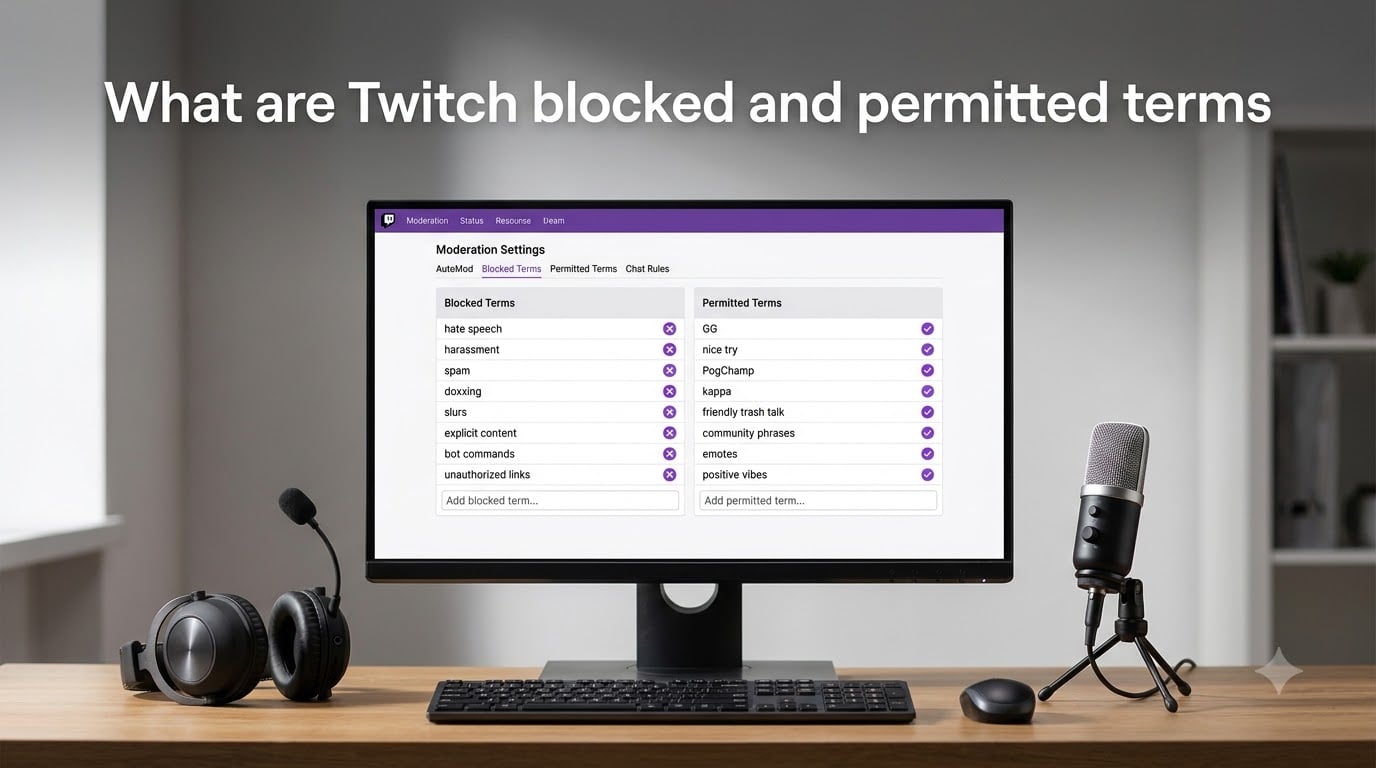
Running a Twitch chat without filters is like leaving your front door wide open. Anyone can walk in and say whatever they want. That is where Twitch blocked and permitted terms come in — they give you and your moderation team the power to control exactly what language appears in your community.
Twitch blocked and permitted terms are built-in chat filtering tools powered by AutoMod. Blocked terms automatically prevent messages containing specific words or phrases from appearing in chat. Permitted terms do the opposite — they create exceptions so certain words bypass AutoMod’s automatic filters without needing manual approval.
I have helped manage Twitch channels ranging from 50-viewer communities to partnered streamers pulling thousands of concurrent viewers. Across all of them, getting these settings right made the single biggest difference in chat quality. This guide breaks down everything you need to know about Twitch blocked and permitted terms in 2026, including how to set them up, wildcard tricks for blocking URL variants, and a ready-to-use list of common spam terms.
Table of Contents
- What Are Twitch Blocked Terms?
- What Are Twitch Permitted Terms?
- How Blocked Terms and Permitted Terms Work With AutoMod
- How to Add Blocked Terms on Twitch
- How to Add Permitted Terms on Twitch
- How to Unblock or Remove Terms on Twitch
- Using Wildcards in Twitch Blocked Terms
- Temporary vs Permanent Blocked Terms
- Common Blocked Terms for Bot and Spam Protection
- Tips for Managing Your Twitch Blocked and Permitted Terms
- FAQs
- Conclusion
What Are Twitch Blocked Terms?
Twitch blocked terms are specific words or phrases you add to a filter that automatically stops matching messages from appearing in your chat. When a viewer sends a message containing a blocked term, that message is held back and never posts publicly.
Think of blocked terms as a custom blacklist layered on top of AutoMod’s built-in language detection. AutoMod catches general profanity and harassment automatically based on your filtering level. Blocked terms let you target specific words, phrases, or patterns that are problematic for your particular community.
For example, if your chat gets spammed with “free followers” scam links every stream, you can add that exact phrase as a blocked term. Any message containing those words gets stopped before it reaches chat.
The blocked terms filter can hold tens of thousands of entries. This means you can build an extensive list over time without worrying about running out of space. Every term you add works alongside AutoMod’s four filtering categories — discrimination, profanity, sexual content, and hostility.
What Are Twitch Permitted Terms?
Twitch permitted terms are exceptions you create that allow specific words or phrases to bypass AutoMod’s filters. When AutoMod catches a message that would normally be held for review, a matching permitted term lets that message through automatically.
This solves a common frustration: AutoMod sometimes flags words that are perfectly fine in your community context. Gaming terms, inside jokes, or non-English words that resemble profanity in English can trigger false positives. Permitted terms let you whitelist those words so they stop getting caught.
The biggest benefit is reducing your moderators’ workload. Without permitted terms, every false positive sits in a review queue waiting for manual approval. If your channel gets hundreds of messages per minute during a stream, that queue piles up fast. Permitted terms handle those exceptions automatically so your mods can focus on real problems.
Permitted terms only override AutoMod’s language filters. They do not override your blocked terms list. If a word is on both lists, the blocked term takes priority and the message still gets stopped.
How Blocked Terms and Permitted Terms Work With AutoMod
AutoMod is Twitch’s machine-learning-powered chat filter that scans every message before it posts. It operates on four filtering levels (Low, Medium, High) across four categories: discrimination, profanity, sexual content, and hostility.
Here is how blocked and permitted terms fit into that pipeline:
When a viewer sends a message, AutoMod first checks it against its built-in language filters. If the message passes, it then checks against your custom blocked terms list. If the message contains a blocked term, it gets held. If it passes both checks, the message posts to chat.
If AutoMod catches a message but that message also contains a permitted term, the permitted term acts as a pass. The message bypasses the filter and posts immediately without moderator review.
This layering matters because it determines your moderation workflow. Blocked terms stop things you never want to see. Permitted terms rescue legitimate messages that AutoMod over-catches. Together, they create a system where most messages either post automatically or get stopped automatically, leaving your mods to handle only the edge cases.
Both lists are accessible to streamers and moderators through the Creator Dashboard. Mods with the right permissions can add, remove, and review terms in real time during a stream.
How to Add Blocked Terms on Twitch
Adding blocked terms takes about 30 seconds once you know where the settings live. Here is the step-by-step process:
Step 1: Open your Creator Dashboard by clicking your profile picture in the top-right corner of Twitch and selecting “Creator Dashboard” from the dropdown menu.
Step 2: In the left sidebar, click on “Settings” then select “Moderation.”
Step 3: Scroll down to the “AutoMod & Message Filtering” section.
Step 4: Click on “Blocked terms and phrases.” You will see a text input field.
Step 5: Type the word or phrase you want to block. You can enter up to 1,000 characters per entry and use up to 10,000 total blocked terms.
Step 6: Click the “Add” button. The term immediately goes live and starts filtering your chat.
That is it. The new blocked term takes effect instantly. Any message containing that exact word or phrase will now be held for review or blocked entirely, depending on your AutoMod settings.
Moderators can also access this panel if the streamer has granted them permission. Mods follow the same steps but may see slightly different layout options depending on their role level.
How to Add Permitted Terms on Twitch
Adding permitted terms follows nearly the same path as blocked terms. The only difference is which section you click into:
Step 1: Open your Creator Dashboard from your profile picture menu.
Step 2: Navigate to “Settings” and then “Moderation.”
Step 3: Scroll to the “AutoMod & Message Filtering” section.
Step 4: Click on “Permitted terms and phrases.”
Step 5: Type the word or phrase you want to allow through AutoMod’s filters.
Step 6: Click “Add” to save the permitted term.
The permitted term takes effect immediately. AutoMod will now allow messages containing that word to post without holding them for review.
Use this sparingly at first. Add permitted terms only when you notice the same legitimate word getting repeatedly caught. Adding too many permitted terms too quickly can weaken your filters and let actual problem messages slip through.
How to Unblock or Remove Terms on Twitch
Removing a blocked or permitted term is just as straightforward as adding one. Here is how to do it:
Step 1: Go to your Creator Dashboard and open “Settings” then “Moderation.”
Step 2: Open either “Blocked terms and phrases” or “Permitted terms and phrases” depending on which list you want to edit.
Step 3: Find the term you want to remove in the list. You can scroll through or use the search function if you have a large list.
Step 4: Click the trash can icon or “Remove” button next to the term.
Step 5: Confirm the removal if prompted.
The term disappears from your filter immediately. Messages containing that word will now be handled by AutoMod’s default behavior again.
If you removed a blocked term and want to add it back later, you will need to re-enter it manually. There is no undo button, so make sure you actually want to remove a term before confirming.
Using Wildcards in Twitch Blocked Terms
Wildcards are the most powerful and underused feature in Twitch’s blocked terms system. They let you catch variations of a word without adding each one individually.
You use an asterisk (*) as a wildcard character. The position of the asterisk changes what it matches:
Asterisk at the end (*word): Adding an asterisk after a term blocks that word plus anything that comes after it. For example, adding “spam*” would block “spam,” “spamming,” “spammer,” and “spambot.”
Asterisk at the beginning (word*): An asterisk before a term catches anything that ends with that word. This is less common but useful for blocking variations where people add prefixes to bypass filters.
URL blocking with wildcards: This is where wildcards shine for spam protection. Bot accounts constantly post links with slight variations to evade filters. Instead of adding every possible URL, use wildcards to catch the patterns.
For example, to block scam links from a domain, you could add the domain name as a blocked term with wildcards: “*scamsite*” would catch “scamsite.com,” “scamsite.net,” “visit-scamsite-today.com,” and similar variants.
Multi-word phrases also work as blocked terms. If you add “free viewers here,” any message containing that exact sequence of words gets caught. The system matches the full phrase, not just individual words within it.
One important limitation: wildcards do not work inside the middle of a word. You cannot write “sp*m” to catch both “spam” and “spim.” The asterisk only works as a prefix or suffix on complete terms.
Temporary vs Permanent Blocked Terms
When AutoMod catches a message, the person who sent it has options to respond. This creates a timeline system that escalates from temporary to permanent blocks.
Here is how the escalation works from the viewer’s perspective. When a message gets held by AutoMod, the sender can request that a moderator review it. If a mod denies the request, the sender gets temporarily blocked from posting that term again.
The first denial results in a short block, typically around one hour. If the same person gets caught again and denied again, the block extends. The escalation generally follows this pattern:
First denial: ~1 hour temporary block on that term.
Second denial: Block extends (typically to several hours or up to a day).
Repeated denials: The block becomes longer, eventually reaching up to 7 days.
Continued behavior: Further violations can result in permanent blocks on the term for that user.
This system exists to give viewers a chance to learn from mistakes while still protecting your chat. Most people stop after the first temporary block. Repeat offenders escalate themselves into longer restrictions through their own actions.
Moderators can see how many times a user has been denied and the current block status. This context helps mods decide whether to approve a held message or let the block stand.
Common Blocked Terms for Bot and Spam Protection
One of the most requested things in Twitch moderation communities is a ready-to-use list of blocked terms. Here are the patterns I have seen cause the most trouble across channels, along with how to block them effectively.
Viewer and follow bot spam: Scammers frequently post messages offering free viewers, followers, or engagement. Add these phrases to your blocked terms:
“free viewers”, “free followers”, “free subs”, “get more viewers”, “boost your channel”, “viewer bot”, “follow bot”, “cheap viewers”, “buy followers”, “grow your channel”
Scam link patterns: Use wildcards to catch the most common scam URL structures. These patterns catch most bot-generated links without blocking legitimate ones:
“*.streamhack*”, “*.twitch-viewer*”, “*.buy-followers*”, “*.cheap-subs*”, “*.freebits*”
Discord and social media spam: Some channels restrict self-promotion. If that fits your community rules, consider blocking these:
“join my discord”, “check my channel”, “follow for follow”, “sub4sub”, “check out my stream”
Personal information protection: Block terms that scammers use to phish for sensitive data:
“enter your password”, “click here to claim”, “free nitro”, “steam gift”, “you won”, “claim your prize”
Copy and paste these into your blocked terms list, then adjust based on what you actually see in your chat. Every community is different, so monitor what gets caught and add new terms as patterns emerge.
Tips for Managing Your Twitch Blocked and Permitted Terms
Building a solid blocked and permitted terms list is an ongoing process. Here are practical tips from real moderation workflows:
Review your held messages regularly. The AutoMod queue shows you what is getting caught. If you see the same legitimate word held over and over, add it to your permitted terms. If you see a new spam pattern, add it to blocked terms.
Watch for emote name conflicts. This is a pain point many streamers discover the hard way. If a blocked term matches part of an emote name, the emote can trigger the filter. Pride emotes and community emotes with certain words in their names are common culprits. If viewers report that emotes are getting blocked, check your blocked terms list for partial matches.
Coordinate with third-party bots. Nightbot, StreamElements, and other chat bots have their own separate block lists. Twitch’s native blocked terms do not sync with these bots automatically. If you rely on both systems, keep them updated separately.
Assign specific mods to manage terms. Having one or two designated moderators who own the blocked terms list prevents contradictions. Without clear ownership, mods can accidentally add conflicting terms or remove each other’s entries.
Test new terms before going live. Before a big stream, type a test message with your new blocked term in a secondary browser window. Confirm it gets caught as expected. This is especially important when using wildcards, since the matching behavior can surprise you.
FAQs
What is a permitted term on Twitch?
A permitted term on Twitch is a specific word or phrase you add to a whitelist that allows it to bypass AutoMod’s automatic language filters. When AutoMod would normally hold a message for review, a matching permitted term lets that message post to chat immediately without moderator approval. This reduces mod workload by handling false positives automatically.
How do I add blocked terms as a mod on Twitch?
To add blocked terms as a moderator, open the Creator Dashboard, go to Settings, then Moderation. Scroll to AutoMod and Message Filtering and click Blocked terms and phrases. Type the word or phrase you want to block (up to 1,000 characters per entry) and click Add. The term takes effect immediately. You need moderator permissions from the streamer to access this panel.
Can Twitch mods see banned words?
Yes, moderators with the appropriate permissions can see the full list of blocked and permitted terms in the channel’s Moderation settings. Mods can also see which messages AutoMod has held for review, including the flagged words in those messages. The streamer controls which mod roles have access to manage these lists.
How do I unblock a term on Twitch?
To unblock a term on Twitch, open the Creator Dashboard and navigate to Settings then Moderation. Click on Blocked terms and phrases under the AutoMod section. Find the term you want to remove in the list, click the trash can icon or Remove button next to it, and confirm the deletion. The term is removed immediately and AutoMod goes back to its default behavior for that word.
What words will get you banned on Twitch?
Twitch does not publish a specific list of banned words. Instead, the Community Guidelines prohibit harassment, hate speech, threats, sexual content, and other harmful language. The severity and context matter. Twitch blocked terms are a channel-level tool that streamers and mods use to filter their own chat, separate from Twitch’s platform-wide enforcement of Community Guidelines violations.
How do I ban words on Twitch as a mod?
To ban words as a moderator on Twitch, open the Creator Dashboard, go to Settings and then Moderation, find the AutoMod and Message Filtering section, and click Blocked terms and phrases. Enter each word or phrase you want to block and click Add. Each entry can be up to 1,000 characters, and you can use wildcards (asterisks) at the beginning or end of terms to catch variations. You need moderator permissions from the streamer to access this feature.
Conclusion
Twitch blocked and permitted terms give you direct control over what language appears in your chat. Blocked terms stop specific words and phrases automatically. Permitted terms create exceptions for words AutoMod over-catches, reducing your moderators’ workload.
The system works as a layered defense. AutoMod handles general language filtering with its built-in categories. Your blocked terms list adds custom protection for the specific spam, scams, and harassment patterns your community faces. Permitted terms rescue legitimate messages that get caught in the crossfire.
If you are setting these up for the first time, start with the common bot spam terms from the list earlier in this guide. Add them to your blocked terms, then monitor your AutoMod queue for a few streams. You will quickly spot patterns unique to your channel and can expand your lists from there.
Wildcards are worth learning early. They save you from adding dozens of variations of the same spam pattern. A single wildcard entry like “*free*viewers*” can catch an entire family of scam messages that would otherwise require a dozen individual entries.
Review your terms regularly. Spam tactics change, new scam domains appear, and your community’s needs evolve. A blocked terms list is never truly finished — it grows and adapts alongside your channel.
Understanding Twitch blocked and permitted terms is one of the highest-impact things you can do as a streamer or mod. A few minutes of setup saves hours of manual moderation and creates a safer, more welcoming space for your viewers to hang out.