
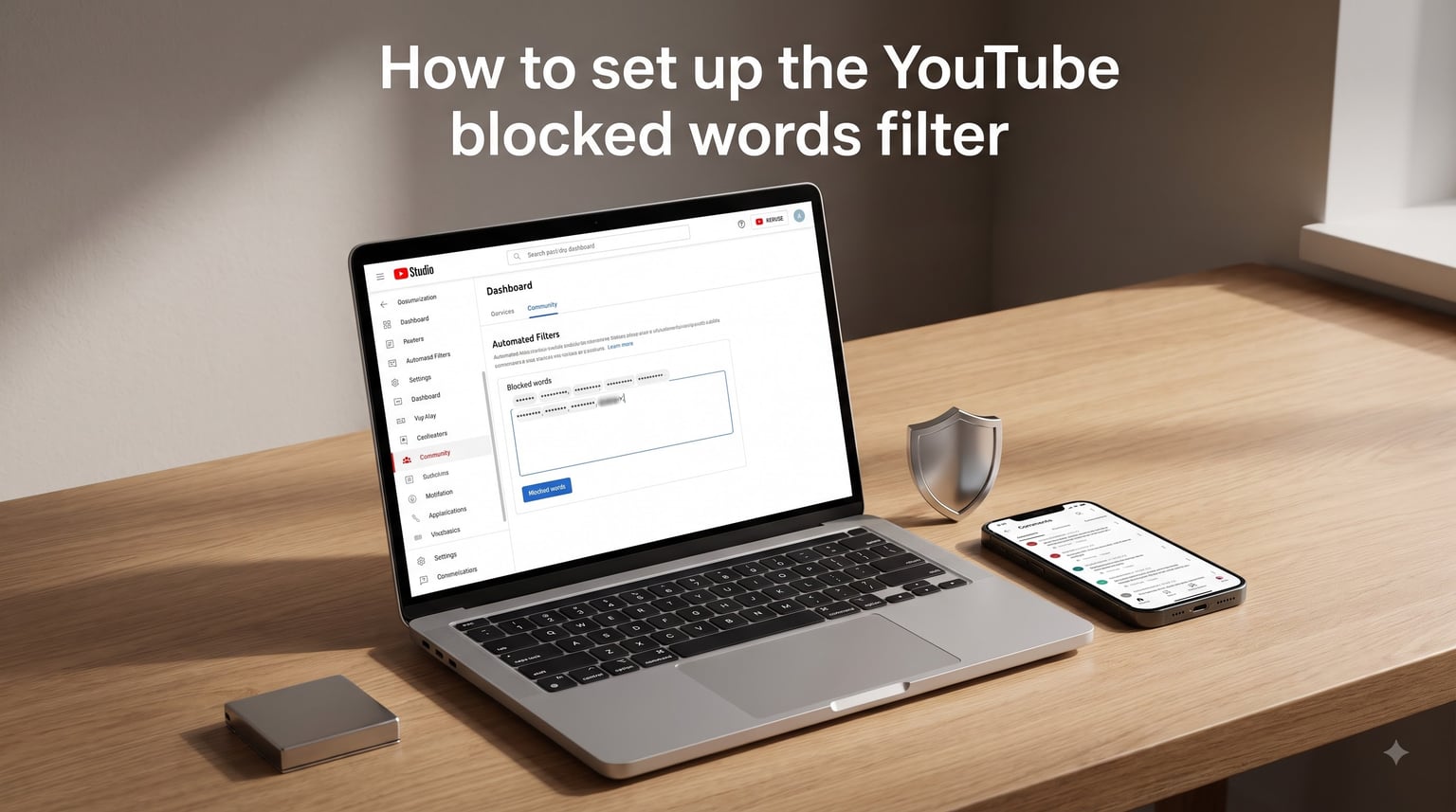
If you run a YouTube channel, you already know that comments can be a double-edged sword. Engaged viewers build community, but spammers and trolls can drag down the experience for everyone. That is where the YouTube blocked words filter comes in. It lets you automatically hold comments containing specific keywords for your review before they ever go public.
In this guide, I will walk you through exactly how to set up the YouTube blocked words filter from scratch. We will cover where to find it in YouTube Studio, what to add to your list, how to manage flagged comments, and how to avoid the common mistakes that trip up new creators. By the end, your comment section will be noticeably cleaner.
This process takes about ten minutes to set up and works across all your videos at once. Whether you are dealing with scam links, repeated harassment, or just want to keep things family-friendly, the blocked words filter is your first line of defense.
Table of Contents
- What Is the YouTube Blocked Words Filter?
- How to Set Up the YouTube Blocked Words Filter
- How to Review Held for Review Comments
- Best Practices for Building Your Blocked Words List
- Mobile vs Desktop: Key Differences
- Blocked Words vs Restricted Mode: What’s the Difference?
- Troubleshooting: YouTube Blocked Words Not Working
- FAQs
- Conclusion
What Is the YouTube Blocked Words Filter?
The YouTube blocked words filter is a built-in comment moderation tool inside YouTube Studio. It works by scanning every comment submitted on your videos for specific keywords or phrases you define. When a comment contains one of those words, YouTube holds it back instead of publishing it immediately.
Held comments land in a queue called “Held for Review.” From there, you can approve, hide, or report each one individually. Nothing gets deleted automatically. You stay in full control of what appears under your videos.
One thing that trips people up: the blocked words filter only affects comments. It does not filter video titles in search results, it does not block videos from appearing in your recommendations, and it does not restrict what people can search for on YouTube. If you have seen Reddit threads from frustrated users trying to block keywords from YouTube search results, this is why. That functionality simply does not exist within YouTube itself.
The filter applies channel-wide. Once you add a word to your blocked list, it is checked against comments on every video you publish. You can also set it up before you ever upload a single video, which is what I recommend for new channels.
How to Set Up the YouTube Blocked Words Filter
Setting up the YouTube blocked words filter happens entirely inside YouTube Studio on a desktop browser. The whole process takes just a few minutes once you know where to look.
Step 1: Open YouTube Studio
Sign in to your YouTube account and click your profile picture in the top-right corner. Select “YouTube Studio” from the dropdown menu. This takes you to your channel dashboard.
If you manage multiple channels, make sure you have the correct one selected before proceeding. Your blocked words list is channel-specific, not account-wide.
Step 2: Navigate to Community Settings
In the left sidebar of YouTube Studio, scroll down and click on “Settings.” A settings window will pop up with several tabs along the top. Click the “Community” tab.
The Community tab contains all your comment moderation controls in one place. This is where you will find the Blocked Words section along with other tools like comment hold duration, approved users, and hidden users.
Step 3: Find the Blocked Words Section
Within the Community tab, the Blocked Words section sits near the top of the page. You will see a text box labeled “Blocked words.” This is where you enter the keywords and phrases you want YouTube to flag.
Each word or phrase goes on its own line. Press Enter after each entry to start a new one. YouTube treats each line as a separate blocked term, so do not separate words with commas.
Step 4: Add Your Blocked Words and Phrases
Type each word or phrase you want to block on its own line. You can add single words, multi-word phrases, or even partial words depending on your needs. For example, adding “free money” blocks that exact phrase, while adding “scam” catches any comment containing that word anywhere in the text.
YouTube also matches variations of your blocked words. If you block a word, comments containing it within longer words may also get caught depending on how YouTube’s matching algorithm interprets the entry. This is worth keeping in mind to avoid false positives.
Step 5: Enable Block Links (Optional but Recommended)
Just below the Blocked Words box, you will see a checkbox that says “Block links.” When enabled, this automatically holds any comment that contains a URL for your review. This catches a huge amount of spam since scam comments almost always include links.
I recommend turning this on for most channels. If your community regularly shares useful links in comments, you can approve those individually from the Held for Review queue.
Step 6: Save Your Settings
Click the blue “Save” button in the bottom-right corner of the settings window. Your blocked words list is now active across all your videos. Any new comments matching your blocked terms will be held for review going forward.
Existing comments are not retroactively scanned. The filter only applies to comments submitted after you save your settings.
How to Review Held for Review Comments
Once your blocked words filter is active, you need to know where flagged comments go and how to handle them. YouTube collects all held comments in a dedicated tab.
In YouTube Studio, click “Comments” in the left sidebar. You will see several tabs at the top: Published, Held for Review, and Likely Spam. The Held for Review tab is where comments caught by your blocked words filter appear.
From this tab, you have three main options for each comment. Click the checkmark to approve it and make it public. Click the trash can icon to hide it, which removes it from your comment section entirely. Or click the three-dot menu to report it for violating YouTube’s community guidelines.
You can also approve or reject comments in bulk. YouTube provides a “Approve all” option if you want to quickly clear your queue after reviewing the content. However, I recommend reviewing each one individually, especially in the first few weeks after setting up your filter. This helps you identify false positives and fine-tune your blocked words list.
YouTube holds comments for review for up to 60 days. After that, held comments are automatically deleted. You can also adjust the hold duration in the same Community settings area where you configured your blocked words.
Best Practices for Building Your Blocked Words List
Building an effective blocked words list requires more thought than just dumping every bad word you can think of into the text box. Over-blocking creates just as many problems as under-blocking because legitimate comments get caught in the filter.
Start With High-Confidence Spam and Scam Terms
Begin with words and phrases that almost never appear in legitimate comments on your channel. Common examples include “subscribe to me,” “check my channel,” “free gift card,” “crypto giveaway,” and “DM me on Instagram.” These are strong signals of spam with very low false-positive risk.
Scam-related terms are also safe additions. Words like “investment opportunity,” “double your money,” and “whatsapp” combined with phrases like “earn money” are heavily used by scam bots across YouTube.
Add Harassment and Profanity Words
If you want to keep your comment section family-friendly, add common profanity to your list. Be specific rather than broad. Blocking a single common word that appears frequently in casual speech can generate dozens of false positives per video.
For harassment, add slurs, targeted insults, and any specific phrases you have noticed trolls using against you or your community. Personalized blocked words are often the most effective because they address your channel’s specific moderation challenges.
Organize Your List by Category
Keep your blocked words list organized by grouping related terms together. Add comment lines (starting with a symbol YouTube ignores) to separate categories visually. This makes it much easier to find and update specific groups of words later.
A simple category structure might include sections for scam terms, profanity, self-promotion spam, link spam, and channel-specific harassment. You can reorder lines at any time without affecting how the filter works.
Avoid Over-Blocking Common Words
This is the single biggest mistake creators make. Blocking generic words like “free,” “link,” “subscribe,” or “money” will catch an enormous number of legitimate comments. A viewer asking “is this free to use?” or “can you link the software?” gets held alongside actual spam.
Instead of blocking individual common words, block multi-word phrases that are specific to spam. “Free money” is safer than “free.” “Subscribe to my channel” is safer than “subscribe.” This approach dramatically reduces false positives while still catching the bulk of spam.
Review and Update Monthly
Spam tactics evolve constantly. Words that were not a problem three months ago might suddenly appear in every scam comment on your channel. Set a monthly reminder to review your Held for Review queue and look for patterns.
If you notice the same spam phrase repeatedly getting through, add it to your blocked list. If you notice a word you blocked is consistently generating false positives, remove it or replace it with a more specific phrase.
Mobile vs Desktop: Key Differences
This is one of the most common sources of confusion based on forum discussions across Reddit communities like r/youtube and r/NewTubers. The mobile experience for managing blocked words is limited compared to desktop, and understanding those differences saves a lot of frustration.
What You Can Do on Desktop
The full YouTube blocked words filter setup process described earlier in this guide requires a desktop browser. You can access YouTube Studio, navigate to Settings, edit your Community tab, add and remove blocked words, enable Block Links, and save changes. Everything works as expected.
You can also review held comments from desktop YouTube Studio. The Comments section with Published, Held for Review, and Likely Spam tabs is fully functional on a computer.
What You Can Do on Mobile
The YouTube Studio mobile app does not currently provide access to the Community settings where blocked words are configured. If you try to find the Blocked Words section on your iPhone or Android device through the app, you will not find it.
However, you can still review held comments on mobile. The YouTube Studio app includes a Comments section where you can view and moderate Held for Review comments. This means you can manage your queue on the go even if you cannot edit your blocked words list.
Accessing Blocked Words Settings on a Phone
If you absolutely need to edit your blocked words list from a phone, there is a workaround. Open your mobile browser (Safari, Chrome, etc.), go to studio.youtube.com, and request the desktop version of the site. Most mobile browsers have a “Request Desktop Site” option in their menu.
This loads the full desktop interface on your phone screen. It is not the most comfortable experience on a small display, but it gives you complete access to all Community settings including the Blocked Words section. On a tablet, the desktop site works surprisingly well.
Blocked Words vs Restricted Mode: What’s the Difference?
People frequently confuse the blocked words filter with Restricted Mode, and they serve completely different purposes. Understanding the distinction prevents a lot of wasted effort.
The blocked words filter is a creator tool. It is something you set up to moderate comments on your own channel. It only affects your videos and only filters comments submitted by viewers.
Restricted Mode is a viewer setting. It is an optional filter that users can turn on to hide potentially mature content from their own YouTube browsing experience. Restricted Mode affects which videos appear in search results and recommendations for that specific user. It has nothing to do with comment moderation.
If someone asks how to turn on the YouTube profanity filter for their own viewing experience, they are most likely asking about Restricted Mode, not the blocked words filter. You cannot control Restricted Mode for your viewers. Each person enables or disables it in their own account settings.
Troubleshooting: YouTube Blocked Words Not Working
Sometimes you set everything up correctly and comments containing your blocked words still appear publicly. Here are the most common causes and how to fix them.
Your Blocked Words Did Not Save
This sounds obvious, but it happens frequently. If you close the Settings window before clicking Save, your changes disappear. Always confirm you see the success message after saving. Go back into Settings and verify your words are still listed in the Blocked Words box.
Comments Were Submitted Before You Saved
The filter only applies to comments posted after you save your settings. It does not retroactively scan existing comments. If a comment with a blocked word was posted before you set up the filter, it remains published until you manually remove it.
The Blocked Word Does Not Match Exactly
YouTube’s matching is based on the exact word or phrase you entered, though it does catch some variations. If you blocked “scam” and a comment contains “scammer,” the match depends on YouTube’s current matching logic, which can change over time. If you notice specific variations slipping through, add them as separate entries.
Approved Users Bypass the Filter
If you have added certain users to your “Approved users” list in Community settings, their comments bypass the blocked words filter entirely. Comments from approved users publish immediately regardless of what words they contain. Check your approved users list if specific accounts seem to be getting around your filter.
YouTube Studio Interface Changed
YouTube periodically updates the Studio interface, which can move settings around. Forum users frequently report confusion after updates relocate features. If the steps in this guide do not match what you see, look for “Settings” and then “Community” as the general navigation pattern. The Blocked Words section has consistently lived within Community settings despite interface changes.
Browser Cache or App Glitches
Occasionally, a stale browser cache or an outdated app version causes settings to appear unsaved or malfunction. Clear your browser cache or try an incognito window. If using the Studio app, update it to the latest version from your app store.
FAQs
How to filter block words on YouTube?
Go to YouTube Studio, click Settings, select the Community tab, and enter your keywords in the Blocked Words box (one per line). Click Save. Comments containing those words will be held for your review instead of publishing automatically.
How do I add blocked words to YouTube?
In YouTube Studio, go to Settings u0026gt; Community u0026gt; Blocked Words. Type each word or phrase on its own line in the text box, then click Save. You can add single words, multi-word phrases, or a combination of both.
How do I turn on the YouTube profanity filter?
YouTube does not have a separate profanity filter. To filter profanity from your comments, add the specific words you want to block to the Blocked Words section in YouTube Studio u0026gt; Settings u0026gt; Community. Restricted Mode is a different feature that affects video visibility for viewers, not comment moderation.
How to stop YouTube from censoring words?
If your comments are being held unexpectedly, check if your channel’s blocked words list or Block Links setting is catching them. Review the Held for Review tab in YouTube Studio u0026gt; Comments and approve legitimate comments. Remove overly broad words from your blocked list to reduce false positives.
How to find blocked words on YouTube?
To view comments caught by your blocked words filter, go to YouTube Studio u0026gt; Comments and click the Held for Review tab. To view or edit your blocked words list itself, go to YouTube Studio u0026gt; Settings u0026gt; Community and look at the Blocked Words text box.
Conclusion
The YouTube blocked words filter is one of the simplest yet most effective moderation tools available to creators. With about ten minutes of setup in YouTube Studio, you can automatically catch spam, scams, profanity, and harassment before they reach your audience.
Start with a focused list of high-confidence spam terms, enable Block Links, and review your Held for Review queue regularly. Adjust your list monthly based on what you see getting through. That cycle of setup, review, and refinement keeps your comment section clean without blocking legitimate community interaction.
Now that you know how to set up the YouTube blocked words filter, open YouTube Studio and get your first list going today. Your future self and your viewers will thank you.