
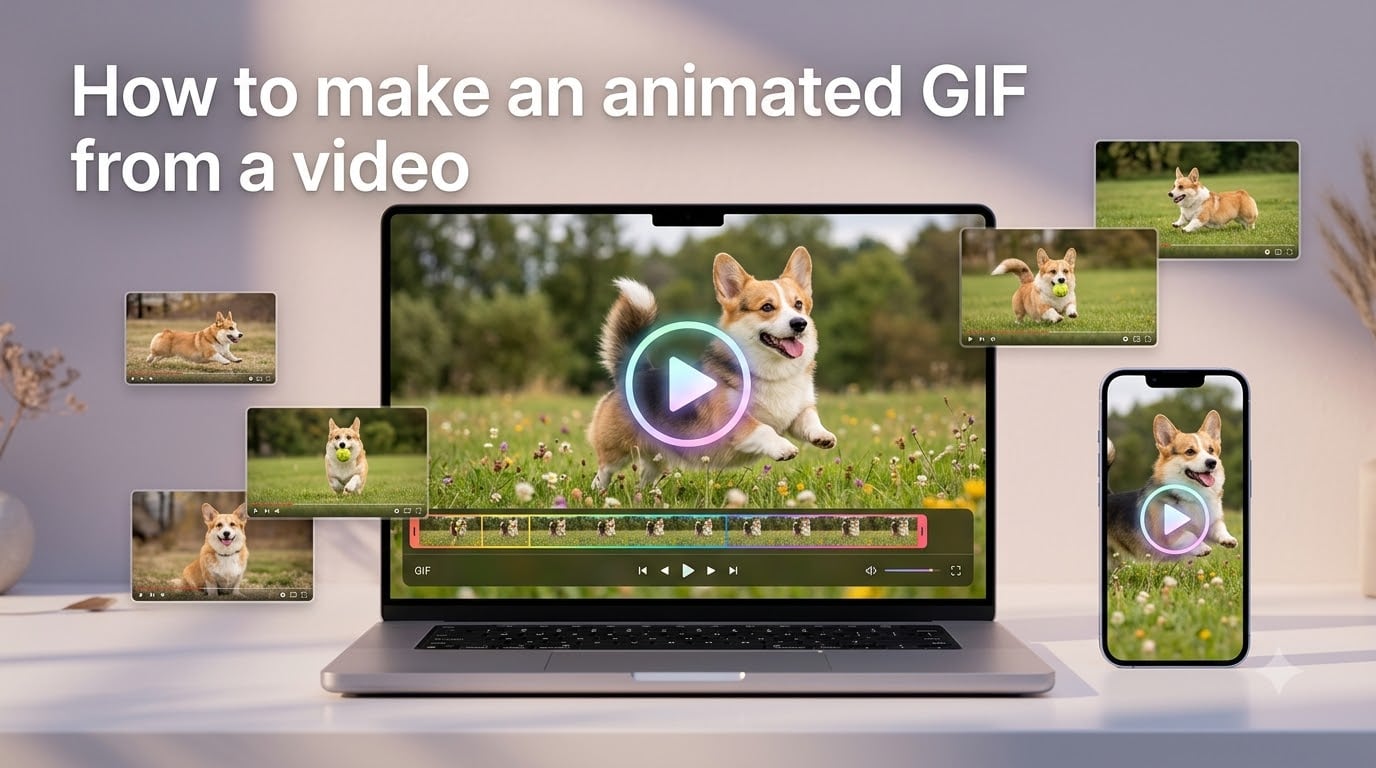
If you have ever wanted to turn a 10-second clip of your dog into a looping reaction you can drop into a group chat, this guide is for you. I have spent the last few weeks testing every free video to GIF converter I could find, and I will walk you through exactly how to make an animated GIF from a video on your phone, your desktop, and right inside your browser.
GIFs load faster than video, autoplay anywhere, and do not need sound to land. They are perfect for memes, tutorials, bug reports, and quick social media posts. By the end of this guide you will know four reliable methods, the settings that actually matter, and how to keep file size down without turning your clip into pixel soup.
Table of Contents
- What Is an Animated GIF and Why Make One From Video
- How to Make an Animated GIF From a Video: Quick Overview
- Method 1: Use an Online Converter Like Ezgif
- Method 2: Use a Design Tool Like Canva or Adobe Express
- Method 3: Make a GIF From a Video on iPhone
- Method 4: Make a GIF From a Video on Android
- Frame Rate, Size, and Quality Settings Explained
- How to Optimize GIF File Size Without Killing Quality
- Tips for Creating GIFs People Actually Watch
- Platform-Specific Troubleshooting
- Frequently Asked Questions About Making GIFs From Videos
- Final Thoughts on Making GIFs From Video
What Is an Animated GIF and Why Make One From Video
A GIF (Graphics Interchange Format) is a short, silent, looping image file that plays without sound. It supports up to 256 colors per frame and is supported by every browser, chat app, and social platform on the planet.
I make animated GIFs from video all the time for three reasons. First, a 3-second loop is faster to share than a video file. Second, GIFs autoplay inline in Slack, Discord, iMessage, and Gmail without forcing a download. Third, a well-timed loop often communicates more emotion than a still image.
Common use cases include:
- Reaction GIFs for chats and social media
- Memes pulled from gameplay or sports clips
- Quick product demos that loop on a landing page
- Before-and-after edits for tutorials and bug reports
- Looping thumbnails for presentations and emails
The catch is that GIFs use an older compression method, so the file size can balloon quickly if you go high resolution or high frame rate. That is why picking the right settings matters as much as picking the right tool.
How to Make an Animated GIF From a Video: Quick Overview
There is no single best method for every situation. Use this quick comparison to pick the right one before diving into the step-by-step below.
- Online converter (Ezgif): Best for quick, free, no-signup desktop conversions from MP4, MOV, WebM, or AVI up to 120 MB.
- Design tool (Canva, Adobe Express): Best when you want to add text, stickers, or effects before downloading.
- iPhone Shortcuts app: Best for native iOS users who want zero uploads and no watermarks.
- Mobile apps (GIPHY on iOS or Android): Best for social-ready GIFs with built-in captions and stickers.
- Advanced tool (FFmpeg): Best for power users who want total control over frame rate and color palette.
Most people reading this guide will only ever need the first three. I will show all four so you have a complete picture.
Method 1: Use an Online Converter Like Ezgif
Ezgif is my default recommendation when someone asks how to make an animated GIF from a video without installing anything. It is free, runs entirely in your browser, and does not slap a watermark on the output.
Step 1. Open ezgif.com/video-to-gif in any modern browser. The home page has a big “Choose File” button right at the top.
Step 2. Click the button and pick a video from your computer. Ezgif accepts MP4, WebM, MOV, AVI, MKV, and most phone recordings. The maximum file size is 120 MB for free users.
Step 3. Wait for the upload to finish. On a 50 MB clip on my home network, this takes about 8 seconds. You will see a built-in video player appear with start and end markers below it.
Step 4. Drag the start and end markers to trim your clip. For a clean reaction GIF, 2 to 5 seconds is the sweet spot. Anything longer feels slow and inflates file size.
Step 5. Scroll down to the conversion settings. Set frame rate (FPS) between 10 and 15 for most clips. Set width to 480 or 640 pixels for social sharing. Leave method on the default unless you know what you are doing.
Step 6. Click Convert to GIF. Processing takes 10 to 30 seconds depending on clip length and settings.
Step 7. Preview the result in the embedded player. If it looks blurry or choppy, jump down to the optimization section below and rerun with adjusted settings.
Step 8. Right-click the result and save it, or use the download button. You now have a clean, watermark-free GIF ready to share.
I have used this exact workflow for hundreds of clips. It is reliable, fast, and requires zero account creation.
Method 2: Use a Design Tool Like Canva or Adobe Express
When I want to add captions, stickers, or a branded intro to my GIF, I use Canva or Adobe Express. Both have free tiers that handle the conversion and basic editing in one place.
Step 1. Go to canva.com and sign in (a free Google or email account works). Search for “Video to GIF” in the features search, or open a 1080 x 1080 design canvas.
Step 2. Click Uploads in the left sidebar and drag your video file into the canvas. Canva accepts MP4, MOV, MPEG, MKV, and WebM.
Step 3. Click the video to select it, then drag the white trim handles on the timeline to cut it down to the section you want. Keep it under 8 seconds for the best balance of size and shareability.
Step 4. Add text, stickers, or shapes from the left sidebar if you want to turn the clip into a meme. The animation tab lets you make elements fade, bounce, or slide in.
Step 5. Click Share in the top right, then choose Download. Pick GIF from the file type dropdown. Canva will render the animation and download it to your computer.
Step 6. Open the file to verify it loops correctly and the file size is reasonable. Anything over 8 MB will struggle to autoplay on slow connections.
Adobe Express works almost the same way. Open video-to-gif under the create menu, upload, trim, optionally add text, and download as GIF. Both tools are great when design polish matters more than technical control.
Method 3: Make a GIF From a Video on iPhone
iPhone users have two solid native options without uploading anything to a third party. I use the Shortcuts app for silent utility GIFs and GIPHY when I want social-ready stickers.
Option A: Use the Apple Shortcuts app
Step 1. Open the Shortcuts app on your iPhone. If you do not have it, it is free from the App Store and ships with iOS 16 and newer.
Step 2. Tap the + icon to create a new shortcut.
Step 3. Add the Select Photos action and switch the media type to Video.
Step 4. Add the Make GIF from Video action. If it does not show up, tap Add Action and search for “Make GIF”.
Step 5. Tap the Convert play button at the bottom of the screen. The shortcut will export a GIF to your Photos library.
Step 6. Open Photos, find the GIF, and tap the share button to send it to Messages, Mail, or any social app.
This method is fast, private, and works completely offline. The downside is limited control over frame rate and resolution.
Option B: Use the GIPHY app
Step 1. Download the free GIPHY app from the App Store and sign in (Google, Apple, or email).
Step 2. Tap the + icon at the bottom of the screen, then choose Video to GIF.
Step 3. Pick a video from your camera roll and trim it using the handles.
Step 4. Add captions, stickers, filters, or a speed slider if you want. GIPHY lets you tap into trending tags for ideas.
Step 5. Tap the orange Continue arrow, add tags, and tap Upload to GIPHY.
Step 6. Open the share menu and pick Save GIF to store it in your Photos library or send it directly to a chat app.
GIPHY is the better choice if you want text overlays, while Shortcuts is better for quick, clean, no-frills clips.
Method 4: Make a GIF From a Video on Android
Android phones do not have a built-in GIF maker on most stock versions, but the GIPHY app fills that gap quickly.
Step 1. Install the free GIPHY app from the Play Store and sign in.
Step 2. Tap the + button at the bottom of the screen, then pick Video to GIF.
Step 3. Select a clip from your gallery. Trim it down to 2 to 6 seconds with the handles.
Step 4. Use the toolbar at the bottom to add text, stickers, or draw on the clip.
Step 5. Tap the upload arrow, add tags, and choose Save to Gallery or Share directly to your favorite chat app.
If you prefer a fully offline option, the free Video to GIF apps by ImgPlay or PixelMotion work similarly and skip the upload step entirely.
Frame Rate, Size, and Quality Settings Explained
Most people skip these settings and wonder why their GIFs look choppy or too big. Here is what actually matters when you convert video to GIF.
Frame rate (FPS): Standard video is 24 or 30 FPS. GIFs do not need that much. 10 to 15 FPS looks smooth for most clips and keeps file size reasonable. Use 20 FPS only for fast motion like sports or gameplay.
Width: Aim for 480 to 640 pixels wide for chat and social media. Full HD 1080p GIFs look great but often exceed 20 MB and refuse to upload on platforms like Discord.
Loop count: GIFs loop forever by default, and that is almost always what you want. Set infinite loop unless you have a specific reason to stop.
Dithering: This is how the converter fakes colors the GIF palette cannot represent. Use “Floyd-Steinberg” for photos and video, and “None” for flat illustrations and UI captures.
Color palette: Modern converters let you choose between adaptive (best quality, larger file) and fixed (smaller file, banding risk). Adaptive is the right default for everything except tiny UI animations.
How to Optimize GIF File Size Without Killing Quality
A bad GIF can easily hit 50 MB. A good one stays under 2 MB and still looks clean. These are the settings I change first when I need to shrink a GIF.
- Lower the frame rate. Dropping from 20 FPS to 12 FPS often cuts size in half with almost no visible difference.
- Resize the width. Going from 1080p to 480p can shrink a GIF by 80 percent.
- Trim aggressively. Cut every second that does not move the story forward. Reaction GIFs work best at 2 to 3 seconds.
- Run Ezgif’s Optimizer. The same site has a free “Optimize” tool that re-encodes your GIF with better compression.
- Use lossy compression carefully. Ezgif lets you set a quality slider. Anything above 80 usually keeps the clip looking sharp.
- Convert to WebP or AVIF for the web. If the GIF lives on your own site, modern formats can be 10x smaller with the same quality. Save GIF only for places that need it.
Quick rule of thumb: if your GIF is over 8 MB, something is off. Drop the width or the FPS first before sacrificing quality.
Tips for Creating GIFs People Actually Watch
A technically perfect GIF that nobody watches is still a failure. After testing dozens of clips, here is what gets the most engagement.
Start at the peak. Cut the boring lead-in. Open with the funniest frame or the clearest action so the loop feels punchy.
Loop on a beat. If you can, end the clip and start it on a motion moment that matches up smoothly. Viewers will not see the seam.
Add captions for sound-off viewing. Most social feeds are silent by default. One line of text at the top makes the GIF three times more useful.
Keep it under 6 seconds. Anything longer and people scroll past before it finishes the first loop.
Use it where it fits. Reaction GIFs belong in chats. Tutorial GIFs belong on landing pages. Marketing GIFs belong in emails. Match the format to the moment.
Platform-Specific Troubleshooting
These are the exact errors I see most often in forums and threads, and the fix for each.
Reddit upload says file too large. Reddit caps GIFs at about 1 MB for inline display and 20 MB for direct upload. Resize the width to 480 pixels and drop frame rate to 12 FPS before uploading.
Discord refuses to embed my GIF. Discord embeds anything under 10 MB. If your GIF is larger, upload it to a host like GIPHY or Imgur and paste the link.
iPhone Photos saves it as a still image. iOS often shows GIFs as a single frame in the Photos app. Open it in Messages, Mail, or Slack to see it animate.
Twitter turns my GIF into a video. That is actually normal. Twitter converts GIF uploads to MP4 for better compression. The autoplay works the same way.
GIF looks washed out or banding. You are probably using a fixed color palette. Switch to adaptive and turn dithering back on.
Frequently Asked Questions About Making GIFs From Videos
Can I make a GIF out of a video on my iPhone?
Yes. The fastest way is the Apple Shortcuts app. Open Shortcuts, create a new shortcut, add the Make GIF from Video action, pick your clip, and tap Convert. The GIF saves to your Photos library. The GIPHY app is the best alternative if you want to add captions or stickers before saving.
Can ChatGPT make a GIF?
Not directly. ChatGPT can generate still images and short videos, but it cannot export a true looping animated GIF file from a video clip. Use the online converters or apps in this guide for actual GIF creation.
How do I edit a video to make a GIF?
Upload the video to Ezgif, Canva, or GIPHY, trim it to the section you want, set your frame rate between 10 and 15 FPS, set the width to 480 or 640 pixels, then convert and download. For more control, FFmpeg lets you set every parameter from the command line.
How to save Reddit videos as GIFs?
Open the Reddit post, copy the video URL, then paste it into an online Reddit video downloader like Redgifs or use a desktop tool like yt-dlp. Save the MP4, then run it through Ezgif to convert to a GIF. Reddit also has a built-in GIF toggle in the mobile upload screen for native recordings.
How do I save an MP4 as a GIF?
Upload the MP4 file to ezgif.com/video-to-gif, drag the trim handles to pick the start and end points, set frame rate to 12 FPS and width to 480 pixels, then click Convert to GIF. Download the result once processing finishes. The whole process takes under a minute for most clips.
How do I make a high-quality GIF that stays small?
Start with a short clip under 5 seconds, lower the frame rate to 12 FPS, resize to 480 pixels wide, and run the output through Ezgif’s free Optimizer tool. This combination usually lands under 2 MB while still looking clean on mobile screens.
What is the best free video to GIF converter?
Ezgif is the most reliable free option for desktop users because it runs in any browser, supports MP4, MOV, WebM, and AVI, and does not add a watermark. For mobile, GIPHY is the strongest free app on both iPhone and Android. Canva is best if you want to add text or design elements.
Final Thoughts on Making GIFs From Video
You now have four reliable methods for how to make an animated GIF from a video, plus the settings that separate a crisp 1 MB GIF from a blurry 20 MB one. Pick Ezgif for speed, Canva or Adobe Express for design polish, Shortcuts for iPhone privacy, and GIPHY for mobile social posts.
Start with one clip, run it through the Quick Overview section above, and tweak the frame rate until it looks right. After a few rounds you will have a workflow that takes under two minutes per GIF, and you will start seeing moments everywhere that deserve to be loops.