
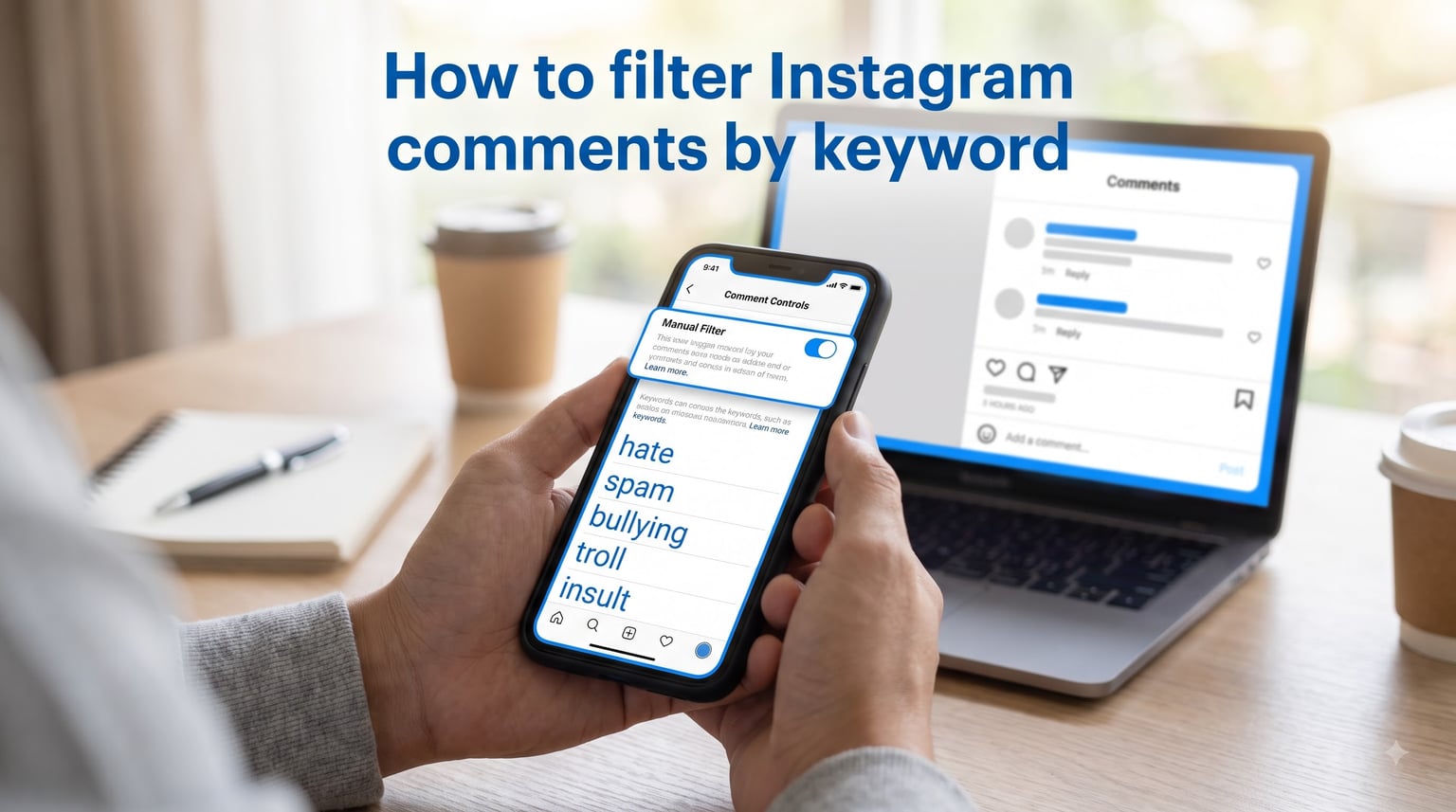
Yes, you can filter Instagram comments by keyword. Instagram’s built-in Hidden Words feature lets you create a list of words, phrases, and emojis that will automatically hide comments containing them. This guide walks you through the exact setup on both mobile and desktop, shares spam keyword examples you can copy, and explains what to do when the filter stops working.
If you manage a business account, run ad campaigns, or just deal with spam on a regular basis, keyword filtering is one of the most effective comment moderation tools Instagram offers. The problem is that most users never explore beyond the surface settings. Our team tested the feature across personal, creator, and business accounts to document exactly what works, what fails, and where Instagram’s native tools hit a wall.
By the end of this article, you will know how to filter Instagram comments by keyword, why certain spam slips through your filters, and what third-party options exist when the built-in system is not enough.
Table of Contents
- What Instagram Comment Filters Actually Do
- How to Filter Instagram Comments by Keyword (Step by Step)
- Spam Keyword Examples to Add to Your Filter List
- Key Limitations of Instagram’s Native Keyword Filter
- Troubleshooting: Why Your Hidden Words Filter Isn’t Working
- Third-Party Tools for Advanced Comment Management
- FAQs
- Conclusion
What Instagram Comment Filters Actually Do
Instagram’s keyword comment filter is a built-in moderation feature called Hidden Words. It automatically hides comments containing specific words, phrases, numbers, or emojis that you add to a custom list. When someone posts a comment matching one of your filtered terms, Instagram keeps it hidden from your public comment section.
Here is the key distinction that confuses most users: filtering and searching are two different things. Filtering hides unwanted comments before they appear publicly. Searching means looking through existing comments for specific words or phrases. Instagram has a filter feature but no native search feature for comments. If you are looking for a way to find all comments containing a specific word someone already posted, Instagram does not offer that capability.
The Hidden Words filter uses exact string matching. That means if you add “scam” to your list, Instagram hides any comment containing that exact sequence of characters. It does not catch variations like “sc@m” or “scaam.” This is important because spammers deliberately misspell words to dodge keyword filters, which is the single biggest weakness of the native system.
Hidden Words is available on all account types, but business and creator accounts get the most value from it. Brands running ads, influencers with high engagement, and community managers dealing with spam all rely on keyword filtering to keep comment sections clean without spending hours on manual moderation.
How to Filter Instagram Comments by Keyword (Step by Step)
The fastest way to filter Instagram comments by keyword is through the Hidden Words settings menu. The exact path differs slightly between the mobile app and desktop browser, so we will cover both.
Setting Up Keyword Filters on the Instagram Mobile App
Here is the step-by-step process for iPhone and Android:
Step 1: Open the Instagram app and tap your profile picture in the bottom right corner to go to your profile page.
Step 2: Tap the three horizontal lines (hamburger menu) in the top right corner.
Step 3: Select Settings and privacy from the menu that slides up.
Step 4: Scroll down to the How others can interact with you section and tap Hidden words.
Step 5: Under the Manage custom words and phrases section, tap inside the text box.
Step 6: Type the words, phrases, or emojis you want to filter. Separate each keyword with a comma. Instagram allows up to 1,000 characters total for your custom list.
Step 7: Toggle on Hide comments to activate the filter for your keyword list. You can also toggle on Hide message requests if you want the same filter applied to your DMs.
Step 8: Tap the back arrow to save your settings. Your filter is now live and will automatically hide comments containing any of your listed keywords.
Setting Up Keyword Filters on Desktop (Meta Business Suite)
If you manage a business or creator account, you can set up keyword filters through Meta Business Suite on desktop. This gives you access to the same filtering options with a larger screen for managing long keyword lists.
Step 1: Go to business.facebook.com and log in with your Instagram credentials.
Step 2: Select your Instagram account from the left sidebar.
Step 3: Click on Settings and navigate to the Comment filtering or Hidden Words section.
Step 4: Click Add keywords and type in the words you want to block, separated by commas.
Step 5: Click Save to apply the filter.
One advantage of using Meta Business Suite is that you can manage keyword lists across multiple accounts and ad campaigns from one dashboard. The desktop interface also makes it easier to paste large lists of keywords at once.
Spam Keyword Examples to Add to Your Filter List
One of the biggest content gaps we found across competitors is that nobody provides actual spam keyword examples you can copy. Our team analyzed hundreds of spam comments across business and creator accounts to build this list. Here are the most common spam patterns and keyword variations that bypass basic filters.
Collaboration spam: Add “DM me,” “DM for collab,” “DM for promo,” “check my page,” “check DM,” and “collab?” to your filter list. These are the most common spam phrases on Instagram, and they appear on nearly every popular post.
Follower and engagement scams: Filter “free followers,” “gain followers,” “followers fast,” “boost engagement,” “get likes,” “buy likes,” and “instant followers.”
Crypto and investment scams: Add “bitcoin,” “crypto investment,” “forex trading,” “DM to invest,” “double your money,” “investment opportunity,” and “trading signals.” These are particularly aggressive on influencer posts and ad comments.
Giveaway and phishing spam: Filter “free gift,” “claim prize,” “click link,” “link in bio,” “bio link,” “limited offer,” and “act now.”
Character substitution variants: Spammers use intentional misspellings and special characters to dodge keyword filters. Add these common variants: “fr.ee,” “fr ee,” “D M me,” “f.ollow,” “fol1ow,” “cl1ck,” and “b.io.” You should update this list regularly because spammers constantly develop new variations.
Emoji spam: Add spam-associated emojis like the pointing down finger, money bag, rocket, fire, and clapping hands to your filter list. Emoji spam is harder to catch with text matching, but Instagram’s Hidden Words feature does support individual emoji filtering.
Key Limitations of Instagram’s Native Keyword Filter
Instagram’s Hidden Words feature is useful, but it has real limitations that you need to understand before relying on it as your only moderation tool. Here is where the native filter falls short.
Exact match only: The filter uses exact string matching, not fuzzy matching or machine learning. If your filtered keyword is “scam,” the comment must contain those four characters in that exact order to be hidden. A comment saying “scm” or “sc@m” will pass right through.
Character substitution bypass: Spammers know exactly how Instagram’s filter works. They intentionally break up words with periods, spaces, numbers, and special characters. “Free iPhone” becomes “free i-phone” or “fr.ee iPh0ne.” Each variation requires its own keyword entry, and your 1,000-character limit fills up fast.
Global filter, no per-post control: Filters apply across your entire account. You cannot set different keyword lists for different posts. If you run an ad campaign with a specific hashtag that also happens to match a filtered term, legitimate comments on that ad will be hidden too.
Limited keyword list size: The 1,000-character limit on custom keywords sounds generous, but it fills up quickly when you account for character substitution variants. Most active business accounts hit this ceiling within a few months of regular filtering.
No native comment search: As we mentioned earlier, Instagram has no built-in feature to search comments by keyword or username. If you need to find a specific comment that was already posted, you have to scroll manually or use a third-party tool.
Bot accounts mimic real language: Modern spam bots are trained to copy legitimate customer language. They post comments that sound genuine but contain subtle spam links or DM prompts. These are nearly impossible to catch with keyword filters alone because the language matches real engagement.
Troubleshooting: Why Your Hidden Words Filter Isn’t Working
This is the single most common complaint we found across Reddit threads, Stack Overflow posts, and forum discussions. Users set up their keyword list, toggle the filter on, and spam comments still appear. Here are the most likely causes and how to fix them.
Problem: Filter seems to ignore your keyword list entirely. This is the most reported issue. First, double-check that the Hide comments toggle is actually switched on. It is easy to add keywords and forget to enable the filter. Go back to Settings and privacy > Hidden Words > Custom words and phrases and verify the toggle is green.
Problem: Some spam still gets through despite having keywords added. This happens because of exact string matching. Check the spam comment that slipped through. It likely contains a character variation, misspelling, or emoji substitution that does not match your exact keyword. Add the specific variant you see to your list.
Problem: Filter works on some posts but not others. Instagram applies filters globally, but there can be a delay of several minutes to hours before new keyword settings take effect across all posts. If you just added keywords, wait 15 to 30 minutes and check again.
Problem: Legitimate comments are being hidden. Your filter may be too broad. If you added common words like “link” or “bio,” you will accidentally hide real engagement. Review your keyword list and remove overly generic terms. Replace them with more specific phrases like “link in bio” or “check my bio.”
Problem: App cache is causing stale filter settings. Force-close the Instagram app and reopen it. On some devices, the app caches old settings and does not refresh your filter changes immediately. If that does not work, clear the Instagram app cache from your phone’s settings menu.
Problem: Desktop settings are not syncing to mobile. If you set up filters through Meta Business Suite, it can take up to 24 hours for changes to sync across all platforms. Log out and log back into the mobile app to force a settings refresh.
When nothing works: Some users report that Instagram’s keyword filter has intermittent bugs, particularly after app updates. If you have verified all settings and the filter still fails, report the issue through Instagram’s help center. Community discussions on Reddit suggest these bugs are typically patched within a few weeks.
Third-Party Tools for Advanced Comment Management
When Instagram’s native Hidden Words feature is not enough, third-party tools pick up the slack. These tools offer features Instagram does not provide natively, including fuzzy keyword matching, AI-powered spam detection, comment search, and per-post filtering.
Meta Business Suite is the first stop for business and creator accounts. It extends Instagram’s native filtering with a dashboard view of all comments across posts and ads. You can filter, reply, and hide comments in bulk, which saves significant time for accounts with high engagement. Meta Business Suite is free for all business accounts.
CommentGuard is a Meta-approved third-party tool that adds intelligent comment moderation on top of Instagram’s native features. It offers fuzzy keyword matching, which catches character substitutions that Instagram’s exact-match filter misses. CommentGuard also provides a searchable dashboard where you can find specific comments by keyword or username, filling the gap left by Instagram’s lack of native comment search.
Superpower is another option that uses machine learning to detect spam patterns rather than relying on keyword lists. Instead of maintaining a static list of blocked words, the system learns from spam comments across thousands of accounts and automatically filters new variations. This is particularly useful for brands running ads where spam evolves rapidly week over week.
Here is how native filtering compares to third-party tools. Instagram’s Hidden Words is free, simple, and covers basic keyword blocking. Meta Business Suite adds bulk management and is still free. Third-party tools like CommentGuard and Superpower cost money but solve the exact-match problem, offer comment search, and handle spam evolution automatically.
For most personal accounts and small creators, the native Hidden Words filter plus regular list updates is enough. For business accounts running ads or influencers with high comment volume, a third-party tool pays for itself in the time saved on manual moderation. Users on Reddit report spending 30 to 60 minutes daily moderating ad comments manually, which is exactly the workload these tools are designed to eliminate.
FAQs
How to filter certain words on Instagram comments?
Go to Settings and privacy u0026gt; Hidden Words u0026gt; Manage custom words and phrases. Type the words you want to block, separated by commas, then toggle on Hide comments. Instagram will automatically hide any comment containing those keywords.
Is it possible to filter Instagram comments?
Yes. Instagram has a built-in feature called Hidden Words that lets you create a custom list of keywords, phrases, numbers, and emojis. Comments containing any of these terms are automatically hidden from your public comment section.
Is there a way to search for specific comments on Instagram?
No. Instagram does not have a native comment search feature. You cannot search comments by keyword or username within the app. To find specific comments, you need to scroll manually or use a third-party tool like CommentGuard that provides a searchable comment dashboard.
How to search Instagram by keyword?
You can search Instagram posts, accounts, reels, and tags by keyword using the search bar at the top of the app or website. However, you cannot search individual comments by keyword using Instagram’s native search. Comment-level search requires third-party tools.
Conclusion
Learning how to filter Instagram comments by keyword comes down to understanding Hidden Words, building a solid keyword list, and knowing when the native system hits its limits. Set up your filter through Settings and privacy > Hidden Words, add spam keywords, and toggle on Hide comments. Update your list regularly to catch new spam variations, and consider Meta Business Suite or a third-party tool if you manage a high-traffic business account. Start with the spam keyword examples in this guide, then adjust based on what actually shows up in your comments.