
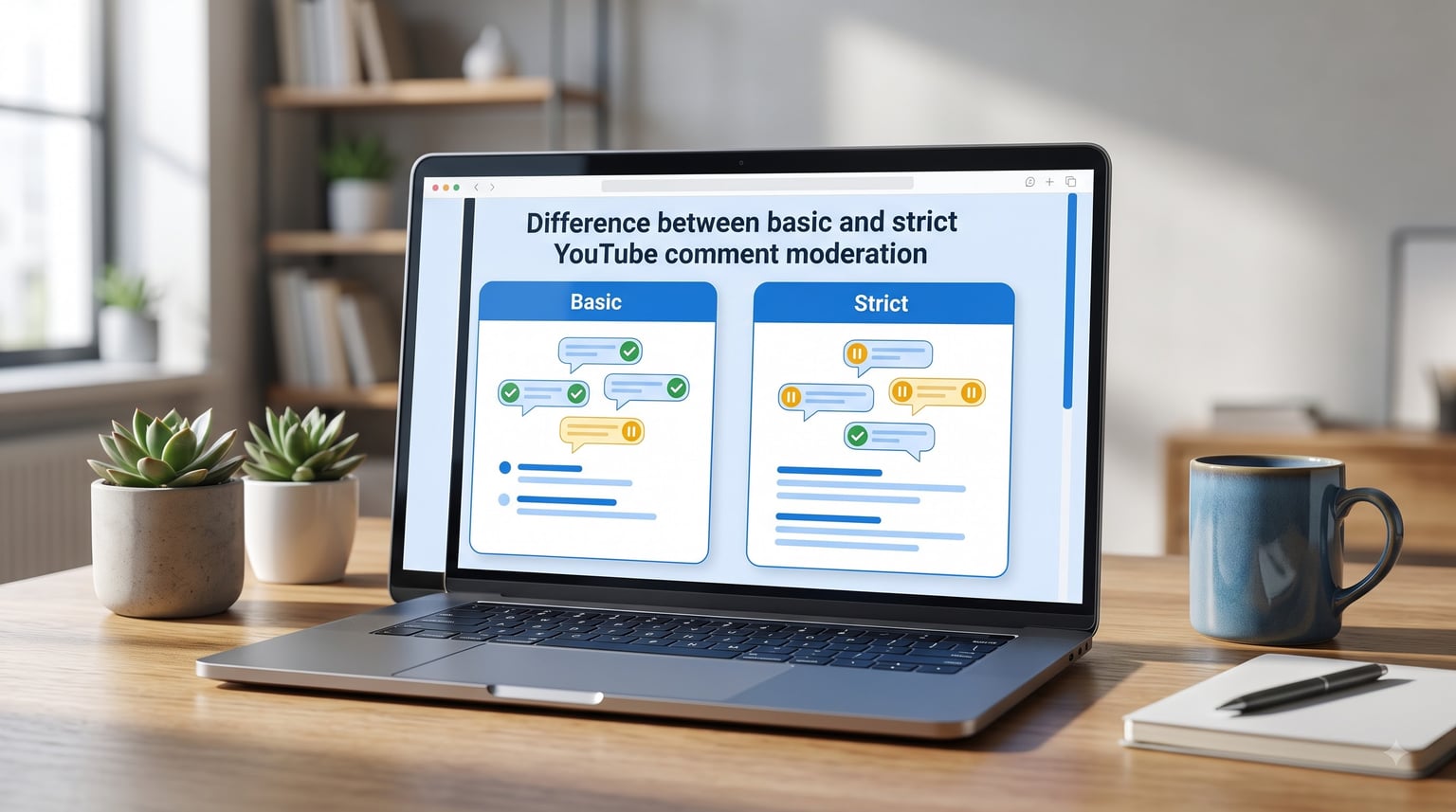
If you have ever opened your YouTube Studio comment tab and found a wall of spam, hostile arguments, or links to shady websites, you already know why comment moderation settings matter. The difference between basic and strict YouTube comment moderation comes down to how aggressive the platform’s automated filter is when deciding which comments appear instantly and which get held back for your approval.
Basic holds only comments flagged as potentially inappropriate. Strict casts a much wider net, catching a broader range of messages that might violate community guidelines. Choosing the wrong setting can either flood your section with junk or quietly erase legitimate viewer engagement.
I have spent months testing all four moderation levels across channels of different sizes, and the results surprised me. In this guide, I will walk you through exactly how each setting works, when to use which one, and how to avoid the false-positive problem that frustrates so many viewers and creators.
Table of Contents
- What Is YouTube Comment Moderation?
- YouTube Comment Moderation Basic vs Strict: The Core Difference
- All Four YouTube Comment Settings Compared
- How to Change Your Comment Moderation Settings
- The Held for Review Queue Explained
- Building an Effective Blocked Words List
- YouTube Moderator Roles Explained
- Which Setting Should You Choose?
- The Strict Mode False Positive Problem
- FAQs
- Conclusion
What Is YouTube Comment Moderation?
YouTube comment moderation is the system that decides which viewer comments appear publicly on your videos and which get filtered out. It runs on a combination of automated detection and manual controls that you configure in YouTube Studio.
When someone posts a comment, the system scans it in real time for spam, harassment, profanity, and other content that may violate community guidelines. Depending on your settings, that comment is either published immediately, held for your review, or blocked entirely.
You get four main moderation levels to choose from: None, Basic, Strict, and Hold all. Each one changes how aggressive the automated filter behaves. You can also layer additional controls on top of any setting, including a blocked words list, approved users list, and human moderators.
The automated detection is powered by AI that has been trained on massive volumes of flagged content across the platform. It looks at language patterns, links, repetitive text, account behavior, and other signals to score each comment for risk. Your moderation setting essentially tells the system what threshold to use when making a publish-or-hold decision.
YouTube Comment Moderation Basic vs Strict: The Core Difference
The core difference between YouTube comment moderation basic vs strict is simple: Basic holds potentially inappropriate comments for review, while Strict holds a broader range of potentially inappropriate comments. Strict uses a more aggressive filtering threshold, so it catches comments that Basic would let through.
Here is what that means in practice.
Basic moderation targets comments that contain clear red flags. This includes obvious profanity, harassment, and language that closely matches known spam or abuse patterns. If a comment is borderline but generally benign, Basic usually publishes it. Most legitimate viewer comments pass through without issue.
Strict moderation lowers the bar for what gets held. Comments that contain certain keywords, phrasing, or patterns associated with toxicity will be pulled aside even if they are not overtly harmful. The goal is to catch things Basic might miss, but the trade-off is a higher rate of false positives.
This false-positive problem is one of the biggest complaints I see across YouTube communities. On Reddit, viewers repeatedly report that channels with strict comment moderation delete all their comments, even positive ones or messages containing a single letter. One user noted that about 80 percent of their comments simply vanish. They show up for the person who posted them but are invisible to everyone else.
That happens because Strict mode errs on the side of caution. When the AI is uncertain about a comment, it holds it rather than publishing. The commenter sees their own text, so they think it went through, but no one else can view it until a moderator approves it.
If you run Strict mode, you need to check your held-for-review queue regularly. Otherwise, perfectly good comments sit there unseen, and your viewers assume you are silencing them.
All Four YouTube Comment Settings Compared
To understand where Basic and Strict fit, it helps to see all four settings side by side. Each one sits on a spectrum from most open to most restrictive.
None: YouTube does not hold comments based on inappropriate content detection. Comments publish immediately when posted. However, YouTube still removes content that blatantly violates community guidelines, such as illegal material or extreme spam, regardless of this setting. Many small and new creators use None without problems because their audience is small and manageable.
Basic: Comments flagged as potentially inappropriate are held for your review before appearing publicly. This catches common spam and clear harassment while letting most genuine engagement through. Basic is a solid middle ground for most growing channels.
Strict: A broader range of comments gets held for review. The filter is more aggressive, catching borderline content that Basic would publish. This setting works for channels dealing with high comment volume, sensitive topics, or frequent targeted attacks, but it requires active queue management to avoid blocking legitimate viewers.
Hold all: Every single comment goes to your review queue before it appears publicly. Nothing publishes automatically. This setting is designed for channels running sensitive campaigns, managing controversies, or dealing with coordinated harassment waves. It gives you total control but demands constant attention to keep engagement alive.
The key distinction across all four is automation level. None publishes almost everything automatically. Basic auto-publishes most comments while holding obvious problems. Strict auto-publishes fewer comments and holds more. Hold all publishes nothing without your approval.
How to Change Your Comment Moderation Settings
You can set a default moderation level that applies to all new uploads, and you can also change the setting on individual videos that are already published. Both are done through YouTube Studio.
Step 1: Set your default moderation level
Open YouTube Studio and click on the Settings gear icon in the lower-left corner. Select Community from the settings menu. Under the Defaults tab, look for the Comments section. You will see a dropdown labeled with the moderation options: None, Basic, Strict, or Hold all for review. Choose the level you want applied to all future uploads. Click Save at the bottom right.
Step 2: Change settings on an existing video
Go to YouTube Studio and open the Content tab from the left sidebar. Click on the video you want to update. Scroll down to the Comments and ratings section. You will see a dropdown for comment moderation settings on that specific video. Select your preferred level and click Save in the upper right.
Step 3: Change settings on mobile
Open the YouTube app and tap your profile picture. Select YouTube Studio from the menu. From there, you can access the Community settings to adjust your default moderation level. For individual videos, open the video, tap the three-dot menu, select Edit, and adjust the comment settings.
Keep in mind that changing your default setting does not retroactively change comments already posted on older videos. It only applies to new uploads going forward.
The Held for Review Queue Explained
When a comment gets caught by your moderation filter, it does not get deleted. It goes into a holding area called the held for review queue. This is where you decide what happens next.
To find this queue, open YouTube Studio and click on the Comments tab in the left sidebar. At the top of the comments page, you will see a tab labeled Held for review. This is where every flagged comment lands.
From this queue, you have three actions available for each comment. You can approve it to publish it publicly, which is the right choice for legitimate comments caught by a false positive. You can report it for violating community guidelines if it contains genuinely harmful content. Or you can hide the user, which removes the comment and prevents that person from commenting on your channel again.
Held comments do not stay in the queue forever. YouTube automatically removes them after a set retention period, so you need to review them in a timely manner. If you run Strict or Hold all mode, I recommend checking this queue at least once a day to keep engagement flowing and prevent legitimate viewers from feeling ignored.
From the viewer’s side, held comments are invisible. The person who posted the comment can still see it on their own screen, which creates the confusing experience of appearing to post successfully while no one else can view the message. This is why clear communication with your audience about moderation settings matters.
Building an Effective Blocked Words List
On top of your chosen moderation level, YouTube lets you create a blocked words list. Any comment containing one of these words gets held for review automatically, regardless of whether the AI flags it.
This is one of the most underused tools I see among creators. A well-built blocked words list catches the specific types of spam and toxicity that generic AI filters might miss because they are unique to your niche or audience.
To set up your list, go to YouTube Studio, click Settings, then Community, and scroll to the Blocked words field. Enter one term per line. You can use this for profanity, competitor spam, known scam phrases, or any language you do not want appearing on your channel.
Be strategic about what you add. Over-blocking common words can cause legitimate comments to pile up in your review queue. Focus on terms that have no reasonable place in a healthy discussion on your channel.
YouTube also offers an approved users list. People you add to this list will have their comments published automatically, bypassing both the moderation filter and your blocked words list. This is useful for trusted community members who frequently engage with your content and should never get caught in the filter.
YouTube Moderator Roles Explained
If your channel grows large enough that managing comments becomes a solo burden, YouTube lets you assign moderator roles to trusted people. These roles give other users permission to help manage your comment sections without giving them full access to your channel.
Channel-level moderators can review, remove, and hold comments across every video on your channel. They see the held-for-review queue and can approve or reject flagged comments. This is the broadest role and is best for a dedicated community manager who handles moderation full-time.
To assign a channel moderator, go to YouTube Studio, open Settings, then Community, and look for the Moderators section under the Automated Filters tab. Enter the channel URL or handle of the person you want to add. They will receive a notification and gain moderation access once they accept.
Video-level permissions work differently. On an individual video, you can assign a manager who has comment moderation powers for that specific upload. This is useful for collaborations or guest contributors who only need access to one piece of content.
Beyond assigned moderators, YouTube also allows you to delegate through a moderator link. Anyone with this link can flag comments for your review, though they cannot remove or approve content themselves. This lighter-touch approach works well for community-led moderation on large channels.
The different types of moderators on YouTube are: channel moderators with full cross-video permissions, video-level managers for single uploads, and contributors who can flag comments through a shared link. Each role has a different level of control, so choose based on how much trust and responsibility you want to delegate.
Which Setting Should You Choose?
The right moderation setting depends on your channel size, content type, and audience behavior. There is no single answer that works for everyone, so here is how I think about the decision based on channel profile.
Small and new channels (under 1,000 subscribers): Most creators at this stage benefit from None or Basic. Your comment volume is low enough to manage manually, and you want every comment to appear so viewers feel heard. Blocking engagement early on can stall your growth because comments signal to the algorithm that your video is generating interaction. Many new creators report using None with no problems because their audience is small and respectful.
Growing channels (1,000 to 50,000 subscribers): Basic is usually the sweet spot. As your audience grows, you will start attracting spam and the occasional hostile commenter. Basic catches the obvious problems while letting genuine engagement flow through. Pair it with a targeted blocked words list for your niche-specific concerns.
Brand and business channels: Basic or Strict depending on your industry. Brands in sensitive sectors like finance, health, or politics should consider Strict to protect their reputation. Brands in lifestyle, entertainment, or casual niches can usually manage with Basic plus active queue monitoring.
Controversial content creators: If your videos attract heated debate or targeted harassment, Strict or Hold all may be necessary. The trade-off is that you must commit to checking your held-for-review queue multiple times per day. Without active management, Strict mode will suffocate your engagement by trapping good comments alongside the bad ones.
Educational and family channels: Strict is worth considering here. Parents and educators in your audience expect a clean comment section. The higher false-positive rate is an acceptable trade-off for maintaining a safe environment.
My recommendation for most creators is to start with Basic, monitor your comment section for a few weeks, and only escalate to Strict if you are consistently dealing with spam or toxic comments that Basic misses. You can always tighten your filter, but over-moderating from the start can cost you community goodwill.
The Strict Mode False Positive Problem
The single most common complaint about YouTube comment moderation is that Strict mode catches legitimate comments. Viewers post something genuine and positive, only to find their message has vanished from public view. This is not a bug. It is how the setting is designed to work.
Strict mode tells the AI to err on the side of holding rather than publishing. When the system is uncertain about a comment, it defaults to caution. This means comments that contain certain keywords, phrasing patterns, or links get pulled even when the intent behind them is harmless.
I have seen reports of single-letter comments being held, positive messages disappearing, and long-time subscribers finding their input invisible. One viewer on Reddit described posting a supportive comment that showed up on their screen but was invisible to everyone else. They had no way of knowing whether the creator blocked them or the filter caught them.
This creates a frustrating experience for viewers and a hidden problem for creators. If you run Strict mode without checking your queue, you are silently rejecting audience members who took the time to engage with your content.
How to tell if a comment was held vs deleted: From the viewer side, there is no reliable indicator. The comment appears to post successfully on your end but is invisible to others. From the creator side, held comments appear in your YouTube Studio queue. Deleted comments simply do not exist anywhere. If you use Strict mode, make reviewing the held queue part of your daily workflow.
Tips for creators using Strict mode: Check your held-for-review queue at least once per day, ideally twice. Approve legitimate comments quickly so viewers see engagement happening. Consider adding an approved users list for your regular commenters so their messages bypass the filter entirely. And if you notice your queue is full of good comments, that is a sign to switch down to Basic.
Tips for viewers whose comments keep disappearing: The channel likely has Strict or Hold all enabled. Avoid links in your comments, as these trigger filters frequently. Keep your language clean and avoid sarcasm that could be misread by automated systems. If a comment never appears, try rephrasing it without flagged terms.
YouTube guidelines are strict because the platform operates at massive scale. With billions of comments posted, even a small percentage of harmful content would overwhelm manual moderation. Automated filtering at scale means some legitimate comments will always get caught. The trade-off is built into the system, and understanding it helps both creators and viewers navigate the experience more patiently.
FAQs
What is the difference between the basic and strict comment moderation settings on YouTube?
Basic moderation holds potentially inappropriate comments for review, while Strict holds a broader range of potentially inappropriate comments. Strict uses a more aggressive filtering threshold, so it catches borderline comments that Basic would publish. This means Strict produces more false positives but provides tighter control over your comment section.
What are the different types of moderators on YouTube?
YouTube offers three main moderator roles: channel-level moderators who can review and manage comments across all your videos, video-level managers who handle comments on a single upload, and contributors who can flag comments through a shared moderator link. Channel moderators have the broadest permissions, while contributors can only flag content for your review.
Why are YouTube guidelines so strict?
YouTube operates at massive scale with billions of comments posted across the platform. Strict automated filtering is necessary to handle spam, harassment, illegal content, and coordinated abuse at that volume. The trade-off is that some legitimate comments get caught by the filter. YouTube prioritizes removing harmful content quickly, which means erring on the side of caution.
Can I sue YouTube for censoring my comments?
Generally, no. Under Section 230 of the Communications Decency Act in the United States, platforms like YouTube are not legally liable for content moderation decisions and have the right to remove or hold comments at their discretion. YouTube’s Terms of Service also grant the platform broad authority over content. Individual creators control their own comment settings, so if your comment was held, it is likely due to the channel’s moderation level rather than YouTube censoring you directly.
Conclusion
Understanding the difference between basic and strict YouTube comment moderation helps you protect your community without suffocating engagement. Basic holds only clearly inappropriate comments, while Strict casts a wider net that catches more potential problems but also traps more legitimate viewer messages.
Start with Basic if you are unsure, monitor your comment section, and escalate only when you need to. Pair your chosen setting with a targeted blocked words list and regular review of your held-for-review queue. The right moderation approach keeps your channel welcoming without making your audience feel silenced.
Take ten minutes today to check your current moderation settings in YouTube Studio and make sure they match the channel you are building.