
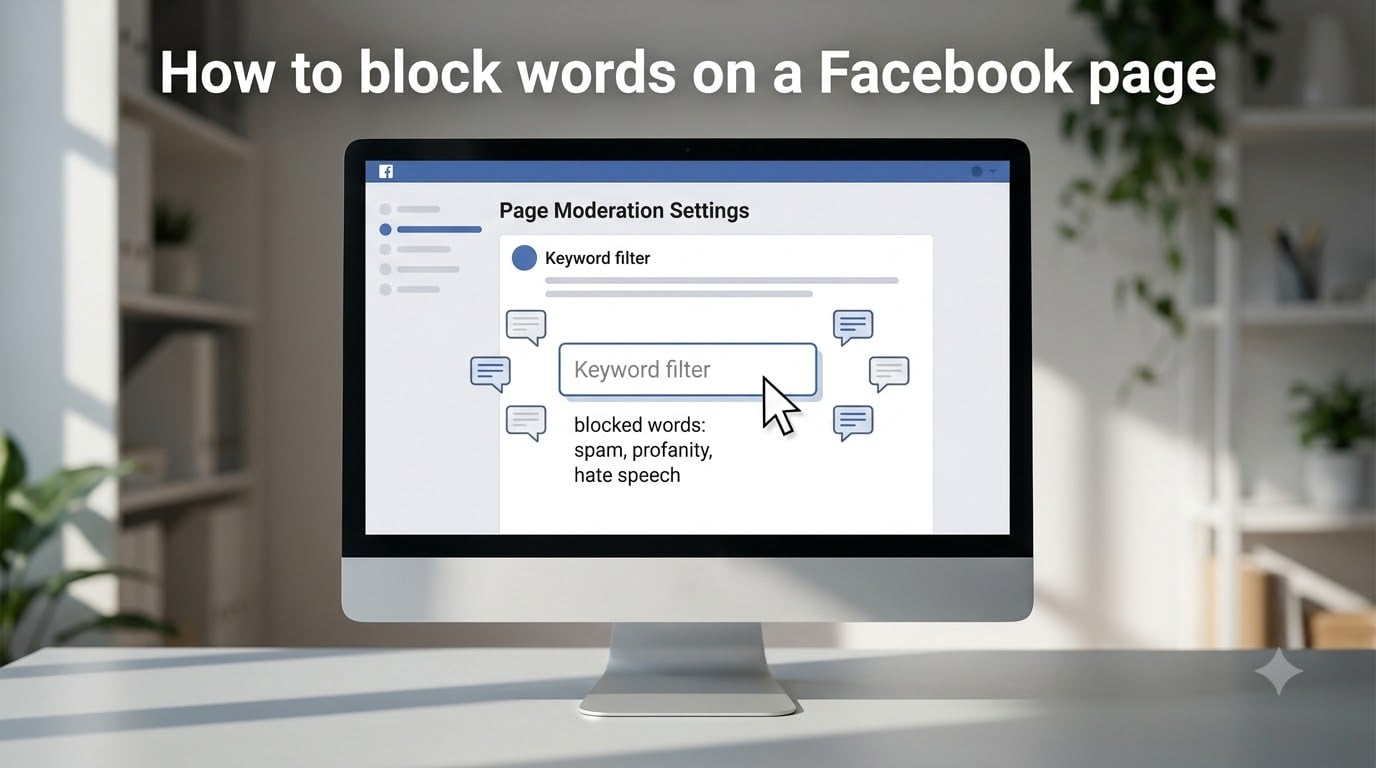
Running a Facebook Page means dealing with spam, trolls, and off-topic comments that can drag down your community. If you have ever wished you could just make certain words disappear from your comment sections, you are in the right place. This guide walks you through exactly how to block words on a Facebook page so offensive, spammy, or unwanted comments get hidden automatically.
I have managed multiple business Pages over the years, and the word blocking feature saved me hours of manual moderation every week. Once you set it up, Facebook filters comments containing your chosen keywords before anyone in your audience sees them. Below you will find the full step-by-step process, the limits you need to know, and troubleshooting tips for when things go wrong.
Table of Contents
- What Is Facebook’s Word Blocking Feature?
- How to Block Words on a Facebook Page: Step-by-Step Guide
- Keyword Limits and Requirements
- How Automatic Variation Detection Works
- Facebook Page vs Personal Profile Word Blocking
- How to Unhide Blocked Comments
- Mobile App vs Desktop: Key Differences
- Troubleshooting Common Issues
- FAQs
- Wrapping Up
What Is Facebook’s Word Blocking Feature?
Facebook’s word blocking feature lets Page administrators hide comments that contain specific keywords, phrases, or emojis from public view. It is part of the Page moderation toolkit, sometimes called the Facebook keyword filter. When someone posts a comment containing a blocked word, that comment stays visible to the commenter and their friends but disappears from the public view on your Page.
This matters because deleting comments outright can anger users and spark accusations of censorship. Hiding comments is softer. The person who posted does not get a notification, and they often never realize their comment was filtered. Meanwhile, your community stays clean.
One important distinction: this feature only hides comments. It does not block people, remove posts, or filter content from your own newsfeed. If you want to stop seeing certain topics in your personal feed, that requires a different approach covered later in this article.
How to Block Words on a Facebook Page: Step-by-Step Guide
Here is the exact process for setting up a keyword block list on your Facebook Page. I recommend doing this on a desktop browser the first time so you can see every option clearly.
Step 1: Log in and switch to your Page profile. Open Facebook in your browser and log in to the account that has admin access to your Page. Click your profile picture in the top right, then select your Page from the list to switch into the Page profile.
Step 2: Open Settings. Click your Page profile picture again in the top right corner, then click Settings & privacy followed by Settings.
Step 3: Navigate to Followers and Public Content. In the left sidebar, look under the Professional or Page section and click Followers and public content. This is where the comment filtering options live in the current Facebook interface.
Step 4: Find the keyword filter setting. Scroll down until you see the option labeled Hide comments containing certain words. Toggle or click to expand this section.
Step 5: Add your blocked words. Type or paste the keywords, phrases, and emojis you want to block. Separate each entry with a comma. You can add single words, multi-word phrases, or specific emoji.
Step 6: Save your changes. Click Save or Update at the bottom of the section. Facebook applies the filter immediately to new comments going forward.
That is the core process. Once saved, any new comment containing one of your blocked terms gets hidden from public view automatically. Existing comments made before you set up the filter are not retroactively hidden.
Keyword Limits and Requirements
Facebook enforces a strict set of rules for your blocked word list. Knowing these upfront prevents frustration when your list does not save properly.
Maximum 1,000 keywords. You can block up to 1,000 individual entries per Page. Each word, phrase, or emoji counts as one entry toward that limit.
Comma-separated entries. Separate every keyword with a comma. Facebook treats everything between commas as one blocked term.
Phrases count as one entry. A multi-word phrase like “free money now” counts as a single keyword, not three separate words.
Emoji are supported. You can paste specific emoji into your list and Facebook will hide comments containing them.
Case insensitive. capitalization does not matter. Blocking “spam” also catches “SPAM” and “Spam.”
If you try to save more than 1,000 entries, Facebook will not save the overflow. I learned this the hard way after pasting a massive CSV list and wondering why the last 200 words kept disappearing.
How Automatic Variation Detection Works
This is one of the most useful and most misunderstood parts of the Facebook content filter. When you block a word, Facebook also attempts to hide common variations of that word automatically. You do not have to list every possible spelling yourself.
The system catches several types of variations:
Misspellings. If you block “scam,” comments containing “scamm” or “scaam” may also be hidden.
Plurals. Blocking “bot” typically also filters “bots.”
Abbreviations. Common shortened forms of blocked words are often caught.
Symbol and number substitutes. If someone replaces letters with symbols or numbers to bypass your filter, Facebook’s detection often still catches it.
That said, automatic detection is not perfect. Highly creative misspellings or words split with spaces can sometimes slip through. Treat the automatic detection as a helpful bonus, not a guarantee. For high-priority terms, manually add the most common misspellings you see in your comments.
Facebook Page vs Personal Profile Word Blocking
A lot of confusion comes from mixing up what Pages can do versus what personal profiles can do. The features are genuinely different, and understanding the distinction saves you from searching for settings that do not exist.
Facebook Pages have the full keyword filter described above. Admins can hide comments containing specific words, phrases, and emoji. This works on posts published by the Page itself.
Personal profiles do not have a direct equivalent for blocking words from comments on your posts. Facebook does not offer a personal keyword filter for individual timelines. What you can do on a personal account is limited to snoozing people, unfollowing, or using the Reduce content control to see fewer posts about certain topics in your feed.
If you see references to a “mute words” feature for personal profiles, that typically refers to third-party browser extensions, not a native Facebook tool. I have tested several of these extensions and most are unreliable or stop working after Facebook interface updates.
How to Unhide Blocked Comments
Sometimes the filter catches a comment you actually want visible. Maybe a legitimate customer used a word that happened to match your block list. You can manually unhide these comments.
To find hidden comments, go to the post where the comment was made. Comments hidden by your keyword filter still exist in the comment thread. They appear with a notice that the comment was hidden due to your moderation settings.
Click on the hidden comment to expand it. You will see an option to Unhide or approve the comment. Once you do, it becomes visible to the public again. The original commenter does not receive a notification that their comment was hidden or unhidden.
For Pages with heavy traffic, I recommend reviewing hidden comments once a week. This catches false positives where innocent comments got caught by an overly broad keyword. If a particular word is triggering too many false positives, consider removing it or replacing it with a more specific phrase.
Mobile App vs Desktop: Key Differences
You can manage your blocked word list from the Facebook mobile app, but the path is slightly different from desktop. Here is what to expect.
On the Facebook mobile app (iOS and Android): Open the app and switch to your Page profile. Tap the menu icon, then tap the gear icon for Settings. Look for Followers and public content under your Page settings. The Hide comments containing certain words option appears in the same section as on desktop.
The mobile interface lets you add and remove keywords the same way. However, editing long keyword lists on a phone is tedious. If you need to paste a large batch of words or import from a document, do it on desktop.
One mobile limitation: the app occasionally lags behind desktop in showing the most current Facebook interface. If you cannot find the setting on mobile, check for an app update first. If the option still is missing, switch to desktop where all Page moderation features are guaranteed to be available.
Troubleshooting Common Issues
Here are the problems I hear about most often, along with what actually fixes them.
Cannot find the Page Moderation setting. Facebook renamed and moved this feature multiple times. In the current interface, it lives under Settings then Followers and public content as Hide comments containing certain words. If you are looking for something called “Page Moderation” or “Banned Words,” that is the old name for the same feature.
The keyword filter is not working. First, confirm you saved your changes after adding words. Second, remember the filter only applies to new comments. Comments posted before you added the keyword stay visible unless you manually hide them. Also check that you are not over the 1,000 keyword limit.
Creative misspellings still getting through. Automatic variation detection catches many misspellings but not all. Add the specific variations you see in your comments. Over time your block list becomes more effective as you add real-world bypass attempts.
Only Page admins can set this up. If you do not see the settings at all, verify your role. You need admin or editor access to the Page to manage the keyword filter. Moderators and other lower roles cannot access it.
FAQs
How do I block certain words on my Facebook page?
Switch to your Page profile, go to Settings, then Followers and public content. Find the option labeled Hide comments containing certain words, enter your keywords separated by commas, and save. You can add up to 1,000 words, phrases, or emoji per Page.
How do I block certain types of content on Facebook?
On a Facebook Page you can hide comments containing specific keywords. On a personal profile you cannot block words from comments, but you can use content controls to see fewer posts about certain topics in your feed, or snooze and unfollow accounts posting unwanted content.
How do I block out words on Facebook?
For Pages, use the keyword filter in Settings under Followers and public content. For personal profiles, there is no native word blocking tool. Third-party browser extensions exist but are unreliable and often break after Facebook updates.
How do I ban specific words?
Go to your Page Settings, open Followers and public content, and enable Hide comments containing certain words. Type each word or phrase separated by commas, then save. Facebook automatically detects common misspellings, plurals, and symbol substitutes for the words you ban.
What is soft blocking on Facebook?
Soft blocking usually means removing someone as a friend or follower so they can no longer see your posts, without using the full block feature. It is unrelated to word blocking. Hiding a comment with the keyword filter is sometimes called soft moderation because the commenter is not notified and can still see their own comment.
Wrapping Up
Knowing how to block words on a Facebook page gives you real control over your comment sections without resorting to heavy-handed moderation. Set up your keyword list, let automatic variation detection handle the common misspellings, and review hidden comments weekly to catch false positives.
Start with a short list of your most problematic words and expand from there based on what you actually see in your comments. The filter only gets smarter as you refine it. Your community will be cleaner, and you will spend far less time babysitting your comment threads.