
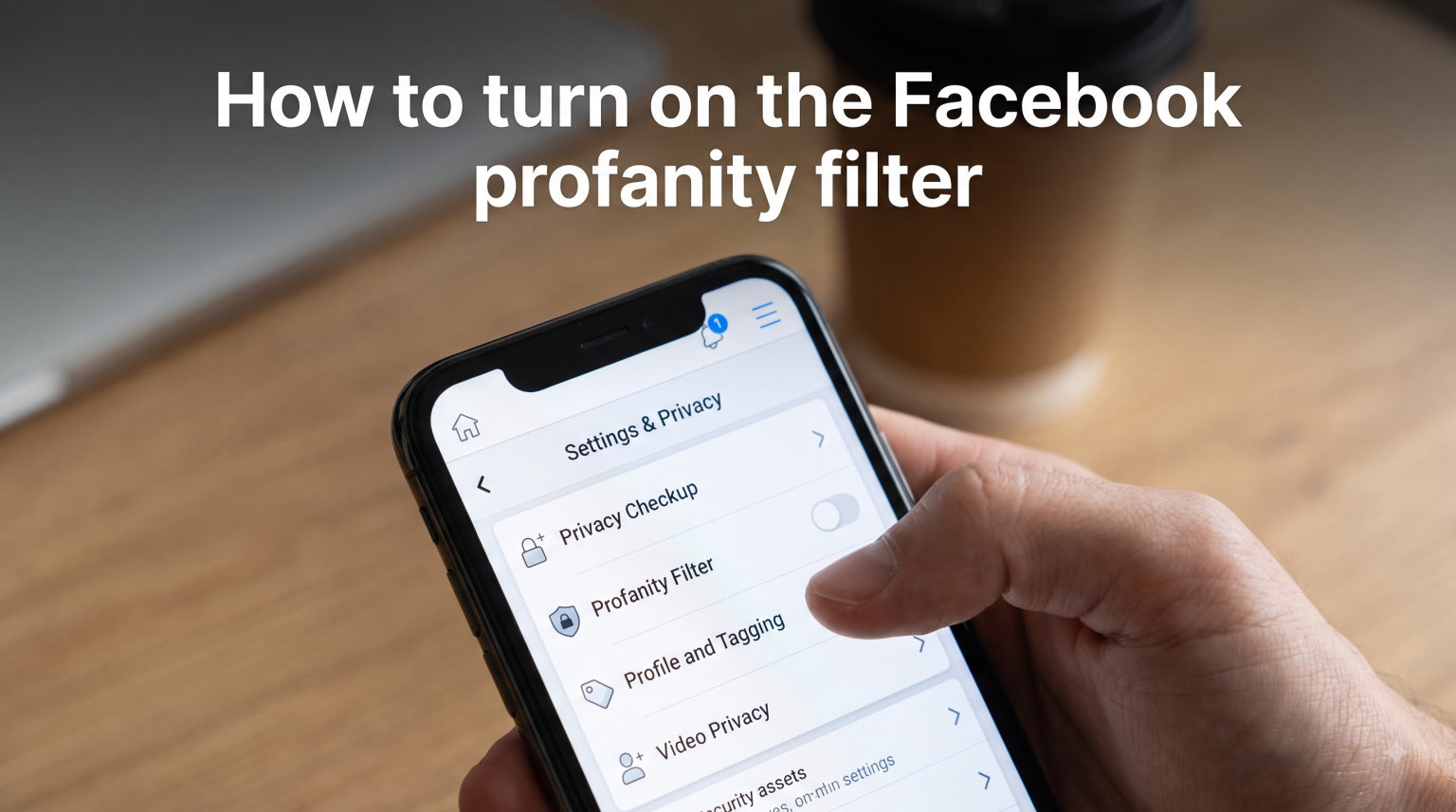
If you manage a Facebook Page, you already know how quickly a comments section can go off the rails. One minute you are celebrating a product launch, and the next you are scrolling through offensive language that scares away visitors. That is where the Facebook profanity filter comes in. It is a built-in moderation tool that automatically hides comments and posts containing profanity from your Page. In this guide, I will walk you through exactly how to turn on the Facebook profanity filter on desktop, mobile, and Android so you can keep your community clean without spending hours manually deleting comments.
Table of Contents
- What Is the Facebook Profanity Filter?
- How to Turn On the Facebook Profanity Filter on Desktop
- How to Turn On the Facebook Profanity Filter on Mobile
- How to Turn On the Facebook Profanity Filter on Android
- How to Turn Off the Facebook Profanity Filter
- Blocking Custom Words With the Page Moderation List
- Facebook Profanity Filter Limitations You Should Know
- FAQs
What Is the Facebook Profanity Filter?
The Facebook profanity filter is a free, built-in moderation feature available to anyone who manages a Facebook Page. When enabled, it automatically detects and hides posts and comments that contain commonly reported offensive words and phrases. The feature relies on terms that Facebook users have flagged as offensive over time, which means the internal word list updates based on community feedback.
Here is the important part: hidden comments do not get deleted. They remain visible to the person who wrote them, but other visitors to your Page will not see them. This means the commenter typically has no idea their content was filtered, which reduces the chance of confrontational follow-up messages.
It is worth noting that this filter is separate from the custom keyword moderation list. The profanity filter works from an internal, unpublished list maintained by Meta, while the keyword list lets you add your own specific words to block. I recommend using both together for the best protection.
How to Turn On the Facebook Profanity Filter on Desktop
Enabling the profanity filter from your computer takes about 30 seconds once you know where to look. Here are the exact steps I follow on desktop.
Step 1: Open Facebook in your web browser and log in to your account.
Step 2: Navigate to the Facebook Page you manage. You can do this by clicking your Page shortcut in the left sidebar or searching for it directly.
Step 3: Click Settings & privacy in the top-right dropdown menu (click your profile picture to find it), then click Settings.
Step 4: In the left-hand menu, scroll down and click Followers and public content. This section contains your Page’s content moderation settings.
Step 5: Look for the option labeled Hide posts and comments with profanity. Click the toggle next to it to turn the filter on.
That is it. Your Page is now protected by the profanity filter. Facebook does not ask you to choose a strength level anymore. The old Medium and Strong options were removed, and now the filter is simply on or off.
How to Turn On the Facebook Profanity Filter on Mobile
If you prefer managing your Page from the Facebook mobile app, the process is slightly different but just as quick. I tested these steps on an iPhone running the latest version of the Facebook app.
Step 1: Open the Facebook app and tap your profile picture in the bottom-right corner (iOS) or top-right corner (Android) to access the main menu.
Step 2: Tap Pages (you may need to tap See more first to find it), then select the Page you want to manage.
Step 3: Once on your Page, tap the three dots (…) next to your Page name to open Page settings.
Step 4: Tap Settings, then scroll to and tap Followers and public content.
Step 5: Find the toggle next to Hide posts and comments with profanity and switch it on.
The filter activates immediately. There is no save button to press, so once the toggle is on, Facebook starts hiding profane comments right away.
How to Turn On the Facebook Profanity Filter on Android
The steps on Android are nearly identical to iOS since both use the same Facebook app interface. The main difference is the location of the menu button.
On Android, tap your profile picture in the top-right corner of the screen to open the menu. From there, the path is the same: tap Pages, select your Page, tap the three dots next to the Page name, then go to Settings > Followers and public content. Toggle on Hide posts and comments with profanity and you are done.
If you do not see the Pages option in your menu, try updating the Facebook app from the Google Play Store. Meta occasionally reorganizes the menu layout, but the Followers and public content setting has remained consistent for Page administrators.
How to Turn Off the Facebook Profanity Filter
Sometimes you need to disable the filter, whether for testing purposes or because legitimate comments are getting caught. Turning it off follows the exact same path as turning it on.
Go to your Page Settings > Followers and public content and toggle off Hide posts and comments with profanity. Once disabled, any previously hidden comments will become visible to the public again, and new comments will not be filtered.
I recommend periodically checking whether the filter is catching too many false positives. If you notice engagement dropping, it may be worth temporarily turning the filter off to see if legitimate comments were being suppressed.
Blocking Custom Words With the Page Moderation List
The profanity filter handles general offensive language, but what about specific words you want to block that Facebook might not catch? That is where the Page Moderation keyword list comes in.
In the same Followers and public content settings area, you will find an option called Hide comments containing certain words from your Page. Click Edit and type in any custom words or phrases you want to block, separated by commas. Comments matching those terms will be automatically hidden.
This is especially useful for blocking competitor names, spam phrases, or niche slang that the profanity filter would not recognize. I have used this feature to block repetitive spam phrases on client Pages, and it dramatically cut down on the junk appearing in comment threads.
One limitation: the custom word list has a character limit, so you cannot add an unlimited number of terms. Prioritize the words that appear most frequently in your comments.
Facebook Profanity Filter Limitations You Should Know
Before you rely entirely on the profanity filter, there are several important limitations worth understanding. Knowing these upfront will save you frustration later.
The word list is not published. Meta does not share the specific words and phrases the filter blocks. According to Reddit users in the r/facebook community, this opacity makes it hard to predict what will get caught. From my testing and forum research, even asterisked curse words (like f**k) can get flagged by the filter.
The filter is English-focused. The profanity filter primarily targets English-language offensive terms. If your Page audience comments in other languages, the filter may not catch profanity in those languages. This is one of the most common gaps that competitors fail to mention.
False positives happen. Legitimate comments can sometimes get hidden if they contain words that happen to match the internal blocklist. Forum users have reported that certain product names, technical terms, and even partial word matches can trigger the filter.
The filter can affect ads. Advertisers on Reddit have reported that the profanity filter can interfere with ad comments, not just organic Page posts. If you run ads, be aware that comments on your ads may also be subject to filtering.
No notifications for filtered comments. When the filter hides a comment, the commenter is not notified. They can still see their own comment, but no one else can. This can lead to confused users who think their comment posted successfully when no one else can read it.
FAQs
Does Facebook have a profanity filter?
Yes, Facebook has a built-in profanity filter for Pages. It automatically hides posts and comments containing commonly reported offensive words and phrases. You can find it under your Page Settings in the Followers and public content section.
How do you turn the profanity filter on and off for your Facebook page?
Go to your Facebook Page, then navigate to Settings u0026gt; Followers and public content. Find the toggle labeled Hide posts and comments with profanity and switch it on or off. The change takes effect immediately.
How do I turn off my profanity filter?
Go to your Page Settings, click Followers and public content, and toggle off Hide posts and comments with profanity. Previously hidden comments will become visible again once the filter is disabled.
Why is Facebook censoring words?
Facebook censors words when the profanity filter is enabled on a Page. The filter uses an internal list of words that Facebook users have reported as offensive. It may also catch asterisked words, partial matches, and certain legitimate terms, which can result in false positives.
How do I stop Facebook from censoring comments?
To stop the profanity filter from hiding comments, go to Page Settings u0026gt; Followers and public content and turn off the Hide posts and comments with profanity toggle. Also check the custom keyword moderation list in the same settings area and remove any words you no longer want blocked.
Learning how to turn on the Facebook profanity filter is one of the simplest ways to protect your Page from offensive content. The filter takes about 30 seconds to enable and works automatically in the background. For the best results, pair it with the custom keyword moderation list so you can block both general profanity and specific words relevant to your community. Just keep in mind the limitations: it is English-focused, the word list is unpublished, and false positives do happen. Check your filter settings periodically, and your Page will stay a cleaner, more welcoming space for your audience.