
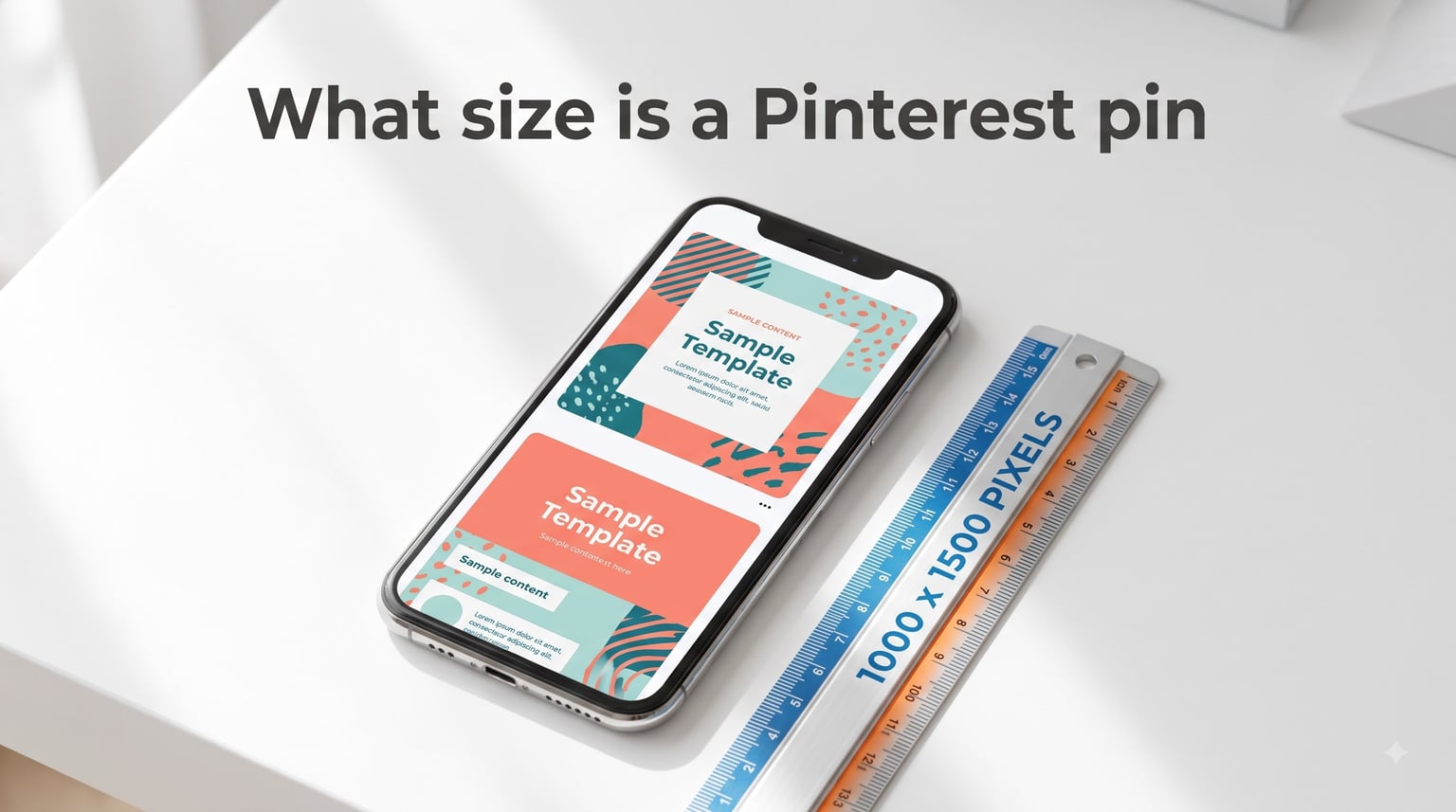
The ideal Pinterest pin size is 1000 x 1500 pixels with a 2:3 vertical aspect ratio. This is the format that fills the Pinterest feed without cropping, earns the most saves, and performs best across both mobile and desktop.
If you take away one number from this guide, make it that one. But Pinterest actually supports several pin formats, each with its own dimensions, file size limits, and aspect ratio rules. Get any of them wrong and your pin can end up blurry, cropped, or buried in the feed.
Our team put together this reference after tracking Pinterest’s official specs, cross-referencing community discussions from the Pinterest Business Community and creator forums, and testing pin sizes across standard, video, carousel, and ad formats. Everything here reflects the current 2026 specifications, including the unified Pin format change that merged Idea Pins back in 2023.
Whether you are a small business owner, a social media manager handling client accounts, an e-commerce brand, or a designer working in Canva or Photoshop, you will find exact pixel numbers, file limits, format recommendations, and resizing tips below. We also cover sizes in inches and centimeters for print designers, a detail almost no other guide includes.
Table of Contents
- Quick Reference: Every Pinterest Pin Size at a Glance
- Standard Pinterest Pin Size: 1000 x 1500 Pixels
- Understanding the 2:3 Aspect Ratio
- Video Pin and Idea Pin Dimensions: 1080 x 1920 Pixels
- Carousel Pin Dimensions
- Board Cover, Profile Picture, and Profile Cover Sizes
- File Size Limits and Supported Formats
- Pinterest Pin Size in Inches and Centimeters
- Long Pins and Infographic Pins: The Crop Warning
- Pinterest Ad and Promoted Pin Specs
- Pinterest vs Instagram vs TikTok: Vertical Image Specs Compared
- Common Pinterest Pin Sizing Mistakes to Avoid
- How to Resize Images for Pinterest Without Losing Quality
- Frequently Asked Questions About Pinterest Pin Size
- What is the ideal size for a Pinterest pin?
- What size is a Pinterest post in 2026?
- What is the pin ratio for Pinterest?
- Are Idea Pins a different size than standard pins?
- What size are Pinterest video pins?
- What is the maximum file size for a Pinterest pin?
- Does Pinterest crop tall pins?
- Can you use horizontal images on Pinterest?
- Conclusion: Getting Pinterest Pin Size Right
Quick Reference: Every Pinterest Pin Size at a Glance
Here is the fast-answer table covering every Pinterest image and video format. Bookmark this section, because it doubles as a sizing cheat sheet you can reference before every upload.
| Pin Type | Dimensions (pixels) | Aspect Ratio | Max File Size | Best Format |
|---|---|---|---|---|
| Standard Pin | 1000 x 1500 | 2:3 | 20 MB (desktop) / 32 MB (mobile) | JPEG or PNG |
| Video Pin | 1080 x 1920 | 9:16 | 2 GB | MP4 (H.264) |
| Idea Pin (now unified) | 1080 x 1920 | 9:16 | 2 GB (video) / 32 MB (image) | MP4 or PNG |
| Carousel Pin (each card) | 1000 x 1500 | 2:3 | 32 MB per card | JPEG or PNG |
| Board Cover | 800 x 450 (display) / 1000 x 1500 (upload) | 16:9 (display) / 2:3 (upload) | 20 MB | JPEG or PNG |
| Profile Picture | 165 x 165 (display) / 800 x 800 (upload) | 1:1 | 20 MB | JPEG or PNG |
| Profile Cover / Banner | 800 x 450 (display) / 1600 x 900 (upload) | 16:9 | 20 MB | JPEG or PNG |
| Promoted Pin (standard) | 1000 x 1500 | 2:3 | 32 MB | JPEG or PNG |
| Collection Ad | 1000 x 1500 (hero) / 1000 x 1000 (product tiles) | 2:3 / 1:1 | 32 MB | JPEG or PNG |
The rest of this guide breaks down each format in detail, explains why these numbers matter, and shows you how to avoid the most common sizing mistakes that hurt feed performance.
Standard Pinterest Pin Size: 1000 x 1500 Pixels
The standard Pinterest pin measures 1000 pixels wide by 1500 pixels tall, giving it a 2:3 aspect ratio. This is the workhorse format that dominates the Pinterest feed, and it is the size you should use for the vast majority of your content.
Why 1000 pixels wide? Pinterest renders pins at a fixed column width in its vertical feed. At 1000 pixels, your image stays sharp on high-density retina displays, where older 600-pixel pins now look soft. The platform’s own Business guidance points creators toward 1000 x 1500 as the recommended starting point.
The minimum width Pinterest will accept for a standard pin is 600 pixels. A 600 x 900 pin meets the technical requirement, but it will not look as crisp on modern phone screens. If you are creating fresh pins, always design at 1000 x 1500 rather than scaling up from a smaller source.
On the height side, the recommended maximum is 1500 pixels for a clean 2:3 ratio. You can go taller, and many infographic-style pins do, but anything beyond roughly 1000 x 2100 starts getting cropped in the feed preview. We cover the long pin crop behavior in detail further down.
For the cleanest result, start your design canvas at 1000 x 1500 pixels and keep all important text and visual elements within that frame. This way, even if Pinterest adjusts its feed rendering in the future, your pins have enough resolution to stay sharp.
Understanding the 2:3 Aspect Ratio
The 2:3 aspect ratio means your pin is 1.5 times taller than it is wide. For every 2 units of width, you have 3 units of height. At 1000 pixels wide, that translates to 1500 pixels tall. Simple math, but it drives everything about how your pin appears in the feed.
Pinterest is a vertical search engine. The feed is built from narrow columns of pins stacked top to bottom. A vertical 2:3 pin claims more screen space than a square or horizontal image, which means more visibility, more dwell time, and ultimately more saves and clicks.
What happens when you use a different ratio? Square images (1:1) still work on Pinterest, but they take up less vertical real estate and tend to underperform in side-by-side tests. Horizontal images (16:9 or wider) perform poorly because they look small and get lost among taller pins.
Pinterest will accept images outside the 2:3 ratio, but the platform crops or scales them to fit the feed column. A horizontal photo uploaded at 1920 x 1080 gets shrunk down until its width fits the column, leaving it as a thin band surrounded by taller pins. That is not the impression you want.
Here is a quick way to think about aspect ratios on Pinterest:
- 2:3 (1000 x 1500): The gold standard. Maximum feed visibility, no cropping, best engagement.
- 1:1 (1000 x 1000): Acceptable but underwhelming. Fills less vertical space.
- 9:16 (1080 x 1920): Used for video and Idea Pins. Very tall, fills nearly a full phone screen.
- 16:9 (1920 x 1080): Horizontal. Not recommended. Pins look small and get scrolled past.
- Tall infographic (1:2.1 or more): Allowed but cropped in the feed preview beyond roughly 2100 pixels of height.
When in doubt, stick with 2:3. It is the ratio Pinterest’s algorithm rewards and the one that consistently produces the best engagement numbers.
Video Pin and Idea Pin Dimensions: 1080 x 1920 Pixels
Video pins on Pinterest use a 1080 x 1920 pixel canvas with a 9:16 aspect ratio. This taller format fills nearly an entire phone screen in portrait mode, making it ideal for short-form video content like tutorials, product demos, and lifestyle clips.
If you remember Pinterest’s old “Idea Pins” (originally called “Story Pins”), here is the important update: Pinterest unified all pin formats in 2023. Idea Pins as a separate format no longer exist. Video and image content now publish through the same unified Pin system, but the 9:16 dimensions from the Idea Pin era still apply to full-screen video content.
For video files, Pinterest supports MP4 format with H.264 encoding. The maximum file size is 2 GB, and videos can range from 4 seconds to 5 minutes in length. Keep your video bitrate reasonable, because unnecessarily large files upload slowly and can fail on slower connections.
Recommended video specifications:
- Resolution: 1080 x 1920 pixels (9:16 portrait)
- Format: MP4
- Codec: H.264
- Duration: 4 seconds to 5 minutes
- Max file size: 2 GB
- Frame rate: 24-30 fps for most content
One detail that catches creators off guard is the safe zone for video pins. Pinterest overlays UI elements like the pin title, description, and interaction buttons on top of your video. Keep critical text and call-to-action elements in the center 70% of the frame to avoid them getting covered.
Can you use the same image for both a standard pin and a video pin? Not directly, because the ratios differ. A 1000 x 1500 standard pin has a 2:3 ratio, while a video pin needs 9:16. You can adapt standard pin content to video format by extending the canvas height or adding a solid color background to fill the extra space.
Carousel Pin Dimensions
Carousel pins let users swipe through multiple images in a single pin, making them great for product collections, step-by-step guides, and storytelling. Each card in a carousel uses the same 1000 x 1500 pixel dimensions with a 2:3 aspect ratio as a standard pin.
A carousel can include between 2 and 25 cards. Each card is a separate image, so you upload them individually and Pinterest stitches them into the swipeable sequence. The per-card file size limit is 32 MB on mobile and 20 MB on desktop.
Consistency matters more with carousels than any other format. If your cards have different aspect ratios, Pinterest will crop them to match, and that cropping can cut off important content. Design every card on the same 1000 x 1500 canvas from the start.
Here are a few design tips that help carousels perform well:
- Use a consistent color palette and font system across all cards so the set feels cohesive.
- Add a card number indicator (like “1/5”) so users know there are more images to swipe.
- Place your strongest visual or hook on the first card to stop the scroll.
- Keep text large enough to read on mobile, since Pinterest is overwhelmingly a mobile platform.
Board Cover, Profile Picture, and Profile Cover Sizes
Board covers are the thumbnail images that represent each of your Pinterest boards. When you upload a pin to a board, Pinterest can use that pin as the cover. The display size for a board cover is 800 x 450 pixels in a 16:9 ratio, even though the underlying pin is typically 1000 x 1500.
This means Pinterest crops the top portion of your 2:3 pin to fill the 16:9 board cover slot. If your pin has important text or a face near the bottom, it may get cut off in the board cover preview. Design your pins with a “safe top zone” that works as both a full pin and a cropped board cover.
For your profile picture, Pinterest displays it at 165 x 165 pixels but recommends uploading a 800 x 800 pixel image in a 1:1 square ratio. Use a PNG for logos and text-heavy avatars to keep edges crisp, or a JPEG for photographs.
Your profile cover photo (the banner across the top of your profile) displays at 800 x 450 pixels. For the sharpest result, upload at 1600 x 900 pixels in a 16:9 ratio. Keep important elements centered, because the cover crops differently on mobile versus desktop.
Here is a quick breakdown of profile and board image sizes:
| Element | Display Size | Recommended Upload Size | Ratio |
|---|---|---|---|
| Profile picture | 165 x 165 | 800 x 800 | 1:1 |
| Profile cover | 800 x 450 | 1600 x 900 | 16:9 |
| Board cover | 800 x 450 | 1000 x 1500 (pin gets cropped) | 16:9 display / 2:3 source |
| Board title thumbnail | ~200 x 200 | Sourced from board cover | 1:1 |
File Size Limits and Supported Formats
Pinterest accepts several image formats, and choosing the right one affects both upload reliability and visual quality. The supported formats are JPEG, PNG, WebP, BMP, and TIFF. For 99% of pins, you only need to choose between JPEG and PNG.
The maximum file size for a single image pin is 20 MB when uploading from desktop and 32 MB from the mobile app. This difference catches people off guard, especially when a high-resolution PNG uploads fine from a phone but gets rejected from a computer.
Here is how to choose the right format for your pin:
- JPEG: Best for photographs and images with gradients. Produces smaller file sizes, which means faster uploads. Use quality setting 85-90 for a good balance.
- PNG: Best for text-heavy pins, graphics with sharp edges, logos, and infographic-style designs. File sizes are larger, but text stays crisp without JPEG artifacts.
- WebP: Supported but not always rendered consistently across older browsers. Use it if your design tool exports it natively and you want smaller file sizes than PNG.
- BMP and TIFF: Technically accepted but produce very large files. Avoid these unless you have no other option.
For video pins, the rules are different. Pinterest accepts MP4 files only, with H.264 video encoding and AAC audio encoding. The maximum video file size is 2 GB, and MOV files are not supported on the web uploader. If you export from Final Cut Pro or iMovie, convert MOV to MP4 before uploading.
One common complaint from forum discussions is pins looking blurry despite using the right dimensions. This usually happens when a JPEG is saved at a low quality setting or when a small image gets scaled up to 1000 x 1500. Always start with a high-resolution source image (at least 1000 pixels wide) and export JPEGs at quality 85 or higher.
Pinterest Pin Size in Inches and Centimeters
Almost no Pinterest sizing guide covers this, but it matters if you are a print designer, a Canva user working in physical units, or anyone who thinks in real-world measurements rather than pixels. Here is how 1000 x 1500 pixels translates to inches and centimeters at common print resolutions.
Pixels do not have a fixed physical size on their own. The conversion depends on the DPI (dots per inch) of the output. Here are the conversions at three common resolutions:
| Resolution (DPI) | Width (inches) | Height (inches) | Width (cm) | Height (cm) |
|---|---|---|---|---|
| 72 DPI (screen) | 13.89 in | 20.83 in | 35.28 cm | 52.92 cm |
| 150 DPI (print draft) | 6.67 in | 10.00 in | 16.93 cm | 25.40 cm |
| 300 DPI (print quality) | 3.33 in | 5.00 in | 8.47 cm | 12.70 cm |
Why does this matter? If you are designing a Pinterest pin in Canva and the canvas defaults to inches, you might accidentally create something at the wrong pixel dimensions. A 5-inch by 7.5-inch canvas at 72 DPI is only 360 x 540 pixels, which is below Pinterest’s 600-pixel minimum width.
The fix is simple: always set your design tool to work in pixels, not inches or centimeters. In Canva, choose “Custom Size” and enter 1000 and 1500 in the pixel fields. In Photoshop, set the document to 1000 x 1500 pixels at 72 DPI, which is the standard for screen-based content.
If you must work in physical units for a project that spans both print and digital, use the 150 DPI row as your reference. A 1000 x 1500 pixel pin at 150 DPI measures roughly 6.7 x 10 inches, which is close to a standard letter-size sheet folded in a vertical orientation.
Long Pins and Infographic Pins: The Crop Warning
Long pins, also called infographic pins, are taller than the standard 2:3 ratio. They are popular for step-by-step tutorials, data visualizations, and listicle-style content. Pinterest accepts them, but there is an important crop behavior you need to understand.
In the feed, Pinterest displays pins at a fixed width and scales the height proportionally. For very tall pins, the feed preview crops at roughly a 1:2.1 ratio, which works out to about 1000 x 2100 pixels. Anything taller than that gets cut off in the initial feed view, with the full pin only visible after a user taps to expand.
This means a pin designed at 1000 x 3000 pixels will show only its top two-thirds in the feed. If your call-to-action or key message is at the bottom, users scrolling through the feed will never see it unless they tap.
Here is how to design long pins that work within this constraint:
- Put your headline and most important visual in the top 1500 pixels so it shows in the standard feed view.
- Use the extended area below 1500 pixels for supporting detail, not for critical information.
- Add a visual cue like an arrow or “swipe up” indicator if the pin continues below the crop line.
- Avoid going taller than 1000 x 2100 unless you have a specific reason, since the crop behavior becomes unpredictable.
Community discussions on Reddit and the Pinterest Business Community confirm this behavior. Several creators report that pins taller than 1000 x 2100 perform worse in the feed because users do not realize there is more content below the fold. When in doubt, keep your infographic within the 2:1 ratio range.
One more thing about long pins: they can trigger file size issues. A detailed infographic saved as PNG at 1000 x 3000 can easily exceed 20 MB. If your file is too large, switch to JPEG at quality 85, or simplify your design by reducing the number of distinct colors and graphic elements.
Pinterest Ad and Promoted Pin Specs
Promoted pins, also called Pinterest ads, follow the same size specifications as organic pins. A standard promoted pin uses 1000 x 1500 pixels in a 2:3 ratio, with a maximum file size of 32 MB. If your organic pin is sized correctly, it can be promoted without any changes.
Pinterest also offers specialized ad formats with their own dimensions:
Collection Ads feature a hero image at the top with product tiles below it. The hero image uses the standard 1000 x 1500 (2:3) dimensions, while the product tiles display as 1000 x 1000 pixel (1:1) squares. This format works well for e-commerce brands showcasing a lifestyle image alongside individual products.
Showcase Ads combine a primary video or image with a row of product thumbnails. The primary creative follows standard video pin specs (1080 x 1920, 9:16) or standard image specs (1000 x 1500, 2:3), depending on whether you use video or static imagery.
For all ad formats, pay extra attention to safe zones. Pinterest overlays the ad label, call-to-action button, and sometimes pricing information on your creative. Keep these areas clear of important text:
- Bottom 15% of the pin: reserved for title, description, and CTA button.
- Top right corner: may show ad disclosure text.
- Center 60% of the frame: the safest area for logos, headlines, and product imagery.
If you are running ads through Pinterest Ads Manager, the platform will warn you if your image does not meet specifications. But it is faster to design correctly from the start than to fix rejections after submitting a campaign.
Pinterest vs Instagram vs TikTok: Vertical Image Specs Compared
If you create content for multiple platforms, you might wonder whether you can reuse the same vertical image across Pinterest, Instagram, and TikTok. The short answer is: almost, but not quite. Each platform has slightly different specifications that affect how your content looks.
| Platform | Standard Image Size | Aspect Ratio | Video Size | Video Ratio |
|---|---|---|---|---|
| 1000 x 1500 | 2:3 | 1080 x 1920 | 9:16 | |
| Instagram (Feed Post) | 1080 x 1350 | 4:5 | 1080 x 1350 | 4:5 |
| Instagram (Reel / Story) | 1080 x 1920 | 9:16 | 1080 x 1920 | 9:16 |
| TikTok | 1080 x 1920 | 9:16 | 1080 x 1920 | 9:16 |
The key difference is aspect ratio. Pinterest prefers 2:3 for static pins, while Instagram and TikTok favor the taller 9:16 for vertical video content. A Pinterest pin at 2:3 will have small black bars at the top and bottom when posted as an Instagram Reel or TikTok, because those platforms expect the taller 9:16 format.
A Reel or TikTok at 9:16 (1080 x 1920) will work on Pinterest as a video pin without modification. This is the easiest cross-posting direction: create at 9:16 for video, and it fits Pinterest, Instagram Reels, and TikTok.
For static images, the best strategy is to design a Pinterest-specific version at 1000 x 1500 and a separate Instagram version at 1080 x 1350. The extra effort is minimal if you use templates in Canva or Photoshop, and it ensures your content looks native on each platform rather than awkwardly cropped.
Common Pinterest Pin Sizing Mistakes to Avoid
After reviewing forum discussions and creator feedback, the same sizing problems come up repeatedly. Here are the most common mistakes and how to fix them, in a quick do-and-don’t format.
Mistake 1: Uploading horizontal images. Pinterest is a vertical platform. Horizontal (16:9) images look tiny in the feed and get scrolled past. Don’t upload landscape photos directly. Do crop or redesign them into a vertical 2:3 format before posting.
Mistake 2: Scaling small images up to 1000 x 1500. If your source image is 400 x 600, enlarging it to 1000 x 1500 produces a blurry, pixelated pin. Don’t upscale. Do start with a source image that is at least 1000 pixels wide, or use a design tool to create original graphics at full resolution.
Mistake 3: Ignoring safe zones on video pins. Pinterest overlays titles, descriptions, and buttons on your video. Don’t place critical text at the bottom 15% of the frame. Do keep important elements in the center 70%.
Mistake 4: Exceeding file size limits. High-resolution PNGs of detailed infographics can easily exceed 20 MB on desktop. Don’t upload a 30 MB file from your computer. Do switch to JPEG at quality 85, or simplify your design to reduce file size.
Mistake 5: Using the wrong format for text-heavy pins. JPEG compression creates visible artifacts around text edges, making fonts look muddy. Don’t save text-heavy infographic pins as JPEG. Do use PNG for any pin that contains significant text overlay.
Mistake 6: Designing carousel cards at different sizes. Inconsistent card dimensions cause Pinterest to crop each card differently. Don’t mix 1000 x 1500 and 1080 x 1920 cards in the same carousel. Do design every card on an identical 1000 x 1500 canvas.
Mistake 7: Putting critical content below 2100 pixels on long pins. The feed preview crops tall pins at roughly a 2.1:1 height-to-width ratio. Don’t bury your call-to-action at the bottom of a 3000-pixel-tall infographic. Do keep your headline and hook in the top 1500 pixels.
How to Resize Images for Pinterest Without Losing Quality
Resizing images for Pinterest does not require expensive software. Whether you are a seasoned designer or a complete beginner, here is a step-by-step workflow that works with free tools.
Step 1: Check your source image resolution. Open your image and find its pixel dimensions. If the image is smaller than 1000 pixels wide, you cannot resize it up to 1000 x 1500 without quality loss. In that case, find a higher-resolution source or create a new design from scratch.
Step 2: Create a 1000 x 1500 canvas. In Canva, click “Create a design” and choose “Custom Size,” entering 1000 for width and 1500 for height with pixels as the unit. In Photoshop, go to File > New and set the dimensions to 1000 x 1500 pixels at 72 DPI.
Step 3: Place your image on the canvas. Drag your source image onto the canvas and scale it to fill the frame. If the image has a different aspect ratio than 2:3, you will need to crop or add a background color to fill the space. Avoid stretching the image, because that distorts proportions.
Step 4: Add text and design elements. With your image positioned, add your headline, subtitle, and any branding. Use bold, readable fonts (at least 24-point equivalent) because pins are viewed on small phone screens. Keep text within the central 80% of the canvas.
Step 5: Export in the right format. For photo-heavy pins, export as JPEG at quality 85-90. For pins with lots of text or graphics, export as PNG. Check the final file size to make sure it is under 20 MB for desktop or 32 MB for mobile upload.
For non-designers, Canva is the easiest starting point because it offers pre-built Pinterest pin templates already sized at 1000 x 1500. Pick a template, swap in your image and text, and export. The free version of Canva handles this perfectly, you do not need a paid subscription for correctly sized Pinterest pins.
If you already have a batch of pins at the wrong size and need to resize them quickly, tools like PicResize, ResizeImage.net, and Squoosh.app let you batch-resize images for free. Just remember that these tools can only resize down, not up. Upscaling always reduces quality.
Frequently Asked Questions About Pinterest Pin Size
What is the ideal size for a Pinterest pin?
The ideal Pinterest pin size is 1000 x 1500 pixels with a 2:3 aspect ratio. This vertical format fills the Pinterest feed without cropping and produces the best engagement.
What size is a Pinterest post in 2026?
In 2026, the standard Pinterest post size is 1000 x 1500 pixels (2:3 ratio) for image pins and 1080 x 1920 pixels (9:16 ratio) for video pins. These dimensions have remained consistent since the unified Pin format update in 2023.
What is the pin ratio for Pinterest?
The recommended pin ratio for Pinterest is 2:3, meaning the pin is 1.5 times taller than it is wide. At 1000 pixels wide, this gives you a height of 1500 pixels. Video and Idea Pins use a taller 9:16 ratio.
Are Idea Pins a different size than standard pins?
Idea Pins were merged into the unified Pin format in 2023, so they are no longer a separate format. The full-screen video format that Idea Pins used still applies at 1080 x 1920 pixels (9:16 ratio), while standard image pins remain at 1000 x 1500 pixels (2:3 ratio).
What size are Pinterest video pins?
Pinterest video pins should be 1080 x 1920 pixels with a 9:16 aspect ratio. Videos must be in MP4 format with H.264 encoding, a maximum file size of 2 GB, and a duration between 4 seconds and 5 minutes.
What is the maximum file size for a Pinterest pin?
The maximum file size for a Pinterest image pin is 20 MB when uploading from desktop and 32 MB from the mobile app. For video pins, the maximum file size is 2 GB. These limits apply per image or video, not per board or account.
Does Pinterest crop tall pins?
Yes. Pinterest crops the feed preview of tall pins at roughly a 2.1:1 height-to-width ratio, or about 1000 x 2100 pixels. Content below that line is only visible when a user taps to view the full pin. Keep headlines and key visuals in the top 1500 pixels.
Can you use horizontal images on Pinterest?
Technically yes, but it is not recommended. Horizontal (16:9) images appear small in Pinterest’s vertical feed and consistently underperform compared to vertical pins. Redesign horizontal photos into a 2:3 vertical format for significantly better visibility and engagement.
Conclusion: Getting Pinterest Pin Size Right
Getting the size of a Pinterest pin right comes down to one rule: design at 1000 x 1500 pixels with a 2:3 aspect ratio for standard image pins, and 1080 x 1920 pixels at 9:16 for video content. These dimensions give you the best feed visibility, the sharpest quality on retina screens, and the strongest engagement signal to Pinterest’s algorithm.
We covered every format in this guide, from standard pins and carousels to video pins, board covers, profile images, and ad specs. We also filled in the gaps other guides skip, including pin sizes in inches and centimeters, the 2023 Idea Pin unification, mobile versus desktop upload differences, and a cross-platform comparison with Instagram and TikTok.
Your next step is simple. Open your design tool, set a custom canvas to 1000 x 1500 pixels, and start creating. If your existing pins are sized incorrectly, use the resizing workflow in this guide to bring them up to spec. Correctly sized pins are the foundation of every successful Pinterest strategy, and now you have the exact numbers to build on.