
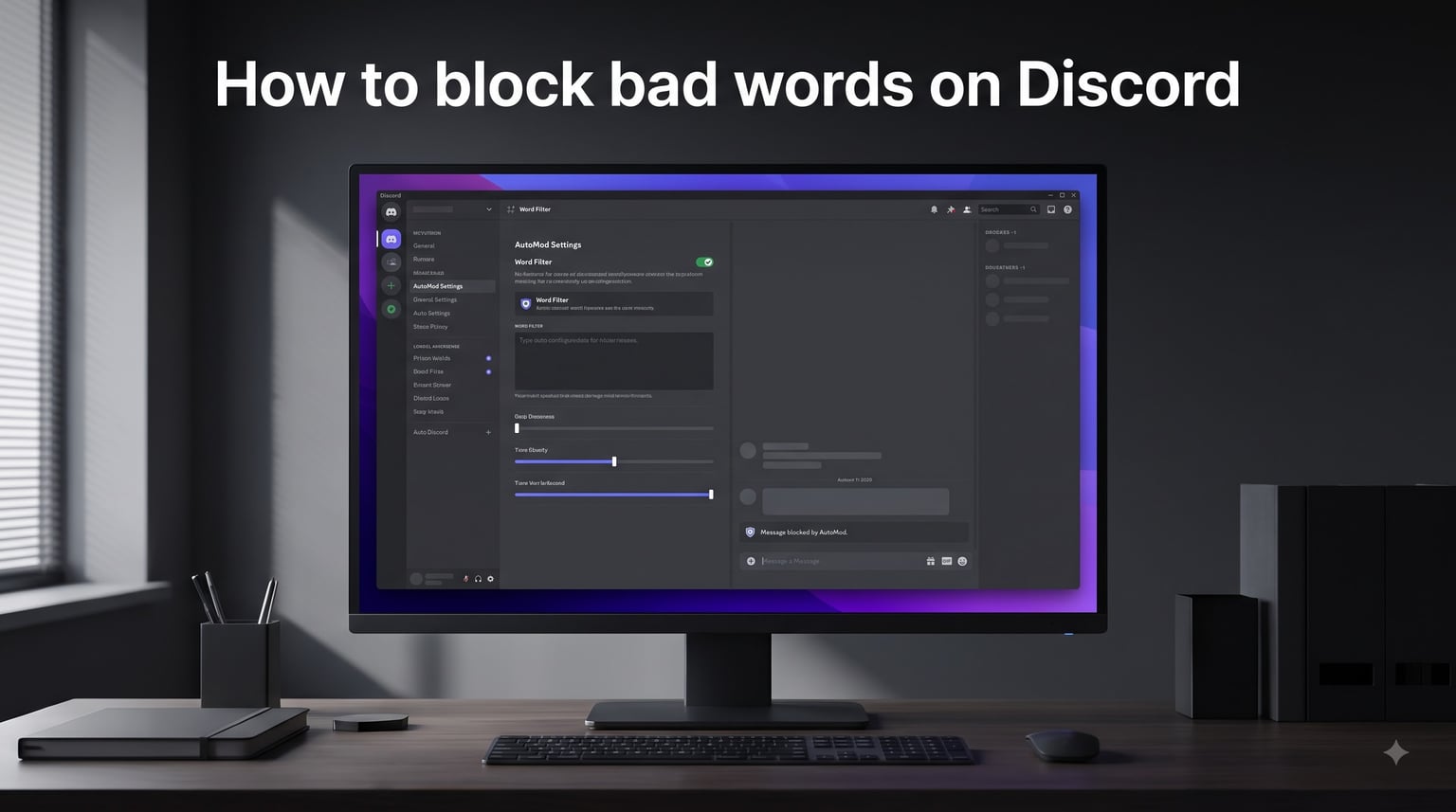
Keeping your Discord server clean and family-friendly starts with knowing how to block bad words on Discord. Whether you are running a gaming community, a workplace server, or a space for younger users, profanity and spam can quickly derail conversations and drive people away.
Discord gives you a built-in tool called AutoMod that scans every message and takes action the moment someone types a blocked word. You can delete the message, warn the user, or put them in a timeout automatically without lifting a finger.
In this guide, our team walks you through every step of setting up AutoMod, creating custom keyword rules, choosing the right block actions, and troubleshooting common issues. We also cover third-party bot alternatives and personal censoring options for regular users.
Table of Contents
- How to Block Bad Words on Discord Using AutoMod (Quick Start)
- What Is Discord AutoMod?
- Accessing Server Settings on Desktop and Mobile
- Setting Up AutoMod to Block Custom Words
- Block Actions Explained: Delete, Warn, and Timeout
- Best Practices for Your Word Block List
- Filtering Profanity on Discord Mobile
- Third-Party Bots for Word Blocking
- Personal Censoring With Spoiler Tags
- Troubleshooting Common AutoMod Issues
- FAQs
- Conclusion
How to Block Bad Words on Discord Using AutoMod (Quick Start)
Here is the fastest way to block bad words on Discord using the built-in AutoMod system:
1. Open your Discord server and click the server name at the top left, then select Server Settings.
2. In the left sidebar, click AutoMod.
3. Under Custom Keyword Rule, click Create Rule.
4. Type or paste the words you want to block into the keyword field, separated by commas.
5. Choose your block action: Block Message, Send Alert, or Timeout User.
6. Select which channels and roles the rule applies to.
7. Click Save Changes to activate the filter.
That is the core process. Below, we break down every option so you can fine-tune your setup.
What Is Discord AutoMod?
Discord AutoMod is a built-in moderation tool that automatically filters messages containing words, links, or spam patterns you specify. It scans every message sent in your server in real time and takes action the moment it detects content matching your configured rules.
AutoMod runs on Discord’s servers, so it works even when you and your moderators are offline. That means your community stays protected 24 hours a day without anyone manually reviewing messages.
The tool gives you four main rule types. Block Custom Words lets you type specific words or phrases you want filtered. Block Commonly Flagged Words uses Discord’s curated lists for profanity, slurs, and sexual content. Block Spam catches mention spam and repeated messages. Block Unwanted Links filters suspicious or blacklisted URLs.
If you want to block bad words on Discord, the Custom Keywords and Commonly Flagged Words rule types are your two go-to options. Most server owners use a combination of both for layered protection.
Accessing Server Settings on Desktop and Mobile
Before you can configure AutoMod, you need to reach your Server Settings. The process differs slightly between desktop and mobile, so here are both paths.
On Desktop (Windows, Mac, Web Browser)
Open Discord and go to your server. Click the server name at the top left of the channel list to open the dropdown menu. Select Server Settings from the menu.
You will see the AutoMod option in the left sidebar under the Moderation section. Click it to open the AutoMod dashboard, where you can view existing rules and create new ones.
On Mobile (iOS and Android)
Open the Discord app and tap your server name at the top of the screen. Tap Settings (the gear icon) next to the server name. Scroll down to find AutoMod in the moderation section.
The mobile interface shows the same rules and options as desktop, though the layout is condensed. Every action described in this guide works identically on mobile.
Setting Up AutoMod to Block Custom Words
This is the section where you actually build your word filter. Follow these steps to create a custom keyword rule that blocks specific words on your server.
Step 1: Open AutoMod and start a new rule. Go to Server Settings, click AutoMod, and find the Custom Keyword Rule card. Click Create Rule.
Step 2: Name your rule. Give it a clear name like “Profanity Filter” or “Banned Words” so your moderation team knows what it does at a glance.
Step 3: Enter your keywords. Type each word or phrase you want to block, separated by commas or placed on separate lines. You can add up to 1,000 keywords per rule and create up to 6 custom keyword rules per server.
Step 4: Enable wildcard matching. Check the box for wildcard variations if you want AutoMod to catch attempts to bypass the filter. This catches words where users insert symbols or repeat letters, like “h3ll0” or “shiiit.”
Step 5: Choose your exemption level. Select which roles or channels should be exempt from the rule. You might want to exempt your moderators and admins, or create a specific channel where relaxed language is allowed.
Step 6: Pick your block action. Decide what happens when someone triggers the filter. You can block the message entirely, send an alert to your moderation channel, or automatically timeout the user.
Step 7: Set the timeout duration. If you choose the timeout action, specify how long the user is muted. Options range from 60 seconds to 4 weeks.
Step 8: Save and test. Click Save Changes to activate the rule. We recommend immediately testing it by typing a blocked word in a test channel to confirm the filter works.
Using Block Commonly Flagged Words
Instead of typing every bad word manually, you can use Discord’s curated lists. In the AutoMod dashboard, select Commonly Flagged Words to access pre-built categories.
The four categories are Profanity and Sexual Content, Slurs and Hate Speech, Insults and Name Calling, and Sexual Content. Toggle on the categories relevant to your community and AutoMod handles the rest.
This approach is faster than building a custom list from scratch. Many server owners enable these categories first, then add a custom rule for any additional words specific to their community.
Block Actions Explained: Delete, Warn, and Timeout
When AutoMod catches a blocked word, it can take one of three actions. Understanding the difference helps you choose the right response for your community.
Block Message (Delete)
This action deletes the offending message before anyone else sees it. The user who sent it gets a small notification telling them their message was blocked. This is the lightest-touch option and works well for first-time offenses or minor violations.
Use Block Message when you want to keep your server clean without punishing users for an honest mistake.
Send Alert
Send Alert forwards the flagged message to a designated moderation channel. Your mod team can review it and decide whether further action is needed. The original message stays in the server.
This is useful when you want to monitor patterns of behavior without automatically removing content. Pair it with Block Message for a two-layer approach.
Timeout User
Timeout temporarily mutes the user so they cannot send messages or react in any channel. You set the duration from 60 seconds up to 4 weeks. The flagged message is also deleted.
Use Timeout for repeat offenders or severe violations where a simple message deletion is not enough. It gives the user time to cool off and signals that the behavior is not tolerated.
Our recommendation: Start with Block Message plus Send Alert for most words. Add Timeout for severe categories like slurs or targeted harassment. This graduated approach keeps your community welcoming without being heavy-handed.
Best Practices for Your Word Block List
A well-built word list is the difference between a clean server and a frustrating one. Here are the practices our team recommends after helping dozens of communities set up their filters.
Start with Discord’s built-in lists. Enable Commonly Flagged Words first, then add custom words only when you encounter something the built-in filter misses. This saves time and reduces false positives.
Avoid over-blocking. Adding partial words like “ass” will catch innocent words like “class,” “pass,” and “bass.” Use full words and enable wildcard matching instead of partial matches.
Create role exemptions. Give your moderators and trusted members a role that is exempt from the filter. This prevents accidental blocks when your team needs to discuss a flagged message or quote context.
Write a helpful alert message. When AutoMod blocks a message, it shows the user a short explanation. Customize this text to explain which rule was triggered and how to avoid it. A generic “Message blocked” tells the user nothing useful.
Review your list monthly. Language evolves fast. New slang and bypass tactics appear constantly. Set a reminder to review and update your word list every few weeks to keep the filter effective.
Filtering Profanity on Discord Mobile
Setting up AutoMod on mobile follows the same process as desktop, but the interface looks slightly different. Here is what you need to know.
Open the Discord app, tap your server name at the top, and tap the gear icon for Settings. Scroll down to the Moderation section and tap AutoMod.
You will see your existing rules listed. Tap any rule to edit it, or tap Create Rule at the bottom to add a new one. Every option from keyword entry to block actions to timeout duration is available on mobile.
One difference: the mobile interface shows fewer options on screen at once. You may need to scroll to see timeout settings or exemption roles. The functionality is identical to desktop.
If you manage multiple servers, you will need to configure AutoMod separately for each one. Discord does not currently offer cross-server rule syncing for AutoMod, though some third-party bots do.
Third-Party Bots for Word Blocking
AutoMod is powerful, but some communities want more control or features Discord’s built-in tool does not offer. Three popular third-party bots handle word blocking: Dyno, Carl-bot, and MEE6.
Dyno offers an auto-moderation module with custom word filtering, regex pattern support, and detailed logging. It lets you create separate rules for different channels and roles with more granularity than native AutoMod.
Carl-bot provides a reactive message filtering system with regex support and a large built-in word list. Users on Reddit frequently recommend Carl-bot for its ease of use and detailed logging features.
MEE6 includes a moderation plugin with bad word filtering on its premium tier. The free version offers basic moderation commands, but advanced filtering requires a paid plan.
Most servers do fine with native AutoMod alone. Consider a third-party bot only if you need regex pattern matching, cross-server rule syncing, or more complex filtering logic than AutoMod provides.
Personal Censoring With Spoiler Tags
If you are a regular user and want to censor your own text without server-wide filters, Discord has a built-in option: spoiler tags.
Wrap any text in double pipes to hide it behind a black bar. For example, typing ||spoiler text|| renders as a darkened block that other users must click to reveal.
This is what the || symbol means in Discord. It is not a moderation tool but a personal censoring method. Use it when you want to share potentially sensitive content while giving others the choice to see it.
On mobile, select your text after typing it and tap the Mark as Spoiler option from the formatting menu. You can also change your personal preferences under Settings > Text and Images to control how spoiler content is displayed for you.
Spoiler tags do not block words from anyone. They simply require a click to view. For actual word blocking, you need AutoMod or a moderation bot.
Troubleshooting Common AutoMod Issues
AutoMod works well most of the time, but users on Reddit frequently report a handful of recurring problems. Here are the most common issues and how to fix them.
AutoMod Is Blocking Innocent Words
This is the number one complaint. The cause is usually a partial-word match. For example, blocking “hell” also catches “hello” and “shell.” Switch to full-word-only matching or remove the problematic partial keyword from your list.
Review your custom keywords and remove any short partial words. Replace them with the full words you actually want to block.
AutoMod Is Not Blocking Anything
If messages containing blocked words are getting through, check three things. First, confirm the rule is toggled on. Second, verify the channel where the message was sent is not in your exemption list. Third, check that the user’s role is not exempt.
Also confirm you clicked Save Changes after creating the rule. If you navigated away without saving, the rule never went live.
Timeout Duration Is Too Short or Too Long
Go back to your rule, find the timeout duration setting, and adjust it. Discord lets you set durations from 60 seconds to 4 weeks. Most communities find 5 to 10 minutes works well for minor profanity, while 24 hours or more suits severe violations.
Alerts Are Not Reaching Your Mod Channel
If you set up the Send Alert action but are not seeing alerts, verify you selected the correct destination channel. The channel also needs to be one where your bot or AutoMod has permission to send messages.
FAQs
Can I blacklist words on Discord?
Yes. Discord’s built-in AutoMod tool lets you create custom keyword rules that blacklist specific words. Go to Server Settings, open AutoMod, create a Custom Keyword Rule, and enter the words you want blocked. AutoMod will scan every message and take the action you choose when a blocked word appears.
How do I ban specific words on Discord?
Open Server Settings, click AutoMod, and create a Custom Keyword Rule. Type the words you want to ban separated by commas, choose your block action (Block Message, Send Alert, or Timeout), select exempt roles and channels, then click Save Changes. The words are immediately filtered from your server.
What is || in Discord?
The double pipe symbol || is used for spoiler tags in Discord. Wrapping text in || creates a black bar that hides the content until someone clicks it. It is a personal censoring method, not a server-wide moderation tool.
How do I block inappropriate content on Discord?
Enable Discord AutoMod in Server Settings and turn on the Commonly Flagged Words categories for profanity, slurs, insults, and sexual content. You can also create a Custom Keyword Rule for any additional words. Choose Block Message or Timeout as your action to automatically remove inappropriate content.
Why is AutoMod blocking innocent words?
AutoMod usually blocks innocent words because of partial-word matching. If you block a short word like ‘ass,’ it also catches ‘class’ and ‘pass.’ Remove short partial keywords and use full-word-only matching to fix the problem.
Can I set up word filtering on Discord mobile?
Yes. Open the Discord app, tap your server name, tap the gear icon for Settings, and select AutoMod from the moderation section. You can create and edit custom keyword rules with all the same options available on desktop.
Conclusion
Learning how to block bad words on Discord comes down to one tool: AutoMod. Enable Commonly Flagged Words for instant protection, add a Custom Keyword Rule for anything specific to your community, and choose the right block action for each situation.
Start with Block Message plus Send Alert for most words. Add Timeout for severe violations. Review your word list monthly and adjust exemptions so your moderators are not caught by their own filter.
If native AutoMod does not offer enough control, bots like Dyno and Carl-bot add regex matching and cross-server features. For regular users who just want to hide sensitive text, spoiler tags using the || symbols work without any setup.
Take ten minutes today to configure your AutoMod rules. A clean, welcoming server keeps members engaged and saves your moderation team hours of manual work every week.