
Last month I sent a bright neon green logo to my printer and got back a muddy olive business card. That single mistake cost me a $200 reprint and taught me more about the difference between RGB and CMYK than any tutorial ever could.
If you have ever wondered why your printed design looks duller than what you saw on screen, or why your “vibrant” social media graphics look flat when printed, the answer comes down to two color models. RGB and CMYK are built on completely different principles, and using the wrong one is the number one reason designs look wrong in their final form.
In this guide, I will walk you through exactly what RGB and CMYK are, how they work, when to use each one, and how to convert between them without losing color quality. Whether you design logos, run a small business, or just want your printed materials to look right, this article will save you the same expensive lesson I learned.
Table of Contents
- What is RGB Color Mode
- What is CMYK Color Mode
- Additive vs Subtractive Color Mixing Explained
- RGB vs CMYK: Key Differences at a Glance
- When to Use RGB for Your Projects
- When to Use CMYK for Your Projects
- How to Check Color Mode in Design Software
- How to Convert RGB to CMYK Step by Step
- Common Color Shift Problems and Solutions
- AI-Generated Designs and Color Mode in 2026
- Frequently Asked Questions
- Conclusion
What is RGB Color Mode
RGB stands for Red, Green, and Blue, and it is the color model used by every digital screen you interact with. Your phone, laptop, TV, and tablet all create colors by emitting light in these three wavelengths.
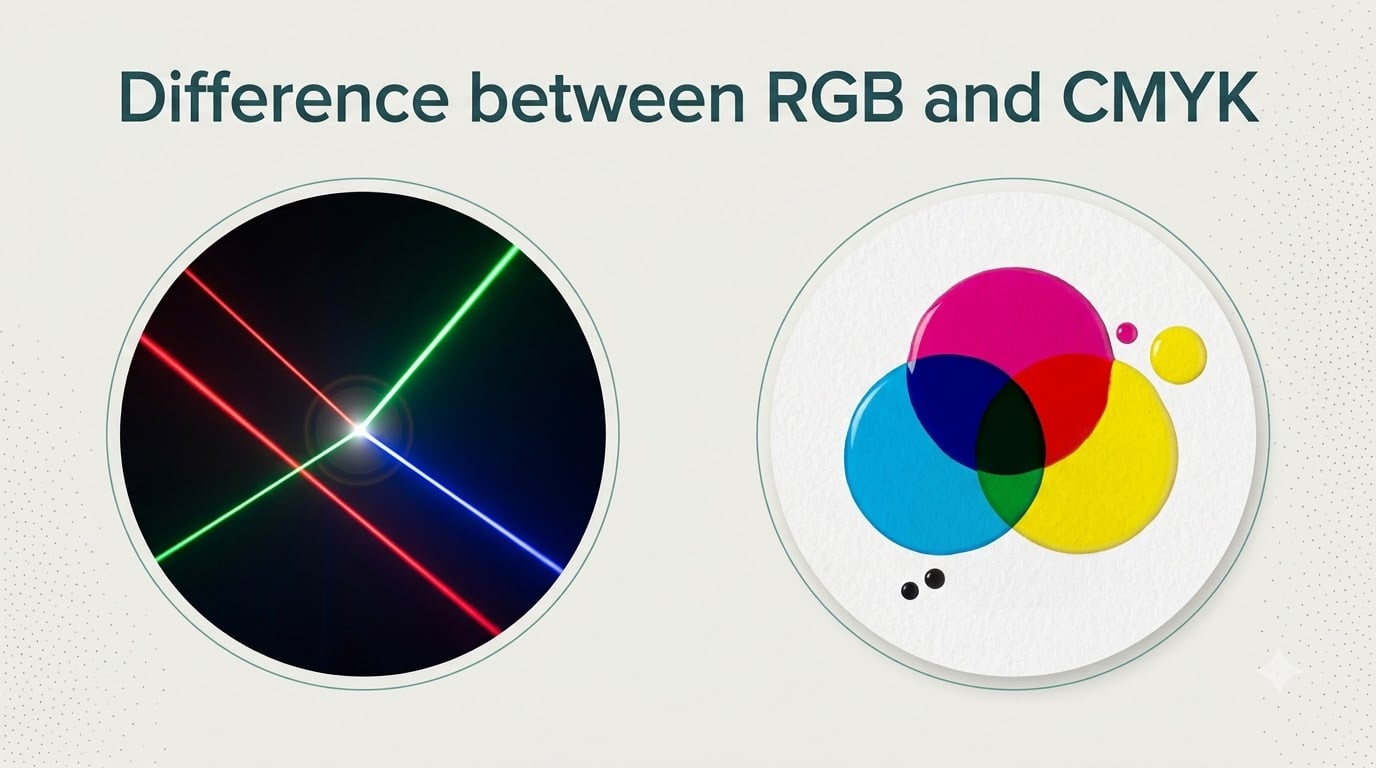
RGB is an additive color model, which means colors are created by adding light together. When red, green, and blue light combine at full intensity, they produce white. When no light is emitted, you see black. Every color on your screen is some combination of these three light sources.
Each channel in RGB has a value range from 0 to 255. Pure red would be R:255, G:0, B:0. Pure white is R:255, G:255, B:255. Pure black is R:0, G:0, B:0. This gives you over 16.7 million possible color combinations, which is why screens can display such vivid and saturated colors.
RGB is the standard for anything that emits light, including websites, social media graphics, mobile apps, video content, and digital photography. If your final destination is a screen, RGB is your color mode.
What is CMYK Color Mode
CMYK stands for Cyan, Magenta, Yellow, and Key (Black), and it is the color model used for physical printing. Printers reproduce colors by layering these four inks on paper.
CMYK is a subtractive color model, which works opposite to RGB. Instead of adding light, it subtracts light by absorbing certain wavelengths. White paper reflects all light, and as you add ink layers, more light is absorbed until you reach a deep black.
CMYK values are expressed as percentages from 0% to 100% for each of the four inks. A bright red might be C:0%, M:100%, Y:100%, K:0%. Deep navy could be C:100%, M:75%, Y:0%, K:75%. The K (Key) component is pure black ink, which is added to deepen shadows and create sharper detail than mixing the other three colors alone.
CMYK is the standard for business cards, brochures, posters, packaging, T-shirts, magazines, and any physical printed item. If your design will be printed on paper, fabric, or any other physical surface, CMYK is your color mode.
Additive vs Subtractive Color Mixing Explained
The simplest way to understand the difference between RGB and CMYK is to look at how each creates the colors white and black.
In RGB, adding all three colors of light creates white. Think of a flashlight beam pointed at a white wall. Use red, green, and blue light together and you get a bright white glow. Remove all light and you get black.
In CMYK, the opposite happens. Start with white paper and add ink to subtract wavelengths. Combining all four CMYK inks should theoretically create black, but in practice it produces a dark brown. That is why printers include a separate black ink (the K channel) to produce true black.
This fundamental difference is why RGB can produce brighter, more vibrant colors than CMYK. Light-based mixing can create colors that ink-based mixing simply cannot reproduce. The set of colors a device can produce is called its color gamut, and RGB has a wider gamut than CMYK.
When you convert from RGB to CMYK, some bright and saturated colors have to be approximated because they fall outside what CMYK inks can physically produce. This is the source of that “dull” look many people notice when printing.
RGB vs CMYK: Key Differences at a Glance
Here is a side-by-side comparison of the two color models to help you see the main differences at a glance.
| Feature | RGB | CMYK |
|---|---|---|
| Full Name | Red, Green, Blue | Cyan, Magenta, Yellow, Key |
| Color Model | Additive (adds light) | Subtractive (subtracts light) |
| Value Range | 0 to 255 per channel | 0% to 100% per channel |
| Best For | Digital screens | Physical printing |
| Color Gamut | Wider, more vibrant | Narrower, less saturated |
| Common File Types | JPEG, PNG, GIF, SVG | PDF, EPS, TIFF |
| Creates White By | Combining all colors at full intensity | No ink on white paper |
| Creates Black By | Removing all light | Combining all inks or using K channel |
Keep this table handy when starting any new project. The biggest takeaway is that RGB offers more colors but only works on light-emitting surfaces, while CMYK offers fewer colors but is the only choice for accurate ink reproduction.
When to Use RGB for Your Projects
Use RGB whenever your design will be viewed on a screen. This includes websites, social media posts, mobile apps, video thumbnails, presentations, and digital photography.
Social media platforms like Instagram, Facebook, and TikTok expect RGB images. Email design uses RGB. Streaming services, YouTube videos, and digital advertising all rely on RGB.
If you are designing a logo for a tech startup, an app interface, a website hero banner, or a YouTube thumbnail, start and finish in RGB. Your colors will be at their most vibrant, and you will not need to convert before publishing.
Designers who work only in digital spaces often stay in RGB for their entire workflow. There is no reason to convert to CMYK unless you are sending a file to print.
When to Use CMYK for Your Projects
Use CMYK for anything that will be physically printed. This includes business cards, flyers, posters, billboards, packaging, T-shirts, stickers, magazines, and book covers.
If you are working with a commercial printer, they will almost always request CMYK files. Most professional print shops will reject RGB files or convert them automatically, sometimes with unexpected color shifts.
CMYK is also the right choice for large format printing like banners, signage, and vehicle wraps. Even though the final product might be viewed outdoors, the printing process still uses ink, so CMYK is required.
When in doubt, ask your printer what profile they prefer. Many modern printers accept RGB files and handle conversion themselves, but starting in CMYK gives you more control over the final result.
How to Check Color Mode in Design Software
Before you convert or send a file, you need to know which color mode it is currently in. Here is how to check in the most common Adobe applications.
In Photoshop: Go to Image > Mode. The currently active color mode will have a checkmark next to it. You will see options for RGB Color, CMYK Color, Lab Color, and others.
In Illustrator: Go to File > Document Color Mode. You will see RGB Color or CMYK Color as the current setting. Click to switch if needed.
In InDesign: There is no global color mode toggle because InDesign manages colors per object. Instead, check individual swatches by selecting them and looking at the Color Panel. For placed images, open them in Photoshop to verify their mode.
In Canva: Click “File” then “Download” and check the color profile option. Canva uses RGB by default, which is fine for most digital exports.
Knowing how to check this in seconds saves you from sending the wrong file type to a client or printer.
How to Convert RGB to CMYK Step by Step
Converting between color modes does not have to be scary. With the right workflow, you can preserve most of your colors and avoid disasters.
Step 1: Save a backup. Always duplicate your RGB file before converting. Once you flatten the colors for CMYK, you cannot go back to the original RGB version without starting over.
Step 2: Flatten your design. Working in RGB often uses blend modes, transparency, and effects that behave differently in CMYK. Merge or rasterize layers that use complex blending so the conversion is cleaner.
Step 3: Choose the correct color profile. In Photoshop, go to Edit > Color Settings. For North American print, choose “U.S. Web Coated (SWOP) v2” as your CMYK profile. For European print, use “Coated FOGRA39” or ask your printer for their preferred profile.
Step 4: Convert the image. In Photoshop, go to Image > Mode > CMYK Color. In Illustrator, go to File > Document Color Mode > CMYK Color. The software will automatically map out-of-gamut colors to their closest CMYK equivalents.
Step 5: Check for out-of-gamut warnings. In Photoshop, go to View > Proof Colors. Any colors that fall outside the CMYK gamut will appear with a warning. Adjust these manually using channels or curve corrections.
Step 6: Soft-proof your file. Use View > Proof Setup to preview how your design will look when printed. This on-screen preview simulates the printer’s output and helps you catch problems before sending the file.
Step 7: Export as a print-ready PDF. Save your final file as a PDF/X-1a or PDF/X-4 format for the highest compatibility with commercial printers.
Common Color Shift Problems and Solutions
Color shift is the most common complaint when converting RGB to CMYK. Your bright sky blue becomes a flatter, more muted version. Your vibrant logo loses its punch. Here is why this happens and how to fix it.
RGB can display colors that exist outside the CMYK gamut. These out-of-gamut colors, especially bright blues, oranges, and greens, get shifted to the nearest reproducible CMYK color. This is why neon colors look dull after conversion.
The solution is to desaturate bright colors before converting. If you know a color will print poorly, lower its saturation in RGB by 10 to 20 percent before converting. The result will look more accurate once printed.
For rich blacks, never use RGB black (R:0, G:0, B:0) for print. Instead, use a rich black formula like C:60%, M:40%, Y:40%, K:100%. This creates a deeper, more saturated black that looks professional on paper. Avoid going higher than 300% total ink coverage to prevent smudging and slow drying.
Always request a printed proof from your printer before running a full job. Screen previews are not perfect, and seeing a physical sample helps you catch issues before committing to a large print run.
AI-Generated Designs and Color Mode in 2026
Generative AI tools like Midjourney, DALL-E, and Stable Diffusion all produce RGB images. If you plan to use AI-generated artwork for print, you will need to convert it to CMYK just like any other digital image.
One challenge with AI art is that the models often produce highly saturated, vibrant colors that fall outside the CMYK gamut. I have seen gorgeous AI portraits lose their punch when printed because the original colors were too bright for ink reproduction.
My workflow for AI art headed to print is simple. Generate the image in RGB, edit it in Photoshop, preview the proof colors, and adjust any over-saturated areas before final conversion. Using a calibration tool like a Datacolor Spyder on your monitor also helps you see what will actually print.
As generative AI tools mature in 2026, expect more built-in support for print-ready color profiles. For now, the manual conversion process is still the most reliable way to get accurate results from AI-generated designs.
Frequently Asked Questions
Which one is better, RGB or CMYK?
Neither is objectively better. They serve different purposes. RGB is better for digital screens because it uses light and can produce brighter colors. CMYK is better for physical printing because it uses ink and matches how printers reproduce color. Use RGB for digital projects and CMYK for print projects.
Why do we print in CMYK and not RGB?
We print in CMYK because printers physically lay down ink on paper, not light. CMYK is a subtractive color model that absorbs light through four ink colors. RGB is an additive color model that creates colors by emitting light, which is how screens work but not how printers work. RGB colors cannot be reproduced by ink, so CMYK is the practical standard for print.
What happens if you print RGB instead of CMYK?
If you send an RGB file to a commercial printer, they will convert it to CMYK before printing. This automatic conversion often causes color shifts, especially in bright blues, oranges, and greens, which look duller in CMYK. Some printers will not accept RGB files at all and will ask you to convert them yourself.
How do I tell if my image is CMYK or RGB?
In Photoshop, go to Image u0026gt; Mode and look for the checkmark next to RGB Color or CMYK Color. In Illustrator, check File u0026gt; Document Color Mode. In InDesign, swatches show their color mode in the Color Panel. Most other design tools clearly indicate the color mode in the file properties or export settings.
Conclusion
The difference between RGB and CMYK comes down to one core idea. RGB uses light to create colors on screens, while CMYK uses ink to create colors on physical surfaces. Understanding this simple distinction will save you from the most common design mistakes and help your projects look exactly as intended.
Remember these two rules. Use RGB for anything displayed on a screen, and use CMYK for anything that will be printed. Convert your files to CMYK before sending them to print, and always request a proof to catch color shifts before producing a full run.
Whether you are designing a website, a business card, or a T-shirt, the right color mode makes the difference between a professional result and a costly reprint. Now that you understand the difference between RGB and CMYK, you can choose the right mode for every project going forward.