
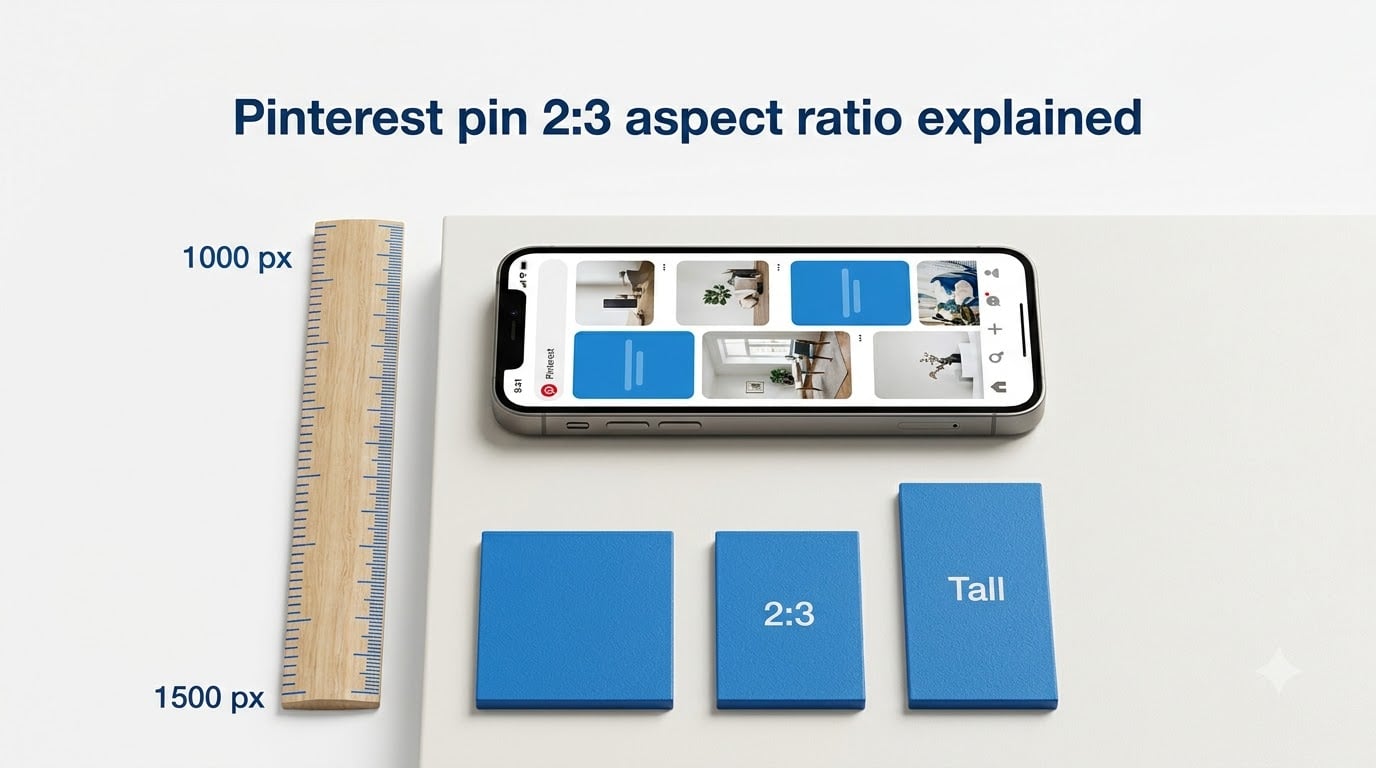
If you have ever posted a pin on Pinterest and wondered why it looks cropped, squished, or just plain wrong in the feed, the Pinterest pin 2:3 aspect ratio explained in this guide is what you need to understand. Pinterest rewards vertical images, and getting the ratio right means the difference between a pin that fills the screen and one that disappears into the background.
Our team has spent years creating Pinterest content for blogs, e-commerce stores, and client campaigns. After testing dozens of image sizes and tracking impressions, saves, and click-through rates, one thing stays consistent: 2:3 wins every time. This guide breaks down exactly what that ratio means, why Pinterest wants it, and how to make your images fit without distortion.
You will learn the exact pixel dimensions Pinterest recommends, how to calculate whether your current images match, and how to crop (not stretch) your visuals to fit. We also cover the mistakes that tank pin performance, CSS tricks for developers, and answers to the questions Pinterest creators ask most.
Table of Contents
- Quick Answer: The 2:3 Specs for Pinterest
- What Is the Pinterest Pin 2:3 Aspect Ratio?
- The Math Behind 2:3: How to Verify Your Image
- Recommended Pixel Dimensions for Pinterest Pins
- Why Pinterest Prefers 2:3: The Masonry Grid Logic
- What Happens When You Get the Ratio Wrong
- How to Crop Images to 2:3 Without Stretching
- CSS Implementation for Web Developers
- File Format and Size Recommendations
- Common Pinterest Aspect Ratio Mistakes to Avoid
- Frequently Asked Questions
- What is the 2:3 specs for Pinterest?
- What is the pin size ratio for Pinterest?
- What is the ideal pin image size of Pinterest?
- What size is a typical pin?
- Does Pinterest crop 2:3 pins in the feed?
- Can I use square pins on Pinterest?
- What is the maximum Pinterest pin height before it gets cropped?
- How do I resize an image to 2:3 without distortion?
- Conclusion
Quick Answer: The 2:3 Specs for Pinterest
Pinterest recommends a 2:3 aspect ratio, or 1000 x 1500 pixels, for standard pins. That is the official spec straight from Pinterest’s own product guidelines. Any pin taller than this ratio risks getting cut off in people’s feeds.
Here is what you need to know at a glance:
- Aspect ratio: 2:3 (width to height)
- Recommended pixels: 1000 x 1500
- Accepted file formats: JPEG, PNG, or WebP
- Maximum file size: 20 MB
- Maximum ratio before cropping: 1:2.1
- Minimum recommended width: 600 pixels
If you only remember one number, make it 1000 x 1500. Pinterest’s own help documentation states this directly, and every major Pinterest marketing tool from Tailwind to native analytics confirms it.
What Is the Pinterest Pin 2:3 Aspect Ratio?
An aspect ratio describes the proportional relationship between an image’s width and its height. When we talk about the Pinterest pin 2:3 aspect ratio, we mean the image is 2 units wide for every 3 units tall. Think of it as a portrait rectangle, taller than it is wide.
The ratio is written as width:first, height:second. So 2:3 means the height is 1.5 times the width. An image that is 1000 pixels wide would be 1500 pixels tall at this ratio. An image that is 600 pixels wide would be 900 pixels tall.
Pinterest chose this ratio because it fills the vertical space in the feed without being so tall that the platform has to crop the bottom. When a pin matches 2:3, it displays exactly as designed across desktop, tablet, and mobile. No surprises, no missing text, no awkward cut-offs.
This ratio is specifically for standard pins, which are the regular image pins you see dominating the feed. Other pin types, like video pins and carousel pins, follow their own sizing rules, which we cover in the dimensions section below.
The Math Behind 2:3: How to Verify Your Image
You can check whether any image matches the 2:3 ratio with simple division. Divide the width by the height, and the result should be approximately 0.667. That number represents two-thirds, which is exactly what 2:3 means mathematically.
Here is the step-by-step process to verify your image:
- Step 1: Find your image dimensions in pixels (right-click the file, select Properties or Get Info).
- Step 2: Divide the width by the height. For example, 1000 divided by 1500 equals 0.667.
- Step 3: Check the result. If it falls between 0.65 and 0.70, your image is close enough to 2:3.
- Step 4: If the number is higher (like 1.0 for a square), the image is too wide. If it is lower (like 0.5), the image is too tall.
Let us run through a few real examples so you can see the pattern.
A 735 x 1102 pixel image gives you 735 divided by 1102, which equals 0.667. That is a valid 2:3 pin. A 600 x 900 pixel image gives you 0.667 as well. Both work because they maintain the same proportional relationship as 1000 x 1500.
Now consider a square image at 1000 x 1000 pixels. Divide 1000 by 1000 and you get 1.0. That is nowhere near 0.667, which is why square pins occupy less vertical space in the feed and typically earn fewer impressions.
On the other extreme, a 1000 x 2100 pixel image gives you 0.476. That ratio is 1:2.1, which is the absolute maximum Pinterest allows before it starts cropping. Pins at this extreme size can work for long infographics, but the bottom portion may get cut off in some feed previews.
Recommended Pixel Dimensions for Pinterest Pins
The ideal Pinterest pin image size is 1000 x 1500 pixels at a 2:3 aspect ratio for standard pins. This is the sweet spot that Pinterest’s algorithm rewards and that displays cleanly across all devices.
However, 1000 x 1500 is not the only size that works. Any image that maintains the same 2:3 proportion will display correctly. Here are the accepted pixel dimensions for standard pins:
- 1000 x 1500 pixels (recommended full resolution)
- 1200 x 1800 pixels (high-resolution option)
- 2000 x 3000 pixels (maximum retina quality)
- 735 x 1102 pixels (older but still accepted minimum)
- 600 x 900 pixels (absolute minimum width)
Different pin types have different dimension requirements. Here is a quick reference for every pin format Pinterest currently supports:
- Standard Pin: 1000 x 1500 pixels (2:3 ratio)
- Video Pin: 1000 x 1500 pixels (2:3 ratio) or 1080 x 1920 pixels (9:16 ratio)
- Carousel Pin: 1000 x 1500 pixels (2:3 ratio) per card
- Long Pin: 1000 x 2100 pixels maximum (1:2.1 ratio)
- Square Pin: 1000 x 1000 pixels (1:1 ratio, but not recommended)
- Board Cover: 800 x 450 pixels (16:9 ratio) or 600 x 600 pixels (1:1)
- Profile Picture: 165 x 165 pixels minimum (1:1 ratio)
One common source of confusion is the conflicting numbers you will find across Pinterest sizing guides. Some older resources cite 735 x 1102 pixels, which was Pinterest’s original recommended size. Pinterest has since updated its guidance to 1000 x 1500 for better retina display quality on modern screens. Both sizes work, but 1000 x 1500 gives you sharper images on high-density displays.
If you are a print designer working in inches, a 2:3 pin at 1000 x 1500 pixels translates to roughly 3.33 x 5 inches at 300 DPI. At 72 DPI for screen viewing, that same image is about 13.89 x 20.83 inches. These conversions matter if you are designing pins in tools like Photoshop or Illustrator that default to print measurements.
Why Pinterest Prefers 2:3: The Masonry Grid Logic
Pinterest uses a masonry grid layout, which means pins are arranged in vertical columns that stack like a brick wall. Taller pins stretch across more vertical space in each column, which means they grab more attention as users scroll through their feed. The 2:3 ratio fills enough vertical space to stand out without crossing the threshold where Pinterest starts cropping.
Think about how you scroll through Pinterest on your phone. Vertical pins dominate the screen. A square pin looks small and easy to scroll past. A 2:3 pin fills more of your viewport, making it harder to ignore. Pinterest’s algorithm knows this and rewards pins that command more screen real estate.
This is not just theory. Pinterest creators consistently report that vertical pins earn more impressions, saves, and click-throughs than square or horizontal images. The platform’s own product specs language confirms this, recommending 2:3 and warning that taller ratios get cut off.
The 2:3 ratio also balances visibility with information density. A square pin gives you limited space for text overlays and product details. A 2:3 pin offers roughly 50 percent more vertical room for headlines, branding, and visual storytelling. A long pin at 1:2.1 gives you even more space, but risks having the bottom portion hidden in feed previews.
Mobile users make up the vast majority of Pinterest traffic. On a phone screen held vertically, a portrait-oriented pin at 2:3 mirrors the device’s natural orientation. The pin fills the screen width-wise and extends downward, creating a natural reading flow. Square pins waste that vertical space, and landscape pins look awkward on a portrait screen.
What Happens When You Get the Ratio Wrong
Getting the aspect ratio wrong leads to three main problems: cropping, shrinking, and stretching. Each one hurts your pin’s performance in different ways, and understanding the mechanics helps you avoid them.
Too Tall: The Crop Problem
Pins taller than the 1:2.1 ratio get cropped in the feed. Pinterest displays the top portion and cuts off the rest, which means any text, links, or calls to action at the bottom of your pin may never be seen. Users have to click through to see the full image, and many will not bother.
The crop threshold sits at 1:2.1, meaning any image where the height is more than 2.1 times the width will be truncated. A 1000 x 2100 pixel pin is right at the limit. A 1000 x 2500 pixel pin will definitely get cut off in the feed preview.
The frustrating part is that Pinterest’s crop behavior is inconsistent across devices. What looks fine on desktop might get cropped differently on mobile. This unpredictability is why sticking to 2:3 is the safest choice for feed visibility.
Too Short: The Visibility Problem
Square pins (1:1) and landscape pins display at their native ratio but occupy much less vertical space in the feed. A square pin at 1000 x 1000 pixels takes up roughly two-thirds less screen space than a 2:3 pin at 1000 x 1500. Less space means fewer eyeballs, which translates to lower impressions and click-throughs.
Square pins do not get penalized by Pinterest’s algorithm directly. The platform accepts them and displays them. But they underperform organically because they simply cannot compete with vertical pins for attention in a scroll-based feed.
Stretched: The Distortion Problem
Stretching happens when you force a non-2:3 image into a 2:3 frame without cropping. A square image stretched to 1000 x 1500 looks distorted, with everything appearing taller and thinner than it should. Text becomes hard to read, faces look warped, and product images lose their proportions.
This is one of the most common mistakes Pinterest creators make, and it comes from confusing resizing with cropping. We explain the difference and how to fix it in the next section.
How to Crop Images to 2:3 Without Stretching
The single most important distinction for Pinterest image creation is the difference between resizing and cropping. Resizing changes the dimensions of an image without changing its content, which stretches or squishes everything. Cropping removes parts of the image to fit a new ratio while preserving the proportions of what remains.
Reddit users frequently report that their pins look stretched after changing the dimensions. One user described trying to resize a 590 x 590 pixel square image to 2:3 in GIMP, only to find the result looked distorted. The problem was not the tool but the method. They were resizing instead of cropping.
Here is how to crop an image to 2:3 without distortion, regardless of which tool you use:
- Step 1: Open your image in your editing tool (Canva, Photoshop, GIMP, or any photo editor).
- Step 2: Set your crop dimensions to a 2:3 ratio. In most tools, you can enter 1000 x 1500 as the target size.
- Step 3: Position the crop frame over the most important part of your image. Everything outside the frame will be removed.
- Step 4: Adjust the frame position to keep key elements like text, faces, or product shots inside the visible area.
- Step 5: Apply the crop. Your image is now exactly 2:3 without any stretching or distortion.
- Step 6: If the cropped image is smaller than 1000 x 1500 pixels, upscale it using your tool’s resize function to reach the recommended resolution.
When you have a horizontal or landscape image, cropping to 2:3 means losing some of the sides. Plan for this by designing with the final crop in mind. Keep important elements centered and avoid placing critical text or branding near the edges.
If you are starting from a square image, cropping to 2:3 means extending the height or trimming the width. You can either add space at the top and bottom for a text overlay, or trim the sides to create a taller composition. Adding a text banner is often the easier path because it avoids cutting content.
For users who want to keep their entire square or landscape image visible, consider adding a solid color or blurred background that extends the canvas to a 2:3 ratio. This technique, sometimes called letterboxing, preserves the original image while meeting Pinterest’s recommended dimensions.
CSS Implementation for Web Developers
If you are building a website that displays Pinterest-style pins or embeds Pinterest content, you can enforce the 2:3 aspect ratio using CSS. The modern approach uses the aspect-ratio property, which is supported in all current browsers as of 2026.
Here is a simple CSS snippet that creates a 2:3 container for pin images:
.pin-container { aspect-ratio: 2 / 3; width: 100%; overflow: hidden; }
.pin-container img { width: 100%; height: 100%; object-fit: cover; }
The aspect-ratio property sets the container to maintain a 2:3 ratio at any width. The object-fit: cover rule ensures the image fills the container without distortion, cropping any overflow instead of stretching.
For a masonry grid layout similar to Pinterest’s feed, you can combine CSS columns with the aspect-ratio property:
.masonry-feed { column-count: 3; column-gap: 16px; }
.masonry-feed .pin { break-inside: avoid; margin-bottom: 16px; }
This creates a responsive multi-column layout where each pin maintains its 2:3 proportions. The columns reflow automatically as the viewport changes, mimicking Pinterest’s adaptive grid behavior on different screen sizes.
File Format and Size Recommendations
Pinterest accepts JPEG, PNG, and WebP formats for standard pins, with a maximum file size of 20 MB. The best format depends on your image content and how you balance quality against loading speed.
JPEG is the best choice for photographs and images with gradients or complex color patterns. It produces smaller file sizes through compression, which means faster upload and feed loading. Use JPEG at 80 to 90 percent quality for a good balance between visual fidelity and file weight.
PNG works better for graphics with sharp edges, text overlays, flat colors, and transparency. If your pin features bold typography or illustrations, PNG preserves the crispness that JPEG compression can blur. The trade-off is larger file sizes, so keep an eye on the 20 MB limit.
WebP offers the best of both worlds, delivering JPEG-level compression with PNG-level quality for certain image types. Pinterest fully supports WebP uploads, and it is worth using if your design tool exports it. WebP files are typically 25 to 35 percent smaller than equivalent JPEGs with no visible quality loss.
Regardless of format, aim for file sizes under 5 MB when possible. Pinterest compresses images on its end, so uploading a massive file does not guarantee better quality. Oversized files slow down the upload process and may get compressed more aggressively by Pinterest’s servers, sometimes resulting in lower visual quality than a moderately sized upload.
Common Pinterest Aspect Ratio Mistakes to Avoid
Even experienced Pinterest creators fall into these traps. Here are the most common mistakes and how to fix them:
- Stretching instead of cropping: Resizing a square or horizontal image to 1000 x 1500 distorts everything. Always crop, never stretch.
- Ignoring the 1:2.1 limit: Pins taller than this ratio get cropped in the feed. Keep long infographics within the boundary.
- Placing text near edges: Pinterest crops unpredictably across devices. Keep all important text and branding in the center safe zone.
- Using square pins for everything: Square pins work for carousels and certain ad formats, but standard feed pins perform better at 2:3.
- Uploading massive file sizes: Files over 10 MB get compressed harder by Pinterest, often looking worse than smaller, optimized uploads.
- Forgetting about retina displays: Designing at 600 x 900 looks soft on modern phones. Start at 1000 x 1500 or higher for crisp rendering.
- Trusting outdated sizing guides: Some guides still recommend 735 x 1102. While accepted, 1000 x 1500 gives better quality on current screens.
- Panicking over the Pinterest warning message: Some creators see the warning about aspect ratio even at 1000 x 1500. Pinterest community managers have confirmed this is a known display issue. If your dimensions are correct, you can safely ignore it.
Frequently Asked Questions
What is the 2:3 specs for Pinterest?
Pinterest recommends a 2:3 aspect ratio for standard pins, which equals 1000 x 1500 pixels. This is the official spec from Pinterest’s product guidelines. Pins at this ratio display cleanly in the feed without cropping.
What is the pin size ratio for Pinterest?
The recommended pin size ratio for Pinterest is 2:3, meaning the image is 2 units wide for every 3 units tall. In pixels, this translates to 1000 x 1500 for standard pins. Other accepted multiples include 600 x 900 and 1200 x 1800.
What is the ideal pin image size of Pinterest?
The ideal Pinterest pin image size is 1000 x 1500 pixels at a 2:3 aspect ratio. This provides high-resolution display on retina screens and fills the maximum vertical space in the feed without triggering Pinterest’s crop behavior.
What size is a typical pin?
A typical Pinterest pin is 1000 x 1500 pixels at a 2:3 aspect ratio. While Pinterest accepts images as small as 600 x 900 pixels and as tall as 1000 x 2100 pixels, the 1000 x 1500 standard is what most creators and brands use for optimal feed performance.
Does Pinterest crop 2:3 pins in the feed?
No, Pinterest does not crop pins that follow the 2:3 aspect ratio. The 2:3 ratio is specifically chosen because it displays fully in the feed across all devices. Cropping only happens when pins exceed the 1:2.1 maximum ratio, meaning the height is more than 2.1 times the width.
Can I use square pins on Pinterest?
Yes, you can use square pins (1:1 ratio) on Pinterest, but they will underperform compared to 2:3 pins. Square pins occupy less vertical space in the masonry feed, which typically results in fewer impressions, saves, and click-throughs. Use square pins only for carousels or specific ad formats that require them.
What is the maximum Pinterest pin height before it gets cropped?
The maximum Pinterest pin height before cropping occurs is a 1:2.1 ratio, or 1000 x 2100 pixels. Pins taller than this will have their bottom portion cut off in feed previews. Users must click through to see the full image, which reduces engagement.
How do I resize an image to 2:3 without distortion?
To resize an image to 2:3 without distortion, crop the image rather than stretching it. Set your crop tool to 1000 x 1500 pixels or a 2:3 ratio, position the crop frame over the most important area, and apply. Cropping removes excess pixels while preserving proportions, whereas stretching warps the image.
Conclusion
The Pinterest pin 2:3 aspect ratio explained in this guide comes down to one simple rule: design your pins at 1000 x 1500 pixels. That ratio fills the feed, avoids cropping, and gives your content the best shot at earning impressions, saves, and clicks.
Remember the key distinctions that trip up most creators. Crop your images to fit 2:3 rather than stretching them. Keep important elements in the center safe zone. Stay under the 1:2.1 maximum height to prevent feed cropping. And design at full resolution so your pins look sharp on every screen.
Now grab your next image, set your canvas to 1000 x 1500, and start creating pins that fill the feed the way Pinterest intended. Your impressions will thank you.