
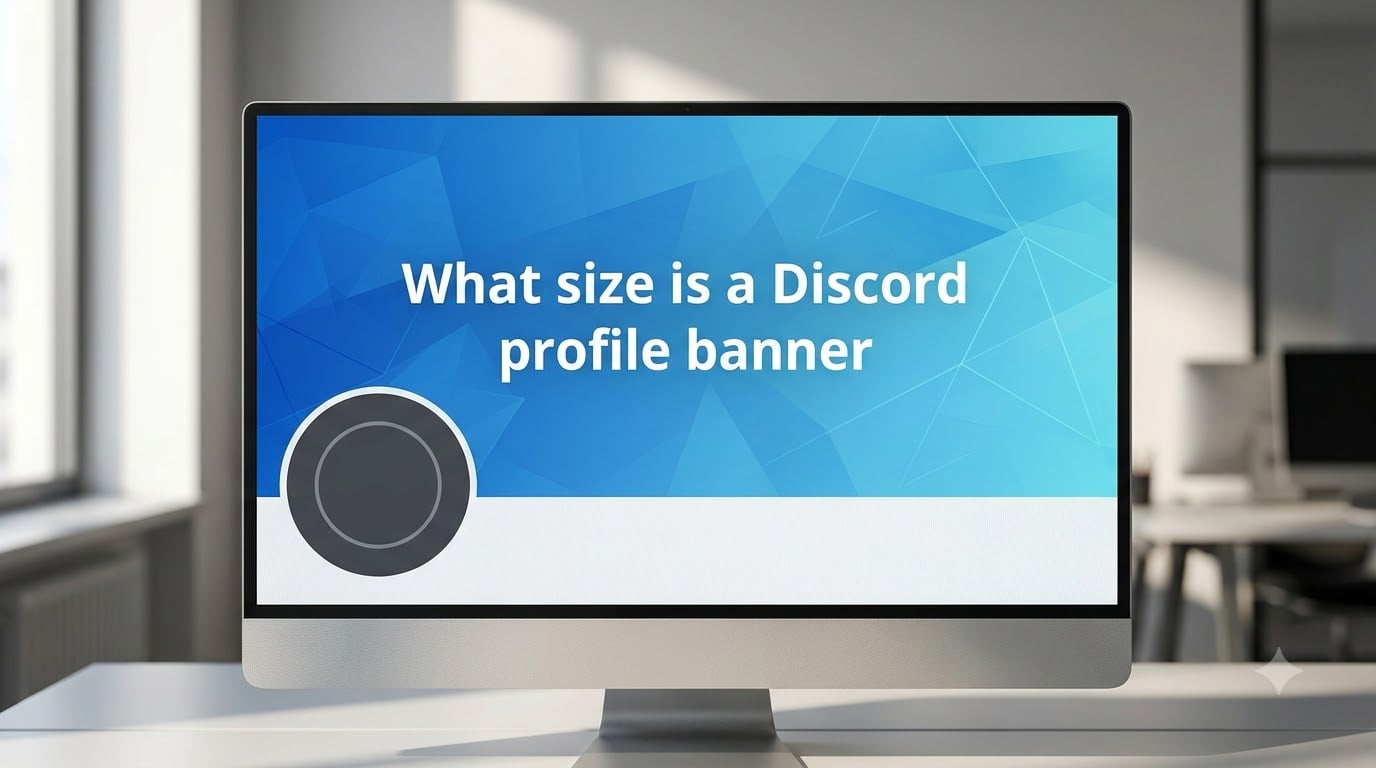
A Discord profile banner should be 600 x 240 pixels with a 5:2 aspect ratio. The maximum file size is 10 MB, and supported formats include PNG, JPG, and animated GIF. You need an active Discord Nitro subscription to set a profile banner — Nitro Basic does not include this feature.
If you have ever uploaded a banner only to watch it get cropped, blurred, or partially hidden behind your avatar, you are not alone. Our team dug through Discord’s official support docs, Reddit threads, and community forums to pin down the exact specifications that actually work in 2026. Below we break down every detail so your banner looks sharp the first time.
Table of Contents
- Quick Answer: Discord Profile Banner Size
- Discord Profile Banner Size: Full Specifications
- Do You Need Nitro for a Profile Banner?
- Why Some Sources Say 680×240 (and What Actually Works)
- The Avatar Overlap Zone: Designing Around It
- How to Upload and Change Your Discord Profile Banner
- Design Tips for a Great-Looking Discord Profile Banner
- Profile Banner vs Server Banner: What Is the Difference
- Free Tools for Resizing Your Image to 600×240
- FAQs
- Conclusion
Quick Answer: Discord Profile Banner Size
Here are the key specs at a glance:
Recommended dimensions: 600 x 240 pixels
Aspect ratio: 5:2 (wide and short)
Minimum dimensions: 600 x 240 pixels (smaller images get upscaled and look blurry)
Maximum file size: 10 MB
Supported formats: PNG, JPG, and animated GIF
Subscription required: Discord Nitro (full plan, not Nitro Basic)
Color profile: sRGB recommended for accurate display
These numbers come directly from Discord’s official support documentation and match what the community on r/discordapp has confirmed through real uploads.
Discord Profile Banner Size: Full Specifications
Now let us go deeper into each specification so you understand not just the numbers but why they matter.
Dimensions and Aspect Ratio Explained
The 600 x 240 pixel size gives you a 5:2 aspect ratio, which means the image is two and a half times wider than it is tall. That wide, banner-like shape fills the horizontal strip at the top of your profile page.
Think of it as a digital billboard for your profile. You get a narrow horizontal canvas, so composition matters more than raw resolution.
Can you upload something larger? Yes. Discord will accept images bigger than 600 x 240 and downscale them to fit. Many users upload at 1200 x 480 for extra sharpness, and Discord compresses it down cleanly. Just keep the 5:2 ratio intact or your image gets cropped.
File Size Limit
The 10 MB cap applies to profile banners. Most static PNG and JPG files sit well under 1 MB, so this limit rarely causes problems for still images.
Animated GIFs are where people run into trouble. Detailed animations with lots of frames and colors can balloon past 10 MB fast. If your GIF exceeds the limit, you will need to reduce frame count, lower resolution, or trim the animation duration.
Supported File Formats
Discord accepts three formats for profile banners, and each has trade-offs:
PNG is the best choice for graphics, text, logos, and flat illustrations. It supports lossless compression and transparency, so your banner stays crisp with no fuzzy artifacts.
JPG works well for photographs and images with gradients. It produces smaller file sizes but uses lossy compression, which can introduce visible banding in flat color areas.
GIF is the only format that supports animation on profile banners. Animated GIFs auto-play when someone views your profile, adding movement and personality. Keep in mind GIFs have a 256-color limit, so gradients can look stepped.
Color Profile and Quality
Use the sRGB color profile for your banner. Discord displays images in sRGB, so designing in other profiles like Adobe RGB or ProPhoto can cause colors to shift after upload.
Discord applies its own compression when serving your banner to other users. High-contrast elements and simple shapes survive compression well, while fine details and subtle gradients tend to degrade.
Do You Need Nitro for a Profile Banner?
Yes, you need a full Discord Nitro subscription to upload a profile banner. This is one of the most common points of confusion, so let us clear it up.
Discord Nitro (the full plan, roughly $9.99 per month) includes profile banner support, animated avatars, custom tags, higher upload limits, and server boosting perks.
Nitro Basic (roughly $2.99 per month) does not include profile banners. Nitro Basic covers smaller perks like higher-quality streaming and larger file uploads, but profile customization is reserved for the full plan.
Many users subscribe to Nitro Basic expecting banner access and feel misled when the option is grayed out. If banners are your main reason for subscribing, make sure you choose full Nitro.
Without any Nitro subscription, the profile banner slot is simply unavailable. Free users can still customize their avatar and status, but the banner field remains locked.
Why Some Sources Say 680×240 (and What Actually Works)
If you have been researching Discord banner sizes, you have probably seen three different numbers floating around: 600 x 240, 680 x 240, and even 1100 x 440. Here is what is going on.
600 x 240 is the current official recommendation. Discord’s support documentation lists this size, and it is what the platform displays on your profile. This is the number you should design for.
680 x 240 comes from an older spec and a common mix-up. Some guides conflate profile banners with server banners, which historically used slightly different dimensions. The 680 x 240 figure also relates to how Discord renders banners at certain display widths. It still works because Discord crops it down, but 600 x 240 is the cleaner target.
1100 x 440 is a community workaround from Reddit. Users on r/discordapp discovered that uploading at roughly double the recommended resolution (maintaining the same 5:2 ratio) produces a sharper final image after Discord’s compression. The extra pixels give Discord more data to work with during downscaling, which reduces blur.
Our recommendation: design at 600 x 240 for simplicity, or work at 1200 x 480 if you want maximum sharpness. Both keep the 5:2 ratio and both display correctly. Just avoid uploading at odd ratios, because Discord will crop to fit.
The Avatar Overlap Zone: Designing Around It
Your profile avatar does not sit above or below the banner. It overlaps the bottom-left corner, punching a circular hole into your carefully designed image.
This is not a bug. Discord designed it this way intentionally, stacking the avatar on the banner so the two elements feel connected rather than separated by white space.
The practical consequence: anything in the bottom-left quadrant of your banner gets partially covered. Here is how to design around it:
Keep logos, text, and key visuals in the top two-thirds or the right side of the banner
Treat the bottom-left 150 x 150 pixel area as a dead zone
Use simple background colors or textures in the overlap area so the avatar blends in
Avoid placing readable text anywhere in the lower-left region
If your design requires a centered element, consider shifting it slightly right of center so it clears the avatar circle entirely.
How to Upload and Change Your Discord Profile Banner
Uploading a banner takes about 30 seconds once you have the right image file ready. Here are the steps for both desktop and mobile.
On Desktop (Windows, Mac, Linux)
Step 1: Open Discord and click the gear icon next to your username in the bottom-left corner to open User Settings.
Step 2: Select Profiles from the left sidebar (under User Settings).
Step 3: Look for the Banner section. Click the Change Banner button.
Step 4: Choose your image file from your computer. Discord will show a preview of how it looks with your avatar overlaid.
Step 5: Adjust the crop if needed, then click Apply to save.
Your banner appears instantly on your profile for everyone to see.
On Mobile (iOS and Android)
Step 1: Open the Discord app and tap your profile picture in the bottom-right corner (or the bottom navigation bar).
Step 2: Tap Profiles to open your profile customization screen.
Step 3: Tap the Banner area at the top of your profile card.
Step 4: Select Change Banner and pick a photo from your device gallery or camera roll.
Step 5: Crop and position the image, then tap the checkmark or Save button.
The mobile flow is nearly identical to desktop. The main difference is that on smaller screens, the banner displays at a reduced width but maintains the same 5:2 ratio.
Design Tips for a Great-Looking Discord Profile Banner
A well-designed banner makes your profile feel polished and intentional. Here are practical tips based on what holds up after Discord’s compression.
Keep it simple. The banner is small and gets compressed. Bold shapes, strong colors, and minimal text survive the journey from your screen to other users far better than intricate details.
Use high contrast. Light text on a dark background (or vice versa) stays legible after compression. Low-contrast elements tend to wash out and become unreadable.
Avoid tiny text. If you must include text, make it large enough to read at 600 pixels wide. Anything below 20-point font at full resolution will likely blur into mush.
Design at 2x resolution. Working at 1200 x 480 and exporting down to 600 x 240 (or uploading the 2x version) gives Discord more pixel data, which produces a cleaner compressed result.
Test with your avatar. Before finalizing, overlay your avatar image in the bottom-left corner of your design canvas. This tells you immediately if any important content gets hidden.
Keep the upper edge clean. Discord sometimes displays a thin status bar or gradient at the very top of the banner. Keeping the top 20 to 30 pixels simple prevents visual clashes.
Profile Banner vs Server Banner: What Is the Difference
People frequently confuse profile banners with server banners. They are different elements with different sizes and requirements.
A profile banner appears on your personal user profile when someone clicks your name. It is 600 x 240 pixels, requires Discord Nitro, and is visible across all servers you are in.
A server banner appears at the top of a server’s channel list and on the server invite page. Server banners use a 16:9 aspect ratio at 960 x 540 pixels for animated banners or 1920 x 480 pixels for static images. Server banners require Server Boosts (Level 2 or higher), not Nitro.
The key distinction: profile banners are personal and tied to your account. Server banners are tied to a specific community and managed by server admins.
There is also a per-server profile banner feature for Nitro subscribers, which lets you set a different banner for each server you are in. This uses the same 600 x 240 size as your main profile banner.
Free Tools for Resizing Your Image to 600×240
You do not need expensive software to create a properly sized banner. Here are free tools that work well for resizing and designing Discord banners:
Canva (web-based) offers a free tier with pre-sized Discord banner templates. You can drag and drop elements, add text, and export as PNG. The free version includes plenty of templates and graphics.
Photopea (web-based) is essentially a free Photoshop clone that runs in your browser. It handles layers, precise pixel dimensions, and professional export settings. Perfect if you need exact control over your 600 x 240 canvas.
GIMP (desktop app) is a full-featured free image editor for Windows, Mac, and Linux. It supports layer-based editing and precise resizing for users who want a desktop tool without paying for Photoshop.
Figma (web-based) is a design tool with a generous free tier. Create a 600 x 240 frame, design your banner with vector tools, and export at full resolution.
Paint.NET (Windows only) is a lightweight, free image editor that handles resizing and basic layer work. Good for quick crops and format conversions.
For simple resizing of an existing image, any of these tools can crop and export to 600 x 240 in under a minute.
FAQs
What is the best size for a Discord profile banner?
The best size for a Discord profile banner is 600 x 240 pixels with a 5:2 aspect ratio. For extra sharpness after Discord’s compression, you can design at 1200 x 480 and upload the larger file. Keep the file under 10 MB and use PNG, JPG, or GIF format.
Is a Discord banner 16:9?
No, a Discord profile banner uses a 5:2 aspect ratio (600 x 240 pixels), not 16:9. Server banners are the ones that use 16:9 at 960 x 540 pixels for animated images. If you see a 16:9 reference, it likely refers to server banners, not personal profile banners.
What is the size of a profile banner?
A Discord profile banner is 600 x 240 pixels, which is a 5:2 aspect ratio. The maximum file size is 10 MB, and supported formats are PNG, JPG, and GIF. You need a Discord Nitro subscription to upload a profile banner.
Do you need Nitro for a Discord profile banner?
Yes, you need a full Discord Nitro subscription to set a profile banner. Nitro Basic does not include profile banner access. Without any Nitro plan, the banner option is locked. Server banners are separate and require Server Boosts instead.
Can you use a GIF as a Discord profile banner?
Yes, animated GIFs are supported as Discord profile banners. The GIF auto-plays when someone views your profile. Keep in mind that GIFs are limited to 256 colors and must stay under the 10 MB file size limit, which means complex animations may need frame reduction or lower resolution to fit.
Why does my Discord profile banner look blurry?
Your banner likely looks blurry because the source image is too small, uses lossy JPG compression, or has fine details that degrade under Discord’s compression. Fix it by designing at 1200 x 480 pixels (double resolution), using PNG format for graphics, and keeping the design simple with bold, high-contrast elements.
Conclusion
The Discord profile banner size is 600 x 240 pixels with a 5:2 aspect ratio, a 10 MB file size limit, and support for PNG, JPG, and GIF formats. Design at double resolution (1200 x 480) for the sharpest result, keep important visuals away from the bottom-left avatar overlap zone, and make sure you have a full Nitro subscription to unlock the feature.
Grab a free tool like Canva or Photopea, set your canvas to 600 x 240, and start designing. Your profile is the first thing people see when they click your name — a clean, well-sized banner makes a strong impression in seconds.