
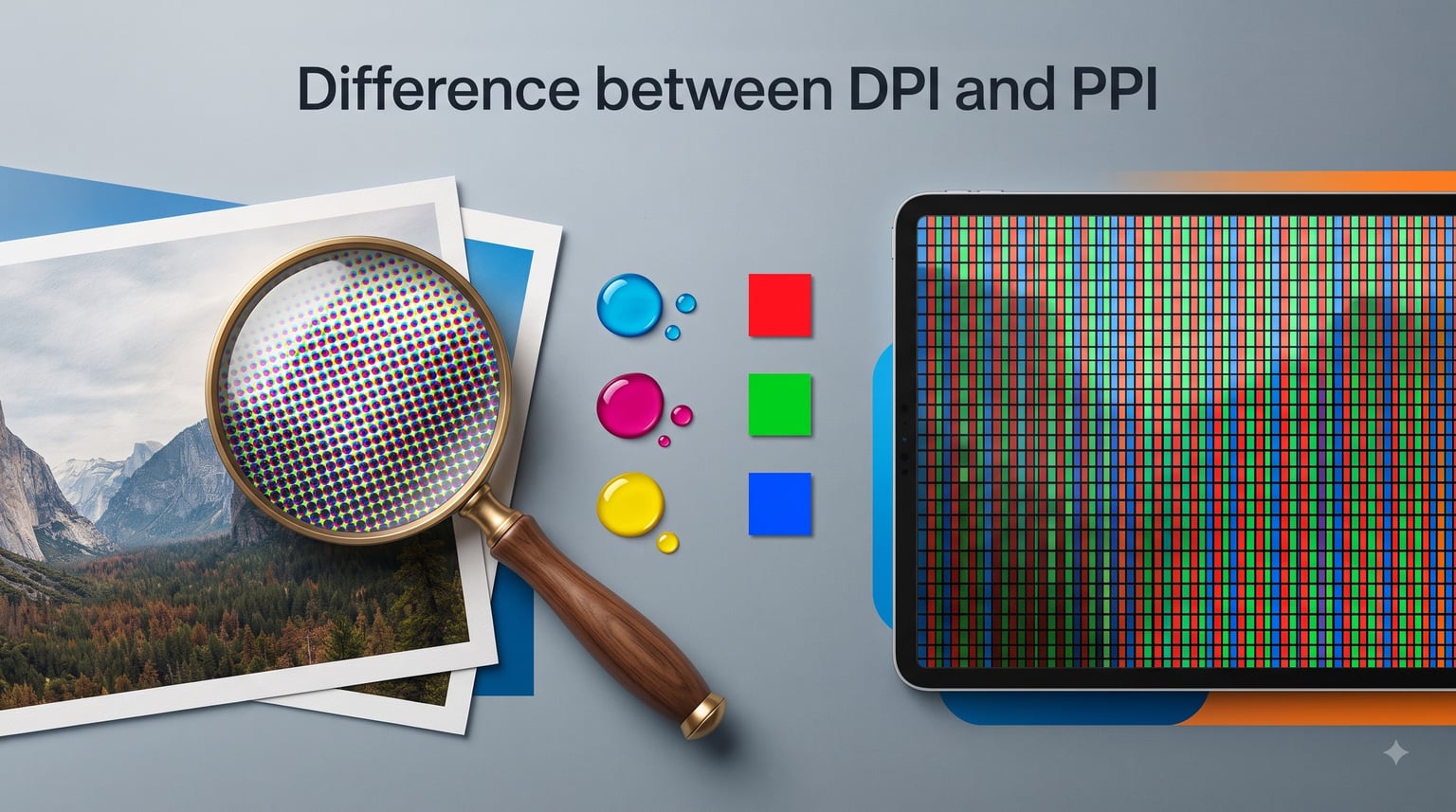
The difference between DPI and PPI comes down to this: PPI (Pixels Per Inch) measures the digital resolution of an image on a screen, while DPI (Dots Per Inch) measures the physical ink dots a printer places on paper. People mix them up constantly, and that confusion costs real money in blurry prints and pixelated web graphics.
Our team has spent years in graphic design and print production, and we see the same mistakes repeat themselves. Clients send 72 PPI files to commercial printers and wonder why their banners look muddy. Designers set DPI in Photoshop thinking it changes image quality, when it actually does nothing to the pixel data.
In this guide, you will learn exactly what each term means, when to use which one, why the famous “72 PPI web standard” is a myth, and how to set up your files correctly for any project. By the end, you will never second-guess these terms again.
Table of Contents
What Is PPI (Pixels Per Inch)?
PPI stands for Pixels Per Inch, and it describes the pixel density of a digital image or display. It tells you how many individual pixels exist within one linear inch of screen or image data. The higher the PPI, the sharper and more detailed the image appears on a digital display.
Think of pixels like tiny mosaic tiles. If you pack 300 tiles into one inch, the image looks crisp and detailed. Pack only 72 tiles into that same inch, and you start seeing the individual tiles and jagged edges. That visual roughness is what designers call pixelation.
PPI matters in the digital world. It affects everything from smartphone screens to web graphics to the raster images you edit in Photoshop. A standard Full HD monitor (1920 x 1080) at 24 inches diagonal has roughly 92 PPI. A modern smartphone like the iPhone hits 458 PPI or higher. That density difference is why text looks razor-sharp on your phone but slightly softer on an older desktop monitor.
Each pixel in a digital image displays color using the RGB colorspace, combining red, green, and blue light at varying intensities. A pixel can reproduce millions of colors this way, which is why digital images look vibrant and smooth on screen. This is fundamentally different from how printers reproduce color, which we will cover next.
What Is DPI (Dots Per Inch)?
DPI stands for Dots Per Inch, and it measures the number of ink dots a printer places on paper within one linear inch. This is a physical output measurement, not a digital one. DPI describes what happens when your file leaves the computer and meets the printing press or inkjet printer.
Unlike pixels, which can each display millions of colors, a single ink dot cannot. Printers use the CMYK color model, combining cyan, magenta, yellow, and black ink in tiny overlapping patterns to simulate full-color images. The process of converting continuous-tone images into patterns of discrete dots is called halftoning.
Halftoning is the bridge between what you see on screen and what appears on paper. Your printer arranges ink dots in a grid of cells, where each cell contains many dots. The density and arrangement of these dots create the illusion of different shades and colors. This is why a 300 DPI print can look almost as smooth as a 300 PPI digital image, even though the underlying mechanics are completely different.
Related to DPI is LPI, or Lines Per Inch. LPI measures the number of halftone cells per inch in commercial printing. A typical magazine prints at 150 LPI, while newspapers use 85 LPI. The general rule is that DPI should be roughly 1.5 to 2 times the LPI value, which is why 300 PPI became the standard input resolution for 150 LPI printing.
Inkjet and laser printers handle dots differently. High-end inkjet printers use variable dot size technology, placing larger dots in dark areas and smaller dots in light areas for better tonal range. Commercial printing presses and most desktop printers range from 300 DPI for basic documents to 2400 DPI or higher for professional photo prints and fine art reproductions.
DPI vs PPI: What’s the Real Difference?
The core difference between DPI and PPI is simple: PPI measures digital pixels, DPI measures physical ink dots. One lives in your computer, the other lives on paper. Here is a side-by-side breakdown of how they compare:
What it measures: PPI counts pixels in a digital image. DPI counts ink dots on printed paper.
Where it applies: PPI is used for screens, digital files, and web graphics. DPI is used for physical printing output.
Color model: PPI images use RGB (red, green, blue light). DPI printing uses CMYK (cyan, magenta, yellow, black ink).
Color capability: Each pixel can display millions of colors. Each ink dot is a single solid color, relying on halftoning patterns to simulate shades.
Standard values: Screens typically range from 72 to 96 PPI. Print standard is 300 PPI input. Printer output ranges from 300 to 2400 DPI.
Who controls it: You set PPI in your image editing software. The printer hardware and its driver control DPI.
Direction of influence: PPI determines what your printer has to work with. DPI settings in your file do not change the actual pixel data.
Reddit users across the graphic design and printing communities confirm that “PPI is for screens, DPI is for prints” is the simplest and most reliable way to keep these terms straight. We agree. If you remember nothing else from this article, remember that one sentence.
The 72 PPI Myth Explained
The “72 PPI standard” for web images is one of the most persistent myths in digital design. Many designers still believe web graphics must be set to exactly 72 PPI, but this number has been obsolete for decades. Understanding why requires a quick trip back to the 1980s.
The original Apple Macintosh, released in 1984, had a built-in screen resolution of exactly 72 PPI. Apple designed this intentionally to match the traditional typographic point system, where 72 points equals one inch. Designers could work on screen at a 1:1 scale with printed documents, which was a genuine convenience at the time.
The problem is that display technology moved on, but the 72 PPI rule stuck in people’s minds. Modern monitors range from 96 PPI on standard desktop displays to 200 PPI or more on retina and 4K screens. There is no universal web PPI standard because screens vary so widely. A 27-inch 4K monitor has about 163 PPI, while a cheap laptop might have 112 PPI.
Here is the part most guides miss: web browsers do not read PPI metadata at all. When you upload an image to a website, the browser only cares about the pixel dimensions, such as 1920 x 1080. Whether that image has 72 PPI, 300 PPI, or 9999 PPI embedded in its metadata makes zero difference to how it renders on any screen.
This is why designers who insist on “saving for web at 72 PPI” are following a meaningless ritual. The file will look identical regardless of that number. What actually matters for web images is the total pixel count, the file format, and the compression level.
How PPI and DPI Work Together
PPI and DPI have a one-directional relationship. Your digital image’s PPI feeds into the printing process, and the printer’s DPI determines the final output quality. DPI never flows backward to change your digital image.
Think of it like cooking. PPI is the quality of your ingredients, and DPI is the skill of your chef. High-quality ingredients (high PPI) give the chef more to work with, but a poor chef (low DPI printer) can still produce a disappointing meal. Conversely, even a master chef cannot make a great dish from spoiled ingredients (low PPI).
When you send a 300 PPI image to a 1200 DPI printer, the printer takes your pixel data and translates it into ink dots using halftoning. Your 300 pixels per inch provide enough detail for the printer to create smooth gradients and sharp text. If you send that same file to a 300 DPI budget printer, you lose detail because the printer cannot place enough dots to faithfully reproduce each pixel.
Now here is a misconception we see constantly on design forums: changing the DPI setting in Photoshop does not change your image’s pixel dimensions or quality. When you type “300” into the resolution field in Photoshop’s Image Size dialog without unchecking “Resample,” the software simply reinterprets how the existing pixels should be spaced for printing. The total number of pixels stays the same.
This trips up designers and clients alike. Someone opens a photo, sees “72” in the resolution field, and panics thinking their image is low quality. They change it to 300 and the file does not look any different because nothing actually changed in the pixel data. The image was always the same collection of pixels. What matters is whether you have enough total pixels for the physical print size you need.
Standard PPI and DPI Values for Every Project
Different projects demand different resolution settings. Here is a practical reference guide based on what our team uses across real client work:
Web and screen graphics: 72 to 96 PPI. Since browsers ignore PPI metadata, focus on pixel dimensions instead. A hero banner at 1920 x 600 pixels will display identically regardless of its PPI setting.
Standard print (brochures, flyers, business cards): 300 PPI input resolution. This is the industry standard for offset printing and produces sharp, professional results on most paper stocks.
Large format printing (banners, posters, signs): 150 PPI at final size. Large prints are viewed from a distance, so you do not need the same pixel density as something held in your hand. A billboard might only need 30 to 50 PPI because nobody stands two feet away from it.
Photo prints and fine art reproductions: 300 to 360 PPI input, printed at 1440 to 2880 DPI on professional photo printers. This combination produces gallery-quality detail.
Newspaper printing: 150 to 200 PPI input, printed at roughly 85 LPI. Newsprint absorbs ink heavily, so higher resolutions would be wasted on the porous paper.
Magazine quality printing: 300 PPI input, printed at 150 LPI on coated stock. This is the sweet spot for glossy commercial printing.
Retina and high-DPI mobile displays: Design at 2x or 3x the standard pixel dimensions. A button that displays at 100 x 40 pixels on a standard screen should be exported at 200 x 80 or 300 x 120 pixels for retina screens.
When in doubt, always design at a higher resolution than you think you need. You can downscale an image without quality loss, but upscaling always degrades quality.
How to Check Your Image Resolution
Checking image resolution is one of the most common pain points designers and clients face. Forum users frequently report sending the wrong resolution files to print, only to receive blurry or pixelated results. Here is a simple workflow to avoid that problem.
In Adobe Photoshop, open your image and go to Image > Image Size. Look at two numbers: the pixel dimensions (width and height in pixels) and the resolution (PPI). The pixel dimensions tell you the actual data you have. The resolution value tells you how those pixels will be spaced when printed.
To calculate if your image is high enough resolution for print, multiply the desired print width in inches by 300. If you want a 10-inch wide print, you need at least 3000 pixels wide. A 4 x 6 inch photo at 300 PPI needs 1200 x 1800 pixels. If your pixel count falls short, the print will look soft or pixelated.
For a quick check in macOS, open the image in Preview and press Command+I to open the Inspector. The resolution appears under “Image DPI” in the General information tab. On Windows, right-click the file, select Properties, then Details, and look for both horizontal and vertical resolution values.
One important tip: when checking resolution for print, uncheck “Resample” in Photoshop before changing the PPI value. This lets you see what physical print size your current pixel data can support at 300 PPI without accidentally adding or removing pixels. The document will appear to resize, but no data is lost or created.
Common Misconceptions About DPI and PPI
Let us clear up the most frequent misunderstandings our team encounters in client conversations and online forums.
Misconception: DPI and PPI are interchangeable terms. They are not. PPI refers to digital pixels, DPI refers to physical ink dots. Using them interchangeably causes real confusion when communicating with printers, clients, and colleagues.
Misconception: Higher DPI always means better print quality. Not necessarily. A 2400 DPI printer cannot work magic with a 72 PPI image. Your input resolution (PPI) sets the ceiling for quality. Beyond a certain point, extra DPI adds no visible improvement because the source image lacks the detail to take advantage of it.
Misconception: You need 300 PPI for web images. This wastes file size and bandwidth. Web browsers ignore PPI metadata entirely. What matters for web is pixel dimensions and compression. A 600 x 400 pixel JPEG at 72 PPI looks identical to a 600 x 400 pixel JPEG at 300 PPI on any screen.
Misconception: Changing the DPI number in Photoshop improves image quality. Without resampling, changing the DPI field only reinterprets how pixels map to physical inches. The actual pixel data stays the same. The image does not gain or lose any detail.
Misconception: 72 PPI is a web standard. This is the myth we debunked earlier. No universal web PPI standard exists because screens vary dramatically in pixel density. Focus on pixel dimensions for web work, not PPI.
FAQs
Is 300 PPI the same as 300 DPI?
No, 300 PPI and 300 DPI are not the same thing. 300 PPI means your digital image has 300 pixels per inch of data. 300 DPI means your printer places 300 ink dots per inch on paper. They describe different stages of the reproduction process, though 300 PPI is the standard input resolution for most professional printing.
Is 600 DPI the same as 600 PPI?
No. 600 DPI refers to a printer placing 600 ink dots per inch on paper. 600 PPI would mean a digital image with 600 pixels per inch, which is much higher resolution than most print jobs require. Most professional printing only needs 300 PPI input, even when the printer outputs at 600 DPI or higher.
Is DPI better than PPI?
Neither is better because they measure different things. PPI measures digital image resolution for screens and files. DPI measures physical printer output. Asking which is better is like asking if horsepower is better than miles per gallon. You need the right PPI for your digital work and a printer with adequate DPI for quality output.
How many PPI is 150 DPI?
You cannot directly convert DPI to PPI because they measure different things. However, in practical printing workflows, the general guideline is that your PPI input should be 1.5 to 2 times the LPI (lines per inch) the printer uses. A 150 LPI magazine print typically requires 300 PPI input resolution. The DPI of the printer itself is a separate hardware specification.
What DPI or PPI should I use for web images?
For web images, use pixel dimensions that match your layout needs and ignore the PPI setting entirely. Web browsers do not read PPI metadata, so whether your file says 72 PPI or 300 PPI makes no difference in how it displays. Focus on total pixel dimensions, file format, and compression quality instead.
Does changing DPI in Photoshop change image quality?
No, changing the DPI value in Photoshop without enabling Resample does not change image quality or pixel data. It only reinterprets how your existing pixels map to physical print dimensions. The total number of pixels stays identical. To actually improve quality, you would need more pixel data from the start, which Photoshop cannot create from nothing.
Conclusion
Understanding the difference between DPI and PPI boils down to one rule: PPI is for digital, DPI is for print. Your digital images use pixels measured in PPI, and your printer uses ink dots measured in DPI. The two are connected but not interchangeable.
Remember the practical takeaways. Use 300 PPI for standard print projects, 150 PPI for large format work, and focus on pixel dimensions rather than PPI metadata for web images. When in doubt, start with more pixels than you think you need. And next time someone asks you to save a web image at 72 PPI, you will know exactly why that number no longer matters.