
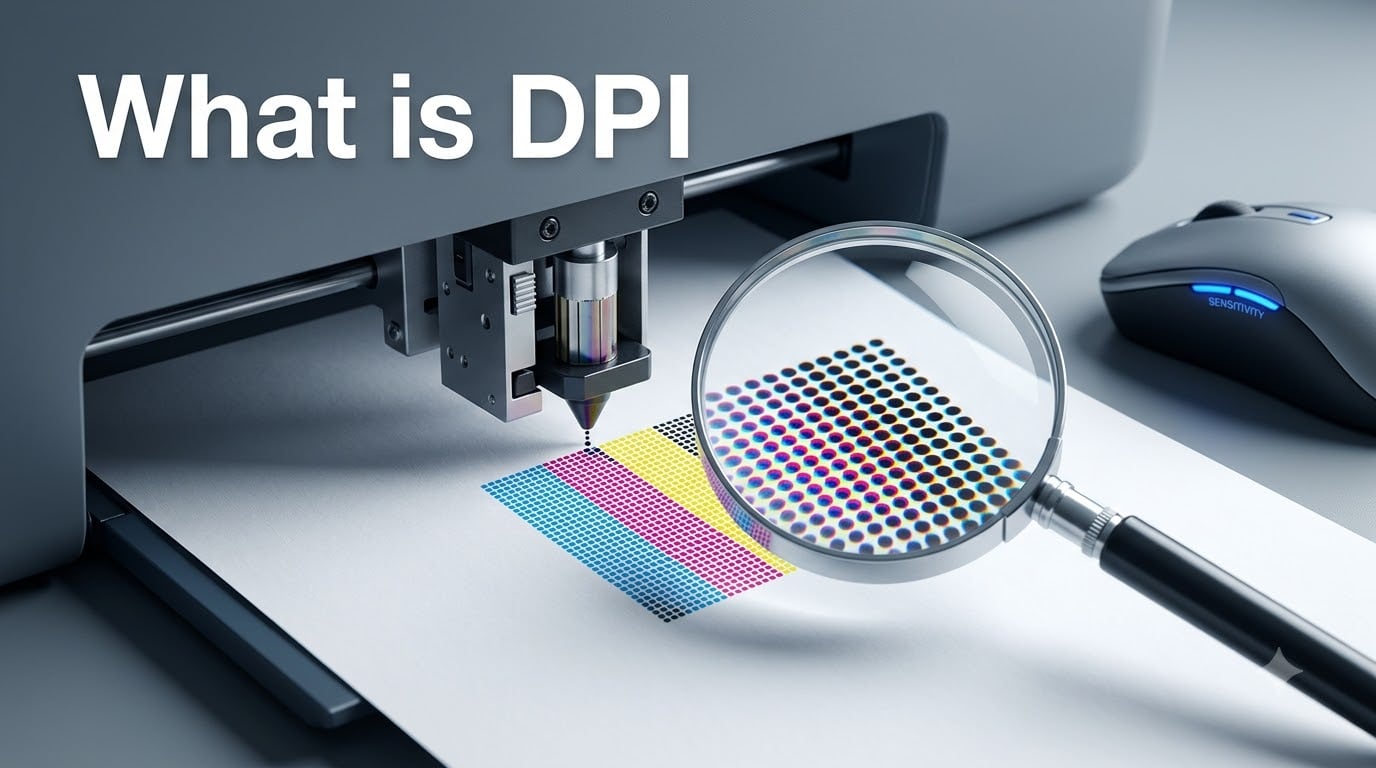
DPI stands for dots per inch, a measurement that tells you how many individual dots of ink a printer places within a single inch of paper. The higher the DPI, the more detail and sharpness you get in a printed image. If you have ever wondered what is DPI and why everyone keeps mentioning 300 DPI for print jobs, this guide breaks it down without the jargon.
Our team has spent years working with print production, digital design, and gaming setups, and we kept running into the same confusion everywhere. People mix up DPI with PPI, think a higher mouse DPI always means better aim, or send low-resolution files to the printer only to get blurry results back.
This article covers what DPI means in plain language, how it differs from PPI, the standard DPI values you should know, how mouse DPI works for gaming, and practical steps to check your image resolution. By the end, you will know exactly what DPI to use for any project in 2026.
Table of Contents
What Is DPI? A Simple Explanation
If you want a plain answer to what is DPI, think of it this way. Imagine a printer as a tiny artist with a spray can, and every droplet of ink is one dot. DPI simply counts how many of those droplets land inside a one-inch line on the paper. More droplets packed into the same space means a sharper, more detailed image.
A printer set to 300 DPI places 300 dots in every inch horizontally and 300 dots in every inch vertically. That works out to 90,000 dots per square inch. Drop down to 150 DPI and you get only 22,500 dots in that same square inch, which is why the image starts looking soft and pixelated.
The concept originally came from physical printing technologies like dot matrix and inkjet printers, where actual dots of ink hit the page. Each dot is a real, physical deposit of ink or toner. When you zoom in close enough on a printed photo, you can see these individual dots clustered together to form shapes and colors.
Here is a quick way to visualize it. Picture a mosaic made of tiny tiles. A 300 DPI print is like a mosaic with 300 tiles per inch, packed so tightly that your eye blends them into a smooth image. A 72 DPI print is like the same mosaic with only 72 tiles per inch, so the gaps become visible and the picture looks blocky.
That is why print professionals treat DPI as the single most important quality factor. It directly controls how much detail your printed image reproduces from the original digital file.
DPI vs PPI: What Is the Difference?
DPI and PPI get used interchangeably all the time, but they measure different things. DPI refers to physical dots of ink placed on paper by a printer. PPI stands for pixels per inch and refers to the pixel density of a digital image on a screen. One is physical output, the other is digital input.
Here is where most confusion starts. A digital image file stores pixels, not dots. When you send that file to a printer, the printer translates those pixels into physical dots of ink. So a photo might have 300 PPI on your screen, and the printer outputs 300 DPI on paper to match it.
Think of PPI as the recipe and DPI as the finished dish. Your digital image tells the printer what the picture should look like, and the printer uses its DPI capability to reproduce it on paper. A high-PPI image printed on a low-DPI printer will still look rough because the printer cannot lay down enough dots.
People on forums constantly ask why their high-resolution photo printed blurry. The answer is usually a mismatch. Either the image had a low PPI to begin with, or the printer was set to a low DPI output. Both numbers need to align for a crisp result.
One more distinction worth knowing. Monitors and phone screens technically use PPI, not DPI, because they display pixels rather than print dots. When someone says their monitor has a high DPI, they usually mean PPI. It is a common shorthand that is technically incorrect but widely understood.
Standard DPI Values and What They Mean
Certain DPI numbers show up again and again because they have become industry standards. Understanding these benchmarks helps you choose the right resolution for any project without guessing.
Here are the standard DPI values you will encounter most often:
– 72 DPI: The traditional web and screen standard. Images meant for websites and on-screen viewing typically use 72 DPI because screens do not need the density that print requires. This keeps file sizes small.
– 150 DPI: The minimum acceptable resolution for basic print work like flyers, posters viewed from a distance, or draft proofs. Anything below 150 DPI risks looking visibly pixelated even at arm’s length.
– 300 DPI: The gold standard for professional printing. Photographs, magazines, brochures, and most commercial print materials use 300 DPI. This is the number print shops ask for when they say send us a high-res file.
– 600 DPI: Used for sharp text and line art, especially in professional documents and high-quality scans. Text benefits from higher DPI because crisp edges matter more than they do for continuous-tone photos.
– 1200 DPI and above: Reserved for fine art prints, archival scanning, and specialized applications where maximum detail capture is required. These files are large and typically unnecessary for everyday print work.
A good rule of thumb is that 300 DPI covers 90 percent of professional print jobs. If you are unsure what to use, 300 DPI is almost always the safe choice for anything that will be printed and held in someone’s hands.
Beyond 300 DPI, the improvements become harder to see with the naked eye at normal viewing distances. Going from 300 to 600 DPI on a standard photograph is a difference most people would never notice unless they use a magnifying glass.
What Is DPI on a Mouse?
DPI on a mouse means something different from DPI in printing. When people ask what is DPI on a mouse, the answer is that it measures how many pixels your cursor moves across the screen for every inch you physically move the mouse. A mouse set to 800 DPI moves the cursor 800 pixels per inch of physical movement.
Higher mouse DPI means the cursor travels farther with less physical movement. A mouse at 3200 DPI will zip across a 4K monitor with a tiny flick of the wrist, while a mouse at 400 DPI requires you to sweep your arm across the desk to cover the same distance.
This is where a massive misconception lives in the gaming community. Many players assume higher DPI automatically means better precision and faster reactions. That is not how it works. Higher DPI simply increases sensitivity. Whether that helps or hurts depends entirely on your playstyle and the game you are playing.
Here is the key distinction forum users constantly get wrong. DPI is a hardware property of the mouse sensor. Sensitivity is a software setting inside the game or operating system. You can have a mouse with 16,000 DPI and still set your in-game sensitivity low to get a slow, controlled aim. The two settings multiply together to produce your final cursor speed.
Most professional first-person shooter players use a DPI between 400 and 1600. They then adjust in-game sensitivity to hit their preferred effective speed. This range gives the sensor enough data points for accurate tracking without making the cursor so twitchy that small hand movements cause jittery aim.
For everyday desktop use and productivity, 800 to 1200 DPI feels comfortable for most people on standard monitors. On a 4K display, you might prefer 1600 DPI or higher so you do not have to lift and reposition the mouse constantly to reach the screen edges.
If you play games like Free Fire or other mobile shooters using a mouse adapter, DPI settings between 400 and 800 are commonly recommended for controlled recoil patterns. High DPI on these setups often makes aiming erratic rather than precise.
The takeaway is simple. Higher DPI is not automatically better. The right DPI is the one that matches your screen resolution, your grip style, and the type of game or work you are doing.
What DPI Should You Use?
Choosing the right DPI depends on two things: what you are producing and how far away the viewer will be. Let’s break this down by use case so you have concrete numbers to work with.
For professional photo printing, use 300 DPI. This covers photo books, magazines, business cards, and any printed material people will hold and view up close. It is the industry standard because it produces sharp, clean images at normal reading distance.
For large posters and banners viewed from 3 to 6 feet away, 150 to 200 DPI works fine. The human eye cannot resolve fine detail at that distance, so spending extra resolution is wasted. A 24 by 36 inch poster at 150 DPI looks just as good to a passing viewer as one at 300 DPI.
For billboards and building-sized prints, 50 to 100 DPI is standard. These are viewed from 50 feet or more, where even a relatively low resolution appears sharp because your eye cannot distinguish individual dots at that range. This is why billboard files are surprisingly small despite the massive print size.
For web images and on-screen graphics, 72 DPI remains the conventional choice, though modern displays often have much higher pixel densities. For websites, file size matters more than DPI since the browser renders based on pixel dimensions, not DPI metadata. Focus on pixel dimensions instead.
For scanning documents, 300 DPI captures text clearly for most archival purposes. If you plan to use optical character recognition to convert scanned text into editable digital text, 300 DPI produces reliable results. For scanning photographs you intend to enlarge, scan at 600 DPI or higher.
For gaming mice, start between 800 and 1600 DPI and adjust from there. Try different settings for a week before settling on one. Your muscle memory adapts to whatever DPI you use consistently, so consistency matters more than finding a magic number.
Viewing distance is the hidden factor that ties all of this together. The formula is simple: the farther away the viewer is, the lower the DPI you need. This is why a phone screen needs a higher pixel density than a television, and why a billboard can get away with a fraction of the resolution of a business card.
How to Check the DPI of an Image
Checking DPI is straightforward once you know where to look. Here are the steps for the most common platforms.
On Windows, right-click the image file and select Properties. Click the Details tab and scroll down to find both horizontal and vertical resolution listed in DPI. Most images default to 72 DPI if they were created for web use.
On Mac, open the image in Preview. Go to the Tools menu and select Show Inspector, then click the More Info tab. The DPI value appears under Image DPI. You can also press Command-I after opening the image to access this information.
In Adobe Photoshop, open the image and go to Image, then Image Size. The resolution field shows the current DPI, which Photoshop actually labels as PPI since it refers to pixel density. You can change this value, but be aware of the difference between resampling on and off.
With resampling turned off, changing the DPI value changes the printed size of the image but does not add or remove any pixels. The total pixel count stays the same. This is the correct way to adjust print size without degrading quality.
With resampling turned on, Photoshop adds or removes pixels to match the new dimensions. This can reduce quality if you are trying to upscale a low-resolution image to 300 DPI. You cannot create detail that was not captured in the original photo.
A quick warning. If you take a 72 DPI image and simply change the number to 300 DPI with resampling off, the print will be much smaller but correct. If you change it with resampling on, the file will say 300 DPI but the extra pixels are invented by the software, not captured by the camera. The print will still look soft.
FAQs
Is 600 DPI higher than 300 DPI?
Yes, 600 DPI is higher than 300 DPI. A 600 DPI setting places 600 dots of ink per inch compared to 300 dots per inch. This means 600 DPI produces sharper text and finer detail, which is why it is often used for professional documents and line art. For standard photographs viewed at normal distance, 300 DPI is usually sufficient and going to 600 DPI will not produce a visible difference.
What is DPI on a mouse?
DPI on a mouse measures how many pixels the cursor moves across the screen for every inch you physically move the mouse. A mouse at 800 DPI moves the cursor 800 pixels per inch of physical movement. Higher DPI means more sensitivity and faster cursor speed. Most gamers use between 400 and 1600 DPI, and DPI is a hardware property separate from in-game sensitivity settings.
Is 600 DPI or 1200 DPI better?
Neither is universally better. For printing photographs, 600 DPI is more than enough and 1200 DPI will not show a visible improvement at normal viewing distance. For scanning documents where you want to capture fine detail for enlargement or archival purposes, 1200 DPI captures more information. For gaming mice, both 600 and 1200 DPI are usable but most players prefer lower settings for better control.
What is 300 DPI in resolution?
300 DPI means a printer places 300 individual dots of ink per inch of paper, both horizontally and vertically. This equals 90,000 dots per square inch. 300 DPI is the industry standard for professional printing of photographs, magazines, brochures, and most commercial print materials. It produces sharp, detailed images at normal viewing distance and is the resolution most print shops require for high-quality output.
Conclusion
Understanding what is DPI gives you control over print quality, image sharpness, and even gaming performance. The core idea is simple: DPI counts how many dots fit in an inch, and more dots mean more detail, whether those dots are ink on paper or sensor counts on a mouse.
Remember the key distinctions. DPI is for printing, PPI is for screens, and mouse DPI measures cursor sensitivity rather than image quality. Use 300 DPI for professional prints, 72 DPI for web, and 400 to 1600 DPI for gaming mice as your starting point.
Next time a print shop asks for a 300 DPI file or a gaming forum debates sensitivity settings, you will know exactly what they mean and how to respond. Check your image resolution before you print, match your mouse DPI to your playstyle, and let the viewing distance guide your resolution choices.