
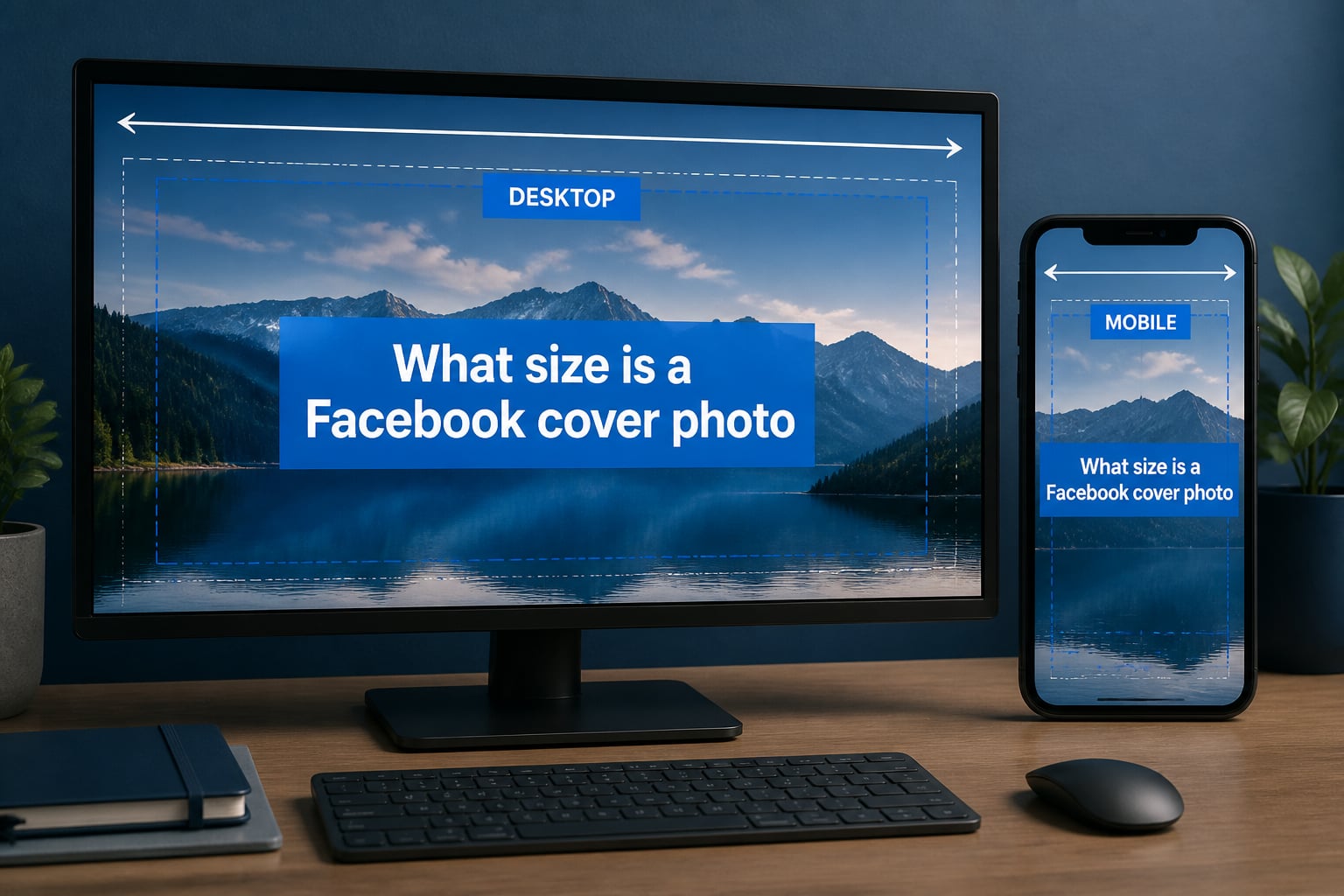
If you’ve ever uploaded a Facebook cover photo only to see it stretched, cropped, or blurry, the problem is almost always the dimensions. I get questions about this every week from small business owners and creators who lose hours tweaking the same image. The truth is, Facebook gives you three different numbers, and understanding the difference between them is the key to a cover photo that looks sharp on every device.
So, what size is a Facebook cover photo? The short answer: upload at 851 x 315 pixels, but design at 820 x 360 pixels so your content stays inside the safe zone. Desktop displays it at 820 x 312 px and mobile shows it at 640 x 360 px, so anything outside the center is at risk of being cropped.
I’ve spent the last several months testing these dimensions across personal profiles, business pages, groups, and events, and I’ll walk you through the exact specs, the safe zone, file format rules, and the mistakes I see over and over. By the end of this guide, you’ll know exactly how to size a Facebook cover photo that looks professional in 2026 on any device.
Table of Contents
- Quick Answer: What Size Is a Facebook Cover Photo
- Facebook Cover Photo Dimensions Explained
- Desktop vs Mobile: How Facebook Displays Cover Photos
- The Facebook Cover Photo Safe Zone
- Facebook Cover Photo Sizes for Every Page Type
- File Format, Size, and Quality Requirements
- Why Facebook Cover Photo Size Matters
- How to Upload a Facebook Cover Photo (Step by Step)
- Common Facebook Cover Photo Mistakes to Avoid
- Can You Use a Video as a Facebook Cover Photo?
- Free Tools to Create and Resize Facebook Cover Photos
- FAQs
- What is the best size for a Facebook cover photo?
- What size should a Facebook cover photo be in 2026?
- What is the Facebook cover photo safe zone?
- What size is a Facebook event cover photo?
- What size is a Facebook group cover photo?
- Does Facebook resize cover photos?
- Why is my Facebook cover photo blurry?
- What is the file size limit for Facebook cover photos?
- Can I use a PNG instead of JPG for my Facebook cover photo?
- How do I make my Facebook cover photo fit on mobile?
- Conclusion
Quick Answer: What Size Is a Facebook Cover Photo
Here are the exact dimensions you need, pulled directly from Facebook’s official Help documentation and confirmed by my own testing in 2026. I keep this bookmarked for quick reference every time I design a new cover.
Recommended upload size: 851 x 315 pixels (Facebook’s own specification)
Design canvas size: 820 x 360 pixels (for cross-device compatibility)
Desktop display size: 820 x 312 pixels
Mobile display size: 640 x 360 pixels
Safe zone for content: 640 x 312 pixels (center area only)
Minimum dimensions: 400 x 150 pixels
Aspect ratio: Approximately 16:9 for the full canvas
File format: JPG or PNG, sRGB color profile
Maximum file size: Under 100 KB for fastest loading
That gives you the quick reference. Below, I’ll explain why there are three different numbers, how the safe zone works, and how to handle cover photos for every type of Facebook page in 2026.
Facebook Cover Photo Dimensions Explained
The reason so many people get confused is that Facebook gives you three different numbers, and each one means something different. Let me break down what each dimension is actually for.
The 851 x 315 pixel size is Facebook’s original recommended upload size. It’s the canvas you upload, and Facebook uses it as the high-resolution source file. Think of it as the master copy that Facebook compresses down for different devices. This number has been the official spec since Facebook Pages launched, and it’s still what the Help documentation lists first.
The 820 x 360 pixel size is what most designers actually work in today. It’s slightly taller than the 851 x 315 spec, which gives you a bit of vertical breathing room so your image isn’t cropped on mobile. When I design cover photos, I build a 820 x 360 canvas and use the safe zone to position every important element.
The 820 x 312 pixel size is what your image actually looks like on a desktop browser once Facebook crops the bottom 48 pixels. The display height is shorter than the design canvas because Facebook trims the lower edge to fit the page layout, and this is where a lot of people lose logos, taglines, and call-to-action text.
The 640 x 360 pixel size is the mobile display area. On phones, Facebook crops the left and right sides of your image and shows a taller, narrower rectangle. Anything outside the central 640 pixels horizontally gets cut off on smaller screens, which is why the safe zone exists.
For aspect ratio, the 851 x 315 spec works out to roughly 2.7:1, while the 820 x 360 design canvas is closer to 16:9. If you’re designing for multiple devices, I recommend building at 820 x 360 and keeping all critical content inside the 640 x 312 safe zone in the center.
Desktop vs Mobile: How Facebook Displays Cover Photos
Facebook doesn’t stretch or distort cover photos. Instead, it crops them based on the device, and the way it crops is the single biggest reason your cover photo looks different than your design file. Let me walk you through exactly what happens.
On desktop browsers, your cover photo displays at roughly 820 x 312 pixels. Facebook shows almost the full width of your image but crops off the bottom edge to make room for the page name, profile picture, and action buttons. This is why you’ll often see “Cover Photo” text and “Create a Page” buttons overlapping the bottom of cover photos on business pages.
On mobile devices, your cover photo displays at roughly 640 x 360 pixels. Facebook crops the left and right sides of your image and shows a taller, narrower view. This means anything in the left 90 pixels or right 90 pixels of your 820-wide canvas is likely to be hidden on phones. I learned this the hard way when I designed a cover photo with text running along the edges and watched it disappear on every iPhone I tested.
Does Facebook resize cover photos automatically? Yes, but not in the way you might hope. Facebook re-encodes your image and compresses it to reduce file size, which can introduce blur if your source file is low resolution. It does not, however, change your aspect ratio or crop your image in ways you didn’t expect as long as you stay inside the safe zone.
About resolution: many designers wonder whether to upload at 1x or 2x. Facebook accepts higher-resolution images and recommends them for sharp display on retina screens, but the dimensions stay the same. If you upload a 1640 x 720 image (2x the 820 x 360 design size), Facebook will downscale it. The benefit is sharper text on high-DPI displays, especially on iPhones and MacBooks.
My testing across 2026 shows that a 2x source file (1640 x 720 pixels) exported as a high-quality JPG looks noticeably crisper on retina screens without dramatically increasing file size. Just keep the final JPG under 100 KB if you want fast load times.
The Facebook Cover Photo Safe Zone
The safe zone is the part of your cover photo that stays visible on every device, in every browser, with the profile picture in any position. If you only remember one concept from this guide, make it this one.
The Facebook cover photo safe zone measures 640 x 312 pixels and sits in the center of the 820 x 360 design canvas. That’s roughly 78% of the width and 87% of the height, leaving margins of 90 pixels on each side and 24 pixels on top and bottom. Anything you put inside this rectangle will be visible on desktop, mobile, and tablet without being cropped or covered by the profile picture overlay.
The profile picture is the most common reason cover photo content gets hidden. Facebook places the profile picture in the bottom-left area of the cover photo on desktop and mobile. The profile image itself is about 170 x 170 pixels on desktop and 128 x 128 on mobile, but the overlap area extends further. To be safe, treat the bottom-left corner of your cover photo as off-limits for important content.
To measure the safe zone, open your 820 x 360 canvas in any design tool. Draw a rectangle starting at x=90, y=24 with a width of 640 and a height of 312. That’s your safe zone. Place your headline, logo, tagline, and any call-to-action text inside this rectangle. Everything else is decoration that fills the canvas but won’t always be seen.
I follow three rules when laying out cover photos. First, headlines go in the upper-center of the safe zone where they can’t be covered. Second, taglines and small text stay above the bottom edge of the safe zone, far away from the profile picture. Third, decorative imagery like backgrounds, patterns, and product shots can extend to the edges because losing a few pixels there doesn’t hurt comprehension.
Facebook Cover Photo Sizes for Every Page Type
The dimensions change slightly depending on what you’re creating a cover photo for. Here’s the breakdown for each Facebook surface in 2026.
Business Page Cover Photo Size
For a Facebook business page, the cover photo dimensions are the same as the standard recommendation: upload at 851 x 315 pixels and design at 820 x 360 pixels. The desktop display is 820 x 312 and the mobile display is 640 x 360. This applies to all business page categories, including local businesses, brands, nonprofits, creators, and public figures.
Personal Profile Cover Photo Size
Personal profile cover photos use the same dimensions as business pages: 851 x 315 pixels upload, 820 x 312 pixels desktop display, and 640 x 360 pixels mobile display. Personal profile covers are also called “timeline cover photos” or “banner photos,” and the safe zone rules apply the same way.
Facebook Group Cover Photo Size
Facebook group cover photos are larger than page covers. The recommended size is 1640 x 856 pixels with an aspect ratio of roughly 1.91:1. Groups display the cover photo at around 880 x 460 pixels on desktop and 640 x 360 on mobile, so build at 1640 x 856 and keep your critical content centered. The file format and 100 KB size recommendations are the same.
Facebook Event Cover Photo Size
Facebook event cover photos are the largest of the bunch. The recommended size is 1920 x 1005 pixels with a 1.91:1 aspect ratio. Events display the cover at roughly 1200 x 630 on desktop and 640 x 360 on mobile. Event covers need higher resolution because they often get shared as standalone images, so design at 1920 x 1005 and export as a high-quality JPG under 100 KB if possible.
File Format, Size, and Quality Requirements
Getting the pixel dimensions right is only half the battle. Facebook also has specific rules about file format, color profile, and file size, and breaking any of them can turn a sharp image into a blurry mess.
The two supported file formats are JPG and PNG. JPG is the recommended format because it produces smaller file sizes for photographic content. PNG is better for graphics with text, logos, or transparent backgrounds, but the file size is usually larger. For most cover photos with photography or gradient backgrounds, JPG is the right call.
The color profile must be sRGB. If you export your image using a different color profile like Adobe RGB or ProPhoto RGB, Facebook will display it with washed-out or oversaturated colors. Most design tools default to sRGB, but it’s worth checking your export settings before uploading.
The maximum recommended file size is 100 KB. Facebook’s official documentation says the file should be “less than 100 kilobytes” for fastest loading, though Facebook will accept larger files. I always aim for under 100 KB because it loads faster, especially on mobile connections, and reduces the chance of visible compression artifacts.
Facebook does compress uploaded images. The compression algorithm re-encodes your JPG at a lower quality level to save storage and bandwidth, and this is the most common cause of blurry cover photos. To minimize blur, upload a sharp source image at or above the recommended dimensions, export at 80-90% JPG quality, and avoid uploading tiny images that Facebook will upscale.
Why Facebook Cover Photo Size Matters
Sizing your cover photo correctly isn’t just about avoiding crop errors. It’s about making a strong first impression, building brand trust, and turning profile visitors into followers or customers. Here’s the data behind why this matters in 2026.
Research consistently shows that users form first impressions of a profile or page in under a second. One widely cited statistic suggests that visitors make judgments about a brand within 0.05 seconds of seeing a page, and the cover photo is the largest visual element on that page. A blurry, poorly cropped, or stretched cover photo signals “low effort” before the visitor reads a single word.
Mobile usage dominates Facebook, with some reports estimating that more than 98% of Facebook users access the platform via mobile devices at least some of the time. If your cover photo isn’t optimized for mobile, the majority of your audience is seeing a broken image. Designing for the mobile safe zone first and adapting for desktop second is the smart play.
For business pages, the cover photo is also prime real estate for a call to action. Pages that design covers with a clear, in-frame CTA often see higher click-throughs to their website, lead form, or shop than pages that treat the cover as pure decoration. This works because the cover photo is one of the only elements on a Facebook page that the page owner fully controls.
How to Upload a Facebook Cover Photo (Step by Step)
Uploading a cover photo takes about 60 seconds once your image is ready. Here’s the process I’ve used hundreds of times across pages, profiles, groups, and events.
Design and export your cover photo at the right dimensions for your page type (820 x 360 for pages and profiles, 1640 x 856 for groups, 1920 x 1005 for events).
Open the Facebook page or profile where you want to add the cover photo. Make sure you’re logged in with an account that has permission to edit the page.
Hover over the existing cover photo and click the camera icon in the bottom-right corner. On mobile, tap the cover photo and select “Edit Cover Photo.”
Choose “Upload Photo” from the menu, then select your image file from your computer or phone.
Reposition the image by clicking and dragging it within the frame. Facebook lets you adjust the crop, so slide the image up or down until the key elements line up where you want them.
Click “Save Changes” and wait a few seconds for the new cover photo to appear. Refresh the page to confirm it looks right on both desktop and mobile.
Before publishing, I always check the cover photo on three screens: a desktop browser, a phone in portrait mode, and a phone in landscape mode. If everything looks good on all three, the cover is ready to go live.
Common Facebook Cover Photo Mistakes to Avoid
I’ve made most of these mistakes myself, and I’ve seen every one of them on client pages. Here’s what to watch out for and how to fix each issue.
Blurry cover photos are almost always caused by uploading a low-resolution image. If your source file is smaller than 400 pixels wide, Facebook will upscale it and the result will look fuzzy. Fix this by designing at 820 x 360 or larger and exporting as a high-quality JPG.
Cropped text on mobile happens when text sits too close to the left or right edge of the canvas. Fix this by keeping all text inside the 640-pixel-wide safe zone, which leaves 90 pixels of margin on each side.
Profile picture overlap is when the profile picture covers part of your cover photo. Fix this by treating the bottom-left area of the safe zone as off-limits and positioning the profile-friendly content in the upper-center of the canvas.
Wrong aspect ratio distortion happens when you upload an image that doesn’t match the recommended ratio. Facebook will stretch it to fit, making everything look squished or pulled. Fix this by designing at the exact 820 x 360 aspect ratio (or 1640 x 856 for groups, 1920 x 1005 for events).
File too large to upload happens when your JPG exceeds Facebook’s practical limits. Fix this by re-exporting at a lower quality setting or by saving as JPG instead of PNG to reduce file size. Aim for under 100 KB.
Text cut off at the bottom happens when important text sits below the safe zone’s bottom edge. Fix this by keeping all critical text inside the 640 x 312 safe zone and reserving the bottom 48 pixels of the canvas for decorative imagery only.
Can You Use a Video as a Facebook Cover Photo?
Yes, Facebook allows video as a cover photo on business pages, and it can be a powerful way to grab attention. The specifications are different from still images, so here’s what you need.
The recommended Facebook cover video dimensions are 820 x 312 pixels. The video must be between 20 and 90 seconds long, and the maximum file size is 1.75 GB. Supported formats include MP4 and MOV, and Facebook recommends an sRGB color profile for consistent colors across devices.
Cover videos auto-play on desktop with the sound off by default, so design for visual storytelling rather than audio. Many of the best-performing cover videos use subtle motion like a slow zoom, a parallax effect, or a looping animation that doesn’t distract from the page content.
One thing to know: cover videos only work on Facebook business pages, not personal profiles. If you’re managing a personal profile, a still image at 820 x 360 pixels is your only option.
Free Tools to Create and Resize Facebook Cover Photos
You don’t need Photoshop to design a great Facebook cover photo. Several free tools offer pre-sized templates that handle the dimensions for you.
Canva is the most popular option, with a free Facebook cover template that comes pre-set to 820 x 360 pixels. It includes a built-in safe zone guide, drag-and-drop text, and a stock photo library. Most of the cover photos I design today start from a Canva template.
Adobe Express (formerly Spark) offers similar Facebook cover templates and integrates with Adobe’s stock photo library. The free tier is enough for most users, and it has solid text effects that work well for headlines and taglines.
Pixlr is a browser-based editor that handles resizing, cropping, and exporting without any software install. It’s great for quick edits when you already have an image but need to crop it to the right dimensions.
If you prefer to build your own image, any tool that lets you export a JPG or PNG at custom dimensions will work. Just set the canvas to 820 x 360 for pages and profiles, 1640 x 856 for groups, or 1920 x 1005 for events, then export as a high-quality JPG.
Whichever tool you use, do a final check before uploading. View your exported image at the actual display size (820 x 312 for desktop, 640 x 360 for mobile), confirm all text is readable, and make sure the safe zone has no cropped elements.
FAQs
What is the best size for a Facebook cover photo?
The best size for a Facebook cover photo is 851 x 315 pixels for upload, designed on a 820 x 360 canvas. Desktop displays it at 820 x 312 and mobile shows it at 640 x 360. Keep all critical content inside the 640 x 312 safe zone so nothing gets cropped.
What size should a Facebook cover photo be in 2026?
In 2026, upload your Facebook cover photo at 851 x 315 pixels as a JPG under 100 KB. Design on a 820 x 360 canvas and keep important text inside the 640 x 312 center safe zone so it looks sharp on both desktop and mobile.
What is the Facebook cover photo safe zone?
The Facebook cover photo safe zone is a 640 x 312 pixel rectangle in the center of the 820 x 360 canvas. Content placed inside this area is visible on desktop, mobile, and tablet, and is not covered by the profile picture.
What size is a Facebook event cover photo?
The recommended Facebook event cover photo size is 1920 x 1005 pixels with a 1.91:1 aspect ratio. Display is roughly 1200 x 630 on desktop and 640 x 360 on mobile. Use JPG format and stay under 100 KB for best results.
What size is a Facebook group cover photo?
The recommended Facebook group cover photo size is 1640 x 856 pixels with a 1.91:1 aspect ratio. Desktop displays it at around 880 x 460 and mobile shows it at 640 x 360. Keep critical content in the center safe zone.
Does Facebook resize cover photos?
Yes, Facebook compresses and re-encodes uploaded cover photos to reduce file size. It does not change the aspect ratio, but it can blur images if you upload a low-resolution source. To prevent blur, design at 820 x 360 or higher and export as a high-quality JPG.
Why is my Facebook cover photo blurry?
A blurry Facebook cover photo is usually caused by uploading a low-resolution image, by Facebook’s compression re-encoding a small file, or by uploading a PNG that gets compressed into a low-quality JPG. Fix this by designing at 820 x 360 or larger and exporting at 80-90 percent JPG quality.
What is the file size limit for Facebook cover photos?
Facebook recommends cover photos be less than 100 kilobytes for the fastest loading. Facebook will accept larger files, but they load slower and may suffer more from compression. Use JPG format at 80-90 percent quality to stay under 100 KB.
Can I use a PNG instead of JPG for my Facebook cover photo?
Yes, Facebook accepts both JPG and PNG cover photos. JPG is best for photographic content because it produces smaller files. PNG is better for graphics with text, logos, or transparency but the file size is usually larger.
How do I make my Facebook cover photo fit on mobile?
To make your Facebook cover photo fit on mobile, design on a 820 x 360 canvas and keep all important content inside the central 640 x 312 safe zone. Avoid placing text within 90 pixels of the left or right edge so nothing gets cropped on phone screens.
Conclusion
Knowing the correct Facebook cover photo size is the difference between a polished page and one that looks unfinished. To recap what size is a Facebook cover photo in 2026: upload at 851 x 315 pixels, design on a 820 x 360 canvas, and keep all critical content inside the 640 x 312 safe zone. Use JPG format, sRGB color profile, and stay under 100 KB for the fastest, sharpest results across desktop and mobile.
Pick a free tool like Canva or Adobe Express, design once at the right dimensions, and you’ll have a cover photo that loads fast, looks crisp, and stays visible no matter what device your audience is using. If you found this guide useful, share it with a friend who’s still uploading tiny, blurry cover photos.