
Wondering what size is a Discord banner? You are not alone. Discord uses two different banner types, and each has its own pixel dimensions, aspect ratio, and requirements that trip people up constantly.
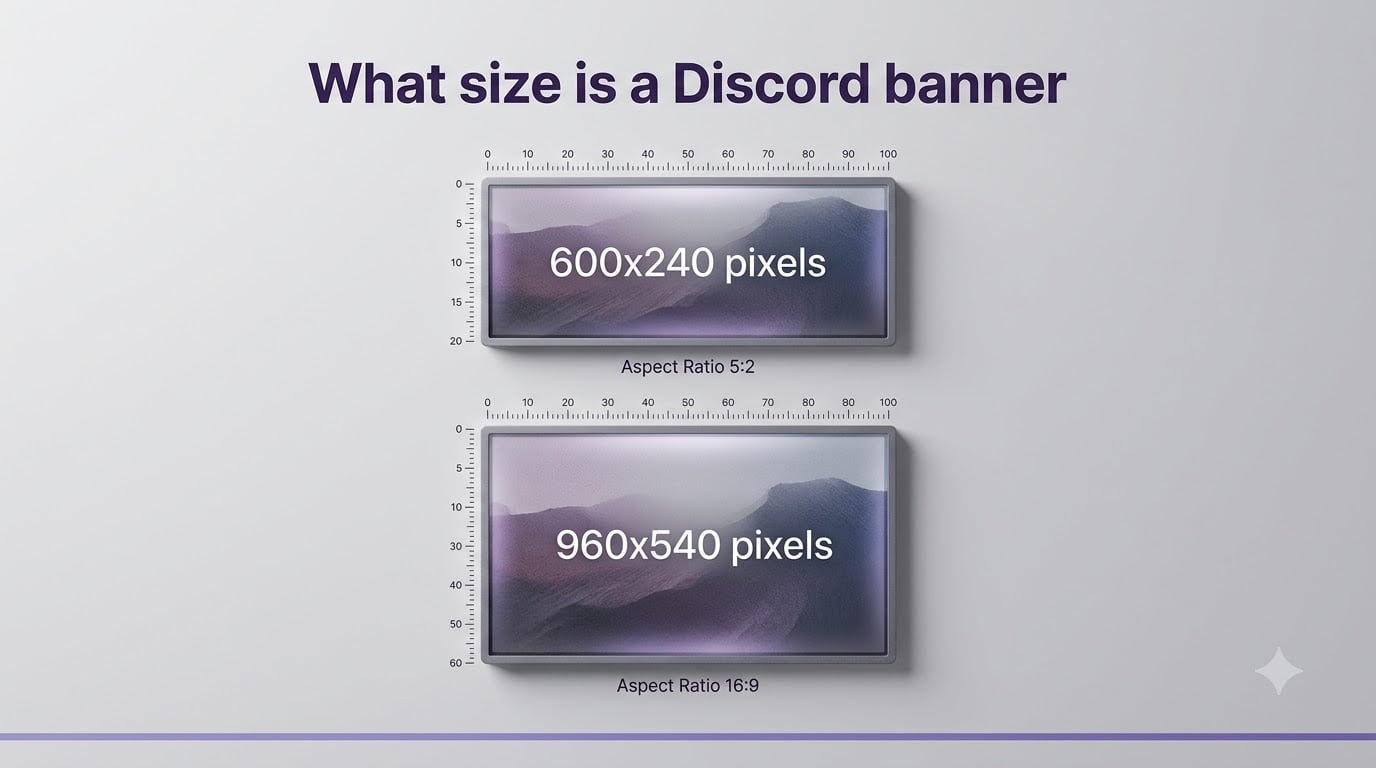
The short answer: your personal profile banner should be 600 x 240 pixels with a 5:2 aspect ratio, while a server banner should be 960 x 540 pixels with a 16:9 aspect ratio. Both allow PNG, JPG, and GIF files up to 10 MB.
I have spent hours testing different image sizes on Discord to figure out exactly what works and what gets cropped, blurred, or rejected. This guide breaks down every dimension, file requirement, upload step, and design tip you need to get your banner looking sharp.
Table of Contents
Quick Answer: Discord Banner Sizes at a Glance
Here is the quick reference you came here for. Save these numbers.
- Profile banner: 600 x 240 pixels (5:2 aspect ratio) — requires Discord Nitro or Nitro Basic
- Server banner: 960 x 540 pixels (16:9 aspect ratio) — requires Server Boost Level 2
- File size limit: 10 MB maximum
- Supported formats: PNG, JPG, JPEG, and GIF (animated GIFs supported)
- Recommended color profile: sRGB for the most accurate display
Now let me walk you through the details for each banner type so you understand the why behind these numbers.
Discord Profile Banner Dimensions
The Discord profile banner sits at the top of your user profile, right behind your avatar. It is the wide horizontal strip that gives your profile a personalized look.
The official recommended size for a Discord profile banner is 600 x 240 pixels. This gives you a 5:2 aspect ratio, which is the shape Discord expects when it renders your profile across desktop and mobile.
Do You Need Nitro for a Profile Banner?
Yes, you need Discord Nitro or Nitro Basic to set a custom profile banner. Without either subscription, you can only choose a solid profile color. There is no free way to upload a custom image banner on your personal profile.
Both Nitro and Nitro Basic unlock the profile banner feature. Nitro Basic is the cheaper tier and still gives you full access to custom banner uploads. Full Nitro adds animated GIF banners and other perks on top.
The 600×240 vs 680×240 Confusion Explained
You might have seen some sources list 680 x 240 pixels instead of 600 x 240. Discord’s own documentation has historically referenced 680 x 240 as the display area, but 600 x 240 is the recommended upload size that Discord scales to fit.
Here is the practical difference: if you upload at 600 x 240, Discord handles the scaling cleanly. If you upload at 680 x 240, you get slightly more horizontal real estate that fills the display area edge to edge. Both work, but 600 x 240 is the safer bet for consistent rendering.
Some Reddit users have also tested uploading at 1100 x 440 pixels, which is roughly double the recommended size. The advantage here is that Discord downscales a higher-resolution image rather than stretching a smaller one, which can reduce blur on large displays. The tradeoff is a larger file size.
Avatar Overlap: The Hidden Problem
Here is the thing that catches almost everyone off guard. Your circular avatar sits on top of the lower-left portion of your profile banner. Discord overlays the avatar roughly 60 pixels into the banner from the left edge, positioned so it straddles the bottom border.
This means the bottom-left corner of your banner gets partially covered by the avatar circle. If you have text, a face, or an important design element in that area, it will get hidden.
To avoid this, keep your critical content in the top two-thirds of the banner and the right half. Treat the bottom-left 120 x 120 pixel area as a dead zone where the avatar will overlap.
Per-Server Profile Banners
One feature people often miss: Discord Nitro lets you set different profile banners for different servers. This means you can have a gaming banner in one server and a professional one in another without changing your global profile.
The dimensions remain the same at 600 x 240 pixels. You configure per-server profiles in User Settings, under the Profiles section where you can create and assign custom profiles to specific servers.
Discord Server Banner Dimensions
Server banners are different from profile banners. They appear at the top of your server’s channel list and show up as the background image when someone views your server invite page.
The recommended Discord server banner size is 960 x 540 pixels with a 16:9 aspect ratio. This is the same widescreen ratio used by YouTube thumbnails and most modern displays, which makes it a familiar shape to design for.
Discord does accept larger 16:9 images, such as 1920 x 1080 pixels. The platform downscales them to fit. If you want maximum sharpness on high-resolution screens, uploading at 1920 x 1080 gives you better detail without any aspect ratio mismatch.
Server Boost Requirements
A custom server banner requires your server to reach Boost Level 2, which means 7 server boosts. This is not available to every server out of the box.
Here is how the boost levels break down:
- Level 1 (2 boosts): Unlocks custom emoji slots, sticker slots, and higher audio quality
- Level 2 (7 boosts): Unlocks server banner, more emoji and sticker slots, and 384 kbps audio
- Level 3 (14 boosts): Unlocks vanity URL, even more emoji, and the maximum quality perks
Only the server owner and members with Manage Server or Administrator permissions can upload or change the server banner. Regular members, even boosted ones, cannot touch this setting.
Animated Server Banners
Server banners at Level 2 and above support animated GIF banners. The dimensions stay the same at 960 x 540 pixels, but the file is animated rather than static.
One important detail: animated banners only play on desktop and mobile apps. They do not animate in the browser version of Discord. Also, users with the reduced motion accessibility setting enabled will see a static frame instead of the animation.
Keep your GIF file under 10 MB. Discord does not compress animated banners server-side the same way it handles static images, so a large GIF will simply be rejected if it exceeds the limit.
Invite Background vs Server Banner
Discord has two related but distinct server images. The server banner shows at the top of the channel list. The invite background appears behind the invite splash screen when someone clicks an invite link before they join.
Both use the same 960 x 540 pixel dimensions and 16:9 ratio. When you upload a server banner, Discord uses it as the invite background automatically unless you upload a separate one. This means your banner design should work in both contexts.
File Format and Size Requirements
Discord supports three main file formats for banners: PNG, JPG/JPEG, and GIF. Each has tradeoffs worth understanding.
PNG gives you lossless quality and supports transparency, making it ideal for graphics with sharp edges, text, or logos. The downside is larger file sizes, especially at higher resolutions.
JPG compresses the image, resulting in smaller files. This is the better choice for photographic banners or complex gradients where PNG would bloat past 10 MB. You lose some detail, but the compression is barely noticeable for most banner designs.
GIF is the only format that supports animation. Static GIFs work too, but there is no reason to use a static GIF over PNG or JPG.
The 10 MB file size limit applies to both profile and server banners. Most properly sized banners at 600 x 240 or 960 x 540 will land well under this limit. If you are uploading at higher resolutions like 1920 x 1080, watch your file size carefully, especially with PNGs.
How to Upload and Change Your Discord Banner
Uploading a Profile Banner on Desktop
Follow these steps to set your personal profile banner:
- Open Discord and click the gear icon (User Settings) in the bottom-left corner next to your username
- Click Profiles in the left sidebar
- Click the banner area at the top of the profile preview
- Select Change Banner and choose your image file
- Adjust the positioning if needed, then click Apply
- Click Save Changes to confirm
You need an active Nitro or Nitro Basic subscription for this option to appear. If you do not see the banner upload area, your subscription has lapsed.
Uploading a Profile Banner on Mobile
The process on iOS and Android is nearly identical:
- Tap your profile picture in the bottom-right corner to open User Settings
- Tap Profiles under the Account section
- Tap the banner area at the top
- Choose Change Banner and select a photo from your device
- Position the image, then tap Apply and Save
Uploading a Server Banner on Desktop
To set or change a server banner, you need server owner or admin permissions:
- Right-click your server name in the left sidebar and select Server Settings
- Click Overview in the left menu (this is usually the default landing page)
- Scroll down to the Banner section
- Click Change Banner and select your 960 x 540 image
- Adjust positioning if prompted, then save
If the Banner section does not appear, your server has not reached Boost Level 2 yet. You need 7 active boosts to unlock this feature.
Discord Banner Design Tips
Getting the dimensions right is only half the battle. How your banner actually looks depends on design choices that account for how Discord renders images.
Respect the Avatar Safe Zone
For profile banners, the avatar circle overlaps the bottom-left. I mentioned the dead zone earlier, but let me be more specific. Keep important content out of roughly the bottom-left 150 x 150 pixel area. Place text, logos, and focal points toward the top-center or right side of the banner.
Design Wider Than Necessary
Discord crops slightly differently depending on the screen size. If you design your banner to fill every pixel edge to edge, you risk losing content on certain displays. Leave a 20-pixel margin on all sides where nothing critical sits.
Use sRGB Color Profile
Discord renders images in the sRGB color space. If your image uses Adobe RGB or ProPhoto RGB, colors can look washed out or oversaturated after upload. Convert your banner to sRGB before exporting to keep colors accurate.
Optimize Animated GIFs
Animated banners are fun but can balloon in file size. Keep your GIF under 10 MB by limiting the number of frames and reducing the color palette. A 3 to 5 second loop at 15 frames per second looks smooth enough while keeping the file manageable.
Avoid full-screen motion in animated server banners. Rapid movement can be distracting when members are trying to read channel names, and users with motion sensitivity will appreciate restraint.
Consider Mobile Rendering
On mobile, Discord shows a narrower slice of the banner. Content on the far left and right edges may get cut off on smaller phone screens. Test your banner by viewing your profile or server on a phone before finalizing it.
Troubleshooting Common Discord Banner Issues
Even with the right dimensions, things can go wrong. Here are the most common problems and how to fix them.
My Banner Looks Blurry
This usually happens when Discord upscales a small image to fit the display area. If your source image is smaller than 600 x 240 for profile or 960 x 540 for server, Discord stretches it and blur creeps in. Fix it by uploading at the exact recommended dimensions or larger. A 1200 x 480 profile banner or a 1920 x 1080 server banner will look noticeably crisper.
File Too Large to Upload
If your file exceeds 10 MB, Discord rejects it with an error message. Switch from PNG to JPG for photographic content to cut the file size dramatically. You can also reduce the resolution slightly or use an online compression tool to bring the file under the limit without visible quality loss.
Banner Disappeared After Nitro Expired
When your Nitro subscription lapses, Discord removes your custom banner. The image is not deleted permanently, but it will not display until you resubscribe. If you re-subscribe, your previous banner may still be saved in your profile settings and you can reactivate it.
Image Gets Cropped Wrong
If Discord crops your banner in an unexpected way, the aspect ratio is probably off. An image that is not 5:2 for profiles or 16:9 for servers gets force-fitted, which means cropping. Crop your image to the correct ratio in any photo editor before uploading so Discord does not make that decision for you.
Frequently Asked Questions
Is a Discord banner 16:9?
Server banners use a 16:9 aspect ratio at 960 x 540 pixels. Profile banners use a 5:2 aspect ratio at 600 x 240 pixels, which is wider and shorter than 16:9. So it depends on which banner type you mean.
What size is the Discord banner in 2026?
In 2026, the Discord profile banner size is 600 x 240 pixels with a 5:2 aspect ratio, and the server banner size is 960 x 540 pixels with a 16:9 aspect ratio. Both support PNG, JPG, and GIF files up to 10 MB.
How to make Discord banner fit?
Crop or resize your image to the exact dimensions before uploading: 600 x 240 pixels for profile banners and 960 x 540 pixels for server banners. Use the correct aspect ratio (5:2 for profiles, 16:9 for servers) so Discord does not force-crop the image for you.
Does Discord allow NSFW banners?
No. Discord’s terms of service prohibit explicit or NSFW content in profile and server banners. Violating this can result in account suspension or server removal. Keep banners appropriate for all audiences.
Do you need Nitro for a Discord banner?
You need Discord Nitro or Nitro Basic to set a custom profile banner. Without a subscription, you can only select a solid profile color. Server banners do not require Nitro but need Server Boost Level 2 (7 boosts).
Can Discord banners be animated?
Yes. Both profile and server banners support animated GIF files. Profile GIF banners require full Nitro (not Nitro Basic). Server animated banners work at Boost Level 2 and above. Keep GIF files under 10 MB.
Conclusion
Getting the right Discord banner size is straightforward once you know which type you are working with. Profile banners need 600 x 240 pixels at a 5:2 ratio and a Nitro subscription. Server banners need 960 x 540 pixels at a 16:9 ratio and Boost Level 2.
Stick to PNG or JPG for static images, use GIF for animation, and keep files under 10 MB. Design with the avatar overlap zone in mind, and your banner will look clean on every screen.
Now that you know what size a Discord banner should be, crop your image to the exact dimensions, upload it through your profile or server settings, and your banner will display exactly how you intended.