
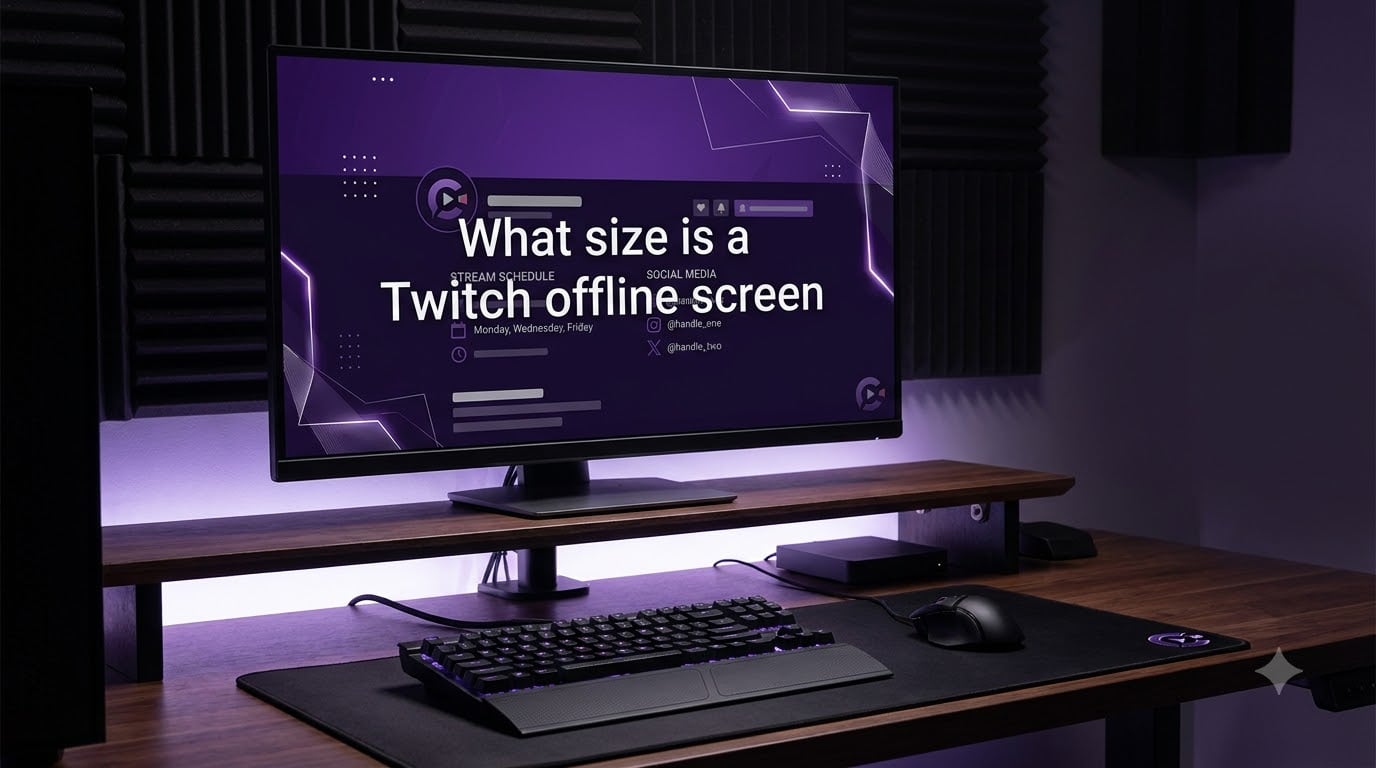
Every streamer has been there. Someone visits your channel between streams, and instead of a polished welcome message, they see an empty black video player. That is exactly the problem a well-designed Twitch offline screen solves.
If you are creating your first offline banner or replacing an old one, getting the dimensions right is step one. Upload the wrong size and your image gets stretched, cropped, or buried under Twitch UI elements.
In this guide, our team breaks down the exact Twitch offline screen size, the full technical specifications, how to upload it, and the design tips that separate a forgettable offline banner from one that pulls viewers back for your next stream.
Table of Contents
- What Size is a Twitch Offline Screen?
- Twitch Offline Screen Specifications
- What Is a Twitch Offline Screen?
- How to Set Up Your Twitch Offline Screen
- Twitch Offline Screen Design Tips
- Twitch Offline Screen Safe Area: Where Twitch UI Overlaps Your Design
- Animated vs Static Offline Screens: Which Should You Use?
- Troubleshooting: Twitch Offline Banner Not Showing
- Other Twitch Graphic Sizes You May Need
- Frequently Asked Questions
- Conclusion
What Size is a Twitch Offline Screen?
The recommended Twitch offline screen size is 1920 x 1080 pixels with a 16:9 aspect ratio. This matches the dimensions of a standard full HD video, so your banner fills the video player area cleanly without any distortion or cropping.
Twitch calls this element the Video Player Banner internally, and the 1920×1080 spec is confirmed by both the official Twitch channel setup documentation and every top-ranking guide on the topic. There is no debate here: 1920×1080 is the number you need.
Twitch Offline Screen Specifications
Here is the complete technical breakdown for your Twitch offline screen. These are the specs every guide agrees on, drawn from Twitch’s official channel page setup guide and verified across multiple 2026 resources.
| Specification | Requirement |
|---|---|
| Recommended Dimensions | 1920 x 1080 pixels |
| Aspect Ratio | 16:9 (widescreen) |
| Maximum File Size | 10 MB |
| Accepted File Formats | JPEG, PNG, GIF |
| Color Mode | sRGB (recommended for web) |
| Official Twitch Name | Video Player Banner |
| Minimum Resolution | At least 1920×1080 for full HD clarity |
The 10 MB file size limit is generous for a static PNG or JPEG, but it matters more if you are uploading an animated GIF. Keep an eye on your GIF file size, as complex animations can push past that ceiling quickly.
The sRGB color mode recommendation matters because Twitch displays your banner on a web player. Using sRGB ensures your colors look consistent across browsers and devices rather than appearing washed out or oversaturated.
What Is a Twitch Offline Screen?
A Twitch offline screen is the image displayed in the video player area of your channel page whenever you are not actively streaming. Twitch officially refers to it as the Video Player Banner. When a viewer lands on your channel between streams, this is the first thing they see in the main content area.
It is completely separate from your profile banner, which is the horizontal strip across the top of your channel page. The profile banner sits above the video player and uses different dimensions entirely (1200 x 480 pixels). Many streamers confuse the two, and that confusion leads to uploading the wrong image to the wrong slot.
Think of the offline screen as a mini billboard. It fills the exact same space where your live stream appears, so it gets maximum visual real estate when someone visits your channel page while you are offline.
How to Set Up Your Twitch Offline Screen
Uploading your offline screen takes less than two minutes through the Twitch Dashboard. Here is the exact path, step by step.
Step 1: Open the Twitch Dashboard.
Log in to your Twitch account and go to the Creator Dashboard. You can access it by clicking your profile picture in the top-right corner and selecting Creator Dashboard from the dropdown menu.
Step 2: Navigate to Channel settings.
In the left sidebar, click on Settings, then select Channel from the submenu. This opens your channel configuration page.
Step 3: Find the Brand section.
Scroll down to the Brand panel. This is where Twitch groups all your visual identity elements, including your profile picture, profile banner, and the Video Player Banner (your offline screen).
Step 4: Upload your offline screen.
Look for the Video Player Banner section. Click the upload button and select your 1920×1080 image file. Twitch accepts JPEG, PNG, and GIF formats up to 10 MB in size.
Step 5: Save your changes.
After the upload completes, make sure to save. Then open your channel page in a new tab or an incognito window to confirm the offline screen displays correctly.
One quick note: if you are on mobile, the Twitch app does not currently offer a way to upload or change your offline screen. You will need to do this from a desktop browser.
Twitch Offline Screen Design Tips
Getting the size right is only half the battle. What you put on your offline screen determines whether visitors stick around or bounce. Here are the design principles our team recommends after reviewing hundreds of streamer channels.
Include your streaming schedule. This is the single most valuable piece of content for an offline screen. Viewers who arrive between streams want to know when to come back. List your regular streaming days and times in a readable font size.
Show your social media handles. Give visitors a way to connect with you outside of Twitch. Twitter, YouTube, Discord, and Instagram links help you build an audience across platforms, not just on Twitch.
Keep text large and legible. The video player scales down on mobile devices and smaller screens. If your text is tiny at 1920×1080, it will be unreadable on a phone. Use bold, high-contrast typography.
Maintain consistent branding. Your offline screen should match your profile banner, panels, and overlay aesthetic. Consistent colors, fonts, and logos make your channel feel professional and memorable.
Watch the bottom-left corner. Twitch overlays an offline badge in the bottom-left area of the video player. Keep important text and logos away from that zone so they do not get covered up. We cover this in detail in the safe area section below.
Twitch Offline Screen Safe Area: Where Twitch UI Overlaps Your Design
This is the detail most guides skip entirely, and it is the reason so many offline screens look broken. Twitch overlays UI elements on top of your banner, and if you place critical content in those zones, it gets hidden.
The main overlap zone is the bottom-left corner of the video player. Twitch places an “offline” badge there, which can cover a portion of your design roughly 200 pixels wide and 60 pixels tall. If your schedule text or logo sits in that corner, viewers will not see it.
Here is a practical approach to designing within the safe area:
- Keep all critical text in the center or right side of the image, away from the bottom-left corner.
- Leave a 200px margin along the bottom-left edge free of important content.
- Use the bottom-left for decorative elements only, such as background patterns or subtle textures that will not be missed if partially covered.
- Test at different screen sizes by shrinking your browser window to see how the UI elements shift on smaller displays.
One Reddit user reported their 1920×1080 image appeared “too big” on Twitch, which was actually a scaling issue combined with content sitting in the overlap zone. The image itself was the correct size, but the UI badge covered their schedule text. Designing around the safe area solves this problem entirely.
Animated vs Static Offline Screens: Which Should You Use?
Twitch supports animated GIFs for offline screens, which opens up creative possibilities that a static PNG or JPEG cannot match. Both formats work within the same 1920×1080 dimensions and 10 MB file size limit.
Animated GIFs can showcase a looping mascot animation, subtle background motion, or a “be right back” countdown effect. They grab attention and feel more dynamic. The trade-off is file size: complex animations can quickly exceed the 10 MB cap, and you may need to reduce frame count or color depth to stay under the limit.
Static PNG or JPEG files are simpler, smaller, and load faster. A well-designed static screen with clean typography and strong branding can look just as professional as an animated one. PNG preserves transparency and sharp text, while JPEG handles photographic backgrounds more efficiently.
For most streamers, we recommend starting with a static design and upgrading to a GIF once your branding is locked in. An animated offline screen adds polish, but the content (schedule, socials, call to action) matters more than the motion.
Troubleshooting: Twitch Offline Banner Not Showing
The number one complaint on Reddit about Twitch offline screens is that the banner simply does not appear, even after uploading it correctly. Based on real forum reports, here are the most common causes and fixes.
Your most recent VOD is playing instead of the banner. Twitch prioritizes showing a recent stream VOD in the video player over your offline screen. If you have VODs enabled, the player may show your last broadcast rather than your banner. This is expected behavior, not a bug.
A browser extension is interfering. Multiple Reddit users traced the “offline screen showing while live” issue or the banner not displaying to the Purple Ads Blocker extension. If you or your viewers use ad-blocking extensions, disable them on your channel page and check if the banner appears.
Browser cache is stale. Sometimes you upload a new offline screen but the old one (or nothing) still shows. Hard-refresh your browser (Ctrl+F5 on Windows, Cmd+Shift+R on Mac) or open your channel in an incognito window to bypass cached content.
The file was not saved after upload. It sounds obvious, but the upload button and the save button are separate steps in the Twitch Dashboard. Make sure you clicked save after the upload completed, then verify on your live channel page.
Image dimensions are off. If your image is not exactly 1920×1080, Twitch may reject it silently or display it incorrectly. Re-export your design at the exact pixel dimensions and re-upload.
If none of these fixes work, Twitch occasionally has platform-side display bugs. Wait 24 hours and check again before assuming the problem is on your end.
Other Twitch Graphic Sizes You May Need
If you are designing an offline screen, chances are you need your other channel graphics to match. Here is a quick reference for the most common Twitch graphic dimensions so you can keep your branding consistent across every element.
| Graphic | Dimensions | Where It Appears |
|---|---|---|
| Offline Screen (Video Player Banner) | 1920 x 1080 px | Video player when offline |
| Profile Banner | 1200 x 480 px | Top of channel page |
| Profile Picture | 800 x 800 px | Channel avatar, displayed as circle |
| Panels | 320 px wide (height variable) | Below the video player |
| Emotes | 28 x 28, 56 x 56, 112 x 112 px | Chat emotes at three scales |
Notice that the offline screen and the profile banner use completely different dimensions. Uploading your 1920×1080 offline screen as a profile banner will get it cropped to 1200×480, cutting off the top and bottom of your design.
Frequently Asked Questions
What size is a Twitch offline screen?
The recommended Twitch offline screen size is 1920 x 1080 pixels with a 16:9 aspect ratio. This matches standard full HD dimensions and fills the Twitch video player area perfectly without stretching or cropping.
How do I set my offline screen on Twitch?
Go to your Creator Dashboard, then Settings u0026gt; Channel u0026gt; Brand, and upload your image under the Video Player Banner section. Save your changes and check your channel page in an incognito window to confirm it displays correctly.
Can a Twitch offline screen be animated?
Yes, Twitch supports animated GIF files for offline screens up to 10 MB. Keep your GIF under the file size limit by reducing frame count or simplifying the animation. Static PNG and JPEG files are also accepted.
What should I put on my Twitch offline screen?
Include your streaming schedule, social media handles, a call to action like follow or subscribe, and your channel branding. Keep text large and legible, and avoid placing important content in the bottom-left corner where Twitch overlays an offline badge.
Why is my Twitch offline banner not showing?
The most common causes are a recent VOD playing instead of the banner, a browser extension like Purple Ads Blocker interfering, stale browser cache, or forgetting to save after uploading. Try disabling extensions, hard-refreshing the page, and confirming the file was saved in the Dashboard.
What is the difference between a Twitch offline screen and a profile banner?
The offline screen (Video Player Banner) measures 1920 x 1080 pixels and appears in the video player when you are not streaming. The profile banner measures 1200 x 480 pixels and spans across the top of your channel page above the video player. They are separate uploads with different dimensions.
Conclusion
The answer to what size is a Twitch offline screen is simple: 1920 x 1080 pixels at a 16:9 aspect ratio, exported as a PNG, JPEG, or GIF under 10 MB. Design around the bottom-left safe area, upload it through your Dashboard under the Video Player Banner, and test it in an incognito window. That is everything you need to turn an empty video player into a viewer-magnet between streams.