
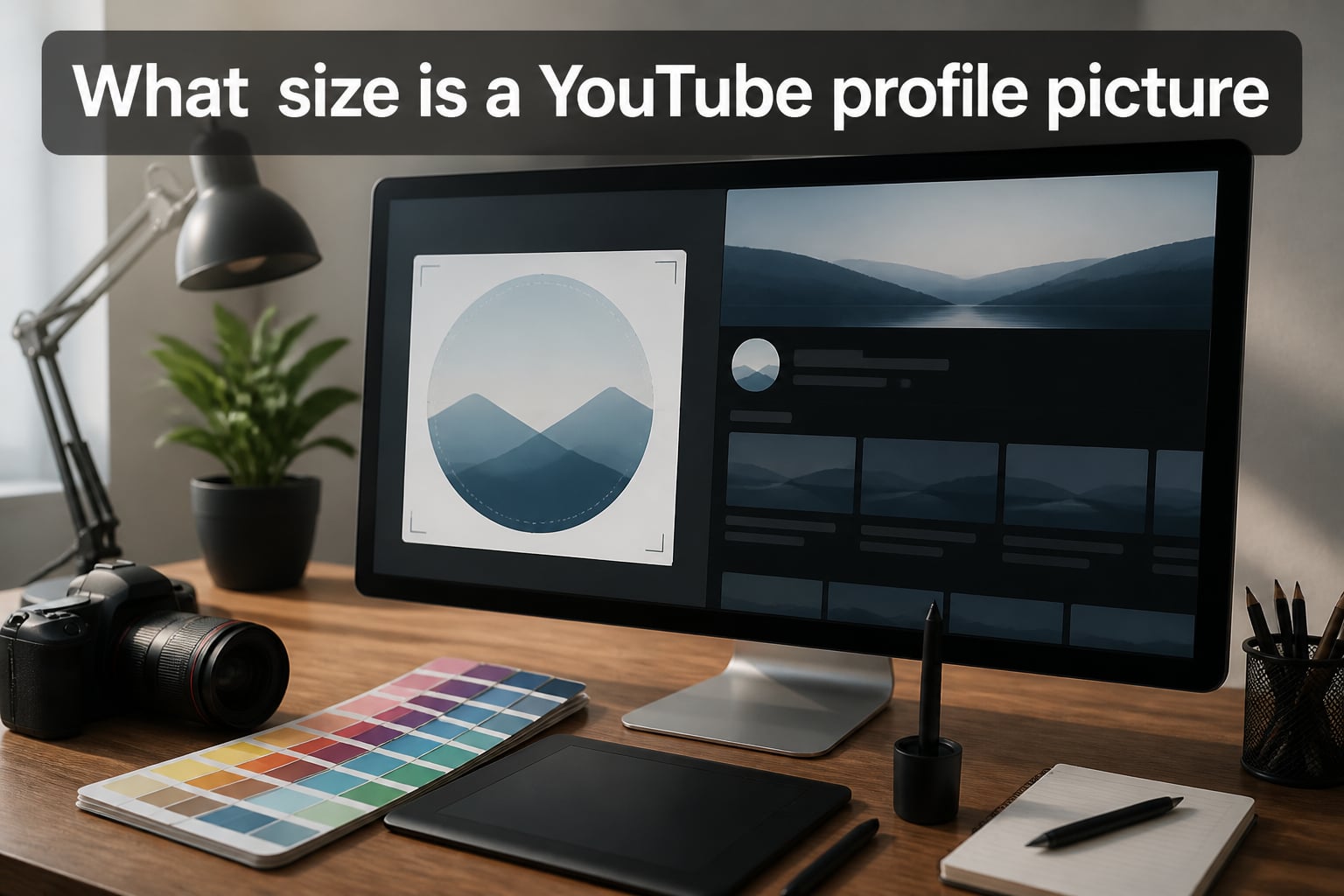
The recommended YouTube profile picture size is 800 x 800 pixels, uploaded as a square 1:1 image. YouTube then automatically crops that square into a circle for display everywhere on the platform. If you have ever wondered what size is a YouTube profile picture, that single number—800 by 800 pixels—is the answer you need before opening your design tool.
That recommendation exists for a reason. Your channel icon appears at dramatically different sizes depending on where a viewer encounters it. On a channel page header it can render near 240 pixels. In a comment thread it shrinks to roughly 32 pixels. If your source file is small, YouTube upscales it and every compression artifact becomes visible. An 800 x 800 pixel source file gives the platform enough resolution to downscale cleanly at every display size without blurring or pixelation.
Our team has tracked YouTube image specification changes for years, and the 800 x 800 pixel standard has held steady as the right target. The minimum accepted size is 98 x 98 pixels, but uploading at that floor is the number one cause of blurry profile pictures. I have helped creators fix mushy-looking avatars dozens of times, and the fix is almost always the same: re-export at 800 x 800 pixels as a PNG.
In this guide we will cover the full specification breakdown, the circular crop and its safe area, every display context YouTube uses, design best practices by image type, upload instructions, and the most common mistakes. By the end you will know exactly how to produce a profile picture that stays sharp from the comment section to the channel header.
Table of Contents
- Quick Answer: YouTube Profile Picture Size at a Glance
- Full YouTube Profile Picture Specifications
- The Circular Crop: What Gets Cut and How to Design for It
- Where Your YouTube Profile Picture Appears
- YouTube Profile Picture Design Best Practices
- How to Upload a YouTube Profile Picture
- Common YouTube Profile Picture Mistakes
- Frequently Asked Questions
- What is the correct size for a YouTube profile picture?
- Why does YouTube crop my profile picture into a circle?
- What is the safe area for a YouTube profile picture?
- Does changing my YouTube profile picture change my Google profile picture?
- What file format should I use for a YouTube profile picture?
- What size is a YouTube profile picture in comments?
- Can I use a logo as a YouTube profile picture?
- How do I update my YouTube profile picture?
- Conclusion
Quick Answer: YouTube Profile Picture Size at a Glance
Here is the short version. The table below contains every number you need, and it mirrors what Google extracts for featured snippets on dimensions queries.
| Specification | Requirement |
|---|---|
| Recommended size | 800 x 800 pixels |
| Minimum accepted size | 98 x 98 pixels |
| Aspect ratio | 1:1 (square) |
| Maximum file size | 4 MB |
| Accepted formats | JPG, PNG, GIF, BMP |
| Display shape | Circular (corners hidden) |
That 98 x 98 pixel minimum is a trap. YouTube will accept the upload, but the platform then has to upscale that tiny image for every display context. The result is a blurry, artifact-heavy channel icon that looks unprofessional. I always tell creators to treat 800 x 800 pixels as the real minimum, not 98 x 98.
Think of it this way: YouTube only ever shrinks your image, never enlarges it cleanly. Start big, let the platform compress downward, and you get crisp results everywhere. Start small and you hand YouTube a blurry starting point it cannot fix.
Full YouTube Profile Picture Specifications
Each row in the specification table above has a practical reason behind it. Let me walk through the details so you understand not just the numbers but why they matter for your channel icon.
Recommended Size: 800 x 800 Pixels
The 800 x 800 pixel recommendation exists because it is the smallest square that produces a crisp image at every YouTube display size. At 800 pixels wide, your source file has roughly 16 times the pixel density of the smallest display size (32 pixels in comment sections). YouTube downscales from 800 to 32 with minimal quality loss.
If you upload at 400 x 400 pixels instead, you cut that pixel density in half. The image still works, but at 32 pixels the downscaling algorithm has less information to work with. You get softer edges and less defined text. Going to 800 x 800 pixels costs you nothing but a slightly larger file.
You can go larger than 800 x 800 pixels if you want. A 1000 x 1000 pixel file works fine. Just keep in mind the 4 MB file size limit and that YouTube will compress it anyway. There is no meaningful quality benefit beyond 800 pixels for profile pictures.
Minimum Size: 98 x 98 Pixels
YouTube accepts files as small as 98 x 98 pixels, which is the platform’s technical floor. The number dates back to an older era of YouTube’s display pipeline. The 98 pixel dimension roughly corresponds to an older display size that YouTube no longer uses prominently.
Uploading at 98 x 98 pixels forces YouTube to upscale your image by a factor of 8 for the channel page and by a factor of over 8 for HD contexts. Upscaling invents pixels that do not exist in your source, which is why minimum-size uploads look blurry and soft. The artifacts are especially visible on text and fine lines.
If you are commissioning artwork, tell your artist to export at 800 x 800 pixels, not 98 x 98. I have seen creators waste money on beautifully illustrated avatars that turned to mush because the artist exported at the technical minimum.
Aspect Ratio: 1:1 Square
YouTube requires a square upload. A 1:1 aspect ratio means the width and height are identical. Non-square images will be cropped or rejected depending on how far off they are.
Design your canvas as a perfect square from the start. If your source image is a rectangle (like a 4:3 photo), crop it to a square before uploading rather than letting YouTube’s tool crop it. You will have far more control over the result.
File Size Limit: 4 MB
The 4 MB maximum file size is generous for a profile picture. A well-optimized 800 x 800 pixel PNG typically lands between 200 KB and 1.5 MB depending on visual complexity. Photographs tend to be larger; flat logos with few colors tend to be much smaller.
If your file exceeds 4 MB, you are likely working with an uncompressed or overly detailed source. Re-export with PNG compression or switch to JPG. You should never need to reduce below 800 x 800 pixels to fit the file size limit.
Accepted Formats: JPG, PNG, GIF, BMP
YouTube accepts JPG, PNG, GIF, and BMP files for profile pictures. PNG is the best choice for logos and illustrated avatars because it preserves sharp edges and supports transparency. JPG is fine for photographs but introduces compression artifacts around text and fine lines.
GIF is accepted but with a major caveat: animated GIFs do not animate when displayed as a profile picture. YouTube freezes them on the first frame. If you upload an animated GIF, viewers see a static image. This is one of the most common sources of confusion in the creator forums.
BMP files work but are rarely the right choice. They are uncompressed, which means unnecessarily large file sizes with no quality benefit over PNG. Stick with PNG for most use cases and JPG for photographs.
The Circular Crop: What Gets Cut and How to Design for It
YouTube displays every profile picture inside a circular mask. This is the single most important design constraint to understand, and it is where most profile picture problems originate. When people ask what size is a YouTube profile picture, the circular crop is the hidden half of the answer.
Here is how the crop works mechanically. You upload a square image—say 800 x 800 pixels. YouTube inscribes a circle within that square. The circle touches the midpoint of each of the four sides and hides everything in the four corners. The visible area is the inscribed circle; the corners are gone.
The Safe Area Explained
The safe area is the inscribed circle—the region guaranteed to remain visible after the crop. Anything inside this circle will show. Anything in the corners will not. Designing for the safe area means placing all important elements within the circle and treating the corners as disposable.
For an 800 x 800 pixel image, the safe area is a circle with a diameter of 800 pixels. The radius is 400 pixels, centered on the middle of the image. Any element you place inside that circle will survive the crop. Any element in the corners—roughly the triangular region between the circle’s edge and the square’s corner—will be hidden.
The Corner Cut Math: How Much Disappears
The four corners of your square are the only areas that get cut. The distance from the circle’s edge to the square’s corner is significant. Here is the calculation for an 800 x 800 pixel image:
- The square is 800 x 800 pixels.
- The inscribed circle has a radius of 400 pixels.
- The distance from center to any corner is roughly 566 pixels (400 multiplied by the square root of 2, divided by 1—approximately 565.7 pixels).
- That means each corner extends about 166 pixels beyond the circle’s edge.
- Practically, the corner region that gets hidden is a triangle roughly 117 pixels deep along each edge at the corner, tapering to nothing at the circle’s tangent point.
In simpler terms: keep every important element at least 117 pixels away from each corner edge. If your logo or text touches the outer 117 pixels of any side near a corner, expect part of it to vanish. The safest approach is to design within a circle, not a square, from the very beginning.
Design Tips by Image Type
Different types of profile pictures need different strategies to survive the circular crop. Here is how to handle the four most common categories.
Logos and brand marks: Center the logo within the safe circle and leave generous padding around it. If your logo is rectangular, crop it to fit or redesign a circular variant specifically for YouTube. Many brands create a dedicated circular avatar version of their logo for social media use.
Photographic headshots: Frame your face in the center third of the square. Avoid headshots where the subject is positioned off to one side, because the crop will push them toward the edge. Head-and-shoulders framing works best; full body shots become unrecognizable at 32 pixels.
Illustrated avatars: Keep the character’s face or central element well inside the safe area. Detailed illustrations with important elements near the edges will lose detail after the corner cut. Simplify the design so the core identity reads clearly even when small.
Text-based icons: Use the absolute minimum amount of text. Two or three characters maximum, set large and bold. Long channel names will not be legible at 32 pixels regardless of font choice. If text is essential, consider using initials or a single distinctive letter.
The 32-Pixel Test
Before uploading your profile picture, run the 32-pixel test. Shrink your 800 x 800 pixel design down to 32 x 32 pixels in your image editor. If you can still recognize the core element—your face, your logo, your character—at that size, it will work on YouTube.
If the design becomes an unrecognizable blur at 32 pixels, it will fail in comment sections where most profile picture interactions happen. Simplify, increase contrast, and remove unnecessary detail until the tiny version still communicates your identity.
This test takes ten seconds and prevents the most common design failure I see in creator forums. A profile picture that looks stunning at 800 pixels but falls apart at 32 is not a good YouTube profile picture.
Where Your YouTube Profile Picture Appears
Your channel icon shows up in more places than most creators realize. Each context renders the image at a different size, and understanding these display sizes helps you design for the smallest and most challenging context.
| Display Context | Approximate Size | Where You See It |
|---|---|---|
| Comment section | ~32 px | Next to every comment you post |
| Watch page sidebar | ~48 px | Video recommendation sidebar |
| Search results | ~88 px | Channel cards in search |
| Channel page | ~240 px | Your main channel header |
| HD display (zoomed) | ~800 px | Full resolution source display |
Comment Sections: The Smallest and Most Important Context
The 32-pixel comment display is where your profile picture gets the most exposure. Every comment you post on any video shows your channel icon at this tiny size. This is why the 32-pixel test matters so much.
At 32 pixels, fine details vanish. Text becomes illegible. Complex illustrations turn into blobs of color. The only elements that survive are bold shapes, high contrast, and simple compositions. Design for this context first, and the larger displays will take care of themselves.
Watch Page Sidebar and Search Results
The video recommendation sidebar shows your profile picture at roughly 48 pixels next to your channel name in the “up next” and recommendation lists. Search results display it at about 88 pixels in channel cards.
These mid-range sizes are more forgiving than the 32-pixel comment view. A design that works at 32 pixels will look good here. The reverse is not always true—a design optimized only for the 88-pixel search display may still fail at comment size.
Channel Page Header
Your main channel page shows the profile picture at approximately 240 pixels, which is the largest regularly visible display size. This is where viewers land when they click through to explore your channel. The 240-pixel size is large enough to show meaningful detail.
At 240 pixels, viewers can see your facial expression in a headshot or recognize detailed logo elements. This is the context where your 800 x 800 pixel source really pays off—the downscaling from 800 to 240 retains plenty of crispness.
Notifications and Live Chat
Notifications and live chat messages also display your profile picture at small sizes, typically in the 32 to 48 pixel range. Live chat especially renders avatars small and frequently, so a design that reads well at tiny sizes keeps you recognizable during streams.
YouTube Profile Picture Design Best Practices
Now that we have covered the specifications and the crop, let us talk about creating an effective channel icon. Good design at 800 pixels that fails at 32 pixels is not a successful YouTube profile picture.
Choose the Right Image Type for Your Channel
Face shots outperform logos for most personal creator channels. Viewers connect with people, and a clear, friendly headshot builds trust faster than a graphic. Frame the shot as head and shoulders, centered in the safe circle, with good lighting and high contrast against the background.
Logos work better for brand channels, businesses, and channels where the creator prefers anonymity. Keep the logo simple, bold, and centered. If your logo was designed for letterheads and business cards, consider whether a simplified circular variant would work better at small sizes.
Illustrated avatars are popular with gaming channels, animation channels, and creators who want a distinctive identity without using their face. The best illustrated avatars use bold colors, simple shapes, and a single focal point that survives the 32-pixel test.
Maximize Contrast
Contrast is your best friend at small display sizes. A light element on a dark background, or vice versa, stays visible even when the image shrinks. Low-contrast designs where the subject blends into the background become invisible at 32 pixels.
Avoid gradient backgrounds behind similar-colored subjects. Solid background colors with bold, contrasting foreground elements produce the clearest results across all display contexts.
Cross-Platform Consistency
Use the same profile picture across YouTube, Twitter, Instagram, TikTok, and your other platforms. Consistent branding helps viewers recognize you instantly regardless of where they encounter your content. The YouTube circular crop is actually an advantage here—most other platforms also crop to a circle.
Reddit discussions show that creators who maintain visual consistency across platforms build recognition faster. If you design for the YouTube safe circle, that same design will work on nearly every other social platform without modification.
Brand Account vs Personal Account
YouTube offers Brand Accounts, which are separate from your personal Google Account. Brand Accounts have their own profile pictures, channel names, and manager permissions. If you run a business channel, a Brand Account lets you set a distinct profile picture without changing your personal Google identity.
This distinction matters for creators who want a professional channel name and logo while keeping their personal account separate. Brand Account profile pictures are managed independently through YouTube Studio, not through your Google Account settings.
For personal channels where you are the face of the content, your regular Google Account profile picture syncs directly to YouTube. There is no need for a Brand Account unless you want separation or plan to add managers.
How to Upload a YouTube Profile Picture
Uploading or changing your profile picture takes less than two minutes. There are two main methods depending on your account type, and both produce the same result.
Method 1: YouTube Studio (Recommended)
Step 1: Sign in to YouTube Studio at studio.youtube.com.
Step 2: Click on Customization in the left sidebar menu.
Step 3: Select the Branding tab at the top of the customization page.
Step 4: Under the Picture section, click UPLOAD and select your 800 x 800 pixel image file.
Step 5: Adjust the crop if prompted, then click Publish in the top right corner to save your changes.
This method gives you the most control and works for both personal and Brand Account channels. The publish step is easy to miss—if you do not click Publish, the change does not save.
Method 2: Google Account Settings
For personal accounts, changing your Google Account profile picture also changes your YouTube profile picture. Go to myaccount.google.com, navigate to Personal Info, and update your profile photo there.
Remember that this method changes your picture across the entire Google ecosystem—not just YouTube. Your new photo appears in Gmail, Google Docs, Google Meet, and other Google products.
Propagation Delay
Profile picture changes do not appear instantly everywhere. YouTube and Google’s systems need time to propagate the update, which can take anywhere from a few minutes to 24 hours. The change usually appears on your channel page first, then gradually shows up in comments, search results, and other contexts.
Do not panic if your old profile picture still appears in some places after you upload a new one. Clear your browser cache, wait a few hours, and check again. If the update has not appeared after 24 hours, re-upload the image through YouTube Studio.
Supervised Accounts and Family Link
If your YouTube account is managed under Family Link or is a supervised account, profile picture changes may be restricted or require parental approval. The upload process is the same, but the change might need to be approved before it goes live.
Common YouTube Profile Picture Mistakes
After years of helping creators troubleshoot profile picture problems, the same issues come up repeatedly. Here are the most common mistakes and how to fix each one.
Mistake 1: Uploading a Small Image
The number one cause of blurry profile pictures is uploading an image that is too small. If you uploaded at the 98 x 98 pixel minimum or anything under 400 x 400 pixels, the result will look soft and pixelated.
The fix: Re-create or re-export your image at 800 x 800 pixels as a PNG. Re-upload through YouTube Studio and click Publish. The sharpness improvement is immediate.
Mistake 2: Important Elements in the Corners
Logos with text or critical elements in the corners get sliced by the circular crop. You upload a perfectly readable square logo, and YouTube hides the corners where your brand name sits.
The fix: Redesign with all elements inside the inscribed circle safe area. Keep important content at least 117 pixels away from the corner edges. Test by overlaying a circular mask on your design before uploading.
Mistake 3: Using an Animated GIF
Creators upload animated GIFs expecting their profile picture to move. YouTube accepts the file but freezes it on the first frame. The animation never plays, and the result is a static image that may not even be the frame you wanted.
The fix: Export the specific frame you want as a still PNG or JPG and upload that instead. YouTube does not support animated profile pictures.
Mistake 4: Choosing JPG Over PNG for Logos
JPG compression introduces artifacts around text, logos, and sharp edges. For illustrated avatars, logos, and designs with flat color areas, JPG produces visible noise that looks worse the smaller the display gets.
The fix: Use PNG for logos, illustrations, and any design with text or sharp edges. Reserve JPG for photographic headshots where the compression artifacts are less noticeable.
Mistake 5: Text That Is Illegible at Small Sizes
Long channel names or detailed text in a profile picture become unreadable at 32 pixels. What looks fine at 800 pixels turns into a smear of pixels in the comment section.
The fix: Run the 32-pixel test. If text is illegible when shrunk, remove it or reduce it to initials. A single bold letter or two-character monogram works far better than a full channel name.
Mistake 6: Not Clicking Publish
In YouTube Studio, uploading a new profile picture is not enough. You must click the Publish button in the top right corner to save the change. Many creators upload, see the preview, close the tab, and wonder why nothing changed.
The fix: Always click Publish after uploading. If the button is greyed out, your upload did not register—try again.
Frequently Asked Questions
What is the correct size for a YouTube profile picture?
The correct size for a YouTube profile picture is 800 x 800 pixels, uploaded as a square 1:1 image. The minimum accepted size is 98 x 98 pixels, but uploading at 800 x 800 pixels ensures your profile picture stays sharp at every display size. The maximum file size is 4 MB, and accepted formats include JPG, PNG, GIF, and BMP.
Why does YouTube crop my profile picture into a circle?
YouTube crops all profile pictures into a circle for visual consistency across the platform. The circle is inscribed within your square upload, touching the midpoint of each side. Everything in the four corners is hidden. This circular display is why you must keep important elements inside the inscribed circle safe area.
What is the safe area for a YouTube profile picture?
The safe area is the inscribed circle within your square image—everything inside this circle will remain visible after YouTube applies the circular crop. For an 800 x 800 pixel image, the safe area is a circle with a diameter of 800 pixels centered in the square. Keep all important elements within this circle and at least 117 pixels away from the corner edges.
Does changing my YouTube profile picture change my Google profile picture?
For personal Google Accounts, yes. Changing your YouTube profile picture through Google Account settings also changes your profile picture across Gmail, Google Docs, Google Meet, and other Google products. However, Brand Account profile pictures are managed independently and do not affect your personal Google profile picture.
What file format should I use for a YouTube profile picture?
PNG is the best format for logos, illustrations, and designs with text or sharp edges because it preserves detail without compression artifacts. JPG works well for photographic headshots. GIF is accepted but does not animate as a profile picture—YouTube freezes it on the first frame. BMP works but produces unnecessarily large file sizes.
What size is a YouTube profile picture in comments?
In YouTube comment sections, your profile picture displays at approximately 32 pixels. This is the smallest display context on the platform and the one where most viewers see your channel icon. Design your profile picture to be recognizable at 32 pixels by using bold shapes, high contrast, and minimal detail.
Can I use a logo as a YouTube profile picture?
Yes, logos work well as YouTube profile pictures, especially for brand and business channels. Center the logo within the circular safe area, use bold and simple shapes, and ensure it passes the 32-pixel test. If your logo is complex or rectangular, consider creating a simplified circular variant specifically for YouTube.
How do I update my YouTube profile picture?
Sign in to YouTube Studio, click Customization in the left menu, select the Branding tab, and click Upload under the Picture section. Choose your 800 x 800 pixel image, adjust the crop if needed, and click Publish in the top right corner to save. Changes may take up to 24 hours to propagate across all YouTube contexts.
Conclusion
The answer to what size is a YouTube profile picture comes down to one number: 800 x 800 pixels. Upload at that size as a PNG, design within the inscribed circle safe area, and your channel icon will stay sharp everywhere from the 32-pixel comment section to the 240-pixel channel page header.
Treat the 32-pixel test as your quality gate. If your design reads clearly when shrunk to that size, it will work across every YouTube context. If it does not, simplify until it does. Bold shapes, high contrast, and a single focal point are the formulas that survive the circular crop and the smallest display sizes.
Now that you know the exact specifications, open your design tool, set the canvas to 800 x 800 pixels, and create a profile picture that represents your channel professionally across the entire platform. The difference between a blurry 98-pixel upload and a crisp 800-pixel design is the difference between looking established and looking amateur.