
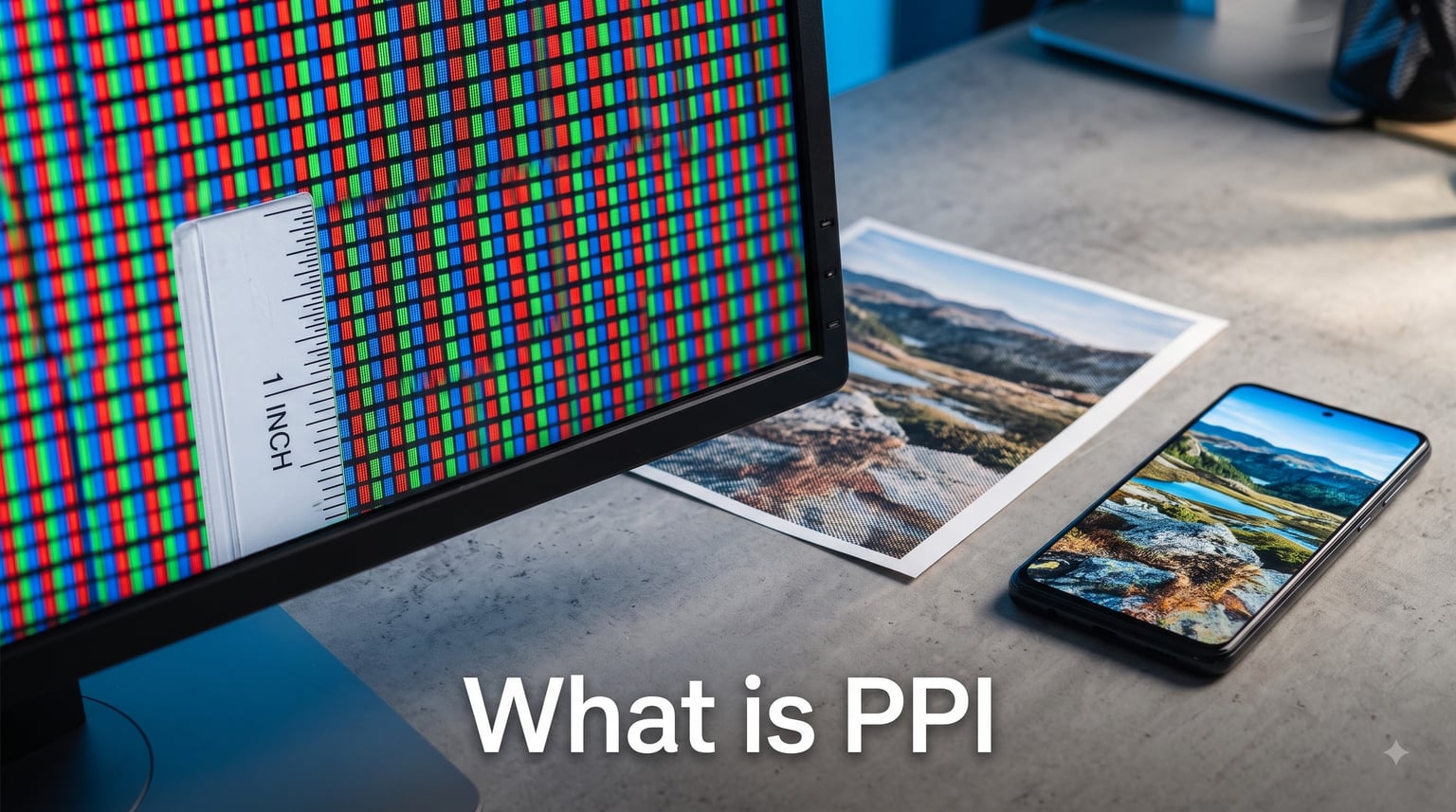
PPI stands for Pixels Per Inch, and it measures how many individual pixels are packed into a single inch of a digital image or screen display. When you ask “what is PPI,” you are really asking about pixel density, the factor that determines how sharp or blurry an image looks to the human eye.
Our team has spent years working with digital photography, web design, and print production, and PPI comes up in every single project. Whether you are preparing a photo for a billboard or choosing a new phone, PPI shapes what you see.
In this guide, we break down what PPI means, how to calculate it, how it differs from DPI and resolution, and what numbers you actually need for print, web, and mobile. By the end, you will know exactly when PPI matters and when you can safely ignore it.
Table of Contents
What Is PPI? Pixels Per Inch Explained
PPI, or Pixels Per Inch, is a measurement of pixel density in a digital image or on a display screen. It tells you how many tiny colored squares (pixels) fit within a one-inch line of that image or screen.
Think of PPI like tiles in a mosaic. If you pack 300 tiny tiles into every inch, the image looks smooth and detailed. Pack only 72 tiles into the same inch, and you start to see the individual pieces, giving the image a blocky or pixelated look.
A pixel is the smallest unit of color information in a digital image. Every photo on your phone, every graphic on a website, and every frame on your monitor is built from millions of these pixels arranged in a grid.
Pixel density is what connects those pixels to physical size. Two phones can have the same resolution (say, 1080 x 2400 pixels) but very different PPI values because one has a larger screen than the other. The smaller screen packs the same pixels into less space, raising the PPI and making everything look sharper.
That sharpness is the whole point. Higher PPI means finer detail, smoother edges, and text that reads like a printed page. Lower PPI produces visible pixelation, where individual pixels become noticeable and the image looks chunky.
How to Calculate PPI: The Simple Formula
Calculating PPI comes down to one straightforward formula. You divide the total number of pixels along an image’s diagonal by the physical diagonal size in inches.
Here is the step-by-step method:
Step 1: Find the pixel dimensions of your image or screen. For example, a 1080p display measures 1920 pixels wide by 1080 pixels tall.
Step 2: Use the Pythagorean theorem to find the diagonal pixel count. Square both numbers, add them together, and take the square root. For 1920 x 1080, that gives approximately 2203 pixels on the diagonal.
Step 3: Measure the physical diagonal of the display in inches. A typical 24-inch monitor has a 24-inch diagonal.
Step 4: Divide the diagonal pixel count by the diagonal inches. Using our example: 2203 divided by 24 equals about 92 PPI.
You can also use a simpler version for images. If a photo is 3000 pixels wide and you want to print it at 10 inches wide, divide 3000 by 10 to get 300 PPI. That tells you the print will have 300 pixels packed into every inch of its width.
A PPI calculator can handle this math instantly, and many are available free online. But understanding the formula helps you make quick estimates without any tools.
How to Check PPI on Different Platforms
On Windows, right-click an image file, select Properties, then go to the Details tab. Look for “Horizontal resolution” and “Vertical resolution,” which show the PPI values stored in the image metadata.
On Mac, open the image in Preview, then go to Tools > Show Inspector. Click the “More Info” tab (the “i” icon) to see the image DPI value, which macOS labels as DPI but functions as the PPI setting for that file.
In Photoshop, open the image and go to Image > Image Size. The dialog box displays both pixel dimensions and resolution in pixels per inch, letting you view and adjust the PPI directly.
PPI vs DPI: Understanding the Difference
PPI and DPI are the most confused terms in digital imaging, and the confusion is understandable because they sound similar and both relate to image output quality. But they measure completely different things.
PPI (Pixels Per Inch) describes digital pixel density. It tells you how many pixels exist in an inch of a digital image or screen. PPI lives in the digital realm, inside your computer, phone, or camera file.
DPI (Dots Per Inch) describes physical print output. It refers to how many ink dots a printer lays down per inch of paper. DPI lives in the physical world, inside a printing press or inkjet printer.
Here is where people get tripped up. A common question we see on design forums is whether 300 DPI means 300 Pixels Per Inch. The answer is no, not exactly. The 300 DPI refers to the printer’s output setting. But to feed that printer enough data, your digital image should be at least 300 PPI at the intended print size. The numbers match, but they describe different stages of the process.
You can send a 72 PPI image to a 300 DPI printer, but the result will look soft and blurry because the printer does not have enough pixel data to work with. The printer still prints at 300 DPI, but it is stretching limited pixels across the page.
The key distinction to remember: PPI measures input (what the computer sends), DPI measures output (what the printer produces). When someone says “this needs to be 300 DPI,” they usually mean “give me a 300 PPI image at final print size.”
How PPI Affects Image Quality
PPI directly influences how sharp and detailed an image appears, but it is not the only factor. Many people assume that cranking up PPI always produces better quality, and that misconception causes no end of frustration.
The truth is that PPI works together with total pixel count. An image that is 3000 x 3000 pixels at 300 PPI will print beautifully at 10 x 10 inches. That same image at 150 PPI could print at 20 x 20 inches but would look noticeably softer up close.
Higher PPI does mean better quality, but only up to a point. Beyond what the human eye can resolve at a normal viewing distance, additional pixels go unnoticed. A phone screen at 500 PPI does not look dramatically sharper than one at 400 PPI to most people.
Pixelation happens when PPI drops too low for the viewing distance. On a billboard viewed from 50 feet away, 30 PPI looks perfectly sharp because your eye cannot distinguish individual pixels at that range. On a phone held 12 inches from your face, 30 PPI would look like a blocky mess.
This is why context matters so much. The right PPI depends entirely on how the image will be viewed, not on some universal “higher is always better” rule.
Recommended PPI by Use Case
Different projects demand different PPI values, and knowing the target number for your specific use case saves time and avoids wasted file size. Here are the standards our team relies on across every type of project.
PPI for Print: The 300 PPI Standard
For professional print work, 300 PPI at final output size is the gold standard. Magazines, brochures, business cards, and photo prints all expect 300 PPI to produce crisp, clean results on paper.
Newspapers and large posters can work at lower values. Newspapers typically print at 150 to 200 PPI because the paper stock absorbs ink and softens detail. Billboards and large-format banners can go as low as 30 to 50 PPI because nobody views them up close.
If you are designing printed marketing materials, start at 300 PPI and only reduce it for very large formats. Going below 200 PPI for standard print sizes will produce visibly soft images.
PPI for Web: The 72 PPI Standard
Web images traditionally use 72 PPI, a standard carried over from early computer monitors. The reality is that PPI barely matters for web images because browsers display images based on pixel dimensions, not PPI metadata.
What actually matters for web is the total pixel count. A 1920 x 1080 pixel image will display at the same size on a website whether its PPI metadata says 72, 300, or 1500. The browser ignores that number and uses the pixel dimensions directly.
That said, keeping web images at 72 PPI in your files helps with file size management and serves as a useful convention. Just remember that it is the pixel dimensions doing the real work.
PPI for Mobile Screens
Modern smartphones target 300 to 500 PPI for their displays. The original iPhone was about 163 PPI, while current flagship phones range from 400 to over 550 PPI. Apple’s Retina display branding launched at roughly 326 PPI, the threshold where individual pixels become invisible at normal viewing distance.
When designing graphics for mobile apps, you provide assets at multiple pixel densities (1x, 2x, 3x) rather than worrying about PPI directly. The device scales them appropriately based on its screen density.
PPI for Projections and Large Format
Projected images and large displays need surprisingly low PPI because viewers sit far away. A projector throwing a 100-inch image from 1080p resolution only delivers about 22 PPI on the screen surface, yet it looks sharp from across the room.
For projection graphics, design at the projector’s native resolution and let viewing distance handle the rest. Do not waste time trying to hit 300 PPI on content meant for a 30-foot screen.
PPI for Virtual Reality
VR headsets demand extremely high PPI because the screens sit just inches from your eyes, magnified through lenses. Modern VR displays target 800 to over 1200 PPI to avoid the “screen door effect,” where gaps between pixels become visible and break immersion.
If you are creating VR content, be aware that textures and UI elements need to hold up under intense magnification. What looks sharp on a monitor can reveal flaws when viewed through a VR lens system.
PPI for Screens and Displays
Screen PPI determines how good everything looks on a device, from text readability to photo detail. Display manufacturers have been in a pixel density arms race for over a decade, and understanding the numbers helps you make better purchasing decisions.
Apple popularized the concept of the Retina display with the iPhone 4 in 2010, which offered 326 PPI. The claim was that at normal viewing distance, the human eye could not distinguish individual pixels. That threshold varies by device size because viewing distance changes. A phone held close needs higher PPI than a laptop viewed from further away, which in turn needs more than a TV watched across a room.
High-definition displays today push impressive numbers. Flagship smartphones exceed 500 PPI. Premium laptops range from 220 to 280 PPI. Desktop monitors typically land between 90 and 160 PPI, with 4K monitors pushing toward 200 PPI on smaller panels.
Display technology also affects perceived sharpness. LCD and OLED screens can have the same PPI rating but look different due to pixel arrangement. OLED panels often use a PenTile matrix that shares subpixels between adjacent pixels, which can slightly reduce perceived sharpness compared to a standard RGB stripe LCD at the same PPI. In practice, most users never notice the difference.
E-readers like the Kindle deserve a mention because they use a different display technology entirely. E-ink screens typically run 167 to 300 PPI. The Kindle Paperwhite sits at 300 PPI, which makes text look nearly as crisp as a printed paperback. Because e-ink reflects ambient light rather than emitting it, the reading experience feels more natural than any backlit display.
Common PPI Myths Debunked
PPI attracts more misconceptions than almost any other concept in digital imaging. Let us clear up the myths that cause the most confusion.
Myth 1: Higher PPI is always better. This is false. Beyond what your eye can resolve at a given distance, extra pixels add file size without adding visible quality. A 600 PPI web image looks identical to a 72 PPI web image on screen because the browser uses pixel dimensions, not PPI. For print, anything above 300 PPI at final size produces no perceptible improvement on standard paper.
Myth 2: 1080p means 1080 Pixels Per Inch. No. The “1080” in 1080p refers to the number of horizontal pixel rows (the image height in pixels), not pixel density. A 1080p phone screen and a 1080p television have the same resolution but vastly different PPI values because the TV is much larger. The phone might be 400 PPI while the TV is only 40 PPI.
Myth 3: 4K means 4000 Pixels Per Inch. Also incorrect. “4K” describes the approximate horizontal pixel count (around 3840 pixels for consumer displays, or 4096 for cinema). It has nothing to do with pixels per inch. A 4K phone screen has far higher PPI than a 4K 65-inch television.
Myth 4: Resizing an image changes its PPI. This one is partially true and causes endless confusion. When you resize an image in software like Photoshop, you can change PPI without changing pixel count (which changes the physical print size) or change pixel count without changing PPI (which resamples the image). The PPI value stored in a file is just metadata until you print. On screen, only pixel dimensions matter.
Understanding these distinctions saves you from wasted effort. You do not need to chase maximum PPI on everything you create. You need the right PPI for the specific way your image will be viewed.
FAQs
What does PPI stand for?
PPI stands for Pixels Per Inch. It measures the pixel density of a digital image or display screen by counting how many individual pixels fit within a single inch.
What is a good PPI for printing?
300 PPI at final print size is the standard for professional print quality. Newspapers and large posters can work at 150 to 200 PPI, while billboards viewed from a distance may only need 30 to 50 PPI.
What PPI should I use for web images?
72 PPI is the traditional standard for web images, but web browsers actually display images based on pixel dimensions rather than PPI metadata. Focus on providing the right pixel dimensions for your layout instead of worrying about the PPI value.
Does higher PPI mean better quality?
Higher PPI produces sharper images, but only up to the limit of what the human eye can resolve at a given viewing distance. Beyond that threshold, additional pixels add file size without any visible improvement in quality.
Does 300 DPI mean 300 Pixels Per Inch?
No. 300 DPI refers to how many ink dots a printer places per inch of paper. However, to get good results from a 300 DPI printer, your digital image should be at least 300 PPI at the intended print size. The numbers match but describe different stages: PPI is the digital input, DPI is the physical output.
Does 4K mean 4000 Pixels Per Inch?
No. 4K refers to the approximate horizontal pixel count of the display (around 3840 pixels for consumer screens). It has nothing to do with pixel density. A 4K phone has much higher PPI than a 4K television because the same pixels are packed into a smaller screen.
What should my Pixels Per Inch be?
It depends on your project. Use 300 PPI for print, 72 PPI for web (though pixel dimensions matter more), 400 to 500 PPI targets for mobile displays, and 800 to 1200 PPI for VR content. Match the PPI to how the final image will be viewed.
Is PPI the same as resolution?
No. Resolution refers to the total pixel count of an image or display (like 1920 x 1080). PPI measures pixel density, or how tightly those pixels are packed. Two displays can have identical resolution but different PPI values if they are different physical sizes.
Wrapping Up: Making Sense of PPI
Understanding what PPI is comes down to one core idea: PPI measures pixel density, and pixel density determines visual sharpness. When you know what is PPI and how it works, you can make confident decisions about every image and screen you encounter.
The key takeaways are simple. Use 300 PPI for print, match pixel dimensions for web, and let viewing distance guide your large-format work. Stop chasing maximum PPI on everything and start matching PPI to how your image will actually be seen.
Armed with the PPI formula, the PPI vs DPI distinction, and the common myths we debunked, you now have everything you need to handle pixel density like a professional. The next time someone asks “what is PPI,” you will have a clear, practical answer ready.