
I run a handful of WordPress sites, and I have lost count of how many times spam comments have flooded my moderation queue. The single feature that saved my sanity was the WordPress comment blacklist — a built-in tool that quietly filters out junk before it ever reaches the public eye.
In this guide, I will walk you through exactly what a WordPress comment blacklist is, how it works behind the scenes, and how to set one up so your comments stay clean. I will also cover the difference between the moderation list and the disallowed keys list, where to find ready-made word lists, and the common mistakes that trip people up. By the end, you will have a working blacklist and a clear plan for keeping it effective.
Table of Contents
- What Is a WordPress Comment Blacklist?
- How Does the WordPress Comment Blacklist Work?
- How to Set Up a Comment Blacklist in WordPress
- Comment Moderation vs Disallowed Comment Keys (Key Difference)
- Where to Find WordPress Comment Blacklist Word Lists
- Best Practices for Managing Your Comment Blacklist
- Common Mistakes to Avoid with Comment Blacklists
- How to Maintain and Update Your Blacklist Over Time
- Plugins for Managing Comment Blacklists
- Frequently Asked Questions
- Conclusion
What Is a WordPress Comment Blacklist?
A WordPress comment blacklist is a list of words, phrases, URLs, email addresses, and IP addresses that you want to prevent from appearing in your comment section. When a comment contains any blacklisted term, WordPress either holds it for your review or trashes it automatically, depending on which list you used.
You will find this feature baked into every WordPress installation. There is no plugin required for the basic version. It lives inside the core discussion settings and has been part of WordPress for over a decade.
Blacklist vs Blocklist: Clearing Up the Confusion
You will see both terms used across the WordPress community, and they mean the same thing. Blacklist is the older, more familiar term. Blocklist is the newer, more inclusive term that many developers prefer because it avoids negative connotations.
WordPress core still uses “blacklist” in the settings labels, but third-party plugins and updated documentation often swap in “blocklist.” Do not let the wording confuse you — both refer to the same spam-filtering concept.
What Can You Add to a WordPress Comment Blacklist?
You can add several types of content to your blacklist. WordPress scans each comment against the entire list and triggers a match if any term appears in the comment body, author name, URL, email address, or IP address.
- Words and phrases — offensive language, scam trigger words, or anything off-topic for your niche.
- URLs and domains — specific sites you do not want linked from your page.
- Email addresses — addresses that have spammed you before.
- IP addresses — the source of repeated spam attempts.
How Does the WordPress Comment Blacklist Work?
The WordPress comment blacklist runs automatically every time someone submits a comment. WordPress checks the comment content, comment author name, comment author URL, email address, and IP address against every entry in your blacklist.
If a match is found, WordPress decides what to do based on which list caught the term. A match in the Comment Moderation field sends the comment to your moderation queue for manual review. A match in the Disallowed Comment Keys field sends the comment straight to Trash.
Partial Word Matching Explained
One detail that catches many site owners off guard is partial word matching. WordPress does not just look for exact matches — it scans the entire comment for any blacklisted term embedded inside other words.
For example, if you blacklist the word “casino,” a comment containing “subcasino” or “casinobonus” will also be flagged. This is powerful for catching variations, but it also creates false positives. I have seen sites blacklist common English words that triggered matches inside legitimate phrases.
Keep this in mind when building your list. Always test new entries against real comments before assuming they are safe.
What Happens to a Matched Comment?
When a comment hits a blacklisted term, WordPress performs one of two actions. If the term was in your Moderation list, the comment waits for you to approve, mark as spam, or trash it. If the term was in your Disallowed Comment Keys list, the comment goes directly to Trash without ever reaching your queue.
Either way, the public never sees the comment unless you explicitly approve it.
How to Set Up a Comment Blacklist in WordPress
Setting up a WordPress comment blacklist takes about five minutes from start to finish. Here is the exact process I use on every new site I launch.
Step 1: Open the Discussion Settings Panel
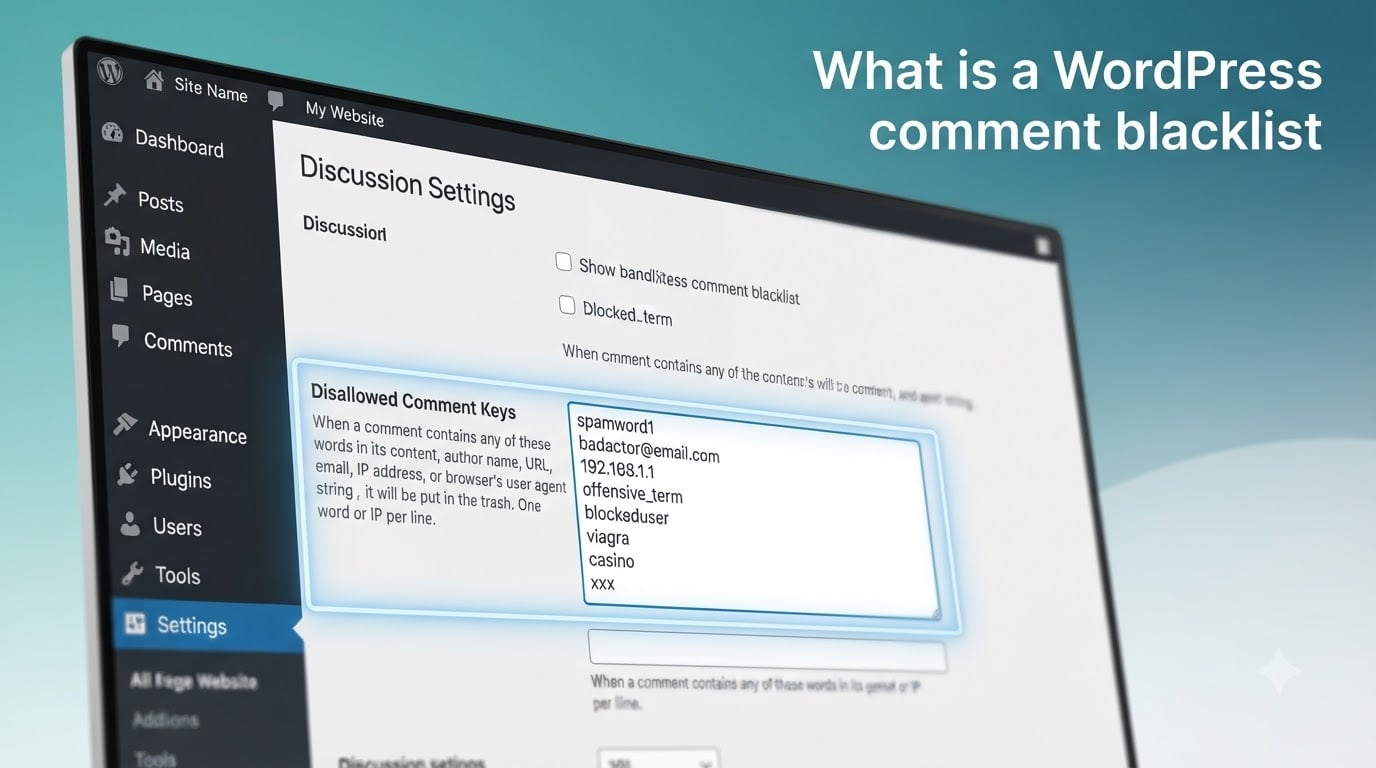
Log in to your WordPress dashboard and navigate to Settings > Discussion. Scroll down until you see the section labeled “Disallowed Comment Keys.” This is where your blacklist lives.
Step 2: Add Your Blacklist Terms
Click inside the Disallowed Comment Keys text box and start typing. Enter one term per line. You can add words, phrases, URLs, email addresses, or IP addresses — any combination works.
For example, a basic starting list might look like this:
- viagra
- casino
- free-money
- example-spam-site.com
- [email protected]
Step 3: Save Your Changes
Scroll to the bottom of the page and click Save Changes. Your blacklist is now active and will begin filtering comments immediately.
Step 4: Test the Blacklist
Before walking away, leave a test comment on one of your posts using a blacklisted word. The comment should land in Trash rather than appearing on the site. If it does, your blacklist is working.
Step 5: Remove a Term from the Blacklist
To remove a term, return to Settings > Discussion, delete the line from the Disallowed Comment Keys box, and save your changes. WordPress updates the filter instantly.
Comment Moderation vs Disallowed Comment Keys (Key Difference)
WordPress gives you two related but distinct tools. Understanding the difference is critical, because choosing the wrong one can either spam your queue or hide legitimate comments.
How the Two Lists Differ
The Comment Moderation list holds matching comments in your queue so you can review them. The Disallowed Comment Keys list trashes matching comments without your review.
Use moderation for terms that might appear in legitimate comments. Use disallowed keys for terms that are universally unwanted.
Side-by-Side Comparison
| Feature | Comment Moderation | Disallowed Comment Keys |
|---|---|---|
| Location in Settings | Settings > Discussion > “Comment Moderation” | Settings > Discussion > “Disallowed Comment Keys” |
| Action on match | Comment held for review | Comment sent to Trash |
| Notification | Email sent to admin (optional) | No email sent |
| Best for | Borderline terms, frequent false positives | Obvious spam, slurs, scam phrases |
| Risk | Clutters moderation queue | Risk of blocking legitimate comments |
My rule of thumb: if you would be comfortable deleting the comment without ever reading it, put it in Disallowed Comment Keys. If you want a second look, put it in Comment Moderation.
Where to Find WordPress Comment Blacklist Word Lists
Building a blacklist from scratch is tedious. Several community-maintained lists already exist, and you can copy them straight into your Disallowed Comment Keys field.
GitHub Repositories
The largest free blacklist I have found lives on GitHub. The splorp/wordpress-comment-blacklist repo contains over 45,000 keywords commonly used by spammers. Copy the contents of the blacklist.txt file, paste into your Disallowed Comment Keys field, and save.
GitHub lists are free, frequently updated, and well-documented. They are the fastest way to get a defensible baseline blacklist on a new site.
Third-Party Providers
Several WordPress-focused companies publish curated blacklists. Perishable Press maintains a popular list that has been around for years. Akismet also publishes reference lists in its documentation.
Some providers sell “premium” blacklists. I have never found one worth paying for when the GitHub options are free and comprehensive.
Your Own Spam Folder
The most tailored blacklist you can build comes from your own spam folder. Every WordPress site has one. Open it, scan the common phrases and URLs, and add any patterns that repeat more than three times.
A list built from your own spam catches the threats that actually target your site, not generic spam that may never reach you.
Review Lists Before You Paste
One warning from the WordPress community: never paste a large list without scanning it first. A list built for a freebies site might blacklist the word “free” — which would block legitimate comments on your premium product site. Always read every entry before saving.
Best Practices for Managing Your Comment Blacklist
After running blacklists on more than a dozen sites, I have settled on a few practices that keep things running smoothly. These are the rules I follow on every project.
Start Small and Add as Needed
Resist the urge to paste a 45,000-word list on day one. Start with a small curated list of obvious spam terms. Watch your spam folder for a week. Add new terms only as you see real patterns. This keeps false positives to a minimum.
Combine with a Plugin Like Akismet
The WordPress comment blacklist works best when paired with a dedicated spam plugin. Akismet comes preinstalled with WordPress and uses a global database to catch spam before it hits your blacklist. Together, they catch the vast majority of junk.
Other strong options include Antispam Bee (free, GDPR-friendly, no external API) and CleanTalk (paid, very accurate). Pick one and let it handle the obvious spam so your blacklist can focus on niche-specific blocking.
Disable Anonymous Comments
One of the single biggest spam reductions I have seen came from disabling anonymous comments. When visitors must register and log in before commenting, bot volume drops by 80% or more. You can find this option in Settings > Discussion under “Other comment settings.”
Remove the Website URL Field
A surprising amount of WordPress comment spam comes from people trying to drop backlinks. Removing the website URL field from your comment form eliminates the motive for most link-based spam. A simple plugin called Comment Link Remove handles this in one click.
Audit Your Blacklist Quarterly
Every three months, review your blacklist. Remove terms that have stopped appearing in your spam folder. Add new terms that have become common. A stale blacklist is almost as bad as no blacklist at all.
Common Mistakes to Avoid with Comment Blacklists
Most problems with comment blacklists come from a few recurring mistakes. Here is what I have learned the hard way.
Blacklisting Common English Words
It is tempting to blacklist short, common words like “free,” “deal,” or “buy.” Do not do this. Partial word matching means these words will appear inside legitimate comments far more often than spam. You will trash innocent comments and confuse your visitors.
Ignoring the IP Address Field
Many admins forget that the blacklist scans the IP address field. If a spammer keeps hitting your site from the same IP, add it to the list. This stops repeat offenders faster than blocking individual words.
Forgetting to Test After Major Changes
Whenever you add a batch of new terms, leave a few test comments to confirm nothing important got blocked. I once added a list that accidentally blocked the word “hosting” — and our site was, in fact, a hosting blog. The comments vanished for two days before I noticed.
Using a Blacklist Without a Plugin
The blacklist alone is not enough for high-traffic sites. Determined spammers rotate URLs, emails, and content endlessly. You need a plugin that checks against a global database to catch novel spam. Treat the blacklist as a refinement layer, not your first line of defense.
Blocking Pingbacks and Trackbacks
Pingbacks and trackbacks are a separate WordPress feature from regular comments. The blacklist applies to them too. If you do not want to block them, disable pingbacks under Settings > Discussion instead of trying to blacklist their trigger words.
How to Maintain and Update Your Blacklist Over Time
A comment blacklist is not a set-and-forget tool. Spammers evolve their tactics, and your blacklist needs to evolve with them.
Set a Maintenance Schedule
Pick a recurring time — every month or every quarter — to review your blacklist. Mark it in your calendar. During the review, open your spam folder, count the most common patterns, and add the worst offenders to the list.
Track What You Have Added
Keep a simple spreadsheet of every term you add to the blacklist, the date you added it, and the reason. This makes audits easier and helps you spot trends over time. After a year, you will have a clear picture of the spam landscape on your site.
Coordinate with Your Anti-Spam Plugin
Your blacklist and your plugin should complement each other, not overlap. If Akismet already catches a pattern reliably, leave it out of the blacklist. Use the blacklist for niche terms that no plugin could reasonably know about — your competitors’ names, your industry-specific jargon, and so on.
Watch for New Spam Tactics
Spammers adapt. A few years ago, most spam was obvious pharma nonsense. Today, much of it is AI-generated gibberish that looks almost legitimate. Re-read your spam folder regularly to catch new patterns, and update the blacklist to match.
Plugins for Managing Comment Blacklists
While the built-in WordPress comment blacklist is solid, plugins can extend its functionality. Here are the options I recommend, in order of usefulness.
Akismet
Akismet is the default anti-spam plugin for WordPress and comes preinstalled on most installations. It checks every comment against a global database of known spam. The free personal plan covers most blogs, and paid plans exist for commercial sites.
Pair Akismet with your blacklist for the strongest defense. Akismet catches the bulk spam, and your blacklist handles the niche-specific edge cases.
Antispam Bee
Antispam Bee is a free alternative that keeps all data on your own server. It is GDPR-friendly and does not send comments to a third party. It works well alongside the built-in blacklist and includes features like language filtering and country blocking.
CleanTalk
CleanTalk is a paid cloud-based anti-spam service. It is very accurate and catches spam in comments, registrations, and contact forms. If you run a high-traffic site and find that free plugins are not keeping up, CleanTalk is worth the investment.
WPBruiser
WPBruiser focuses on bot detection rather than content filtering. It uses honeypot fields and pattern recognition to block automated spam before it ever reaches your blacklist. This is a good choice if you want to reduce the workload on your blacklist entirely.
Frequently Asked Questions
What is a WordPress comment blacklist?
A WordPress comment blacklist is a built-in feature in the Settings u0026gt; Discussion panel that lets you block comments containing specific words, phrases, URLs, email addresses, or IP addresses. When a comment matches any entry in the blacklist, WordPress sends it to Trash or holds it for moderation, depending on which list you used.
What is an example of a spam comment?
Common spam comment examples include unsolicited links to casinos, pharmaceuticals, or adult sites disguised as feedback. Other examples are generic praise like ‘Great post, check out my website for free shoes’ followed by a suspicious URL, or gibberish text stuffed with keywords to boost search rankings. The WordPress comment blacklist catches these by matching the URLs, keywords, or patterns they share.
What is the best anti-spam plugin for WordPress?
Akismet is the most widely used anti-spam plugin for WordPress and comes preinstalled on most sites. It uses a global database to catch spam before it reaches your moderation queue. Free alternatives like Antispam Bee offer solid protection while keeping data on your own server. Paid options like CleanTalk provide higher accuracy for high-traffic sites.
Can I delete a WordPress comment?
Yes, you can delete any WordPress comment from the Comments section of your dashboard. Hover over the comment, click Quick Edit, and choose Delete. Alternatively, the WordPress comment blacklist can automatically trash matching comments before they ever appear on your site, which removes the need for manual deletion in most cases.
How does partial word matching affect the WordPress comment blacklist?
The WordPress comment blacklist uses partial word matching, which means a blacklisted term will trigger a match even when it appears inside a longer word. For example, adding ‘casino’ will also flag ‘subcasino’ or ‘casinobonus’. This is useful for catching spam variations but can cause false positives on legitimate comments, so always test new terms before adding them in bulk.
Conclusion
A WordPress comment blacklist is one of the simplest, most effective tools available to keep your comment section clean. It lives in Settings > Discussion, requires no plugins, and runs the moment you save your first set of terms.
Start small with a curated list of obvious spam keywords, pair it with Akismet or another anti-spam plugin, and review your list every quarter. Watch out for partial word matching traps, and remember to test before adding new terms in bulk. Done well, the WordPress comment blacklist cuts your moderation workload dramatically and keeps your site looking professional.
Take ten minutes today to set up your blacklist. Your future self, drowning in moderation tasks, will thank you.