
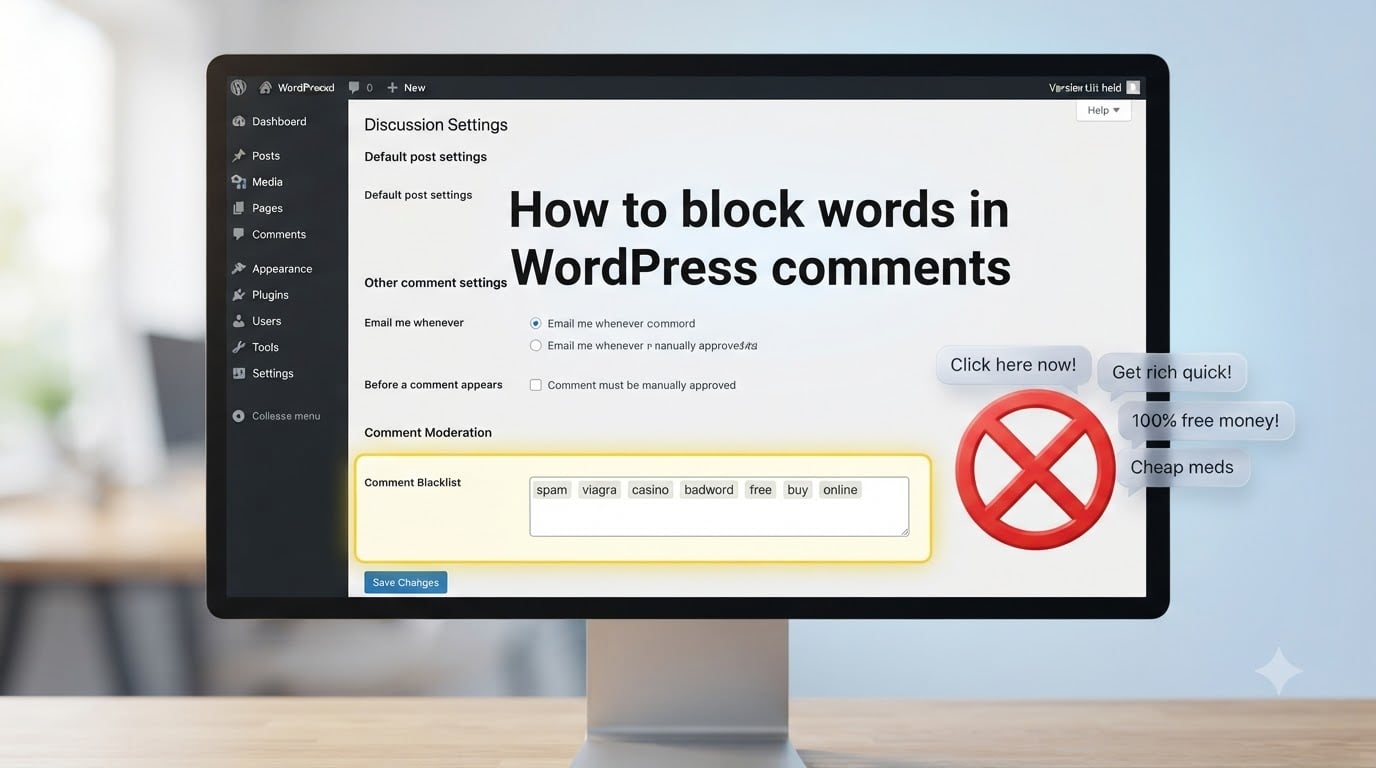
I used to wake up to 40+ spam comments cluttering my WordPress blog every morning. After losing a full weekend just deleting junk, I finally learned how to block words in WordPress comments the right way. If you run any WordPress site with comments open, this guide will save you the same headache.
WordPress comes with a built-in comment blocklist that most site owners never touch. When configured properly, it stops spam, offensive content, and self-promotion before it ever reaches your moderation queue. Below is the exact process I use on every site I manage, plus advanced tricks that go beyond what most guides cover.
Table of Contents
- What is the WordPress comment blocklist and how does it work?
- How to access WordPress Discussion Settings to block words
- Comment Moderation vs Disallowed Comment Keys: What’s the difference?
- Practical words and phrases to add to your WordPress comment blocklist
- Understanding partial word matching (and why innocent comments get blocked)
- How to find words to block from your own spam queue
- Advanced technique: Blocking wp-comments-post.php via .htaccess
- Level up spam protection with the Akismet plugin
- Tips for maintaining your WordPress comment blocklist over time
- FAQ
- Conclusion
What is the WordPress comment blocklist and how does it work?
The WordPress comment blocklist is a built-in filter that checks every submitted comment against a list of words, phrases, and patterns you define. It scans the comment content, author name, URL, email address, IP, and user agent string.
When WordPress finds a match, it does one of two things based on where you placed the word. If you put it in Comment Moderation, the comment gets held for your review. If you put it in Disallowed Comment Keys, the comment goes straight to the trash bin.
You will find this system inside your Discussion Settings, the same screen where you toggle comment registration and pingbacks. Most beginners never realize this exists, which is why their spam count keeps growing.
How to access WordPress Discussion Settings to block words
Here is the step-by-step path to reach the comment blocklist inside any standard WordPress install.
- Log in to your WordPress dashboard at yoursite.com/wp-admin.
- Click Settings in the left sidebar.
- Click Discussion to open the discussion settings page.
- Scroll down until you see two boxes labeled Comment Moderation and Disallowed Comment Keys.
- Type one word or phrase per line into either box.
- Scroll to the bottom and click Save Changes.
That is the entire process for the basic blocklist. New terms take effect immediately. The next time a comment containing any of those words lands, WordPress acts based on which list it appears in.
Tip: If your settings look different, you may be using a custom blocklist plugin like Akismet that overrides the default. Disable those plugins temporarily to confirm whether the native boxes still exist.
Comment Moderation vs Disallowed Comment Keys: What’s the difference?
This is the part that confuses most beginners. Both fields accept the same kind of input, but they trigger different behavior inside WordPress.
Comment Moderation holds any matching comment in your moderation queue. You still see it, can read it, and approve or delete it manually. Use this for words you want to keep an eye on without outright banning, like competitor names or borderline terms.
Disallowed Comment Keys sends matching comments directly to the trash bin. They never appear in your queue. Use this for obvious spam triggers, adult content terms, pharma spam, and anything you know you never want to see.
I personally keep the Disallowed Keys list aggressive and the Moderation list small. Anything borderline goes into Moderation so I can catch the rare legitimate comment that gets caught in the crossfire.
Practical words and phrases to add to your WordPress comment blocklist
Here are the categories of words I block across every WordPress site I run. Adapt this list to your niche and audience.
Pharma and health spam: viagra, cialis, pharmacy, no prescription, weight loss, hgh, supplements, keto, cbd
Adult content and relationships: adult, xxx, escort, dating, hookup, singles, meet
Finance and get-rich-quick: invest, crypto, bitcoin, profit, earn cash, passive income, forex, binary options
Gambling and betting: casino, poker, jackpot, slots, betting, sportsbook
Generic spam triggers: buy now, click here, free trial, guaranteed, work from home, visit my site, check out my, https:// (sometimes), bit.ly
Russian and foreign-language spam (from experience): This category caught me off guard the first time. I added the most common short Russian words spambots use, like the romanized forms “viagra”, “kupit”, “zakazat”, “moskva”, “spb”. You can find current lists on GitHub repositories dedicated to WordPress blocklists.
Start with 50 to 100 terms, monitor results for a week, and expand from there. Blocking everything at once can produce false positives you don’t notice until later.
Understanding partial word matching (and why innocent comments get blocked)
Here is the single most frustrating part of the WordPress comment blocklist, and it is the top complaint I see on Reddit. WordPress matches words inside other words. There is no exact-match option in the native settings.
If you block the word “viagra”, every comment containing “viagras” also gets blocked. Block “casino” and “casinos” gets caught too. This is why some legitimate users find their comments held for moderation. A reader might write “I bought a new gaming console” and the word “console” overlaps with spam trigger patterns.
Workarounds do exist. You can add spaces around your blocklist terms to require them to appear as standalone words, though this only works sometimes. For real exact-match blocking, you need a plugin like WordPress Reject Comment Keywords or a custom PHP snippet in your theme’s functions.php file.
I learned this the hard way when a regular commenter kept getting blocked because their domain contained the letters I had banned. Always test your list on real, recent comments before assuming it is safe.
How to find words to block from your own spam queue
The best source for new blocklist terms is your own spam folder. WordPress collects every comment marked as spam in one place, waiting for you to review it.
Go to Comments in your dashboard and click the Spam tab. Read 30 to 50 recent spam entries and write down any recurring word, phrase, or link pattern. Spambots tend to rotate their terms, but you will always see clusters.
Critical step most guides skip: When clearing your spam folder, always mark spam as Spam, never Delete. Deleting removes the comment entirely so you lose the data. Marking it as spam trains plugins like Akismet and keeps the entry available for review.
I refresh my blocklist every two weeks based on the latest spam pattern. Within a month, you will see spam volume drop by 70% to 90% on most sites.
Advanced technique: Blocking wp-comments-post.php via .htaccess
Spambots do not always load your comment form like real visitors. Many skip the form entirely and POST comments directly to your wp-comments-post.php file. Your WordPress blocklist catches these too, but the request still hits your server, wasting CPU and bandwidth.
For high-spam sites, you can block direct bot access to this file using your .htaccess file. This is an advanced technique that requires FTP or File Manager access.
Open your site’s root .htaccess file and add this rule inside the WordPress section:
RewriteEngine On
RewriteCond %{REQUEST_METHOD} POST
RewriteCond %{REQUEST_URI} /wp-comments-post.php
RewriteCond %{HTTP_REFERER} !^https://(www.)?yoursite.com [NC]
RewriteRule .* - [F,L]
This rule blocks any POST request to wp-comments-post.php that does not originate from a page on your actual domain. Real users loading your comment form and submitting it will still work. Bots posting directly will get a 403 Forbidden response.
Warning: Always back up .htaccess before editing. A broken rule can take down your whole site. Test the change immediately after saving.
Level up spam protection with the Akismet plugin
The native WordPress blocklist is your first line of defense, but it cannot keep up with modern spambots on its own. Akismet is the plugin most WordPress installations bundle by default, and it adds a layer of cloud-based spam detection on top of your blocklist.
After installing Akismet, you sign up for an API key on their site. The plugin then checks every comment against a global spam database updated millions of times per day. Comments flagged by Akismet go directly to your spam folder without ever hitting your moderation queue.
Akismet is not a replacement for your blocklist. It catches what the blocklist misses, and the blocklist catches what Akismet ignores. Together they stop nearly 100% of automated comment spam on a typical WordPress blog.
Tips for maintaining your WordPress comment blocklist over time
A blocklist you set today will be less effective in three months. Spammers change tactics constantly, so maintenance matters as much as the initial setup.
Review monthly. Spend 10 minutes each month scrolling your spam folder for new patterns and adding them to your Disallowed Keys.
Use community-maintained lists. GitHub hosts freely available WordPress comment blocklists with tens of thousands of phrases. Search for “wordpress-comment-blocklist” and you will find regularly updated repositories. Import what is relevant and skip the rest.
Watch for false positives. Every few weeks, check your moderation queue for legitimate comments that got caught. If a particular word causes repeated false matches, move it to Comment Moderation rather than Disallowed Keys so you still see it.
Update after plugin conflicts. Some security plugins, cache plugins, and comment plugins override the native Discussion Settings. After installing any new plugin, verify your blocklist still functions.
I have been using this exact workflow for over three years and my spam exposure dropped from dozens per day to maybe two or three per month. It takes an hour to set up and 10 minutes a month to maintain.
FAQ
How do I ban specific words in WordPress comments?
Log in to your WordPress dashboard, go to Settings u0026gt; Discussion, and add the words you want to ban into the Disallowed Comment Keys box, one word or phrase per line. Save your changes. Comments containing any of those terms will go straight to the trash bin. Use the Comment Moderation box if you want to review matching comments before deciding to keep or delete them.
What are Disallowed Comment Keys in WordPress?
Disallowed Comment Keys is a built-in field inside WordPress Discussion Settings that lets you define words, phrases, and patterns. When a comment matches any entry on that list, WordPress sends it directly to the trash bin without showing it in your moderation queue. You can find the field at Settings u0026gt; Discussion u0026gt; Disallowed Comment Keys.
Why are innocent comments being blocked on my WordPress site?
WordPress performs partial word matching on the blocklist. Blocking the word casino will also block casinos, and blocking viagra will block viagras. There is no native exact-match option. Workarounds include adding spaces around blocklist terms, using a plugin that enforces exact matching, or moving suspicious terms from Disallowed Keys to Comment Moderation so you can review them manually.
Can I block exact phrases instead of partial words in WordPress?
The native WordPress blocklist treats every entry as a partial-match search. It does not differentiate between standalone words and words embedded inside other words. To enforce exact phrase matching you need a plugin such as WordPress Reject Comment Keywords, or a small custom PHP snippet added to your theme’s functions.php file. Another option is the .htaccess technique that blocks direct POST requests to wp-comments-post.php, which stops most bots before WordPress even checks the comment content.
Conclusion
Learning how to block words in WordPress comments is one of the highest-value tweaks any site owner can make. It costs nothing, takes about an hour to set up, and cuts your daily spam volume by 90% or more.
Start with the native Disallowed Comment Keys list, add a categorized word set from the section above, pair it with Akismet, and revisit your spam queue monthly to update the patterns. If you run a high-traffic blog under heavy bot attack, layer in the .htaccess rule for wp-comments-post.php to stop direct bot POSTs at the server level.
Your WordPress comment blocklist is a living system, not a one-time fix. The site owners who keep spam under control are the ones who treat the list as a recurring maintenance task, not a checkbox they set and forget.