
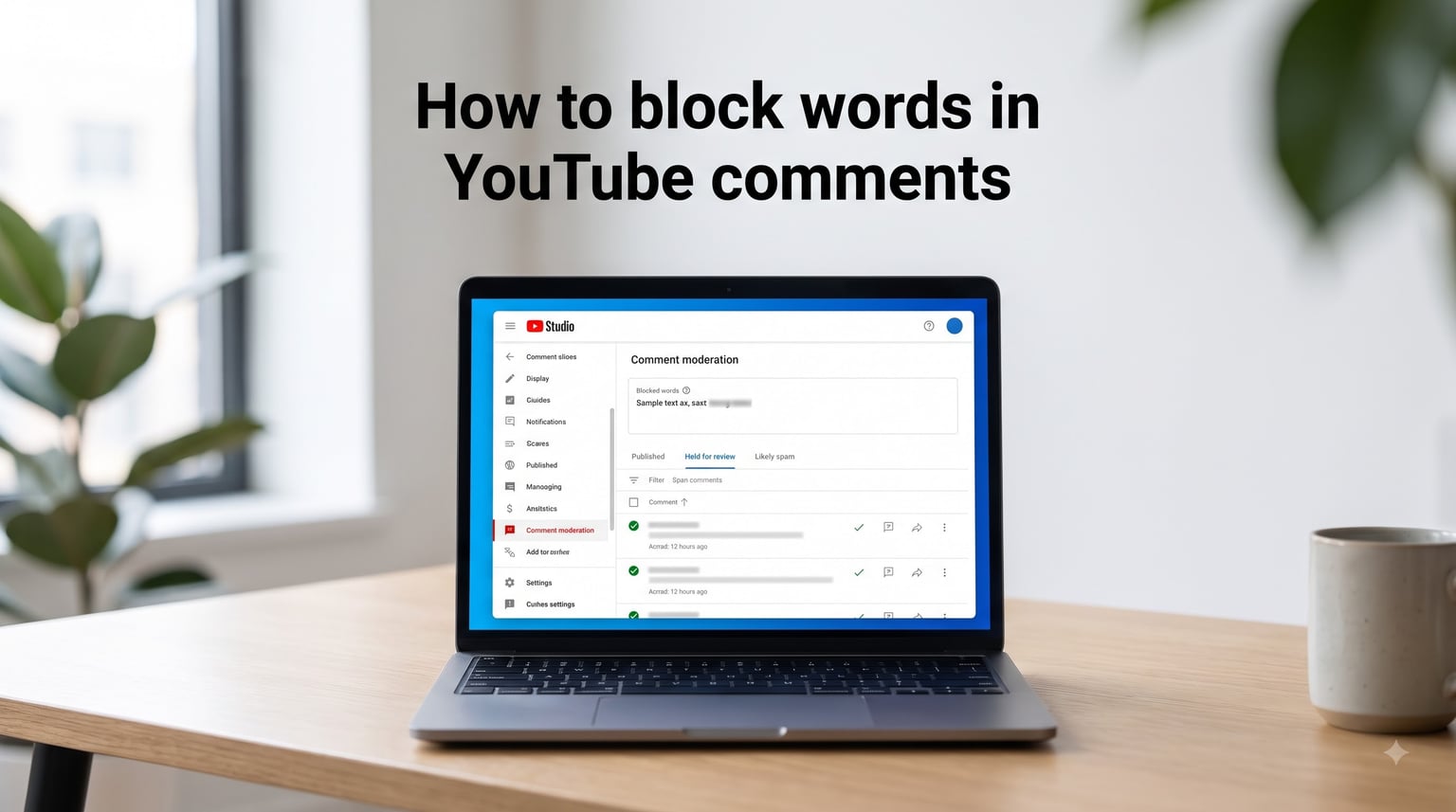
Learning how to block words in YouTube comments changed the way I manage my channel. Instead of waking up to a flood of spam and toxic messages, I now have a filter that catches problem comments before anyone sees them. The process takes about five minutes to set up, and once it is running, it works automatically on every video you publish.
If you are a creator dealing with spam bots, profanity, spoilers, or just plain negativity, the blocked words feature in YouTube Studio is your first line of defense. In this guide, I will walk you through every step, share the mobile limitations nobody talks about, and give you a starter word list you can copy right now.
Table of Contents
- What Are Blocked Words in YouTube Comments
- How to Block Words in YouTube Comments: Step-by-Step Guide
- Adding Words and Phrases to Your Blocked List
- Using the Block Links Feature
- How to Review Held Comments
- Blocking Words on Mobile: What You Need to Know
- Handling Filter Evasion: Misspellings and Workarounds
- Best Practices for Effective Comment Moderation
- FAQs
- Conclusion
What Are Blocked Words in YouTube Comments
Blocked words is a built-in YouTube Studio feature that lets creators automatically filter comments containing specific keywords or phrases. When someone posts a comment with one of your blocked words, YouTube does not delete it. Instead, the comment goes straight to your “Held for Review” tab.
That distinction matters. Held comments are invisible to the public until you decide what to do with them. You can approve them, delete them, report them, or block the user entirely. This gives you full control without permanently removing anything by accident.
The feature works across all videos on your channel, not just individual uploads. Once you add a word to your blocked list, it applies everywhere comments are enabled. You can also fine-tune settings per video if you want different rules for different content.
Beyond manual word lists, YouTube also runs its own automated spam and profanity filters in the background. These catch common offenders automatically, but they are not perfect. Adding your own blocked words fills the gaps that YouTube’s default filters miss.
How to Block Words in YouTube Comments: Step-by-Step Guide
Here is the exact process to block words in YouTube comments using YouTube Studio on a desktop browser. These steps use the current YouTube Studio interface, and I have tested them across multiple channels.
Step 1: Open YouTube Studio. Go to studio.youtube.com in your browser, or click your profile photo in the top-right corner of YouTube and select “YouTube Studio” from the dropdown menu.
Step 2: Go to Settings. Look for the gear icon in the bottom-left sidebar. Click it to open the Settings window, which contains all your channel configuration options.
Step 3: Select the Community tab. In the Settings popup, click “Community” from the left-side menu. This is where all comment moderation tools live, including the blocked words section.
Step 4: Scroll to the Blocked Words box. Under the “Community” tab, you will see a text field labeled “Blocked words.” This is where you type the words and phrases you want YouTube to filter from your comment sections.
Step 5: Enter your words. Type each word or phrase, separated by commas. YouTube matches these as partial matches, meaning if you block “spam,” it will also catch “spammer” and “spamming.”
Step 6: Click Save. Hit the blue “Save” button in the bottom-right corner. Your blocked words list is now active across all your videos.
That is the entire setup. From this point forward, any comment containing one of your blocked words gets sent to the Held tab for your review instead of appearing publicly.
Adding Words and Phrases to Your Blocked List
Getting your word list right makes all the difference. The format YouTube uses is simple but has a few rules worth knowing.
Separate each word or phrase with a comma. You can enter single words like “spam” or full phrases like “check out my channel.” YouTube treats phrases as exact matches and single words as partial matches. That means blocking “free” would also catch “freedom,” which may not be what you want.
If you want to block a specific phrase only, type the full phrase in quotes or as a multi-word entry. For example, entering “subscribe to me” blocks that exact combination but leaves the word “subscribe” alone in other contexts.
A good starting list covers the most common problem categories. For spam, block words like “promo,” “giveaway,” “whatsapp,” “telegram,” and “dm me.” For profanity, add the obvious offenders. For spoilers on gaming or entertainment channels, consider blocking character names or plot keywords right after a video drops.
Review your list every few months. Words that once caused problems may no longer be relevant, and new spam patterns emerge constantly. Pruning your list keeps your filters accurate and reduces false positives.
Using the Block Links Feature
Right below the Blocked Words box in the Community settings, there is a checkbox labeled “Block links.” This is one of the most underused moderation tools on YouTube, and nearly every creator I have talked to either skips it or does not know what it does.
When you check “Block links,” YouTube automatically holds any comment that contains a URL for review. This catches the vast majority of spam bots that flood comment sections with links to scams, phishing sites, and self-promotion.
I recommend turning this on for every channel. Legitimate viewers rarely post raw links in comments, and when they do, you can approve them from the Held tab in seconds. The small effort of approving genuine link comments is worth blocking the constant stream of spam URLs.
This feature works alongside your blocked words list, not as a replacement. Use both together for the strongest comment protection.
How to Review Held Comments
Once your blocked words list is active, filtered comments start piling up in the Held tab. Here is how to manage them efficiently.
Step 1: Open the Comments tab. In YouTube Studio, click “Comments” in the left sidebar. You will see several sub-tabs at the top.
Step 2: Click the Held tab. This shows every comment that was caught by your blocked words, Block Links, or YouTube’s automated filters. Comments here are invisible to viewers.
Step 3: Review each comment. For each held comment, you have four options. Click the checkmark to approve it and make it public. Click the trash icon to delete it permanently. Click the flag icon to report it to YouTube for policy violations. Click the block icon to block the user from commenting on your channel again.
Step 4: Use bulk actions. You can select multiple comments at once using the checkboxes on the left side, then approve or delete them in batches. This saves serious time if you get dozens of held comments per day.
I check my Held tab once a day, usually in the morning. It takes about two minutes to clear out overnight catches. For channels with high comment volume, checking twice a day keeps the queue manageable.
Blocking Words on Mobile: What You Need to Know
Here is the frustration I see constantly on Reddit and in creator forums. You cannot add or edit blocked words from the YouTube mobile app. The Community settings with the Blocked Words box simply do not appear in the mobile interface.
This trips up a lot of creators who manage their channels primarily from a phone. The workaround is straightforward but annoying. Open your mobile browser, go to studio.youtube.com, and request the desktop version of the site.
On Chrome for Android, tap the three-dot menu and check “Desktop site.” On Safari for iPhone, tap the “aA” icon in the address bar and select “Request Desktop Website.” The full YouTube Studio interface loads, including the Community settings with Blocked Words.
It is not the smoothest experience on a small screen, but it works. Once your blocked words are set, they apply to comments on all your videos regardless of where comments are posted from. The mobile limitation only affects editing the list, not the filtering itself.
For everyday comment moderation like approving or deleting held comments, the YouTube Studio mobile app does work. You can review and manage held comments from your phone even though you cannot edit the blocked words list there.
Handling Filter Evasion: Misspellings and Workarounds
No filter is foolproof. A common pain point creators raise is that commenters bypass blocked words by misspelling them, adding special characters, or using symbols in place of letters. Someone wanting to sneak past your filter will write “sp@m” instead of “spam.”
YouTube’s matching does catch some variations, but it is not perfect. The best approach is to add common misspellings and symbol replacements to your blocked words list manually. If you block a specific word, also add versions with common substitutions like zeros for Os, ones for Is, and dollar signs for S.
Another tactic trolls use is spacing out words, like “s p a m.” YouTube generally treats spaced-out versions as separate words, so they slip through. Unfortunately, there is no built-in solution for this beyond blocking each variant individually.
For channels dealing with heavy evasion, browser extensions like YTBlock offer regex-based filtering that catches more creative workarounds. These are viewer-side tools, not creator-side, so they do not help with public comment moderation. But they are worth mentioning to your community if viewers ask about personal filtering options.
The reality is that word filters are a speed bump, not a wall. Combine them with manual review of held comments and the Block Links feature for the best overall protection. No single tool solves everything, but together they filter out the vast majority of problem comments.
Best Practices for Effective Comment Moderation
A few habits will make your blocked words setup far more effective. I learned most of these the hard way after dealing with comment sections that got out of hand.
Start broad and narrow down. When you first set up your list, add generously across spam, profanity, and self-promotion categories. It is easier to remove an overzealous blocked word later than to discover your comment section is full of spam you never filtered.
Organize your blocked words by category. Keep a separate document on your computer with your word list grouped by purpose: spam terms, profanity, spoilers, self-promotion phrases. When you need to update YouTube Studio, copy from your organized list instead of adding words randomly.
Turn on comment hold for first-time commenters. In the same Community settings tab, there is an option to increase comment strictness. This holds comments from first-time viewers for your approval, which blocks a huge portion of drive-by spam from brand-new accounts.
Engage with your approved comments. Moderation is not just about blocking bad content. When you respond to positive comments and pin helpful ones, you signal what your community values. A well-moderated comment section attracts more genuine engagement over time.
FAQs
How to block words in YT comments?
Open YouTube Studio, click Settings (gear icon), select the Community tab, and type your blocked words in the Blocked Words box separated by commas. Click Save. Any comment containing those words will be held for your review instead of appearing publicly.
How do I block out words on YouTube?
Use the Blocked Words feature in YouTube Studio under Settings u0026gt; Community. Add words or phrases separated by commas. YouTube matches single words as partial matches and multi-word phrases as exact matches. Blocked comments go to your Held for Review tab.
How do I exclude words in YouTube?
To exclude specific words from your comment sections, add them to the Blocked Words list in YouTube Studio u0026gt; Settings u0026gt; Community. You can also check the Block Links box to automatically hold any comment containing a URL.
Is there a way to block cuss words on YouTube?
Yes. Add the profanity terms you want filtered to the Blocked Words box in YouTube Studio u0026gt; Settings u0026gt; Community. YouTube also runs its own automatic profanity filter in the background, but adding your own words catches what the default filter misses.
Can I block words in YouTube comments from my phone?
You cannot edit the Blocked Words list from the YouTube mobile app. To change your blocked words on mobile, open your browser, go to studio.youtube.com, and request the desktop version of the site to access the full Community settings.
Conclusion
Setting up blocked words in YouTube comments is one of the highest-impact things you can do for your channel’s community health. It takes five minutes in YouTube Studio under Settings > Community, and from that point on, comments with your flagged words go to Held for Review instead of going live.
Combine your blocked words list with the Block Links checkbox and the increased strictness setting for first-time commenters. Together, these three tools catch the majority of spam, profanity, and self-promotion before your audience ever sees it.
Remember that the feature is desktop-only for editing, so bookmark studio.youtube.com on your computer. Check your Held tab daily to clear out caught comments in about two minutes. Review and update your word list every few months as new spam patterns emerge.
Your comment section is part of your content. When you block words in YouTube comments effectively, you create a space where genuine viewers feel welcome and trolls get filtered out before they can do damage.