
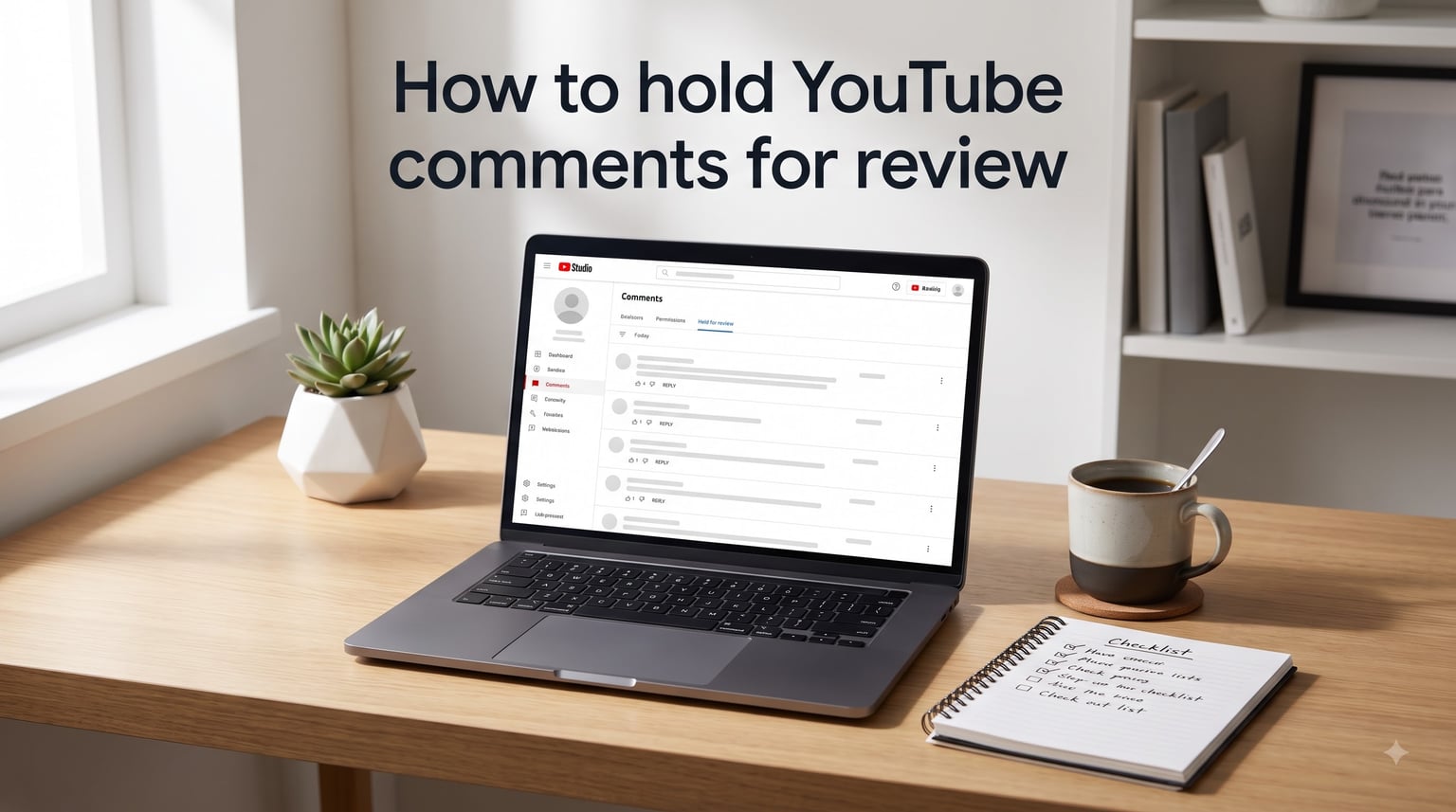
Learning how to hold YouTube comments for review gives you full control over what shows up under your videos. I set this up on my own channel after seeing a flood of unrelated links in the comment section, and the difference was immediate. In this guide, I’ll walk you through every step on desktop and mobile, explain the four moderation levels, and show you how to fix the “hold all” feature when it does not behave the way you expect.
Table of Contents
- What Does “Hold for Review” Mean on YouTube?
- How to Hold YouTube Comments for Review (Desktop Steps)
- How to Hold YouTube Comments for Review on Mobile
- Comment Moderation Levels Explained
- Where to Find and Manage Held Comments in YouTube Studio
- How Long YouTube Keeps Held Comments (60-Day Rule)
- Using the Blocked Words List for Automatic Filtering
- Troubleshooting “Hold All Comments for Review” Not Working
- FAQs
- Final Thoughts on Holding YouTube Comments for Review
What Does “Hold for Review” Mean on YouTube?
“Hold for review” means every comment submitted on your videos is sent to a pending queue inside YouTube Studio before it appears publicly. You then approve, reject, or report each one yourself. Nothing reaches your audience until you let it through.
This is useful when you are a new creator still building a safe space, when a video attracts heated discussion, or when spam bots start targeting older uploads. YouTube also runs its own filter that automatically holds comments flagged as potentially inappropriate, even if you have not enabled full review.
Held comments are kept in YouTube Studio for up to 60 days. If you do not act on them in that window, they are removed automatically and you will not be able to recover them.
How to Hold YouTube Comments for Review (Desktop Steps)
Here is the exact workflow I follow when I need to enable comment review on my channel using YouTube Studio on a computer.
Step 1: Open YouTube Studio. Sign in to YouTube, click your profile picture in the top-right corner, and select “YouTube Studio” from the drop-down menu.
Step 2: Go to Settings. Click “Settings” in the bottom-left corner of the Studio dashboard.
Step 3: Open the Community tab. In the Settings menu, choose “Community.” This is where every comment moderation option lives for your channel.
Step 4: Open the Defaults section. Inside Community settings, click “Defaults” to view the channel-wide comment moderation defaults.
Step 5: Pick “Hold all comments for review.” Under “Moderation,” you will see four options: None, Basic, Hold some, and Hold all. Select “Hold all comments for review.”
Step 6: Save your changes. Click “Save” in the top-right corner. From this point, every new comment on your videos will be held for your approval.
You can change this setting back at any time by returning to the same Defaults section and choosing a different option.
How to Hold YouTube Comments for Review on Mobile
The mobile flow is almost identical but lives in the YouTube app rather than the full Studio website.
Step 1: Open the YouTube app. Tap your profile picture in the top-right corner.
Step 2: Tap “Your channel.” From your profile menu, select “Your channel.”
Step 3: Tap the pencil icon or menu. On Android, tap the three-dot menu and choose “Settings.” On iOS, tap the pencil-style “Edit channel” icon and scroll to settings.
Step 4: Open Defaults. Look for the “Defaults” option, then choose “Community.”
Step 5: Pick your moderation level. Select “Hold all comments for review” under Moderation.
Step 6: Confirm and save. Tap the checkmark or “Save” button to apply your choice.
If the mobile menu does not show all four moderation levels, you may need to finish setup in a desktop browser. Some account types see a simpler mobile interface.
Comment Moderation Levels Explained
YouTube gives you four moderation levels. Each one catches a different amount of content, so picking the right one matters.
None. Comments are not held for review. YouTube still removes comments that break its Community Guidelines, but otherwise anything goes. This is the default for most channels.
Basic. YouTube holds comments that its system flags as potentially inappropriate, plus anything blocked by your blocked words list. Most “normal” comments go live right away.
Hold some. Sometimes labelled “Strict,” this option broadens what YouTube considers potentially inappropriate. More comments are held, and the queue fills up faster. I use this when a video is attracting heated discussion.
Hold all. Every single comment is held for review, period. Nothing goes public until you approve it. This is the strictest option and the one most new creators want.
If you only need basic spam filtering, “Basic” is plenty. If you want full control, “Hold all” is the answer.
Where to Find and Manage Held Comments in YouTube Studio
Once you turn on comment hold, the next question is where do the comments actually appear? You review them inside YouTube Studio under the Comments tab.
Step 1: Go to the Comments dashboard. From the YouTube Studio left menu, click “Comments.”
Step 2: Open the “Held for review” tab. At the top of the Comments dashboard, you will see tabs for “Published,” “Held for review,” and “Likely spam.” Click “Held for review.”
Step 3: Approve, remove, or report. Each held comment has three icons: a check mark to approve, an X to remove, and a flag to report for policy violations. You can also bulk-select by checking the box on the left of each comment.
Step 4: Check “Likely spam” too. Comments that YouTube’s filter is almost sure is spam show up in a separate tab. Review them occasionally because real comments sometimes land here by mistake.
I check my held queue once a day on active channels. On smaller channels, every two to three days is fine as long as you stay inside the 60-day window.
How Long YouTube Keeps Held Comments (60-Day Rule)
YouTube keeps held comments in your review queue for up to 60 days. After that, unapproved comments are deleted permanently.
This means if you ignore the held queue for two months, you will not see those comments again. They are not saved anywhere else. For a channel that receives heavy traffic, this is one of the strongest reasons to check the queue regularly. I have lost count of how many times I have heard new creators say “I never saw those comments” only to find out they had piled up and aged out.
Approved comments move to the “Published” tab and stay there for the lifetime of the video, unless you remove them yourself.
Using the Blocked Words List for Automatic Filtering
The blocked words list is a free text filter that automatically holds any comment containing words or phrases you specify.
Step 1: Go to Settings then Community then Defaults. This is the same path you used to enable comment hold.
Step 2: Find “Blocked words.” Below the moderation selector, you will see a text field labelled “Blocked words.”
Step 3: Add your words. Type any word or phrase you want filtered, one per line. Common examples include brand names you do not want associated with your channel, slurs, or spam trigger words like “free crypto.”
Step 4: Save. Click the “Save” button. Any future comment containing those exact words or phrases will be held automatically, even if your main moderation level is set to “Basic.”
One tip from my own setup: keep the list short at first. Block too many common words and you will hold innocent comments, which frustrates your viewers.
Troubleshooting “Hold All Comments for Review” Not Working
Several Reddit creators complain that they enabled “Hold all comments for review” but comments still appear publicly. I have hit this myself and there are a few common causes.
Channel-level vs video-level settings. The Defaults section sets a channel-wide rule. Individual videos can override it. If even one video has its own comment setting, comments on that video follow the video rule instead of the channel rule. Check the video-level comment settings under each video’s details.
Settings did not save. After changing the moderation level, you must click the “Save” button. Skipping this is the most common reason people think the setting failed.
Age of the video. YouTube sometimes shows comments made before you enabled the setting, even on videos uploaded after. This is normal and only affects the backlog.
Browser or cache issues. If you toggled the setting but never refreshed Studio, you may be looking at a stale view. Refresh the page, then revisit the Comments dashboard.
YouTube Studio mobile vs desktop mismatch. If you set the moderation level in the mobile app and then checked on desktop, give it a few minutes to sync. In my experience the change usually shows up within a minute.
If none of these fix it, double-check that you are signed in to the actual channel account and not a Brand Account with different permissions.
FAQs
How long does YouTube hold comments for review?
YouTube keeps held comments in your review queue for up to 60 days. After 60 days, any comment you have not approved is automatically deleted and cannot be recovered.
How do I see YouTube comments held for review?
Open YouTube Studio, click Comments from the left menu, then click the Held for review tab at the top. You can approve, remove, or report each comment from there.
How do I choose to hold potentially inappropriate comments for review on YouTube?
Go to YouTube Studio Settings, choose Community, open Defaults, and under Moderation select Basic. YouTube will then hold comments its system flags as potentially inappropriate along with anything matching your blocked words list.
How do I hold all comments for review on YouTube mobile?
Open the YouTube app, tap your profile picture, select Your channel, open settings, choose Defaults, then Community, and pick Hold all comments for review under Moderation. Save your change and the setting applies to your channel.
Why are my YouTube comments held for review?
Comments are held because either your channel moderation level is set to Basic, Strict, or Hold all, or the comment contains a word from your blocked words list, or YouTube’s filter flagged it as potentially inappropriate.
Final Thoughts on Holding YouTube Comments for Review
You now know exactly how to hold YouTube comments for review, where to find held comments, and how the four moderation levels differ. Start with “Hold all” if you want full control, then add specific words to your blocked list as patterns appear in your queue. Check the held queue at least once a week so nothing expires past the 60-day window, and remember that video-level settings can override your channel defaults.